⚡ Key Takeaways
- What Determines a Gaming PC’s Power Draw
- Typical Power Draw by Build Tier
- How to Estimate Your Own Power Usage
- What It Actually Costs to Run
- Sizing Your Power Supply Correctly
- Easy Ways to Reduce Power Consumption
- How Power Draw Changes During Play
- Power Beyond the Tower
- Top-Rated Picks
- Related Guides
- Frequently Asked Questions
- Conclusion
- Related Articles
- Your total power consumption is the sum of every component, but two parts dominate the equation: the graphics card and the processor.
- The most accurate way to measure consumption is with a plug-in power meter that sits between your PC and the wall outlet.
- Suppose you game four hours a day on a mid-range PC that averages 350 watts during play.
- Knowing your power draw helps you choose a power supply that's neither underpowered nor wastefully oversized.
If you’ve ever opened your electric bill after a weekend gaming marathon and wondered whether your rig is to blame, you’re not alone. Understanding gaming PC power consumption helps you choose the right power supply, estimate your running costs, and decide whether efficiency upgrades are worth it. The honest answer is that gaming PCs vary enormously, from modest 200-watt builds to high-end machines that pull 600 watts or more under load. This guide explains exactly what draws power, how to estimate your own usage, and what it actually costs to run your system.
As an Amazon Associate we earn from qualifying purchases at no extra cost to you. Product prices and availability are accurate as of the date shown and are subject to change.


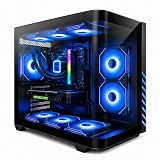
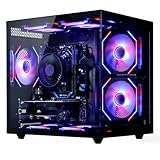


🛒 Best Price Today on Amazon
Prime members get fast, free shipping on everything above, plus member-only deals. New members get a 30-day free trial — cancel anytime.
Quick answer: Our top pick in 2026 is the Entry / esports — our #1 rated choice. See the full ranked comparison, alternatives and buying advice below.
What Determines a Gaming PC’s Power Draw
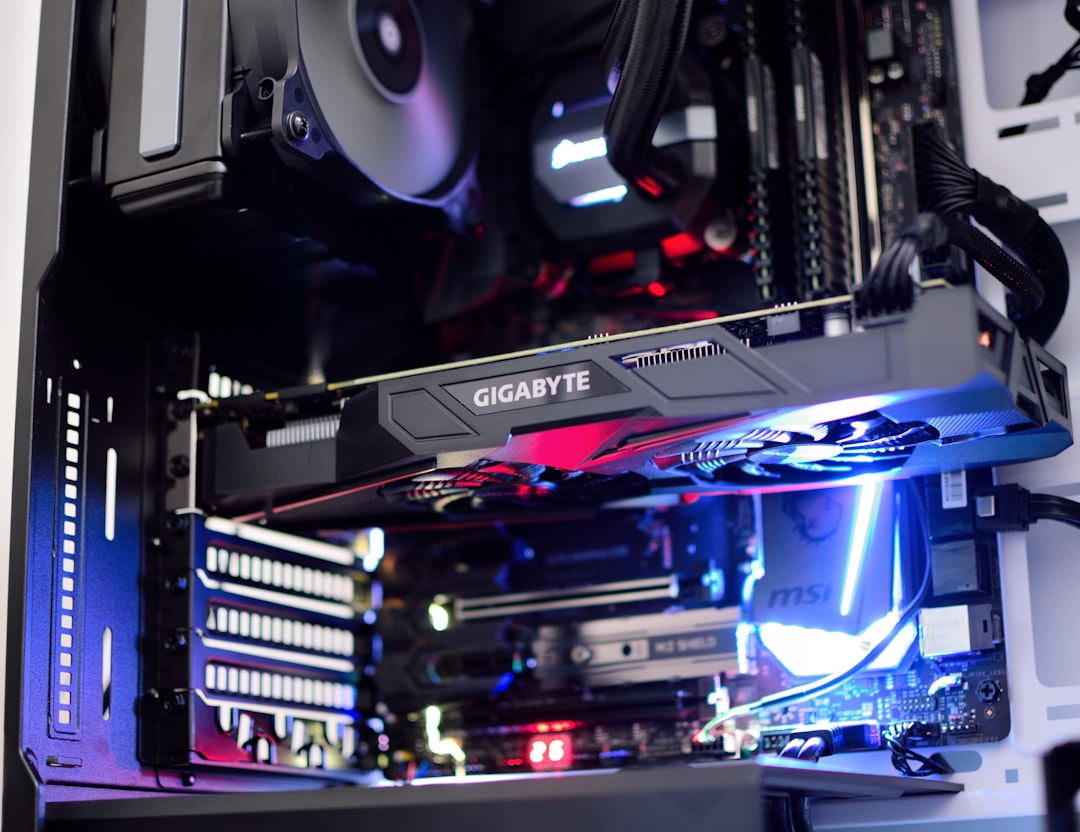
Your total power consumption is the sum of every component, but two parts dominate the equation: the graphics card and the processor. A high-end GPU can draw 300 to 450 watts on its own under full load, while a powerful CPU might add another 100 to 200 watts. Everything else, including the motherboard, RAM, storage, fans, and RGB lighting, typically adds up to a relatively small slice of the total.
Crucially, power draw is not constant. Your PC sips power while idle at the desktop and only ramps up to its maximum when you’re gaming or running demanding workloads. This is why estimating real-world cost requires thinking about how many hours you actually spend at full load versus idling or browsing.
Typical Power Draw by Build Tier
| Build Tier | Idle Draw | Gaming Load | Example Use |
|---|---|---|---|
| Entry / esports | 50–80W | 150–250W | 1080p competitive titles |
| Mid-range | 60–100W | 300–400W | 1440p high settings |
| High-end | 80–120W | 450–600W | 4K, ray tracing |
| Enthusiast / overclocked | 100–150W | 600–800W | 4K max, streaming |
How to Estimate Your Own Power Usage
The most accurate way to measure consumption is with a plug-in power meter that sits between your PC and the wall outlet. It shows real-time wattage so you can see idle, gaming, and peak draw for your specific system. If you don’t have one, you can estimate by adding up the rated power of your GPU and CPU and assuming the rest of the system contributes roughly 80 to 120 watts under load.
To turn watts into cost, use this simple formula: multiply your average wattage by hours used, divide by 1,000 to get kilowatt-hours, then multiply by your electricity rate. For example, a 400-watt average over three hours is 1.2 kWh. At a rate of 15 cents per kWh, that session costs about 18 cents.
What It Actually Costs to Run
Let’s put real numbers to it. Suppose you game four hours a day on a mid-range PC that averages 350 watts during play. That’s 1.4 kWh per day, or roughly 42 kWh per month. At 15 cents per kWh, you’re looking at about $6.30 per month just for gaming sessions, plus a smaller amount for idle and browsing time. Even a power-hungry high-end rig running the same schedule might cost $10 to $12 per month. For most people, a gaming PC is a noticeable but manageable line item, not a budget-buster.
Your local electricity rate is the biggest variable. Gamers in regions with expensive power will pay considerably more than those with cheap rates, so it’s worth checking your own bill to personalize these estimates.
Sizing Your Power Supply Correctly
Knowing your power draw helps you choose a power supply that’s neither underpowered nor wastefully oversized. A good rule of thumb is to total your components’ peak draw and add roughly 30 percent of headroom. That margin handles transient spikes, leaves room for future upgrades, and keeps the PSU operating in its most efficient range. A unit that runs at around 50 to 70 percent of its capacity tends to be most efficient and runs cooler and quieter.
Look for an 80 Plus efficiency rating, which indicates how much wall power actually reaches your components versus being lost as heat. Higher tiers like Gold or Platinum waste less energy, which can pay for itself over years of use and keeps your build cooler.
Easy Ways to Reduce Power Consumption
If you want to trim your usage, several adjustments help without hurting your experience much. Capping your frame rate to match your monitor’s refresh rate prevents the GPU from rendering frames you can’t see, which can dramatically cut power draw. Enabling efficiency features in your GPU driver and using your operating system’s balanced power plan also helps during lighter tasks.
Undervolting your GPU and CPU is a more advanced but highly effective technique. It reduces the voltage supplied to the chip while maintaining performance, lowering both power draw and temperatures. Many enthusiasts undervolt purely for the cooler, quieter operation it provides.
How Power Draw Changes During Play
It’s worth understanding that your PC’s power consumption is constantly shifting based on what’s happening on screen. A graphically intense scene with lots of effects pushes the GPU to its limit and spikes your draw, while a quiet menu or loading screen lets it relax. This is why averaging your wattage over a session gives a far more accurate cost estimate than simply using your components’ maximum rated power, which they rarely sustain for long.
Different game genres also draw different amounts of power. A fast-paced, visually demanding open-world title will keep your hardware working hard, while a lightweight indie game or an older title may barely tax your system at all. If you play a mix of games, your real-world consumption will land somewhere in the middle. This variability is exactly why a plug-in wall meter is so useful: it captures your actual usage patterns rather than a theoretical worst case, giving you numbers you can trust for your own habits.
Power Beyond the Tower
Remember that your PC isn’t the only thing drawing power at your desk. Monitors, speakers, and lighting all add up. A large, bright display can pull a meaningful amount of wattage, so it’s worth choosing an efficient gaming monitor if you leave it on for long stretches. High-refresh panels like a 240Hz 1440p monitor deliver incredible smoothness, and modern models are increasingly efficient for the performance they offer. Accessories like gaming speakers and an RGB light strip draw comparatively little, so they’re rarely worth worrying about from a cost standpoint.
Top-Rated Picks

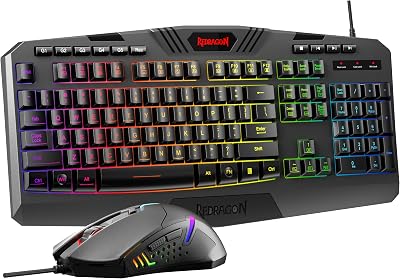


| Product | Brand | Rating | Reviews | Price |
|---|---|---|---|---|
| Redragon K552 Mechanical Gaming Keyboard, 87-Key Comp… | REDRAGON | ★ 4.5 | 51.6k | $36.99 |
| Redragon S101-3 PRO Gaming Keyboard and Mouse, RGB Ba… | REDRAGON | ★ 4.5 | 51.3k | $39.99 |
| HyperX Alloy Origins 60 – Mechanical Gaming Keyboard,… | HyperX | ★ 4.7 | 15.1k | $59.99 |
| Redragon K556 RGB LED Backlit Wired Mechanical Gaming… | REDRAGON | ★ 4.6 | 8.1k | $49.99 |
| RK ROYAL KLUDGE S108 Typewriter Keyboard, Retro Mecha… | RKROYALKLUDGE | ★ 4.6 | 7.7k | $59.99 |
Frequently Asked Questions
How many watts does a gaming PC use per hour?
It depends heavily on the build, but most gaming PCs draw between 200 and 600 watts while gaming. That translates to roughly 0.2 to 0.6 kWh per hour of play. Idle draw is much lower, often under 100 watts.
Does leaving my PC on overnight use a lot of power?
An idle PC draws far less than one under load, often 50 to 120 watts. Over a full night that’s a small amount of energy, but using sleep mode reduces it further to just a few watts. For frequent use, sleep is a good habit.
Does RGB lighting increase my electricity bill?
Barely. RGB fans and strips draw only a few watts total. Compared to your GPU and CPU, lighting is a rounding error on your power bill, so feel free to light up your build.
Will a higher-wattage PSU increase my electricity usage?
No. A power supply only delivers as much power as your components actually demand. A 850-watt PSU running a 400-watt system draws roughly the same from the wall as a 600-watt PSU would. Efficiency rating matters more than capacity for energy cost.
How can I measure my exact power consumption?
Use an inexpensive plug-in wall meter between your PC and the outlet. It shows real-time and accumulated usage so you can see idle, gaming, and peak draw for your specific machine.
Conclusion
Gaming PC power consumption ranges widely, but for most people the monthly cost is modest and predictable. The GPU and CPU dominate your draw, idle time is cheap, and simple steps like capping frame rates or undervolting can shave off meaningful amounts. Measure your own system with a wall meter, size your power supply with sensible headroom, and you’ll have a clear picture of exactly what your rig costs to run.
Ready to decide? Our #1 pick for 2026 is the Entry / esports.
Live price & availability on Amazon.
Top picks from this guide
 sueverysuevery Gaming PC Desktop Computer Ryzen 5,16GB DDR4 512G SSD,…$580 \xc2\xb7 97/100
 ZYNEEXZYNEEX Prebuilt Gaming Desktop PC, AMD Ryzen 5 5500, GeForce…$810 \xc2\xb7 97/100
 HyperXHyperX Alloy Origins 60 - Mechanical Gaming Keyboard, Ultra Compact…$80 \xc2\xb7 97/100
 STGAubronSTGAubron Gaming PC Desktop,Core I7,RX 580 8G,16G RAM,512G SSD$500 \xc2\xb7 96/100