⚡ Key Takeaways
- Why Updating Graphics Drivers Matters
- How to Identify Your Graphics Card
- The Best Way to Update: Manufacturer Software
- Driver Update Methods Compared
- When a Clean Installation Is the Right Call
- Common Mistakes to Avoid
- How to Roll Back a Problematic Driver
- How Often Should You Update?
- Top-Rated Picks
- Related Guides
- Frequently Asked Questions
- Conclusion
- Related Articles
- Related Guides
- Your graphics driver is the software that lets your operating system and games communicate with your GPU.
- Before updating, you need to know which GPU you have.
- The cleanest method is to use the official software from your GPU's manufacturer.
- Most of the time, a standard driver update works perfectly.
Few maintenance tasks deliver as much benefit for as little effort as keeping your graphics drivers current. If you’ve been wondering how to update GPU drivers the right way, you’re already ahead of many gamers who never touch them until something breaks. Fresh drivers unlock performance improvements in new games, fix bugs and crashes, and add features that the hardware was always capable of. This guide walks you through updating your drivers cleanly, avoiding the common pitfalls, and knowing exactly when and why to do it.
As an Amazon Associate we earn from qualifying purchases at no extra cost to you. Product prices and availability are accurate as of the date shown and are subject to change.



🛒 Best Price Today on Amazon
Prime members get fast, free shipping on everything above, plus member-only deals. New members get a 30-day free trial — cancel anytime.
Quick answer: Our top pick in 2026 is the Manufacturer app — our #1 rated choice. See the full ranked comparison, alternatives and buying advice below.
Why Updating Graphics Drivers Matters
Your graphics driver is the software that lets your operating system and games communicate with your GPU. GPU manufacturers release updates regularly, often timed to coincide with major game launches. These updates can deliver meaningful frame rate improvements, sometimes double-digit percentages in specific titles, simply by optimizing how the driver handles that game.
Beyond raw performance, driver updates fix stability problems, eliminate graphical glitches, patch security vulnerabilities, and add support for new features and display technologies. Running a driver that’s a year or two old can mean missing out on free performance and dealing with bugs that were fixed long ago. Keeping drivers current is one of the easiest ways to get the most from your hardware.
How to Identify Your Graphics Card
Before updating, you need to know which GPU you have. You can find this in your operating system’s device manager or display settings, which lists the exact model. Knowing whether you have an NVIDIA, AMD, or Intel graphics card determines which driver software you’ll use, since each manufacturer provides its own.
If you’re not sure, free system information tools display your GPU model clearly. Once you know the manufacturer and model, you can head to the correct source for the latest driver. Getting this right matters because installing the wrong driver can cause display problems.
The Best Way to Update: Manufacturer Software
The cleanest method is to use the official software from your GPU’s manufacturer. Each of the three major GPU makers offers a dedicated application that detects your card, notifies you of new drivers, and installs them with a click. These apps also let you choose between a standard installation and a clean installation that wipes old driver files first.
This is the recommended approach for most people because the software handles compatibility automatically and offers game-specific optimizations. It also provides easy access to features like performance overlays, recording, and tuning, all of which depend on having current drivers installed.
Driver Update Methods Compared
| Method | Ease | Reliability | Best For |
|---|---|---|---|
| Manufacturer app | Very easy | High | Most gamers |
| Manual download from website | Moderate | High | Specific driver versions |
| Clean install with DDU | Advanced | Very high | Fixing driver issues |
| Windows Update | Automatic | Moderate | Basic functionality only |
When a Clean Installation Is the Right Call
Most of the time, a standard driver update works perfectly. But if you’re experiencing crashes, stuttering, or strange graphical artifacts, or if you’re switching from one GPU brand to another, a clean installation is the way to go. A clean install removes all traces of the old driver before installing the new one, eliminating leftover files that can cause conflicts.
For stubborn problems, a dedicated removal utility wipes every remnant of the previous driver, typically run in safe mode for thoroughness. After that, you install the fresh driver onto a completely clean slate. This process resolves the majority of driver-related issues that a simple update can’t fix.
Common Mistakes to Avoid
A few pitfalls trip people up. Relying solely on Windows Update for graphics drivers is a mistake, as those versions are often outdated and lack game optimizations. Downloading drivers from third-party sites is risky and can introduce malware, so always use the official manufacturer source. And updating drivers in the middle of a gaming session is unwise; close your games first and be prepared for the screen to flicker during installation.
It’s also worth resisting the urge to update on launch day for every single release. While staying current is good, occasionally a brand-new driver introduces a regression. Many gamers wait a day or two after a major release to confirm it’s stable before installing.
Another overlooked mistake is forgetting to restart after an installation. Some driver updates don’t fully take effect until you reboot, and skipping that step can leave you with display glitches or features that won’t activate. If you notice odd behavior right after updating, a quick restart resolves it more often than not. Similarly, having a previous driver version on hand before you update gives you an easy fallback, so it’s wise not to delete older installers immediately.
How to Roll Back a Problematic Driver
Occasionally a new driver introduces a problem in a specific game, such as a crash or a drop in performance. Fortunately, undoing the update is straightforward. Your operating system’s device manager includes a roll-back option that reverts to the previously installed driver with a couple of clicks. Alternatively, you can download an older driver version directly from the manufacturer’s website and perform a clean installation to return to a known-good state.
It’s a good habit to note which driver version you’re running before a major update, so you know exactly what to roll back to if something goes wrong. Most of the time updates are smooth, but knowing how to reverse one removes any anxiety about staying current. This safety net is one reason the manufacturer’s own software is so convenient, since it keeps track of versions and makes switching between them painless.
How Often Should You Update?
You don’t need to chase every release. A sensible rhythm is to update when a game you play gets a specific optimization, when you’re troubleshooting a problem, or roughly every month or two to stay reasonably current. If your system is running perfectly and you’re not playing the latest releases, there’s no harm in updating less frequently. The phrase “if it isn’t broken, don’t fix it” has some merit with drivers, balanced against the real benefits of staying current.
Keeping drivers updated ensures your hardware delivers the smooth frame rates that make a great gaming monitor shine. Players pushing high refresh rates on a 240Hz 1440p monitor especially benefit from optimized drivers that squeeze out every available frame. Current drivers also keep features like audio routing to your gaming speakers working reliably across updates.
Top-Rated Picks

Prime
Best Seller
Graphics Card GPU Brace Support, Video Card Sag Holder Bracket, GPU Stand (L, 74-120mm)


| Product | Brand | Rating | Reviews | Price |
|---|---|---|---|---|
| Graphics Card GPU Brace Support, Video Card Sag Holde… | nkomax | ★ 4.7 | 8.4k | $8.99 |
| msi Gaming GeForce GT 710, Graphics Card, Desktop, HD… | — | ★ 4.4 | 4.8k | $74.99 |
| AMD Ryzen 5 8600G | — | ★ 4.8 | 1.2k | $186.00 |
| maxsun AMD Radeon RX 550 4GB GDDR5 ITX Computer PC Ga… | MAXSUN | ★ 4.4 | 1.7k | $109.99 |
| ASUS ROG Loki SFX-L 1200W Titanium PSU (Fully Modular… | — | ★ 4.6 | 1k | $239.99 |
Frequently Asked Questions
How do I know if my graphics drivers need updating?
The manufacturer’s software will notify you when a new driver is available. You can also check your current driver version in display settings and compare it to the latest version on the manufacturer’s website. If a game you play just received an optimization, that’s a good time to update.
Will updating my GPU driver improve performance?
Often yes, especially in newer games that receive specific optimizations. Improvements range from minor to significant depending on the title. Updates also fix bugs and add features, so the benefits go beyond raw frame rate.
Should I use Windows Update for graphics drivers?
It’s fine for basic functionality, but the versions are usually outdated and lack game optimizations. For the best experience, use the official manufacturer software or download directly from their website instead.
What is DDU and when should I use it?
Display Driver Uninstaller is a tool that completely removes existing GPU drivers. Use it when you’re troubleshooting persistent crashes or artifacts, or when switching between GPU brands, to ensure a truly clean installation.
Can a driver update cause problems?
Occasionally a new driver introduces a regression in a specific game. If that happens, you can roll back to the previous version. Waiting a day or two after a major release helps you avoid rare launch-day issues.
Conclusion
Updating your GPU drivers is a simple habit that pays off in better performance, fewer bugs, and access to new features. Use the official manufacturer software for the easiest experience, perform a clean installation when troubleshooting or switching brands, and avoid sketchy third-party sources. Update with a sensible rhythm rather than chasing every release, and your graphics card will consistently deliver its best.
Ready to decide? Our #1 pick for 2026 is the Manufacturer app.
Live price & availability on Amazon.
Top picks from this guide
 ASUSASUS Dual GeForce RTX 3050 6GB GDDR6 OC Edition Gaming…$257 \xc2\xb7 99/100
 nkomaxGraphics Card GPU Brace Support, Video Card Sag Holder Bracket,…$9 \xc2\xb7 98/100
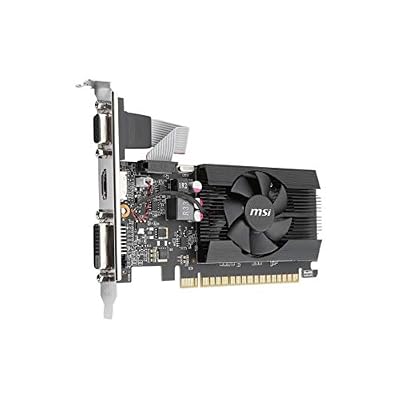 msimsi Gaming GeForce GT 710, Graphics Card, Desktop, HDMI/VGA/DVI -…$75 \xc2\xb7 98/100
 maxsunmaxsun AMD Radeon RX 550 4GB GDDR5 ITX Computer PC…$113 \xc2\xb7 97/100