⚡ Key Takeaways


As an Amazon Associate we earn from qualifying purchases at no extra cost to you. Product prices and availability are accurate as of the date shown and are subject to change.


![Need for Speed Most Wanted - Standard Edition - Origin PC [Online Game Code]](https://m.media-amazon.com/images/I/51kgBwdR0PL._SL160_.jpg)


- Before fixing anything, understand what you're seeing.
- Work through these roughly in order, testing after each change so you know what actually helped.
- If stutter persists after the basics, use the table below to match your symptom to its likely cause.
- A growing cause of stutter in modern titles is shader compilation.
Few problems are as frustrating as PC stuttering in games when your hardware should clearly be fast enough. You glance at the frame counter and it reads a healthy 120 fps, yet the game feels jerky, with periodic hitches that break immersion and ruin your aim. Stuttering is different from a low frame rate; it’s about inconsistent frame delivery, where individual frames take far too long to render. The good news is that stutter almost always traces back to a handful of identifiable causes. This guide walks through nine fixes, from the most common to the more obscure.
Related: best gaming PC upgrade kits.
Related: fixing RGB not detected.
🛒 Best Price Today on Amazon
Prime members get fast, free shipping on everything above, plus member-only deals. New members get a 30-day free trial — cancel anytime.
Quick answer: Our top pick in 2026 is the Regular hitch every few seconds — our #1 rated choice. See the full ranked comparison, alternatives and buying advice below.
Understanding Stutter vs. Low FPS
Before fixing anything, understand what you’re seeing. A consistently low frame rate produces smooth-but-slow motion. Stutter, by contrast, is a spike in frame time: most frames render in, say, 8 milliseconds, but one suddenly takes 50 milliseconds, causing a visible hitch. Monitoring frame time rather than average fps with a tool like CapFrameX or your GPU overlay reveals these spikes clearly. Identifying whether your stutter is regular (every few seconds) or random helps narrow the cause dramatically.
The Nine Fixes
Work through these roughly in order, testing after each change so you know what actually helped.
- Update your GPU drivers. Outdated or corrupted graphics drivers are the single most common cause of stutter. Use a clean install option to wipe old files first.
- Enable your RAM’s EXPO or XMP profile. If memory runs at a slow default speed, the CPU starves for data and stutters. This BIOS toggle is frequently forgotten by new builders.
- Turn off in-game V-Sync and use a frame cap instead. Traditional V-Sync can introduce stutter. Cap your frame rate a few fps below your monitor’s refresh rate instead.
- Enable Resizable BAR. This BIOS feature lets the CPU access the full GPU memory at once and can smooth frame delivery in modern games.
- Disable background apps. Browsers, overlays, and especially aggressive RGB or capture software steal CPU cycles at random intervals, causing micro-stutter.
- Move the game to an NVMe SSD. Games on a slow hard drive stutter badly when streaming assets. An SSD is essential for modern open-world titles.
- Set Windows to High Performance and disable Game Bar. Power-saving modes can downclock your CPU mid-game, and some Xbox Game Bar features cause hitches.
- Check your thermals. An overheating CPU or GPU throttles its clock speed, producing periodic stutter. Monitor temperatures during a session.
- Lower shadow and texture settings. If you’re exceeding your VRAM, the game stutters as it swaps assets. Drop textures one notch and watch for improvement.
Pinpointing the Culprit
If stutter persists after the basics, use the table below to match your symptom to its likely cause.
| Symptom | Likely Cause | First Fix to Try |
|---|---|---|
| Regular hitch every few seconds | Background process or shader compilation | Close apps, let shaders pre-compile |
| Stutter when entering new areas | Slow storage or VRAM limit | Move game to SSD, lower textures |
| Stutter that worsens over time | Thermal throttling | Check and improve cooling |
| Stutter only with V-Sync on | V-Sync frame pacing | Use a frame cap instead |
| Random hitches at high fps | Slow RAM or driver issue | Enable EXPO/XMP, update drivers |
Shader Compilation Stutter
A growing cause of stutter in modern titles is shader compilation. The first time a game renders a new effect, it must compile the shader, which can cause a one-time hitch. Many games now offer a “compile shaders” step at launch or in the settings menu. Run it before playing. This explains why a game stutters during your first hour but smooths out afterward, as the shader cache fills in. Keeping your GPU drivers current also helps, since drivers ship optimized shader caches for popular games.
Using Frame-Time Graphs to Diagnose
The single most useful skill for hunting stutter is reading a frame-time graph rather than watching the average frame-rate counter. Average fps hides the problem; a game running at 120 fps average can still deliver an awful experience if frame times are spiking. A frame-time graph plots how long each individual frame takes to render, and stutter shows up as tall, sharp spikes rising above an otherwise flat line. Tools like CapFrameX, PresentMon, or the overlay in your GPU software can display this in real time.
Once you can see the spikes, their pattern tells you the cause. Evenly spaced spikes every few seconds usually point to a background process waking up, shader compilation, or a memory issue. Spikes that cluster when you move into a new area suggest asset streaming from slow storage or a VRAM ceiling. Spikes that grow worse the longer you play almost always mean thermal throttling. Learning to correlate the shape of the graph with what’s happening on screen turns vague frustration into a precise diagnosis you can act on.
CPU and GPU Bottlenecks as a Cause
Stutter sometimes traces back to a hardware imbalance rather than a setting. A CPU that can’t keep pace with a much stronger GPU produces frame-time spikes in CPU-heavy moments, such as large open-world areas, dense crowds of characters, or simulation-intensive titles. You can confirm this by watching CPU usage during stutters; if one or more cores are pinned at 100 percent while the GPU sits below full utilization, the CPU is the limiter. In these cases, lowering CPU-bound settings like draw distance, crowd density, and shadow detail often helps more than touching graphics options.
The reverse, a GPU bottleneck, is the normal and desirable state for gaming, since you want your graphics card working hard. The problem only arises when the imbalance is severe enough to cause inconsistent pacing. When building or upgrading, pairing a CPU and GPU of roughly matched tiers avoids this scenario entirely, which is why balanced builds feel smoother than lopsided ones even at the same average frame rate.
When the Problem Is Your Display
Sometimes what feels like stutter is actually a mismatch between your frame rate and your monitor. Without variable refresh rate (VRR) technology, frame-rate fluctuations produce judder and tearing that resemble stutter. Enabling G-Sync or FreeSync synchronizes your display to your GPU’s output and eliminates this. If you’re shopping for a new panel, a quality gaming monitor with VRR support is the single best upgrade for perceived smoothness, and a high-refresh 240Hz 1440p monitor gives frame-rate fluctuations far less visible impact. A clean cable run via a monitor arm also helps you keep DisplayPort cables seated, since a flaky cable can cause dropped frames.
Frequently Asked Questions
Why does my PC stutter even with high FPS?
High average fps with stutter means inconsistent frame times, not a lack of power. The usual culprits are slow RAM running at default speed, background processes, driver issues, or shader compilation rather than a weak GPU.
Does more RAM fix stuttering?
Sometimes. If you’re running out of system RAM (16GB is now the practical minimum, 32GB is comfortable), adding more helps. But running existing RAM at its rated speed via EXPO or XMP often matters more than raw capacity.
Can a CPU bottleneck cause stutter?
Yes. A CPU that can’t keep up, often paired with a much stronger GPU, produces stutter and frame-time spikes, especially in CPU-heavy games like simulators and large open worlds. Monitor CPU usage to confirm.
Why does a brand-new game stutter at first?
Almost always shader compilation. The game compiles effects on first use, causing hitches that fade as the cache fills. Use any in-game “compile shaders” option to do this upfront.
Will reinstalling Windows fix stutter?
It’s a last resort that can help if software corruption or accumulated background bloat is the cause. Try a clean GPU driver install first, which solves most software-related stutter without a full reinstall.
Conclusion
Stuttering in games is rarely a sign of weak hardware and almost always a solvable configuration issue. Start with clean drivers, enable your memory profile, swap V-Sync for a frame cap, and ensure your games live on an SSD. Then chase thermals, background apps, and VRR. Work methodically, test after each change, and you’ll restore the buttery-smooth frame delivery your hardware is fully capable of.
Related: Beat the Summer Heatwave: Best PC Games to Play Indoors in 2026
Ready to decide? Our #1 pick for 2026 is the Regular hitch every few seconds.
Live price & availability on Amazon.
Top picks from this guide
 RazerRazer Wolverine V3 Pro 8K PC Wireless Gaming Controller, Black$160 \xc2\xb7 99/100
 N-GEN GAMINGN-GEN GAMING Gaming Chair with Footrest, Lumbar Support, High-Back, Black$106 \xc2\xb7 98/100
 VonesseVonesse Gaming Chair, Computer Office Chair with Footrest, Reclining Gaming…$160 \xc2\xb7 98/100
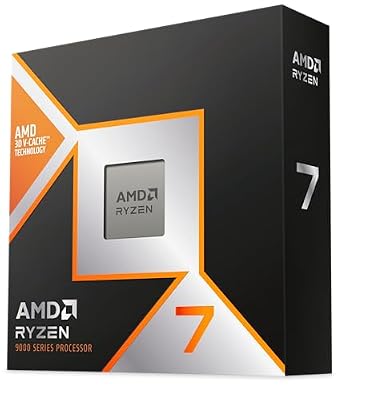 AMDAMD RYZEN 7 9800X3D 8-Core, 16-Thread Desktop Processor$440 \xc2\xb7 97/100