⚡ Key Takeaways
- What Counts as a Normal CPU Temperature
- Normal CPU Temperature Ranges
- Why CPUs Run Hot While Gaming
- How to Monitor Your CPU Temperature
- What to Do If Your CPU Runs Too Hot
- Understanding Thermal Throttling
- Ambient Temperature and Airflow Matter Too
- Keeping Temperatures in Check
- Related Guides
- Frequently Asked Questions
- Conclusion
- Related Articles




As an Amazon Associate we earn from qualifying purchases at no extra cost to you. Product prices and availability are accurate as of the date shown and are subject to change.



- CPU temperatures depend on whether your system is idle or under load.
- When you game, your CPU processes physics, AI, and game logic at high speeds, generating heat as a byproduct of all that computation.
- You can't manage what you don't measure.
- If your temperatures are consistently in the danger zone, several fixes usually solve the problem.
If you’ve ever glanced at a monitoring app mid-game and seen your processor reading 75°C, you might wonder whether that’s fine or a sign of trouble. Knowing what counts as a normal CPU temp gaming reading is one of the most useful pieces of knowledge a PC owner can have. The truth is that modern processors are designed to run hot under load, and the numbers that alarm beginners are often completely healthy. This guide explains what temperatures are normal, what’s too hot, how to monitor your CPU, and what to do if your readings climb higher than they should.
Related: best CPU coolers for gaming.
🛒 Best Price Today on Amazon
Prime members get fast, free shipping on everything above, plus member-only deals. New members get a 30-day free trial — cancel anytime.
Quick answer: Our top pick in 2026 is the Idle (desktop) — our #1 rated choice. See the full ranked comparison, alternatives and buying advice below.
What Counts as a Normal CPU Temperature
CPU temperatures depend on whether your system is idle or under load. At idle, with just the desktop open, a healthy CPU typically sits between 30°C and 45°C. During gaming, when the processor is working hard, temperatures of 60°C to 80°C are completely normal and nothing to worry about. Many CPUs are rated to run safely up to around 95°C to 100°C before they throttle to protect themselves.
In other words, seeing your CPU hit 75°C while gaming is not a problem; it’s expected. The danger zone only begins when you’re consistently bumping against the 90°C-plus range under normal gaming loads, which suggests a cooling issue worth investigating.
Normal CPU Temperature Ranges
| State | Temperature | What It Means |
|---|---|---|
| Idle (desktop) | 30–45°C | Healthy, cooling working well |
| Light tasks | 40–60°C | Normal for browsing/media |
| Gaming load | 60–80°C | Completely normal |
| Heavy load / stress | 80–90°C | Acceptable but warm |
| 90–100°C | Too hot | Throttling likely, investigate |
Why CPUs Run Hot While Gaming
It helps to understand why temperatures rise. When you game, your CPU processes physics, AI, and game logic at high speeds, generating heat as a byproduct of all that computation. Modern processors also boost their clock speeds aggressively whenever thermal headroom allows, which means they’ll happily run warm to deliver more performance. A CPU sitting at 80°C under load is often just doing its job efficiently.
This is by design. Manufacturers build in generous thermal limits precisely so the chip can push performance right up to the edge of what your cooling allows. As long as you’re below the throttling threshold, higher temperatures within the normal range don’t shorten your CPU’s life in any meaningful way.
How to Monitor Your CPU Temperature
You can’t manage what you don’t measure. Free monitoring tools display your CPU temperature in real time, and many let you log readings during a gaming session so you can spot the peak. Popular options show per-core temperatures, clock speeds, and usage all in one window. Some games and overlay tools can even put the temperature on screen while you play.
The best practice is to run a monitor during a typical gaming session and note the highest sustained temperature. A brief spike to 85°C during a loading screen isn’t a concern, but if your CPU sits at 90°C for the entire session, that’s the number to act on.
What to Do If Your CPU Runs Too Hot
If your temperatures are consistently in the danger zone, several fixes usually solve the problem. Start with the simplest: clean the dust out of your cooler and case fans, since clogged fins are the most common cause of rising temperatures over time. Make sure your case has good airflow with clear intake and exhaust paths.
If cleaning doesn’t help, the next step is often reapplying thermal paste between the CPU and cooler, as old paste dries out and loses effectiveness after a few years. Finally, an undersized or poorly mounted cooler can be the culprit. Upgrading to a better cooler, or simply reseating the existing one, frequently brings temperatures down dramatically.
Understanding Thermal Throttling
When a CPU reaches its maximum safe temperature, it deliberately slows itself down to avoid damage. This is called thermal throttling, and it’s a safety feature, not a failure. The downside is reduced performance: your frame rates may drop or stutter as the chip backs off its clock speed. If you notice performance dipping during long sessions, throttling from heat is a likely cause, and improving cooling will restore your full performance.
Throttling won’t destroy your CPU, but it does mean you’re leaving performance on the table. Keeping temperatures comfortably below the limit ensures your processor maintains its full speed throughout your session.
There’s a related point worth knowing: a CPU running near its thermal limit will often boost less aggressively even before full throttling kicks in. Modern processors continuously adjust their clock speeds based on available thermal headroom, so cooler temperatures can actually unlock slightly higher sustained performance. This is why enthusiasts invest in better cooling even when they’re not technically throttling. A cool, well-ventilated system simply lets your CPU stretch its legs and hold higher clocks for longer, which translates into more consistent frame rates during demanding moments.
Ambient Temperature and Airflow Matter Too
One factor people often overlook is the temperature of the room itself. Your CPU cooler can only make your processor as cool as the air it pulls in, so a hot room raises your temperatures across the board. If your readings climb noticeably in summer or in a warm, enclosed space, the room is likely the culprit rather than a failing cooler. Improving the airflow in your space, or simply gaming in a cooler room, can shave several degrees off your peaks.
Case airflow works hand in hand with ambient temperature. A case starved of intake or exhaust traps heat inside, and that hot internal air gets recycled through your cooler. Make sure your case has a clear path for cool air to enter the front and hot air to leave the rear and top. Even an excellent cooler will struggle inside a poorly ventilated case, so think of cooling as a whole-system effort rather than a single component.
Keeping Temperatures in Check
Good thermal management is part of a well-rounded build. Steady CPU temperatures mean steady frame rates, which you’ll appreciate most on a fast gaming monitor where consistency matters. Competitive players on a 240Hz 1440p monitor particularly benefit from a CPU that holds its clocks without throttling. And quiet, well-cooled systems pair nicely with gaming speakers when your fans aren’t screaming to keep up with a hot processor.
Frequently Asked Questions
Is 80°C safe for a CPU while gaming?
Yes, 80°C is a normal and safe temperature for a CPU under gaming load. Most processors are rated to run safely up to 95–100°C before throttling. You only need to worry if you’re consistently near that upper limit during normal play.
What temperature is too hot for a gaming CPU?
Consistently running at 90–100°C during normal gaming is too hot and usually points to a cooling problem. Brief spikes are fine, but sustained temperatures near the throttling threshold mean it’s time to clean, reapply thermal paste, or improve airflow.
Does a high CPU temperature damage my processor?
Within the normal range it does not. CPUs have built-in protection that throttles or shuts down before damage occurs. Sustained operation at the maximum limit can shorten lifespan over many years, but staying below the throttle point keeps your chip safe.
How can I lower my CPU temperature?
Clean dust from your cooler and fans, ensure good case airflow, reapply thermal paste if it’s a few years old, and consider a better cooler if needs persist. Reseating the existing cooler often helps too.
Why does my CPU temperature spike then drop quickly?
Brief spikes are normal as the CPU boosts for short bursts during loading or heavy moments, then settles. As long as the sustained temperature during gameplay stays in the normal range, momentary spikes are nothing to worry about.
Conclusion
A normal CPU temp while gaming sits comfortably in the 60°C to 80°C range, and readings that alarm newcomers are usually perfectly healthy. The real warning sign is sustained operation near 90°C or higher, which points to dust, dried thermal paste, or inadequate cooling. Monitor your peak temperatures during a typical session, keep your cooler clean, and your CPU will run cool, fast, and stable for years to come.
Ready to decide? Our #1 pick for 2026 is the Idle (desktop).
Live price & availability on Amazon.
Top picks from this guide
 HyperXHyperX Alloy Origins 60 - Mechanical Gaming Keyboard, Ultra Compact…$80 \xc2\xb7 97/100
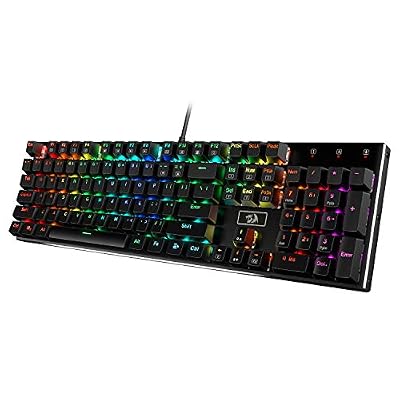 RedragonRedragon K556 Wired RGB Mechanical Gaming Keyboard, 104-Key Aluminum Board$47 \xc2\xb7 95/100
 RedragonRedragon S101-3 PRO Gaming Keyboard and Mouse, RGB Backlit Programmable…$40 \xc2\xb7 95/100
 RedragonRedragon K552 Mechanical Keyboard, LED Gaming Keyboard with Red Switches$37 \xc2\xb7 95/100