🛒 Best Price Today on Amazon
Prime members get fast, free shipping on everything above, plus member-only deals. New members get a 30-day free trial — cancel anytime.
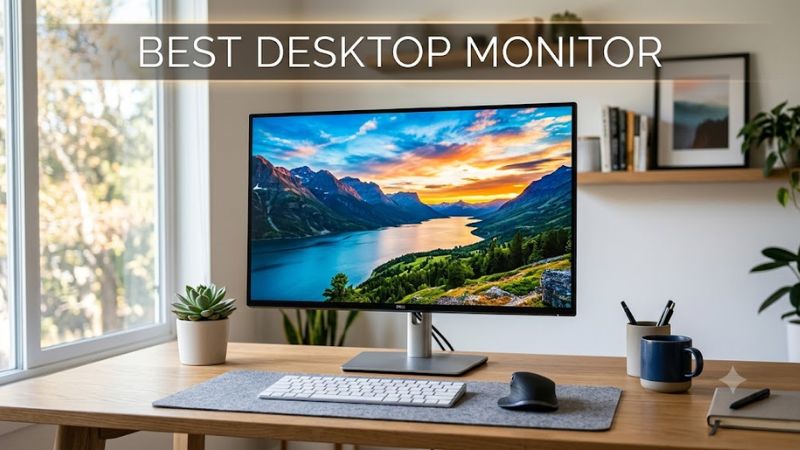
Choosing the best desktop monitor starts with how you use your PC, not simply the highest resolution or refresh rate on the box. A display for competitive gaming has different priorities from one used for office work, creative projects, and entertainment. The right choice balances image quality, responsiveness, desk space, connectivity, and the capabilities of your graphics card.
How to Choose a Desktop Monitor
A good buying decision begins with four considerations: resolution, refresh rate, panel technology, and compatibility. These factors affect image sharpness, motion clarity, contrast, and whether your computer can drive the display at its advertised settings. Independent monitor roundups from RTINGS, PCWorld, and Tom’s Guide also distinguish recommendations by budget and intended use.
Resolution and Screen Size
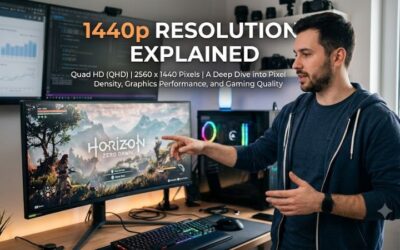
Resolution determines how much detail a display can show. Full HD at 1920 × 1080 suits budget systems and competitive games, while 2560 × 1440 offers a useful balance of sharpness and performance on many 27-inch monitors. 4K at 3840 × 2160 produces finer detail for creative work, high-resolution games, and large desktop workspaces, but it demands more graphics processing power when gaming at native resolution.
Screen size should complement resolution and viewing distance. A 24-inch Full HD monitor is a sensible choice for a compact desk, while a 27-inch 1440p display gives text and game environments more room without requiring an especially large workspace. A 32-inch 4K model can suit immersive gaming and detailed creative tasks, provided your desk accommodates its width and viewing distance.
Refresh Rate and Response Time
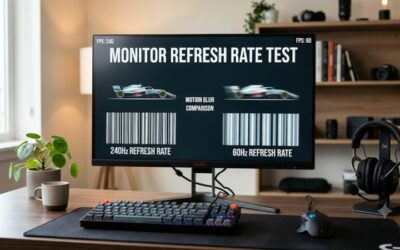
Refresh rate measures how many times the display can update each second. A 60Hz or 75Hz screen can handle everyday computing, but 144Hz and higher refresh rates make fast motion appear smoother when the computer can deliver enough frames. Competitive players may benefit from 240Hz or faster displays, although the improvement depends on the game, frame rate, and individual sensitivity to motion.
Response time describes how quickly pixels change between shades or colors, affecting motion smearing and ghosting. Manufacturer response-time figures often depend on specific overdrive modes, so they should not be compared without context. Look for independent measurements of motion handling and input lag rather than assuming a lower advertised millisecond figure automatically means better performance.
Panel Technology and Image Quality
IPS panels generally offer wide viewing angles and consistent colors, making them versatile for work and gaming. VA panels often provide deeper native contrast than conventional IPS displays, although dark transitions can produce visible smearing on some models. OLED panels deliver very deep blacks and rapid pixel transitions, making them attractive for cinematic games, but their cost and potential burn-in require consideration.
HDR support also varies considerably. A monitor that accepts an HDR signal does not necessarily deliver strong highlights or convincing dark-scene detail. Check measured brightness, contrast, local-dimming capability, and the display’s certification before paying more for HDR. For color-sensitive work, prioritize independently measured color accuracy and gamut coverage, alongside calibration options and the software you use.
Compatibility, Ports, and Ergonomics
Check your graphics card’s available HDMI and DisplayPort outputs against the monitor’s inputs and required bandwidth. Reaching a display’s maximum resolution and refresh rate may depend on the exact port version, cable, color format, and graphics hardware. Adaptive-sync support can also vary by connection and implementation, so verify the manufacturer’s compatibility information before buying.
Consider the stand, VESA mounting support, USB hub, speakers, and USB-C power delivery if those features matter to your desk. A height-adjustable stand can improve positioning, while USB-C video and charging can simplify a compatible laptop setup. For a desktop gaming PC, prioritize the connections you will actually use rather than paying for laptop-oriented extras.
Top Picks: Monitors for Different Needs
The right shortlist should cover everyday value, competitive gaming, and premium image quality without assuming every buyer needs expensive hardware. The following recommendations use published manufacturer specifications and current independent buying guides as reference points. They are not based on PC Gaming Universe lab measurements, and prices should be checked with US retailers because promotions and availability change.
| Product | Best For | Key Spec | Compatibility | Watch Out For |
| MSI MAG 274QPF X30MV | Best Overall for high-speed gaming | 27-inch 1440p, 300Hz Mini-LED | Compatible PC with suitable DisplayPort or HDMI output | Requires substantial GPU performance to benefit fully |
| Dell 27 Plus S2725DSM | Best Value | 27-inch 1440p, 144Hz IPS | PC with compatible HDMI or DisplayPort connection | Not a 4K display; verify port-specific refresh limits |
| Alienware AW2726DM | Best For OLED gaming on a budget | OLED gaming category; verify exact regional specifications | PC output and cable must support the chosen mode | Check current price, warranty, and burn-in coverage |
| MSI MPG 322URX QD-OLED X24 | Best For premium 4K gaming | 4K QD-OLED gaming display | Suitable GPU and compatible high-bandwidth video connection | Higher cost and OLED care considerations |
Best Overall: MSI MAG 274QPF X30MV
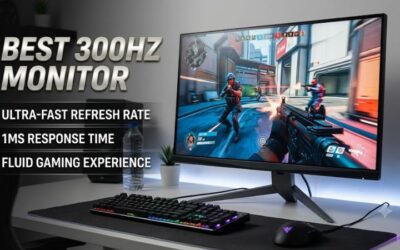
The MSI MAG 274QPF X30MV is a strong candidate for players who want high refresh rates without moving to a lower-resolution Full HD screen. MSI lists a 27-inch Rapid VA panel, 2560 × 1440 resolution, a 300Hz refresh rate, Mini-LED backlighting with 1,152 local-dimming zones, and VESA DisplayHDR 1000 certification. These features combine speed with more sophisticated backlighting than a conventional edge-lit LCD.
Its main limitation is the system needed to make full use of it. A game must render enough frames to benefit from a 300Hz refresh rate, and demanding titles may require reduced graphics settings to approach that target. Rapid VA can also exhibit dark-transition smearing depending on the operating mode. Buyers focused on image quality rather than competitive play should compare motion handling, HDR measurements, and local-dimming behavior before choosing it over an OLED alternative.
Best Value: Dell 27 Plus S2725DSM
The Dell 27 Plus S2725DSM is worth considering for users who want a modern desktop display for work, browsing, and casual gaming without paying for a flagship panel. Published specifications identify a 27-inch QHD IPS screen with a 144Hz refresh rate, making it a practical middle ground between basic office displays and expensive gaming models. Its resolution offers a useful workspace for documents, multiple windows, and detailed game environments.
The trade-off is that this is not a 4K display, and buyers seeking deep OLED blacks or advanced HDR should look elsewhere. Before purchasing, confirm the supported refresh rate for the exact input and cable combination, as well as the stand adjustments included in the regional model. It makes the most sense for someone who values everyday versatility and smoother motion more than specialist gaming features or professional color workflows.
Best For OLED Gaming on a Budget: Alienware AW2726DM
The Alienware AW2726DM appears in current 2026 monitor recommendations as a value-oriented gaming option, with Tom’s Guide listing an asking price of $349. Its appeal is aimed at buyers seeking a more responsive gaming display without automatically spending flagship-monitor money. Check the manufacturer’s regional product page for the exact panel technology, resolution, refresh rate, and connectivity before treating it as an OLED purchase.
That specification check matters because a model’s marketing category or price does not establish its panel type. Compare warranty terms, return policies, and any explicit burn-in coverage if the exact version uses OLED. Users who keep static desktop elements visible throughout the workday should weigh those risks against the advantages of deep blacks and fast pixel transitions, rather than selecting a monitor based on gaming performance alone.
Best For Premium 4K Gaming: MSI MPG 322URX QD-OLED X24
The MSI MPG 322URX QD-OLED X24 is a premium option to investigate if you want high-resolution gaming alongside OLED contrast and vivid colors. It appears among 2026 monitor recommendations, but the exact model name and specification sheet should be confirmed before purchase. Buyers should verify native resolution, maximum refresh rate, connection requirements, HDR capability, and the warranty offered in their region.
Premium 4K gaming displays can cost considerably more than mainstream 1440p monitors, and driving demanding games at native 4K requires a capable graphics card. OLED ownership also calls for sensible display-care settings and attention to warranty coverage. This category is best suited to enthusiasts who prioritize fine detail, contrast, and immersive presentation; a less expensive IPS or Mini-LED monitor may offer better overall value for mixed office and gaming use.
FAQ
What is the best desktop monitor for gaming?
The best desktop monitor for gaming depends on your preferred games, budget, and graphics card. A 1440p high-refresh-rate display suits many gaming PCs, while a 4K OLED or Mini-LED model prioritizes image quality. Competitive players should focus on motion clarity and input lag, not resolution alone.
Is a 27-inch monitor better than a 32-inch monitor?
A 27-inch monitor is often a practical choice for a typical desk, while a 32-inch model offers a larger viewing area for immersive games and creative work. At 1440p, a 27-inch screen generally provides sharper pixel density than a 32-inch screen at the same resolution, though viewing distance also matters.
Should I choose OLED or IPS for a desktop monitor?
OLED is attractive for deep blacks, high contrast, and rapid pixel transitions, while IPS offers versatile viewing angles and can be more affordable for everyday use. OLED can be vulnerable to permanent image retention from prolonged static content, so consider your work habits, screen-care features, and warranty terms before buying.
What refresh rate should a desktop monitor have?
A 144Hz monitor is a sensible starting point for many gaming PCs, while 240Hz or higher can benefit competitive players who achieve sufficiently high frame rates. For office work, browsing, and general productivity, a lower refresh rate may be adequate. Match the display to your graphics hardware and typical workload.
Final Thoughts
The best desktop monitor is the one that fits your computer, desk, budget, and daily routine. For many PC gamers, 27-inch 1440p offers a useful balance of sharpness and performance; premium 4K and OLED options suit more specialized needs. Compare independent measurements, connection limits, warranty terms, and current US pricing before making your decision.