🛒 Best Price Today on Amazon
Prime members get fast, free shipping on everything above, plus member-only deals. New members get a 30-day free trial — cancel anytime.
1440p resolution explained starts with a simple idea: a display’s resolution determines how many pixels form its image. Also called Quad HD (QHD), the standard 1440p desktop format provides more detail than 1080p without requiring as much graphics processing as 4K. For PC gamers, the right choice depends on monitor size, graphics hardware, refresh rate, and the games they play.
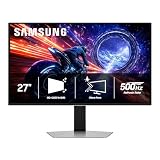
Quick answer: Our top pick in 2026 is the Setting — our #1 rated choice. See the full ranked comparison, alternatives and buying advice below.
What 1440p Resolution Really Comes Down To
1440p usually means a display with 2,560 horizontal pixels and 1,440 vertical pixels in a standard 16:9 format. That produces about 3.69 million pixels per frame, giving games, text, and desktop applications more detail than Full HD. The practical difference depends on screen size, viewing distance, image quality, and the capabilities of the computer driving the display.
How QHD Pixel Counts Work
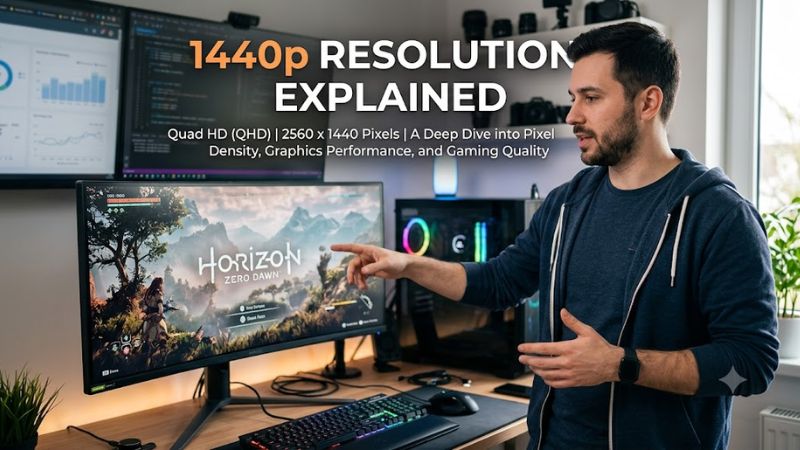
The term 1440p refers to the vertical pixel count, while the horizontal count depends on the aspect ratio. A conventional QHD monitor uses 2560 × 1440 pixels, and the letter p denotes progressive scanning. Manufacturers also use QHD and WQHD to describe this format, although ultrawide displays with 1440 vertical pixels have different horizontal resolutions.
A standard QHD frame contains 3,686,400 pixels, compared with 2,073,600 pixels at 1920 × 1080. That is approximately 78% more pixels, which can make fine edges, small text, and distant scenery appear more detailed. The actual visual improvement also depends on panel quality, pixel density, antialiasing, and the source material.
Why Screen Size Changes the Experience
A 27-inch monitor is a common pairing for QHD because it offers a useful balance between workspace and pixel density. Text and interface elements generally look sharper than on a similarly sized 1080p display, while games can show more fine detail. Viewing distance and eyesight still affect how noticeable the difference becomes.
A larger screen can make QHD useful for immersive gaming, multitasking, and media consumption, but increasing screen size does not increase the number of pixels. At the same resolution, a larger panel has lower pixel density than a smaller one. Buyers considering a 32-inch monitor should compare clarity, viewing distance, and available desk space before choosing.
What Changes When You Play Games
Rendering at QHD requires the graphics card to produce more pixels per frame than at 1080p. The GPU workload can increase, particularly in graphically demanding games with high-quality lighting, detailed effects, and ray tracing. Actual frame rates depend on the graphics card, processor, game engine, memory, and selected graphics settings.
For many midrange gaming PCs, QHD offers a practical balance between image detail and frame rate. Competitive players may prefer a lower resolution if it helps their system maintain the frame rates they want, while players of expansive single-player games may value the additional detail. Resolution alone does not determine responsiveness or motion clarity.
What Doesn’t Help You Choose a Resolution
Choosing a monitor solely by its resolution label overlooks important differences in refresh rate, response behavior, contrast, brightness, and color reproduction. Two QHD displays can deliver noticeably different experiences even when their pixel dimensions match. A higher refresh rate can improve motion clarity, provided the computer produces enough frames and the panel handles transitions well.
It is also unnecessary to assume that every game must run at the monitor’s native resolution. Many displays accept lower-resolution output, and supported graphics features can upscale a game’s image. However, lower-resolution images may look softer when enlarged. The right configuration depends on whether sharpness, frame rate, or a balance of both matters most.
How to Choose and Set Up 1440p for Gaming
Choosing the right QHD setup means matching the display to your graphics hardware, preferred games, and target refresh rate. Start by checking the monitor’s native resolution and supported connections, then confirm that your PC can deliver an acceptable frame rate at your chosen settings. This approach helps prevent spending more on pixels than your system can use comfortably.
| Setting | Where | Effect | Risk |
| Native resolution | Windows Settings → System → Display | Uses the panel’s intended pixel grid | Higher GPU workload in games |
| Refresh rate | Advanced display settings | Sets the available display refresh frequency | Higher rates may need more bandwidth |
| In-game resolution | Game’s Video or Graphics menu | Controls rendering workload and image detail | Lower settings can soften the image |
| Upscaling | Supported game’s graphics menu | Can improve performance at a lower render resolution | May introduce artifacts or lost detail |
Step 1: Confirm Your Monitor’s Native Resolution
Open Windows Settings, select System, then Display, and check the display resolution. Choose 2560 × 1440 when using a standard QHD monitor, unless a particular application or game requires another configuration. This confirms the desktop is using the expected pixel grid rather than an unintended lower-resolution mode.
Check the monitor manual for supported refresh rates and connection requirements. HDMI and DisplayPort capabilities depend on their versions, the monitor’s implementation, and the cable. A connection may support QHD but restrict the maximum refresh rate or color format. Confirm the specifications for both the monitor and graphics card before purchasing cables or adapters.
Step 2: Set the Supported Refresh Rate
Open Advanced display under Windows display settings and select a refresh rate supported by the monitor. A higher refresh rate allows the panel to refresh more frequently, although smooth gameplay also requires the computer to deliver enough frames. Select a rate supported by the display and connection rather than assuming the highest advertised figure works through every port.
Verify the selected frequency in Windows and in the monitor’s on-screen display when available. If the display goes blank or shows an unsupported mode, wait for Windows to revert or reconnect using a known-supported configuration. Return to a previously working refresh rate if necessary. Changing this setting does not increase the GPU’s ability to render game frames.
Step 3: Balance Game Resolution and Graphics Quality
Start with the game’s native QHD resolution and adjust demanding settings such as ray tracing, shadows, and volumetric effects if frame rates fall below your target. This helps preserve image clarity while reducing workloads that may have a substantial performance cost. The best combination varies by game, GPU, and the frame rate you want to maintain.
Use the game’s built-in performance counter or a monitoring tool such as MSI Afterburner to observe frame rates and GPU utilization. Record the resolution and graphics preset when comparing results; otherwise, the figures may not be comparable. There is no universal FPS estimate for QHD, so rely on benchmarks for your specific graphics card and game rather than unsupported performance promises.
Step 4: Consider Upscaling When Performance Is Limited
If native QHD rendering proves too demanding, investigate a supported upscaling option such as NVIDIA DLSS or AMD FSR. Depending on the game, graphics card, and available implementation, these technologies render internally at a lower resolution and reconstruct an output image at a higher resolution. They can improve performance, although image quality varies by mode and scene.
Enable the feature in the game’s graphics menu if it is supported, then compare image quality and frame pacing in the same scene. Disable it again if reconstruction artifacts or softness outweigh the performance benefit. Check the game’s requirements for GPU support and available modes, since compatibility differs between implementations. Upscaling is optional; it is not a prerequisite for using a QHD monitor.
Frequently Asked Questions
Is 1440p better than 1080p for gaming?
1440p generally provides a sharper image than 1080p on the same screen size, but it also requires the GPU to render more pixels. The difference is especially useful for detailed environments, small interface elements, and desktop work. A 1080p display can still be preferable for budget systems or competitive players prioritizing consistently high frame rates.
Is 1440p the same as 2K?
1440p is commonly marketed as 2K, but the terms are not technically identical. QHD usually refers to 2560 × 1440 pixels, whereas the DCI 2K cinema standard uses 2048 × 1080 pixels. When shopping for a gaming monitor, check the listed pixel dimensions instead of relying on marketing terminology alone.
Can my PC run games at 1440p?
Your PC can run games at 1440p if its graphics hardware, processor, and memory meet the particular game’s requirements, although achievable frame rates vary. Check independent benchmarks for your GPU at 2560 × 1440 and your intended graphics settings. The game’s official system requirements provide an additional compatibility reference, but they do not guarantee a particular frame rate.
Is 1440p worth it compared with 4K?
1440p can be the more practical choice if you want detailed graphics and high frame rates without the greater rendering workload of 4K. Standard 4K UHD uses 3840 × 2160 pixels, or 2.25 times as many pixels as QHD. Choose based on your GPU, monitor size, workload, and preference for visual detail versus performance.
Final Thoughts
Understanding 1440p resolution explained in practical terms makes choosing a gaming display easier: QHD offers a meaningful clarity improvement over 1080p while demanding less rendering power than 4K. Match the resolution to your GPU, preferred refresh rate, and monitor size, then adjust individual game settings to balance image quality with consistent performance.
Ready to decide? Our #1 pick for 2026 is the Setting.
Live price & availability on Amazon.