🛒 Best Price Today on Amazon
Prime members get fast, free shipping on everything above, plus member-only deals. New members get a 30-day free trial — cancel anytime.
- Top 3 Picks
- Quick Comparison
- How We Chose
- 1. Samsung Odyssey OLED G6 G60SF – Best for Competitive Play
- 2. MSI MAG 272QP QD-OLED X24 – Best for Mixed PC, Console, and Laptop Use
- 3. Samsung Odyssey OLED G6 G61SH – Best for Value-Minded Samsung Fans
- 4. ASUS ROG Strix OLED XG27AQDMGR – Best for Bright Rooms and Glossy Contrast
- 5. AOC Agon Pro AG276QZD2 – Best for Desktop Setups Needing Speakers and a USB Hub
- QD-OLED Versus WOLED: What the Panel Type Means for Gaming
- OLED Versus Fast IPS and Mini-LED: When OLED Is the Right Call
- Setup Guide: Settings That Matter on a New OLED Monitor
- Common Mistakes When Buying an OLED Gaming Monitor
- Desk Setup and Ergonomics
- OLED Burn-In Care: A Practical Routine
- How to Choose an OLED Gaming Monitor
- Frequently Asked Questions
- Final Recommendation by Situation
The best OLED gaming monitor for most buyers on a tight budget is the MSI MAG 272QP QD-OLED X24. It pairs a 27-inch-class QD-OLED panel at 2560 x 1440 and 240Hz with two HDMI 2.1 ports, a DisplayPort input, and a USB-C port that carries video and a small amount of laptop charging power. That mix of connectivity makes it the easiest pick to live with whether you game on a desktop, a console, or a laptop docked to one cable. If you only play fast competitive shooters and want the highest refresh rate in this group, the Samsung Odyssey OLED G6 G60SF is the specialist choice. If you want a lower-cost entry into Samsung’s QD-OLED line, the Odyssey OLED G6 G61SH is the sensible value option. The ASUS ROG Strix OLED XG27AQDMGR suits bright rooms because of its glossy coating, and the AOC Agon Pro AG276QZD2 is the one to pick if built-in speakers, a USB hub, and a factory-calibrated panel matter. Every monitor below shares the same basic promise: near-instant pixel response, true blacks, and 1440p sharpness at roughly 27 inches.
Quick answer: For most people in 2026, the best oled gaming monitor under 500 is the Samsung Odyssey OLED G6 G60SF — our #1 rated choice. See the full ranked comparison, alternatives and buying advice below.
Top 3 Picks
Best overall: MSI MAG 272QP QD-OLED X24. It combines a 240Hz QD-OLED panel with two HDMI 2.1 inputs, DisplayPort 1.4a, and a USB-C port with DisplayPort Alt Mode, and MSI advertises a three-year warranty that includes burn-in coverage. It is the most flexible monitor here for a mixed PC, console, and laptop setup.

Samsung 27” Odyssey OLED G6 (G60SF) QHD QD-OLED Gaming Monitor
Included for 'Best OLED Gaming Monitor under 500 in 2026' as a relevant option in this category; details come from the product listing.
View on Amazon
msi MAG 272QP QD-OLED X24 27-Inch WQHD Gaming Monitor, 2560 x 1440 Quantum Dot OLED Panel, 240Hz, 0.03ms, Adaptive-Sync, HDMI2.1, DP 1.4a, Tilt/Height Adjustable, Black
Included for 'Best OLED Gaming Monitor under 500 in 2026' because the listing specifies 2560 x 1440 Quantum Dot OLED Panel and 240Hz, details this guide uses to compare options.
View on Amazon
Samsung 27" Odyssey OLED G6 (G61SH) QD-OLED, QHD (1440P) Gaming Monitor
Included for 'Best OLED Gaming Monitor under 500 in 2026' because the listing specifies QHD (1440P) Gaming Monitor, details this guide uses to compare options.
View on Amazon
ASUS ROG XG27AQDMGR 27 Inch 1440p 240Hz Glossy OLED HDR Gaming Monitor
Included for 'Best OLED Gaming Monitor under 500 in 2026' as a relevant option in this category; details come from the product listing.
View on Amazon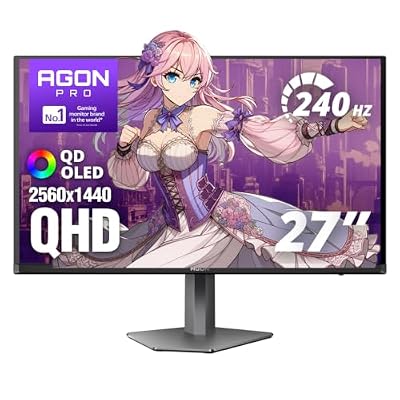
AOC Agon Pro 27 Inch Gaming Monitor QD OLED 240Hz 0.03ms, AG276QZD2
Included for 'Best OLED Gaming Monitor under 500 in 2026' because the listing specifies AG276QZD2, details this guide uses to compare options.
View on AmazonBest for value-minded Samsung fans: Samsung Odyssey OLED G6 G61SH. It gives you a 240Hz QD-OLED panel with a Glare Free film, FreeSync Premium, and G-Sync Compatible support in Samsung’s familiar stand and menu system. It trades peak brightness for a lower position in the lineup.
Best for competitive play: Samsung Odyssey OLED G6 G60SF. At 500Hz it has the highest refresh rate of the five, with a DisplayHDR TrueBlack 500 certification. It only makes sense if your graphics card can deliver very high frame rates in esports titles and you will connect it over DisplayPort.
Quick Comparison
| Product | Best for | Key specs |
|---|---|---|
| Samsung Odyssey OLED G6 G60SF | Competitive esports play | 27-inch QD-OLED, 2560 x 1440, 500Hz, 0.03ms GtG, DisplayHDR TrueBlack 500, FreeSync Premium Pro and G-Sync Compatible, Glare Free finish |
| MSI MAG 272QP QD-OLED X24 | Mixed PC, console, and laptop use | 26.5-inch QD-OLED, 2560 x 1440, 240Hz, 0.03ms, 2 x HDMI 2.1, DisplayPort 1.4a, USB-C with 15W power delivery |
| Samsung Odyssey OLED G6 G61SH | Value-focused Samsung QD-OLED | 27-inch QD-OLED, 2560 x 1440, 240Hz, 0.03ms, FreeSync Premium, G-Sync Compatible, HDMI 2.1 plus DisplayPort 1.4 |
| ASUS ROG Strix OLED XG27AQDMGR | Bright rooms and glossy contrast | 26.5-inch WOLED, 2560 x 1440, 240Hz, 0.03ms, glossy TrueBlack coating, DisplayHDR True Black 400, Neo Proximity Sensor |
| AOC Agon Pro AG276QZD2 | Desktop setups needing speakers and a USB hub | 26.7-inch QD-OLED, 2560 x 1440, 240Hz, 0.03ms, 2 x DisplayPort 1.4, built-in 5W speakers, USB hub, factory calibration |
How We Chose
This guide is a research-based comparison. We built it from manufacturer specification sheets, retailer product data, and published coverage from independent display reviewers, then cross-checked every model-specific claim against more than one source. We narrowed the field to 27-inch-class, 1440p OLED gaming monitors, because that resolution gives the best balance between sharpness and the frame rates most graphics cards can sustain. We weighed six factors: refresh rate and how it is delivered by each input, panel type (QD-OLED versus WOLED), screen finish, brightness behavior, connectivity, and the protections each maker builds in against burn-in, including warranty terms where they are published. We did not rank on measurements we cannot verify, and where sources disagreed, such as on screen finish or port versions, we say so and tell you what to confirm before buying. Prices change often, so we leave them out and focus on what each model actually offers.
1. Samsung Odyssey OLED G6 G60SF – Best for Competitive Play
As an Amazon Associate we earn from qualifying purchases at no extra cost to you.

The Odyssey OLED G6 G60SF is the fastest monitor in this roundup. Samsung positions it as a 500Hz QD-OLED display at 2560 x 1440 with a 0.03ms GtG response time, which makes it a clear fit for players of Counter-Strike, Valorant, Apex Legends, and similar titles where every frame of motion clarity counts. Note that its older sibling, the G60SD, runs at 360Hz, so check the model code on the listing: the G60SF is the 500Hz version.
It carries a DisplayHDR TrueBlack 500 certification, supports FreeSync Premium Pro and G-Sync Compatible, and uses a Glare Free finish rather than a mirror-like glossy coating. That finish keeps reflections down in a room with windows, though it slightly raises black levels under direct light compared with a fully glossy panel. The stand adjusts for height, tilt, swivel, and pivot, and the back accepts a 100 x 100 mm VESA mount.
- Panel: 27-inch-class QD-OLED, 2560 x 1440
- Refresh rate: 500Hz, best reached over DisplayPort
- Response time: 0.03ms GtG (manufacturer rating)
- HDR: VESA DisplayHDR TrueBlack 500
- Adaptive sync: FreeSync Premium Pro and G-Sync Compatible
- Finish: Glare Free
What it does well. Motion handling is the headline. At 500Hz a new frame appears every 2 milliseconds, so fast flicks and camera pans leave less blur than on a 240Hz panel. QD-OLED also delivers deep blacks and saturated color, so single-player games look as good as esports titles feel. Samsung includes its OLED Safeguard-style protections, which combine thermal management with logo and taskbar detection.
What to watch. A 500Hz panel only pays off if your system produces frames to match. A game running at 200 frames per second looks the same on a 240Hz and a 500Hz monitor. Retailer data also suggests that refresh rate over HDMI is lower than over DisplayPort on this model, so plan on DisplayPort for full speed.
Pros
- Highest refresh rate of the five monitors here
- QD-OLED color and near-perfect black levels
- Glare Free finish suits rooms with ambient light
- Full ergonomic stand and standard VESA mount
Cons
- Needs a powerful graphics card and DisplayPort to use its full refresh rate
- Likely the highest-priced model in this group, so it may sit outside a strict budget
- Typical-use brightness is modest compared with LCD gaming monitors
Compared with the nearest alternative. Against the Odyssey OLED G6 G61SH, the G60SF doubles the refresh rate and adds a higher HDR tier, while the G61SH keeps the same 1440p QD-OLED character at 240Hz. If you do not routinely exceed 240 frames per second, the G61SH delivers most of the visual experience for less.
Who should skip it. If your graphics card tops out near 144 frames per second in the games you play, or you plan to connect mainly over HDMI, the G60SF’s headline strength goes unused. Buyers who mostly play cinematic single-player games would also do better prioritizing brightness, HDR performance, or inputs over a refresh rate they will not reach. And because it sits at the top of the lineup, anyone watching the budget closely should compare it with the 240Hz models before committing.
2. MSI MAG 272QP QD-OLED X24 – Best for Mixed PC, Console, and Laptop Use

The MAG 272QP QD-OLED X24 stands out for what surrounds the panel. The panel itself is a 26.5-inch QD-OLED running 2560 x 1440 at 240Hz with a 0.03ms GtG response time, 99 percent DCI-P3 coverage, and VESA ClearMR 13000 certification for motion clarity. Around it, MSI adds two HDMI 2.1 ports, a DisplayPort 1.4a input, and a USB-C port with DisplayPort Alt Mode and 15W of power delivery. That is the rare combination of two modern console-ready HDMI ports and a single-cable laptop connection in a monitor aimed at a budget-conscious buyer.
Refresh rate is listed at 240Hz across DisplayPort, HDMI, and USB-C by at least one major retailer, which is unusual and useful. Brightness is rated at 200 nits for typical SDR use and about 400 nits typical in HDR, which is standard for this generation of QD-OLED panels.
- Panel: 26.5-inch QD-OLED, 2560 x 1440, 240Hz
- Response time: 0.03ms GtG
- Color: 99 percent DCI-P3, 10-bit
- Inputs: 2 x HDMI 2.1, 1 x DisplayPort 1.4a, 1 x USB-C (DP Alt Mode, 15W)
- Adaptive sync: G-Sync Compatible and AMD FreeSync Premium
- Stand: height, tilt, swivel, and pivot; 100 x 100 mm VESA
- Protection: OLED Care 2.0 software and a three-year warranty that MSI advertises as including burn-in coverage
What it does well. A console owner can plug a PlayStation 5 or Xbox Series X into one HDMI 2.1 port and a gaming PC into DisplayPort, with a laptop on USB-C, all without a switch box. The built-in console mode simplifies setup. The warranty position is also a real differentiator: coverage that explicitly includes burn-in removes much of the anxiety around buying an OLED for desktop use.
What to watch. The USB-C port provides only 15W of power delivery, which is enough for a phone or tablet but not for most laptops, so keep your laptop charger plugged in. The monitor has no USB-A ports and no built-in speakers, only a headphone output. Retail listings also disagree on the screen finish, with some describing it as glossy and others as anti-glare, so check the finish stated in the manufacturer’s specifications before you buy if reflections matter in your room.
Pros
- Two HDMI 2.1 ports plus DisplayPort 1.4a
- USB-C with video input for laptops and handhelds
- Warranty advertised as covering burn-in
- Strong motion clarity with ClearMR 13000 certification
Cons
- USB-C power delivery is only 15W
- No USB-A hub and no speakers
- Screen finish is described inconsistently across listings
Compared with the nearest alternative. The Samsung Odyssey OLED G6 G61SH offers the same resolution and refresh rate, but only one HDMI 2.1 port and one DisplayPort. The MSI wins on connectivity and warranty clarity, while the Samsung’s Glare Free film is a more definite answer for bright rooms.
Who should skip it. If you want built-in speakers or a USB hub on the monitor, the MSI leaves both out, and its 15W of USB-C power will not keep a performance laptop alive under load. Competitive players whose hardware can push 360 frames per second or more will also find 240Hz limiting.
3. Samsung Odyssey OLED G6 G61SH – Best for Value-Minded Samsung Fans

The Odyssey OLED G6 G61SH is the 240Hz member of Samsung’s G6 family and the easiest way into Samsung QD-OLED without paying for 360Hz or 500Hz you may never use. It is a 27-inch QD-OLED at 2560 x 1440 with a 0.03ms GtG response time, about 109 pixels per inch, and 99 percent DCI-P3 coverage. Samsung supports both FreeSync Premium and G-Sync Compatible, so it works smoothly with either GPU brand.
Its distinguishing feature is the Glare Free film, which Samsung says is 54 percent less glossy than conventional anti-reflection film. In practice that means you can place the monitor across from a window and still read dark scenes. Brightness is the trade-off: Samsung lists around 200 nits typical and 400 nits peak, so HDR here is best understood as format support rather than the high-impact experience of a brighter panel.
- Panel: 27-inch QD-OLED, 2560 x 1440, 240Hz
- Response time: 0.03ms GtG
- Brightness: about 200 nits typical, 400 nits peak (manufacturer figures)
- HDR and color: HDR10 and HDR10+, 99 percent DCI-P3
- Inputs: DisplayPort 1.4 and HDMI 2.1
- Stand: height, tilt, swivel, pivot; 100 x 100 mm VESA
- Protection: OLED Safeguard with thermal modulation, logo and taskbar detection, and a screen saver
What it does well. It delivers the core OLED benefits at a lower position in the lineup: per-pixel contrast, very fast response, and rich color. The stand is fully adjustable, which is not always the case at this tier, and the on-screen controls are straightforward. For a player who splits time between single-player games and online matches at 144 to 240 frames per second, 240Hz is the sweet spot.
What to watch. Contrast figures are listed inconsistently by retailers, so rely on the idea of OLED black levels rather than a single number. With only one HDMI port, a PC and a console will need to share, and a console owner who also uses HDMI for a streaming box may run out of inputs. Make sure the listing shows the G61SH model code, since Samsung sells several similarly named G6 variants at different refresh rates.
Pros
- QD-OLED color and contrast at 240Hz
- Glare Free film works well in rooms with windows
- Both FreeSync and G-Sync Compatible support
- Fully adjustable stand
Cons
- Only one HDMI 2.1 port and one DisplayPort
- Peak and typical brightness are modest
- No USB-C input
Compared with the nearest alternative. The MSI MAG 272QP QD-OLED X24 matches its resolution and refresh rate and adds a second HDMI 2.1 port and USB-C. Choose the Samsung if the Glare Free finish and the brand’s menu system matter to you; choose the MSI if you need more inputs.
Who should skip it. Players with two or more HDMI devices will feel the single HDMI 2.1 port, and anyone who wants USB-C video input needs a different model. If you game mostly in a dark room and want the most dramatic HDR highlights, the higher small-window peak brightness rating of the ASUS is the better fit.
4. ASUS ROG Strix OLED XG27AQDMGR – Best for Bright Rooms and Glossy Contrast

The ROG Strix OLED XG27AQDMGR, also marketed as the XG27AQDMG Gen2, is the only WOLED panel in this group. It is a 26.5-inch 2560 x 1440 monitor with a 240Hz refresh rate, 0.03ms GtG response, 99 percent DCI-P3 coverage, and a VRR range of 48 to 240Hz. Its glossy TrueBlack coating is the main reason to choose it: a glossy surface preserves the deepest black levels and the crispest perceived contrast, particularly in a dim room.
ASUS rates peak HDR brightness at 1,300 nits, with VESA DisplayHDR True Black 400 compliance. That headline number applies to very small bright areas of the screen and falls as more of the picture gets bright, which is normal for OLED, so treat it as an indicator of highlight capability rather than full-screen brightness. The Gen2 revision improves on the original model’s coating and adds a Neo Proximity Sensor within ASUS’s OLED Care Pro suite: when you step away, the screen can switch to black to reduce burn-in risk.
- Panel: 26.5-inch WOLED, 2560 x 1440, 240Hz
- Response time: 0.03ms GtG
- Variable refresh: 48 to 240Hz
- HDR: VESA DisplayHDR True Black 400, 1,300-nit peak rating in small windows
- Color: 99 percent DCI-P3, 10-bit, typical contrast rating of 1,500,000:1
- Protection: OLED Care Pro with Neo Proximity Sensor
What it does well. The glossy finish and strong highlight capability make dark games and movies look striking, and ROG’s software and menu tools are mature. The proximity sensor is a practical convenience for anyone who leaves a desktop idle during meals or breaks.
What to watch. A glossy surface reflects lamps and windows, so it is best in a room where you control the lighting. WOLED panels use a white subpixel to boost brightness, which can make saturated colors at high brightness look slightly less rich than on QD-OLED, and text rendering can differ slightly between the two panel types. Confirm the exact port list on the manufacturer’s page for the Gen2 model, since ports can change between revisions, and check how many HDMI versions it offers if you plan to connect a console.
Pros
- Glossy TrueBlack coating for maximum perceived contrast
- High small-window peak brightness rating
- Proximity sensor automates burn-in care
- Mature ROG software and menus
Cons
- Glossy finish picks up reflections in bright rooms
- WOLED color volume at high brightness trails QD-OLED
- Peak brightness drops sharply as the on-screen bright area grows
Compared with the nearest alternative. The AOC Agon Pro AG276QZD2 uses a QD-OLED panel and adds speakers and a USB hub. The ASUS is the better pick for an enthusiast who values the glossy contrast look and the proximity-sensor protection, while the AOC suits a buyer who wants an all-in-one desktop monitor.
Who should skip it. If your desk faces a window or sits under bright overhead lights, the glossy coating will show reflections that Samsung’s Glare Free films handle better. And if you want speakers or a USB hub on the monitor, you will need to add them separately.
5. AOC Agon Pro AG276QZD2 – Best for Desktop Setups Needing Speakers and a USB Hub
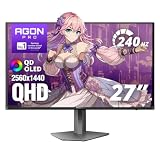
The Agon Pro AG276QZD2 is a 26.7-inch QD-OLED monitor with a 2560 x 1440 resolution, 240Hz refresh rate, and a 0.03ms GtG response time. Where the others in this group are stripped to essentials, AOC includes a fuller desktop kit: two DisplayPort 1.4 inputs, two HDMI inputs, a headphone jack, a USB hub with an upstream port and two downstream ports, and two 5W speakers. It is factory calibrated to a Delta E below 2, covers about 99 percent of DCI-P3 and 98 percent of Adobe RGB, and carries VESA DisplayHDR 400 True Black certification.
Refresh rate by input is the detail to understand. 240Hz is delivered over DisplayPort 1.4, while HDMI on the standard version is HDMI 2.0, which limits 1440p output to lower refresh rates. Reports indicate that some revised units ship with HDMI 2.1 and a newer panel, so if you plan to connect a console or want full speed over HDMI, check the exact unit specification before ordering.
- Panel: 26.7-inch QD-OLED, 2560 x 1440, 240Hz
- Response time: 0.03ms GtG
- Inputs: 2 x DisplayPort 1.4, 2 x HDMI (version varies by unit)
- Extras: USB hub, headphone jack, 2 x 5W speakers
- HDR: VESA DisplayHDR 400 True Black
- Variable refresh: G-Sync Compatible, 48 to 240Hz
- Warranty: three years
What it does well. Having a hub and speakers on the monitor reduces cable clutter and means one fewer purchase. The factory calibration is a thoughtful touch for anyone who also edits photos, and the ergonomic stand covers the usual adjustments. Two DisplayPort inputs make it handy for a desktop with a second PC.
What to watch. AOC’s panel uses a constant-brightness approach, which means peak output is lower than on monitors that push small-window highlights. Reviewers note this as the main limit. It is also not listed on AMD’s FreeSync monitor list according to one reviewer, though adaptive sync generally still works through standard protocols. The speakers are fine for system sounds but not for music.
Pros
- Speakers, USB hub, and headphone jack built in
- Factory calibration and wide color coverage
- Two DisplayPort inputs
- Three-year warranty
Cons
- HDMI version differs between units; standard version is HDMI 2.0
- Lower peak brightness than the ASUS
- No USB-C input
Compared with the nearest alternative. The ASUS ROG Strix OLED XG27AQDMGR is brighter in highlights and glossier, while the AOC has the more complete desktop connectivity. Choose the AOC for a PC-only desk and the ASUS for the strongest contrast look.
Who should skip it. Console owners who need HDMI 2.1 should confirm the unit has it before ordering, and anyone who wants brighter HDR highlights should look at the ASUS first. If you already own good desktop speakers and a USB hub, the extras that define the AOC add little.
QD-OLED Versus WOLED: What the Panel Type Means for Gaming
Four of the five monitors here use QD-OLED panels, and one, the ASUS, uses WOLED. Both are self-emissive technologies, meaning each pixel produces its own light, which is why blacks are essentially off and response times sit around 0.03 milliseconds. The difference lies in how they make color. QD-OLED uses a blue emitter layer with quantum dots to produce red and green, which gives wide color gamuts and keeps color saturation strong even at higher brightness. WOLED uses a white emitter and color filters, with a dedicated white subpixel that raises brightness in highlights but dilutes color slightly at those brightness levels.
For a gamer, the practical consequences are modest. In a dark room both look excellent. In a lit room, QD-OLED panels tend to look more colorful but can show slightly raised blacks under direct light, while a glossy WOLED coating with strong black preservation tends to look punchier in controlled lighting but reflects more. Text clarity can also differ because the subpixel layouts differ: if you will spend many hours reading documents on the same screen, look at your own preferences for sharpness and consider whether you are sensitive to color fringing on small text.
Another factor is the finish. A glossy coating, like the ASUS TrueBlack glossy surface, makes sense in a room you can darken. A Glare Free film, like Samsung’s, or a matte-leaning finish gives up a small amount of contrast to keep reflections manageable. Your room matters more than the label on the panel.
Finally, remember that all five monitors have similar burn-in risk profiles, because they rely on organic materials that wear unevenly if the same static image sits on screen for hundreds of hours. Each maker applies a mix of pixel shifting, refresh cycles, logo detection, and thermal design. Where a warranty explicitly includes burn-in, as MSI advertises, that is worth more than any single feature claim.
OLED Versus Fast IPS and Mini-LED: When OLED Is the Right Call
An OLED monitor is not automatically the best choice for every player, so it helps to know what you are giving up and gaining compared with the two main alternatives, fast IPS and Mini-LED LCD panels.
Motion clarity. OLED pixels switch states in a fraction of a millisecond, and the manufacturer figure for every monitor here is 0.03ms GtG. Fast IPS panels typically list one millisecond or more and show some overshoot or smearing in dark transitions. At 240Hz and above, that gap is easy to see in fast camera pans and in games with dark backgrounds.
Contrast and blacks. Each OLED pixel can turn fully off, so a starfield or a dark corridor shows real black beside bright points, with no backlight glow. Mini-LED monitors use local dimming zones, which improve contrast a great deal over standard IPS but can produce visible halos around bright objects on dark backgrounds, such as a cursor or subtitle text.
Brightness. This is where LCD still wins. A good Mini-LED monitor can hold much higher full-screen brightness for HDR content and bright rooms. The OLED monitors here are designed for typical SDR brightness of roughly 200 to 250 nits, with higher peaks in small windows. If your gaming room is flooded with daylight, a brighter LCD may serve you better.
Text and desktop use. LCD panels with an RGB stripe layout still render small text more cleanly, and they are immune to burn-in. If you write code or edit documents for many hours a day on the same monitor, factor that in, or plan to keep a secondary LCD for work.
Longevity and care. OLED pixels age with use. For most gamers who vary their content, that is a minor consideration over a three to five year ownership period, particularly with a warranty that covers burn-in. For someone who leaves the same static window open all day, an LCD is the safer pick.
In short, choose OLED when motion clarity, contrast, and a dark or controlled room are your priorities. Choose a bright Mini-LED or a good IPS if you game in bright light, use the monitor mostly for static productivity work, or want zero concern about pixel wear.
Setup Guide: Settings That Matter on a New OLED Monitor
A few minutes of setup makes a measurable difference in how an OLED monitor looks and how long it stays looking that way. These steps apply to any of the five models above.
- Set the refresh rate manually. After connecting, open your operating system’s display settings and select the highest refresh rate. Monitors often default to 60Hz or 120Hz when first connected, particularly over HDMI, and that is the single most common reason people think their new monitor is not as fast as advertised.
- Use the right cable and port. For PC, use DisplayPort. For consoles, use an HDMI 2.1 port and a certified Ultra High Speed cable. Enable the monitor’s console or HDMI 2.1 mode in the on-screen menu if it has one, since some ports need to be switched to their full-bandwidth mode.
- Turn on adaptive sync. Enable FreeSync or G-Sync Compatible in both the monitor menu and your graphics driver. Cap your frame rate a few frames below the maximum refresh rate to stay inside the variable refresh range and keep latency low.
- Calibrate HDR before you judge it. In Windows, run the HDR calibration tool from the Microsoft Store and set the maximum luminance values to match your monitor. Use the monitor’s HDR mode that is labeled for true black or peak brightness according to your room, and keep SDR content brightness at a comfortable level in the Windows HDR settings.
- Pick a sensible picture mode. Start with the standard or sRGB mode for desktop work, since wide-gamut panels can oversaturate ordinary content. Use the game or native-gamut modes for games and movies where the extra color is intended.
- Enable the care features. Switch on pixel shifting, logo or taskbar detection, and the automatic refresh cycle, and set a short screen-off timer. On the ASUS, enable the proximity sensor behavior; on the MSI, install the OLED Care 2.0 software.
- Watch for variable-refresh flicker. OLED panels can show slight brightness flicker in dark scenes when the frame rate swings widely under variable refresh, because gamma behavior changes with refresh rate. If you notice it in a loading screen or a game menu, capping the frame rate or locking it above a steady value usually helps, and some monitors provide a setting to reduce it.
- Update the firmware. Makers sometimes release updates that improve compatibility and care features. Check the support page for your exact model.
None of these steps require special tools, and together they address most of the early frustrations new OLED owners report.
Common Mistakes When Buying an OLED Gaming Monitor
- Buying on refresh rate alone. A 500Hz label means little if your GPU delivers 160 frames per second. Match the monitor to the frame rates you actually achieve.
- Ignoring the model code. Several of these monitors have close siblings with different refresh rates or finishes, such as the 360Hz G60SD next to the 500Hz G60SF. Always confirm the code on the listing.
- Overlooking HDMI versions. A monitor with HDMI 2.0 cannot deliver 1440p at 240Hz over that port. Console owners should confirm HDMI 2.1 before buying.
- Underestimating the room. A glossy screen in a bright room is a daily annoyance, and a dim monitor in a sunny room fails to impress. Think about where the desk sits.
- Skipping the warranty details. Read whether burn-in is covered, how long coverage lasts, and what the claim process involves before you buy.
- Using a laptop charger expectation on USB-C. A 15W USB-C port will not power a gaming laptop. Plan to keep the original charger connected.
- Assuming every OLED is equally bright. Typical SDR brightness differs by model, and peak HDR figures describe small windows only. Compare the typical-brightness ratings, not just the peak claim, if you game in a bright room.
- Buying for a cable you do not have. The best refresh rate requires the right input and a cable that supports it. Budget for a certified DisplayPort 1.4 cable or an Ultra High Speed HDMI cable if your current one is old.
- Ignoring the monitor menus. Many features that protect the panel or improve motion, such as pixel refresh, console mode, and adaptive sync, are off or set conservatively until you open the on-screen menu.
- Forgetting the stand and desk. The Samsung, MSI, and AOC models list a 100 x 100 mm VESA pattern. If you plan to use a monitor arm, confirm the weight rating and clearance for the base.
Desk Setup and Ergonomics
At 27 inches, sit about an arm’s length from the screen, with the top edge of the display at or slightly below eye level. The Samsung and MSI models list height, tilt, swivel, and pivot adjustment, and the AOC has a fully ergonomic stand, but confirm the stand details for your exact model, since heavy desks with deep surfaces need enough room for the base. If you plan to mount on an arm, the 100 x 100 mm VESA pattern is the common standard. Keep the monitor away from direct sun on the screen surface, which is bad for both comfort and, over a long time, for the organic materials in the panel.
OLED Burn-In Care: A Practical Routine
Burn-in is the most common worry about OLED monitors, and it is manageable with habits rather than anxiety. It happens when the same bright, static element, such as a taskbar, a game HUD, or a browser toolbar, stays on screen for very long stretches and the affected pixels age faster than their neighbors. All five monitors above include protective features, and the habits below work on any of them.
- Let the monitor run its refresh cycle. Most OLED monitors run a short pixel-refresh routine when they go into standby. Putting the display to sleep rather than unplugging it gives that routine a chance to run.
- Hide the taskbar. In Windows, set the taskbar to auto-hide. This single change removes the biggest static element on a desktop screen.
- Use a dark mode and a rotating wallpaper. Dark themes reduce the lit area, and a slideshow wallpaper keeps desktop icons from sitting over identical pixels every day.
- Keep brightness reasonable. Running at the highest brightness for office work ages pixels faster. Typical SDR brightness in the 100 to 150 nit range is plenty for most rooms.
- Set a short screen timeout. Five to ten minutes of inactivity before sleep is a good default, and the ASUS proximity sensor automates this for you.
- Vary your games. A game with a fixed health bar for 8 hours a day is a bigger risk than a mix of titles. Many games allow the HUD to fade or hide.
Also read the warranty terms before you decide. A multi-year warranty that explicitly mentions burn-in, as MSI advertises for the MAG 272QP, converts a theoretical risk into a covered one. AOC also lists a three-year warranty, but confirm whether burn-in is included in the regional terms. Keep the original packaging and proof of purchase for the entire warranty period in case a claim is needed.
How to Choose an OLED Gaming Monitor
Start with the decision matrix below, then use the numbered criteria and the worked example to check that the pick suits your hardware.
| Your situation | Best match | Why |
|---|---|---|
| Play fast shooters at 300+ frames per second on a strong GPU | Samsung Odyssey OLED G6 G60SF | 500Hz via DisplayPort; the only model here that exceeds 240Hz |
| Own a console plus a PC and a laptop | MSI MAG 272QP QD-OLED X24 | Two HDMI 2.1 ports, DisplayPort, and USB-C video input |
| Want QD-OLED at 240Hz in a bright room | Samsung Odyssey OLED G6 G61SH | Glare Free film and the simplest feature set |
| Play in a dim room and prize deep contrast | ASUS ROG Strix OLED XG27AQDMGR | Glossy TrueBlack coating and high small-window peak brightness |
| Need speakers, USB hub, and calibrated color on one desk | AOC Agon Pro AG276QZD2 | Built-in 5W speakers, hub, and factory calibration |
1. Resolution and size
All five monitors are 1440p at roughly 27 inches. At 2560 x 1440 across a 26.5 to 27 inch diagonal you get around 109 to 111 pixels per inch (the diagonal pixel count is about 2,937, divided by the screen diagonal). That density is sharp enough that you rarely see individual pixels at a normal desk distance of about 60 to 80 centimeters, while pushing roughly 56 percent fewer pixels than 4K, which is why a mid-range graphics card can hold high frame rates.
2. Refresh rate and your actual frame rate
Refresh rate only helps up to the frame rate your system delivers. Here is a quick worked example. Suppose your PC averages 170 frames per second in your favorite shooter and 90 in a demanding single-player game. A 240Hz monitor refreshes every 4.17 milliseconds and a 500Hz monitor every 2 milliseconds. At 170 frames per second, a new frame arrives every 5.9 milliseconds, so both monitors will show each frame once and the extra refreshes of the 500Hz panel mostly repeat what is already there. In the 90 frames per second game, neither monitor has any advantage. The 500Hz G60SF only becomes meaningfully better when you consistently exceed about 300 frames per second in the games you play most.
3. Cable and bandwidth
Resolution times refresh times color depth equals the data your cable must carry. At 2560 x 1440 there are 3,686,400 pixels per frame. At 240Hz that is about 885 million pixels per second. With 8-bit color (24 bits per pixel) the raw video data is roughly 21 gigabits per second, and with 10-bit color (30 bits per pixel) it is about 26.5 gigabits per second before any blanking overhead. DisplayPort 1.4 carries about 25.9 gigabits per second of payload, so 10-bit 240Hz output generally relies on Display Stream Compression or on a lower color depth. At 500Hz the raw 8-bit figure rises to about 44 gigabits per second, which is well above DisplayPort 1.4 without compression and the reason the G60SF depends on compression and DisplayPort. HDMI 2.1 offers up to 48 gigabits per second, so it handles 1440p at 240Hz comfortably, which is why the MSI’s two HDMI 2.1 ports are valuable for consoles.
4. Inputs for the devices you actually own
Count your sources. A PlayStation 5 or Xbox Series X uses HDMI 2.1 for 120Hz output. A gaming PC should use DisplayPort. A laptop with USB-C video output can run a single-cable setup if the monitor supports it, as the MSI does. The AOC offers extra DisplayPort inputs but its HDMI ports are version-dependent, so verify.
5. Screen finish and room lighting
Match the finish to the room. In a room with strong daylight or a lamp behind you, choose Samsung’s Glare Free monitors. In a room you can darken, the ASUS glossy coating shows the deepest blacks. Check the listing text for the MSI finish, since retailer descriptions differ.
6. Brightness expectations
None of these monitors will match a bright LCD in a sunlit room for full-screen white content. Typical SDR brightness is in the 200 to 250 nit range, with HDR peaks that apply to small windows. If you work in a bright office and game at night, factor in the brightness limits, and use the HDR modes primarily in a dim room.
7. Warranty and protection
OLED monitors are a long-term purchase. A warranty that names burn-in, an automatic pixel refresh routine, logo or taskbar detection, and thermal design are all positives. Read what each maker commits to rather than counting feature names.
8. A worked decision example
Imagine a player with a desktop that averages 220 frames per second in a competitive shooter and 80 in a modern single-player game, a PlayStation 5 in the living room that sometimes moves to the desk, and a work laptop used four days a week. Walk through the criteria in order. The shooter at 220 frames per second sits just under 240Hz, so the 500Hz G60SF would add little; that removes the most expensive option. The console needs HDMI 2.1 for 120Hz output, which eliminates the AOC unless the specific unit has been confirmed with HDMI 2.1. The laptop would benefit from a single USB-C cable for video, which only the MSI offers. The room has a window behind the desk, which argues for a Glare Free or non-mirror finish. That sequence points to the MSI MAG 272QP, with the Samsung G61SH as the alternate if the laptop is not part of the picture. Run your own numbers through the same steps: frame rate first, then inputs, then lighting.
Frequently Asked Questions
Is a 240Hz OLED monitor enough, or should I pay for 500Hz?
For most players 240Hz is enough. The difference between 240Hz and 500Hz only appears when your graphics card consistently renders more than about 300 frames per second, which usually means esports titles at low settings. If you play a mix of single-player and online games, the extra money is better spent on a stronger GPU.
What is the difference between QD-OLED and WOLED?
QD-OLED uses a blue emitter and quantum dots to make red and green, which tends to produce richer color at higher brightness. WOLED uses a white emitter with color filters and a white subpixel, which helps small bright highlights. Both give true blacks and extremely fast response.
Will an OLED monitor burn in if I use it for work and gaming?
Burn-in is possible but avoidable. Hide the taskbar, use dark themes, keep brightness moderate, and let the monitor sleep and run its refresh cycle. Choosing a model with burn-in explicitly covered by its warranty adds a safety net.
Can I connect a PlayStation 5 or Xbox Series X to these monitors?
Yes, though HDMI 2.1 matters for 1440p at 120Hz. The MSI MAG 272QP has two HDMI 2.1 ports and the Samsung G61SH has one. The AOC Agon Pro uses HDMI 2.0 on its standard version, so check the exact unit if console output matters.
Do these monitors support G-Sync and FreeSync?
Most support both. The Samsung models list FreeSync Premium or Premium Pro and G-Sync Compatible, the MSI lists G-Sync Compatible and FreeSync Premium, and the AOC lists G-Sync Compatible with a 48 to 240Hz range. Turn adaptive sync on in your graphics driver and the game settings.
Is HDR on these monitors worth turning on?
It can be in a dim room, particularly for games with good HDR implementations. OLED black levels give HDR scenes strong contrast, but peak brightness is limited to small windows, so bright full-screen scenes look less impactful than on brighter LCD panels. Use HDR for cinematic games and leave it off for desktop work.
Is 1440p the right resolution on a 27-inch OLED?
For gaming, yes. It is sharp at about 109 pixels per inch and far easier to drive at high refresh rates than 4K. If you mainly do productivity work on the same screen, a higher-resolution panel would give crisper text, but you would give up some frame rate.
Do I need a special cable to reach the top refresh rate?
Yes, match the cable to the port. Use a certified DisplayPort 1.4 cable for 240Hz on a PC and a certified Ultra High Speed HDMI cable for consoles on HDMI 2.1. The Samsung G60SF in particular needs a good DisplayPort cable to reach its top refresh rate.
Final Recommendation by Situation
- One monitor for PC, console, and laptop: MSI MAG 272QP QD-OLED X24.
- Esports and very high frame rates: Samsung Odyssey OLED G6 G60SF over DisplayPort.
- Value-focused QD-OLED for a bright room: Samsung Odyssey OLED G6 G61SH.
- Dim room, cinematic games, strongest contrast: ASUS ROG Strix OLED XG27AQDMGR.
- Desk with speakers and a USB hub, PC only: AOC Agon Pro AG276QZD2.
If you are still torn between two, let your room and your sources decide. A bright room points toward the Samsung Glare Free models, a dark room toward the ASUS, and a crowded desk of devices toward the MSI. After your monitor arrives, spend ten minutes on the setup steps above: set the refresh rate, enable adaptive sync, calibrate HDR, and turn on the care features. Those small steps protect both your enjoyment and your warranty position, and they make the difference between an OLED that feels transformative and one that feels like an expensive disappointment.
Whichever you choose, compare the current price against your own ceiling, confirm the exact model code on the listing, and set up the burn-in habits from day one.
Ready to decide? Our #1 pick for 2026 is the Samsung Odyssey OLED G6 G60SF.
Live price & availability on Amazon.