🛒 Best Price Today on Amazon
Prime members get fast, free shipping on everything above, plus member-only deals. New members get a 30-day free trial — cancel anytime.
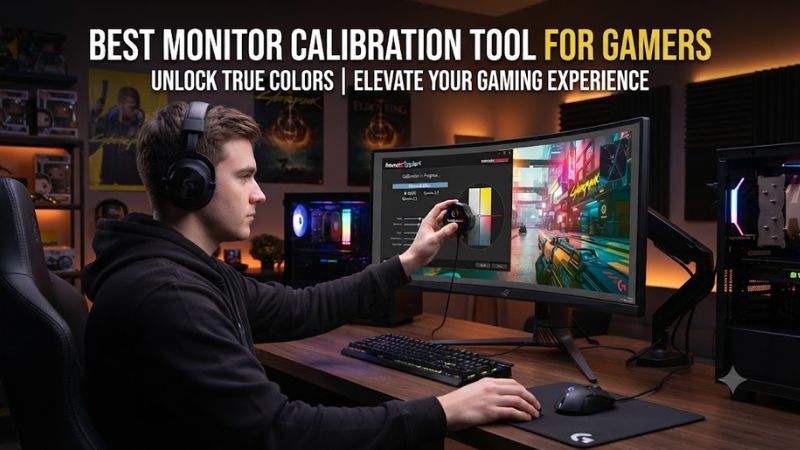
A best monitor calibration tool for gamers should match the display technology, brightness range, number of screens, and software you actually use. Hardware colorimeters measure the screen and create a profile, while software-only tools rely more heavily on visual adjustment. For gaming, accurate SDR and HDR behavior matter more than calibration features aimed at printing.
How to Choose Monitor Calibration Tools
The right monitor calibrator depends on four things: display technology, luminance range, multi-monitor support, and operating-system compatibility. Current options differ substantially here. Calibrite and Datacolor both offer current-generation devices for Windows and macOS, while DisplayCAL remains a software interface that requires a compatible measurement instrument rather than replacing one.
Match the Sensor to Your Display
Display technology is the first filter because OLED, mini-LED, wide-gamut LED, and conventional displays can require different correction data. The current Calibrite Display Pro HL supports LCD, mini-LED, OLED, and Apple XDR panels, while Datacolor’s current Spyder models list OLED, mini-LED, Apple XDR, and several LED backlights.
For a conventional gaming monitor, an entry-level colorimeter can be enough if its software recognizes the display technology. The Calibrite Display 123 is specifically listed for gamers and supports up to two monitors per workstation. That makes it a sensible match for a standard SDR desktop setup rather than a high-brightness HDR workflow.
Check Brightness and HDR Capability
Brightness capacity matters when a gaming monitor has a high-output HDR mode. The current Datacolor Spyder reaches 3,000 nits, while SpyderPro reaches 12,000 nits in Datacolor’s comparison. Calibrite’s Display Pro HL reaches 3,000 nits, giving it coverage for many current OLED and mini-LED displays.
A higher measurement ceiling does not automatically make a calibrator necessary for every gamer. If your display is normally used in SDR, paying for specialist high-luminance functions may add little practical value. The important point is matching the sensor and software to the panel’s operating range instead of selecting a device solely from its headline brightness figure.
Consider Multi-Monitor Gaming
Multiple displays introduce another requirement because each panel can need its own profile. Calibrite Display 123 supports two monitors, while SpyderExpress supports three connected displays per workstation. SpyderPro supports unlimited displays subject to the computer’s capability and adds StudioMatch for side-by-side matching.
For a dual-monitor gaming desk, two profiles may be sufficient if the screens are used independently. If you have three displays or want more detailed matching controls, the higher Datacolor tiers provide more room to manage a mixed setup. The software still depends on the graphics configuration and operating system handling separate display profiles correctly.
Verify Windows and macOS Support
The software matters as much as the sensor. Calibrite PROFILER 3.1.2 currently supports Windows 10 and 11 and macOS 14 Sonoma or later, while Datacolor’s current Spyder software supports Windows 10/11 and macOS versions through macOS 26 Tahoe.
That makes current-generation hardware preferable to older marketplace listings. Datacolor states that legacy Spyder3 devices are no longer supported on Windows 10 or 11, illustrating why an apparently cheaper older colorimeter can create compatibility problems. DisplayCAL also has its own instrument-support requirements and depends on ArgyllCMS.
Top Picks
The current shortlist covers different gaming setups rather than treating every calibrator as interchangeable. The four choices below are based on manufacturer specifications and current software support; no FPS benchmark is appropriate because monitor calibration changes color and display profiling, not the rendering workload of a game.
| Product | Best For | Key Spec | Compatibility | Watch Out For |
| Calibrite Display 123 | Best Overall | Up to 2 monitors; USB-C | Windows 10/11; macOS 14+ | Limited control versus advanced models |
| Datacolor SpyderExpress | Best Value | Up to 3 displays; 1,200-nit class | Windows 10/11; macOS 10.14–26 | Fewer calibration controls |
| Calibrite Display Pro HL | Best For OLED/mini-LED | Up to 3,000 nits; multiple monitors | Windows 10/11; macOS 14+ | Higher cost for basic SDR screens |
| Datacolor SpyderPro | Best For HDR Workflows | Up to 12,000 nits; unlimited displays | Windows 10/11; macOS 10.14–26 | Advanced features exceed casual needs |
Best Overall: Calibrite Display 123
The Calibrite Display 123 is the most straightforward choice for gamers who want hardware-based calibration without moving into professional display workflows. It uses USB-C, supports up to two monitors, and pairs with Calibrite PROFILER for a three-step calibration process. Calibrite explicitly lists gaming among its intended uses.
Its real limitation is control depth. Display 123 offers Native or Photo brightness selection and profile creation, but it does not provide the extensive target controls found on Display Pro HL or SpyderPro. Do not buy it if your main requirement is detailed HDR, video-standard targeting, or advanced multi-display matching.
Best Value: Datacolor SpyderExpress
SpyderExpress is aimed at simpler calibration and supports up to three connected displays per workstation, with a 1,200-nit maximum luminance specification in Datacolor’s current comparison. It also uses USB-C with a USB-A adapter and supports Windows 10/11 plus macOS through macOS 26.
The trade-off is fewer controls than the full Spyder and SpyderPro software tiers. Datacolor lists Gamma 2.2 and 6500K white point for SpyderExpress, while higher models add broader target selection and more advanced matching features. It is therefore less suitable for users who want extensive manual calibration targets.
Best For OLED and Mini-LED: Calibrite Display Pro HL
Display Pro HL is designed around newer high-luminance displays, with support for LCD, mini-LED, OLED, and Apple XDR panels and measurement capability up to 3,000 nits. Calibrite PROFILER also provides multiple-monitor profiling, uniformity checks, validation, and customizable white point, luminance, contrast ratio, and gamma targets.
Its weakness for a typical gaming desk is cost relative to the simpler options. Calibrite lists the U.S. price at $279, while Display 123 is listed at $129. If your monitor is a conventional SDR panel and you only want a basic profile, many of the Pro HL controls may go unused.
Best For HDR Workflows: Datacolor SpyderPro
SpyderPro targets demanding display workflows and reaches 12,000 nits according to Datacolor’s current comparison. It adds unlimited display support subject to computer capability, StudioMatch, custom calibration targets, video targets, projector calibration, RGB pre-calibration controls, and 17-, 33-, and 65-point 3D-LUT creation.
That breadth is also its main drawback for ordinary gaming. A player using one SDR monitor does not need projector calibration, broadcast targets, or advanced 3D-LUT creation simply to establish a display profile. SpyderPro makes more sense when gaming is combined with HDR, video, content creation, or a multi-display workstation.
FAQ
Calibration tools are easy to misunderstand because software-only adjustment, ICC profiling, and hardware measurement serve different purposes. The questions below focus on what a gamer can realistically expect from current tools, including compatibility, HDR displays, performance, and the role of DisplayCAL.
Is a monitor calibration tool worth it for gaming?
A monitor calibration tool can be worthwhile for gaming when accurate color, consistent brightness, or matching several displays matters to you. It measures the display instead of relying only on visual judgment, then creates a profile that supported operating-system and color-managed applications can use.
It is less compelling if your priority is maximum FPS alone. Calibration does not replace GPU settings, game graphics settings, or monitor refresh-rate configuration, and there is no reason to expect an ICC profile to increase rendering performance. Its benefit is visual consistency rather than additional frames.
Can I calibrate a gaming monitor without hardware?
You can adjust a gaming monitor without hardware by using Windows’ built-in display color calibration controls, but that approach relies on visual judgment rather than direct measurement. Microsoft provides a Display Color Calibration workflow through Windows settings for users who want software-based adjustment.
For repeatable profiling, a hardware colorimeter is a different class of solution. DisplayCAL can provide advanced profiling controls, but it still requires a supported colorimeter or spectrophotometer and ArgyllCMS. It is therefore software for working with measurement hardware, not a replacement for the sensor itself.
Does calibration work with OLED and mini-LED gaming monitors?
Yes, current calibration hardware supports OLED and mini-LED gaming displays, but the exact capability depends on the model and software. Calibrite Display Pro HL supports LCD, mini-LED, OLED, and Apple XDR, while Datacolor lists OLED and mini-LED support for its current Spyder and SpyderPro products.
HDR capability deserves separate attention because panel brightness can exceed what entry-level software tiers target. For example, Datacolor lists 1,200 nits for SpyderExpress, 3,000 nits for Spyder, and 12,000 nits for SpyderPro, so selecting a tier should reflect the display rather than the product name alone.
Will calibration improve FPS or reduce input lag?
Calibration does not directly increase FPS or reduce input lag because its purpose is to characterize and profile the monitor’s color output. The process changes how colors and luminance are represented through the display profile rather than reducing the GPU workload or changing the monitor’s stated refresh behavior.
For gaming, calibration is therefore best viewed as an image-quality and consistency step. Refresh rate, response-time behavior, VRR configuration, GPU driver settings, and in-game graphics options remain separate considerations. A colorimeter should not be purchased as an FPS optimization device.
Final Thoughts
The best monitor calibration tool for gamers depends on the screen rather than the game: Display 123 suits straightforward setups, SpyderExpress adds three-display support, Display Pro HL targets modern OLED and mini-LED panels, and SpyderPro fits advanced HDR and multi-display workflows. Check compatibility before buying.