🛒 Best Price Today on Amazon
Prime members get fast, free shipping on everything above, plus member-only deals. New members get a 30-day free trial — cancel anytime.
A monitor refresh rate test helps you check whether your display is running at its intended frequency and whether motion appears smooth. For PC gamers, the key is comparing the monitor’s reported refresh rate with Windows settings and an online test. The right checks can identify configuration limits without buying new hardware.
Quick answer: Our top pick in 2026 is the Setting — our #1 rated choice. See the full ranked comparison, alternatives and buying advice below.
What a Monitor Refresh Rate Test Really Comes Down To
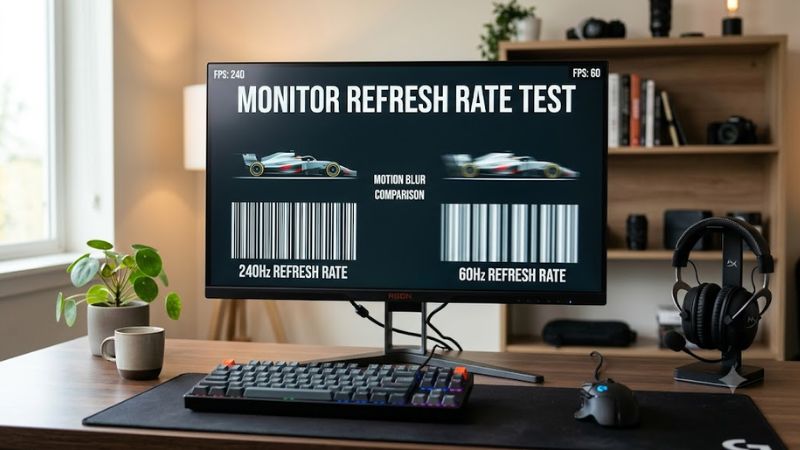
A monitor refresh rate test checks how frequently a display updates its image, measured in hertz (Hz). A 60Hz screen refreshes 60 times per second, while a 144Hz screen can refresh 144 times per second. These figures describe display capability, not the number of frames your graphics card renders.
Refresh Rate and Frame Rate Are Different
Refresh rate describes how often the monitor updates, while frame rate describes how many frames the PC or console produces each second. A 144Hz monitor can display up to 144 refreshes per second at that setting, but a game running at 60 FPS cannot supply 144 distinct new frames every second. The two measurements are related, not interchangeable.
For example, a monitor configured for 144Hz may still show inconsistent motion if a game’s frame rate fluctuates substantially. Conversely, a game running at 200 FPS does not make a 60Hz display refresh 200 times per second. Check both figures when diagnosing motion problems, and remember that response time also influences visible blur.
What an Online Refresh Rate Test Measures
A browser-based refresh rate test estimates the display’s active refresh behavior using an animated pattern or timing measurements. It is useful as a secondary check after confirming the operating system’s selected frequency. Results can depend on browser behavior, background activity, synchronization settings, and the test implementation, so a single reading is not a complete hardware diagnosis.
An online result also cannot independently establish every specification of your monitor. It does not necessarily verify the maximum supported frequency at native resolution, signal bit depth, or whether variable refresh rate (VRR) works throughout its supported range. Use the monitor manual and manufacturer specifications for those details, then compare them with your computer’s active configuration.
Why Windows May Show a Lower Refresh Rate
Windows may select a lower frequency than your monitor supports, particularly after a display change, driver update, or connection change. Open Advanced display to inspect the active value and available options. If the expected frequency is missing, check the selected display, resolution, cable, graphics output, and supported modes before assuming the monitor is defective.
Connection bandwidth can also limit available combinations of resolution, refresh rate, and color depth. A monitor may support a higher frequency through DisplayPort than through a particular HDMI connection, depending on the monitor and source hardware. The correct result therefore depends on the complete signal path, not simply the largest number printed on the monitor’s product page.
What Doesn’t Help a Refresh Rate Test
A refresh rate test will not increase the panel’s physical refresh-rate capability, and generic Windows cleanup utilities cannot turn a 60Hz monitor into a 144Hz display. Registry tweaks and RAM-cleaning tools are not appropriate fixes for a missing refresh-rate option. First identify whether the limitation comes from Windows configuration, the connection, or the hardware’s actual specifications.
Be careful with custom resolutions and unofficial overclocking instructions. Forcing unsupported timings can cause a blank screen, display instability, or an out-of-range signal. Prefer modes listed by Windows and the monitor manufacturer. If an online test disagrees with Windows, repeat the check after closing demanding applications and confirm the selected refresh rate before changing advanced settings.
How to Run a Monitor Refresh Rate Test: Step by Step
Start by checking Windows, then use a browser-based test to cross-check the result. This sequence separates a configuration issue from a measurement issue without requiring extra hardware or paid software. For reliable comparisons, keep the display resolution and connection unchanged while checking the available refresh rates and repeating the browser test.
| Setting | Where | Effect | Risk |
| Active refresh rate | Windows Settings → System → Display → Advanced display | Shows the selected frequency and available modes | Selecting a different mode may cause a brief display interruption; restore the previous mode if needed |
| Resolution and display selection | Windows Advanced display | Helps identify limits associated with the selected monitor and resolution | Changing resolution can affect scaling and image clarity; return to the native resolution |
| Graphics output mode | NVIDIA Control Panel, if available, or the relevant graphics settings | May expose additional supported refresh-rate options | Incorrect custom modes can produce an unusable signal; use a supported mode |
| Browser measurement | Online refresh-rate test in a modern browser | Provides a secondary indication of active display timing | Background load and browser limitations can affect results; repeat after closing unnecessary applications |
Step 1: Check the Active Refresh Rate in Windows
On Windows 11, open Settings, select System, choose Display, and open Advanced display. Select the correct monitor if multiple displays are connected, then locate the refresh-rate value. The menu shows the modes Windows currently makes available for that display and connection.
Compare the selected value with the monitor’s documented specifications at its native resolution. If Windows offers the expected frequency, select it and confirm any prompt to keep the change. If the option is absent, do not assume that an online test can enable it; investigate the supported resolution, connection, and graphics configuration first.
Step 2: Run an Online Refresh Rate Test
Open a reputable browser-based refresh-rate test, such as the refresh-rate tools available from TestUFO, and follow its on-screen instructions. Allow the animation to run, avoid switching tabs during measurement, and close unnecessary background applications if the result appears unstable. Use the result as a cross-check rather than a replacement for Windows display information.
If the reported behavior seems inconsistent with the selected frequency, repeat the measurement under similar conditions. Browser timing, power-saving behavior, and system workload may affect the result. A browser test can help flag a possible discrepancy, but it cannot establish that every frame is rendered correctly in a game or that the panel meets all its advertised performance claims.
Step 3: Check the Resolution, Cable, and Graphics Output
If the expected refresh rate is unavailable, confirm the monitor’s native resolution and inspect the connection between the computer and display. Check the monitor manual for the refresh rates supported by each HDMI or DisplayPort input. When possible, use a compatible cable and output that support the required resolution and frequency together.
Next, check the graphics settings provided by your GPU manufacturer. NVIDIA Control Panel, for example, can expose additional display modes on compatible systems. Laptop display routing, adapters, docks, and port bandwidth can restrict the choices available, so avoid assuming that all connectors support identical modes. Revert any connection or setting change that makes the display unstable.
Step 4: Confirm the Result in a Game
After setting the refresh rate, launch a game and check its display or graphics settings. Some games offer their own refresh-rate, fullscreen, frame-cap, or V-Sync options. Choose a supported mode and observe whether motion improves during ordinary gameplay. A game’s FPS counter measures frame output, not the monitor’s refresh rate, so it complements rather than replaces the Windows check.
For deeper diagnosis, tools such as MSI Afterburner can display frame-rate and frame-time information when configured for monitoring. Compare those readings with the display’s active frequency and note whether stutter occurs only in one game. If the monitor remains at the intended setting but motion still looks poor, investigate frame pacing, response time, VRR configuration, and game performance instead of repeatedly changing the refresh rate.
Troubleshooting Results and Understanding What They Mean
A refresh-rate check is most useful when you compare independent indicators rather than relying on one number. Windows identifies the selected display mode, a browser test offers a secondary timing check, and a game’s performance overlay shows frame delivery. If those results differ, investigate the specific limitation before spending money on a replacement monitor or graphics card.
Why Does My 144Hz Monitor Only Show 60Hz?
A 144Hz monitor showing 60Hz may be configured to use a lower frequency, or the current connection may not expose its maximum supported mode. Check Advanced display first, then confirm the selected resolution and connection against the monitor documentation. Some monitors also require a particular input or on-screen setting to support their highest advertised frequency.
If Windows does not offer 144Hz, check whether the graphics driver recognizes the display correctly and whether an adapter, dock, or cable is restricting available modes. Change one variable at a time, then reopen Advanced display. Avoid forcing an unsupported custom resolution just to make the higher number appear.
Can a Browser Refresh Rate Test Prove My Monitor Is Working Correctly?
No, a browser refresh rate test cannot establish that every aspect of a monitor is functioning correctly. It provides a useful indication of display timing under the conditions of that measurement, but it does not fully assess pixel response, color accuracy, motion artifacts, or variable refresh rate behavior.
For a broader assessment, compare the browser result with Windows display information and the manufacturer’s specifications. If motion still appears blurry or uneven, investigate response time, frame pacing, and VRR separately. Independent monitor reviews, including RTINGS’ refresh-rate and response-time methodology, explain why refresh frequency alone cannot describe the entire motion experience.
Does a Higher Refresh Rate Always Mean More FPS?
No, a higher monitor refresh rate does not automatically increase the number of frames a game renders. The display determines how often it can refresh, while the CPU, GPU, game settings, and workload influence the frame rate. A faster monitor can display more frequent updates when the system supplies frames at a suitable rate.
To understand the difference, compare your active display frequency with an in-game FPS counter. If FPS remains low, investigate graphics settings, CPU or GPU utilization, temperatures, and frame-time consistency. If FPS is high but motion remains unclear, monitor response behavior and synchronization settings may be more relevant than the refresh-rate selection alone.
When Should I Consider Replacing Hardware?
Consider a hardware change only after confirming that the current setup cannot support the refresh rate you need. Check the monitor’s specifications, graphics output, available connection bandwidth, and the maximum supported resolution-frequency combination before purchasing a new cable or display.
A replacement is not necessary simply because a browser measurement fluctuates. If Windows already reports the intended refresh rate and the display behaves normally, the discrepancy may come from the measurement environment. If the required mode remains unavailable with a compatible connection and correct configuration, consult the monitor or computer manufacturer before deciding which component needs replacement.
Final Thoughts
A monitor refresh rate test is a practical starting point for checking display behavior, but reliable diagnosis requires more than one reading. Confirm the active frequency in Windows, compare it with an online measurement, and inspect the connection if the expected mode is missing. Check in-game frame delivery separately to identify performance issues.
Ready to decide? Our #1 pick for 2026 is the Setting.
Live price & availability on Amazon.