🛒 Best Price Today on Amazon
Prime members get fast, free shipping on everything above, plus member-only deals. New members get a 30-day free trial — cancel anytime.
Setting up how to set up dual monitors on Windows 11 starts with connecting both screens to compatible video outputs and choosing the right display mode. Windows 11 lets you extend your desktop, mirror content, arrange monitors, and adjust each screen independently, making it easier to game, stream, browse, or work across two displays.
Quick answer: Our top pick in 2026 is the Setting — our #1 rated choice. See the full ranked comparison, alternatives and buying advice below.
What Dual-Monitor Setup Really Comes Down To
A successful dual-monitor setup depends on three things: compatible video connections, the correct Windows display mode, and settings that match your physical desk. Most Windows 11 PCs detect a connected screen automatically, but a laptop dock, USB-C adapter, or graphics card limitation can affect the available options.
Check Your PC and Monitor Connections
Before changing software settings, identify the video outputs on your computer and the inputs on both monitors. HDMI and DisplayPort are common choices, while USB-C can carry video only when the specific port supports display output. Check your laptop or motherboard documentation before buying an adapter or dock.
Desktop gaming PCs with a dedicated graphics card should generally connect monitors to the graphics card’s video outputs rather than motherboard ports when using that card for display rendering. Laptop users may need a compatible dock or adapter. The computer’s graphics hardware and connection capabilities determine how many independent displays it can drive.
Choose Extend or Duplicate
For everyday multitasking, Extend is usually the appropriate mode because it creates one larger desktop across both monitors. You can keep a game on the primary display while placing a browser, chat window, performance monitor, or streaming dashboard on the second screen. Each display can show different applications.
Duplicate is useful when presenting content or showing the same image on another screen. It mirrors the desktop rather than creating additional workspace. To switch modes quickly, press Windows + P and select Extend, Duplicate, PC screen only, or Second screen only.
Match the On-Screen Layout to Your Desk
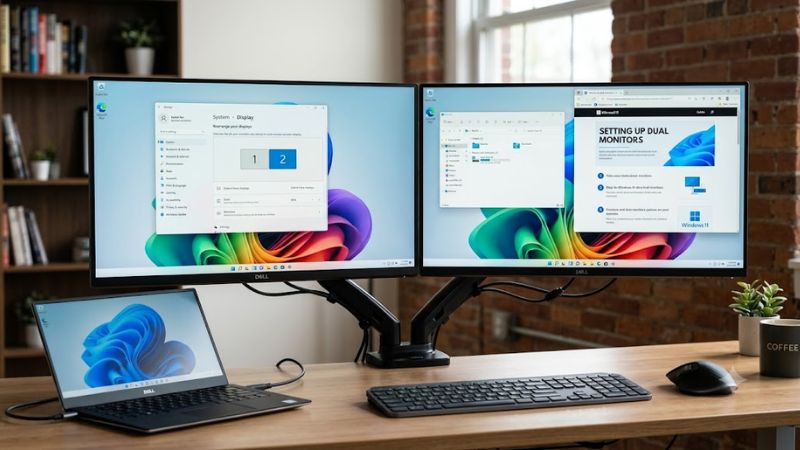
Windows assigns a numbered tile to each detected monitor. Open Settings, select System, then Display, and choose Identify to see which number corresponds to each physical screen. Drag the tiles until their positions match your desk, then select Apply. This helps the mouse move between displays in the expected direction.
If one monitor sits higher than the other, align the tiles to reflect their actual positions rather than forcing their top or bottom edges to match. You can also arrange a portrait monitor beside a landscape display. Accurate positioning makes moving windows between screens more natural, especially when using different monitor sizes.
Understand Compatibility Before Adding Hardware
Two monitors do not require identical resolutions, refresh rates, or brands, but the PC must support both displays at the intended settings. Check the graphics card’s display-output limits, laptop specifications, dock capabilities, and cable standards before purchasing additional hardware. A port’s physical shape alone does not establish that it supports every display feature.
A basic HDMI connection may be sufficient for office work, while high-refresh-rate gaming can require a suitable DisplayPort or HDMI connection, compatible graphics hardware, and an appropriate cable. If you use a USB-C dock, verify video-output support and the number of independent screens it supports. A simple display splitter generally duplicates a signal instead of creating an independent extended desktop.
How to Set Up Dual Monitors on Windows 11: Step by Step
Once both screens are connected, configure the desktop through Windows Display settings. Start with the display mode and physical layout, then adjust resolution, scaling, and refresh rate for each monitor. These changes are software settings; you generally do not need to purchase additional hardware when the computer already supports both displays.
| Setting | Where | Effect | Risk |
| Display mode | Windows + P | Extends or mirrors the desktop | Choosing the wrong mode may hide a screen |
| Monitor arrangement | Settings > System > Display | Aligns the cursor path | Incorrect positions cause awkward movement |
| Resolution and scaling | Settings > System > Display | Adjusts clarity and text size | Non-native resolution can look blurry |
| Refresh rate | Advanced display | Controls supported screen refresh | Higher rates may be unavailable over some connections |
Connect Both Monitors and Select Extend
Connect each screen to a compatible video output, select the correct input on each monitor, and turn them on. Open Settings > System > Display. If Windows recognizes both screens, press Windows + P and select Extend to give each monitor its own desktop area.
If the second screen is missing, expand Multiple displays and select Detect. Check the monitor’s selected input and reseat the cable before changing other settings. For laptops, confirm that the USB-C port supports video output if you are using a USB-C connection rather than a dedicated HDMI or DisplayPort port.
Arrange the Displays and Set the Main Screen
In Display settings, select Identify and compare the numbers shown on the screens with the numbered tiles. Drag the tiles into the same left-to-right or top-to-bottom arrangement as your monitors, then select Apply. Move your pointer across the boundary to confirm that it travels in the correct direction.
Select the display you want to use as the primary screen and, where available, enable Make this my main display. Games and applications may use this screen by default, although individual apps can remember their own display preferences. You can change the main display later without reconnecting the hardware.
Adjust Resolution, Scaling, and Refresh Rate
Select each monitor separately in Display settings. Under Scale and layout, choose the recommended resolution first, then adjust scaling if text and interface elements appear too small or too large. Different resolutions and scaling percentages can work together, so matching both monitors is optional rather than a requirement.
For gaming, open Advanced display and select a refresh rate supported by the monitor and connection. A 144 Hz monitor will not necessarily offer 144 Hz through every dock, cable, or resolution combination. If a desired rate is missing, check the monitor specifications, connection limits, and graphics drivers before replacing hardware.
Configure the Desktop for Gaming and Multitasking
After the displays are configured, place secondary applications on the screen where you want them. A browser, voice chat, guides, or streaming software can remain visible while a game occupies the main display. Some games switch display modes when launched, so review the game’s own display settings if it opens on the wrong monitor.
Windows also provides options under Multiple displays for remembering window locations when monitors reconnect and minimizing windows when a display disconnects. These settings can be useful with a laptop dock or a gaming setup that is occasionally disconnected. Adjust them to match how you use the computer rather than changing unrelated system settings.
Common Questions About Dual-Monitor Setup
Windows 11 includes the main controls needed to manage two screens, but connection problems can require checking cables, ports, graphics drivers, or dock compatibility. Start with Windows settings and simple connection checks before considering replacement hardware. Microsoft’s troubleshooting guidance recommends isolating the display, cable, and computer when a monitor remains undetected.
Why Is My Second Monitor Not Detected?
Windows 11 may not detect a second monitor because of a loose cable, incorrect monitor input, unsupported USB-C video output, or a graphics adapter limitation. Open Settings > System > Display > Multiple displays and select Detect, then confirm that the monitor is powered on and using the correct input.
If the screen remains missing, try another compatible cable or video output, and connect the monitor to another computer if possible. These checks help identify whether the issue follows the monitor, cable, or original PC. Update Windows and the graphics driver when appropriate, following the manufacturer’s guidance.
Can I Use Two Monitors With Different Resolutions?
Yes, Windows 11 can use two monitors with different supported resolutions, and you can configure each screen separately in Display settings. Select a monitor before changing its resolution or scaling, and begin with the recommended resolution for the clearest image.
Different resolutions can make windows and text appear at different sizes, so adjust scaling if necessary. Refresh-rate options may also differ between displays because of their specifications and connection paths. You do not need to buy matching monitors simply to extend your desktop across both screens.
Does a Dual-Monitor Setup Reduce Gaming FPS?
A second monitor does not automatically cause a major FPS reduction, but the workload on that screen can affect performance. Video playback, browser applications, streaming tools, and other GPU-intensive tasks may compete with a game for graphics resources, depending on the hardware and software involved.
For a simple comparison, run the same game scene at the same resolution and graphics settings with secondary applications idle, then active. Record frame rates using the same measurement method. Treat this as a setup-specific comparison, not a universal benchmark; results depend on the GPU, game, background workload, and driver version.
Do I Need a Dock or Display Splitter for Two Monitors?
No, you do not necessarily need a dock or splitter if your PC already has enough compatible independent display outputs. Connect both monitors directly when possible, and confirm that the graphics hardware supports the intended number of screens and their desired resolutions.
A compatible docking station or USB display adapter can help when a laptop lacks sufficient outputs, but support varies by model and connection. A basic splitter usually mirrors one video signal rather than creating two independent desktops. Check the computer and accessory specifications before purchasing additional equipment.
Final Thoughts
Learning how to set up dual monitors on Windows 11 is mainly about connecting compatible displays, choosing Extend, arranging the screens, and adjusting each monitor’s resolution and refresh rate. Start with the built-in settings, troubleshoot cables and detection first, and consider extra hardware only when your computer’s display capabilities require it.
Ready to decide? Our #1 pick for 2026 is the Setting.
Live price & availability on Amazon.