🛒 Best Price Today on Amazon
Prime members get fast, free shipping on everything above, plus member-only deals. New members get a 30-day free trial — cancel anytime.
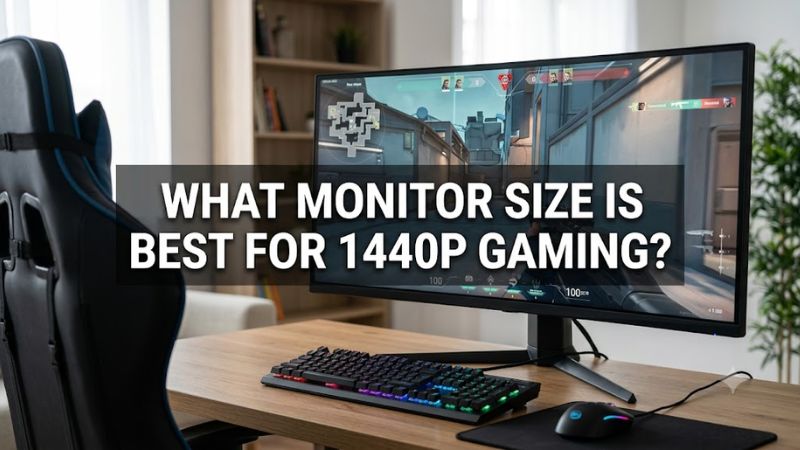
For most PC gamers, what monitor size is best for 1440p gaming comes down to 27 inches because 2560×1440 delivers about 109 PPI at that size. A 32-inch QHD screen drops to about 93 PPI, but its larger image can suit deeper desks, slower-paced games, and players who sit farther back.
Quick answer: For most people in 2026, the best what monitor size is best for 1440p gaming is the Setting — our #1 rated choice. See the full ranked comparison, alternatives and buying advice below.
What 1440p Monitor Size Really Comes Down To
The short answer is 27 inches for a typical desktop gaming setup, while 32 inches can make sense when you want a physically larger image and have enough viewing distance. Screen size does not change the 2560×1440 pixel count, so increasing the diagonal spreads those pixels over more area and lowers pixel density.
Pixel Density Changes With Screen Size
The main reason 27 inches remains a common answer to what monitor size is best for 1440p gaming is its pixel density. A 27-inch 2560×1440 display measures about 109 PPI, while a 32-inch model measures about 93 PPI. Higher PPI places more pixels into each inch, which generally produces finer image detail and text edges.
That difference does not mean a 32-inch QHD display is unusable. Its density is close to a 24-inch 1080p monitor, which many desktop users already find acceptable. The practical choice depends on whether you prioritize tighter image detail or a physically larger picture. Resolution and panel quality still matter alongside diagonal size.
Viewing Distance Matters Too
A larger display needs more room if you want to keep the whole image comfortably within your normal field of view. RTINGS gives general monitor viewing ranges of about 24–36 inches for 27-inch screens and 28–42 inches for 32-inch screens, while noting that personal preference and eyesight also affect the appropriate distance.
For QHD specifically, BenQ lists roughly 79 cm as a reference distance for 27-inch 1440p and about 96 cm for 32-inch 1440p. These figures are guidelines rather than hardware requirements, so desk depth, seating position, eyesight, and preferred field of view should determine where the display actually sits.
Game Type Changes the Practical Choice
Competitive shooters can favor a smaller physical display because keeping the entire image inside your normal viewing area can make rapid visual scanning easier. That does not make 27 inches mandatory, but it explains why a compact QHD screen can be more practical for players who sit close and prioritize quick target recognition.
For RPGs, strategy games, racing titles, and cinematic single-player games, a larger panel can make the scene feel more expansive. If your desk allows a comfortable distance, 32-inch QHD provides a larger physical image without increasing GPU workload compared with 27-inch QHD because both still render 2560×1440 pixels.
Desk Depth Can Set the Limit
Desk depth is an important part of deciding what monitor size is best for 1440p gaming because a large panel can sit too close when the desk cannot provide enough space. A 27-inch screen is about 23.5 inches wide, while a 32-inch 16:9 screen is about 27.9 inches wide.
That difference affects more than visual immersion. A 32-inch monitor also occupies more horizontal space and can leave less room for speakers, a microphone, or a second display. If your desk is shallow or your seating position cannot move backward, 27 inches is usually easier to place without changing the rest of the setup.
How to Choose a 1440p Monitor Size Step by Step
Start with the physical space rather than the monitor specification sheet. Measure desk depth, identify your normal eye-to-screen distance, and then compare 27-inch and 32-inch QHD displays. Both use 2560×1440, but their different PPI and physical dimensions produce different viewing experiences.
| Setting | Where to Check | Effect | Risk |
| 27-inch QHD | Monitor specifications | About 109 PPI and compact viewing area | May feel smaller for immersive games |
| 32-inch QHD | Monitor specifications | About 93 PPI and larger image | Lower density and greater desk-space demand |
| Viewing distance | Your desk position | Changes apparent image size and field of view | Sitting too close can make a large screen harder to scan |
| GPU resolution | Windows and game settings | Keeps rendering at 2560×1440 | Higher refresh rates still require suitable GPU performance |
Step 1: Measure Your Viewing Position
Measure from your usual eye position to the front of the monitor rather than from the back of the desk. For a 27-inch screen, a distance around 60–90 cm falls within RTINGS’ general viewing range; for 32 inches, about 70–105 cm is its corresponding range.
If your normal position is much closer than the available range for a 32-inch display, moving to 27 inches can make the setup easier to scan. If you already sit farther back and have enough desk depth, the larger panel becomes more practical. The distance should guide the size rather than an arbitrary inch-per-resolution rule.
Step 2: Compare 27 and 32 Inches at QHD
When deciding what monitor size is best for 1440p gaming, compare both screens at the same 2560×1440 resolution rather than comparing different resolutions. RTINGS calculates about 109 PPI for 27-inch QHD and about 93 PPI for 32-inch QHD, so the smaller screen provides noticeably tighter pixel density.
The trade-off is physical image size. A 32-inch QHD monitor gives you a larger picture without asking the GPU to render additional pixels, while a 27-inch model places the same pixels into a smaller area. Neither requires a special CPU socket, RAM generation, or motherboard chipset; monitor compatibility depends primarily on the GPU output and supported display connection.
Step 3: Match Size to Your Games
Use 27 inches when your games involve frequent competitive scanning, your desk is relatively shallow, or you prefer sharper-looking QHD pixels at a normal desktop distance. Use 32 inches when immersion and physical image size matter more and you can maintain a comfortable viewing position. Neither size inherently changes game performance at the same resolution.
A monitor’s refresh rate, response behavior, adaptive-sync support, and panel technology can matter more to gaming behavior than adding five inches of diagonal size. The choice of 27 versus 32 inches should therefore happen after confirming that the monitor has the refresh rate and connection features your gaming PC can actually support.
Step 4: Set 2560×1440 Correctly
After connecting the display, confirm that Windows is using 2560×1440 and the intended refresh rate under Settings > System > Display > Advanced display. Then check the game’s own resolution and refresh-rate menus. The exact available refresh rates depend on the monitor, GPU, connection type, cable, and driver support.
This step does not change which size you selected, but it prevents an otherwise suitable monitor from operating below its intended mode. If Windows offers several refresh rates, choose the supported target shown for your display. If a higher mode is missing, check the monitor’s manual, GPU control panel, cable specification, and connection before assuming the screen itself is defective.
FAQ About 1440p Monitor Size
Is 27 inches the right size for 1440p gaming?
Yes, 27 inches is the most commonly recommended size for 2560×1440 gaming because it combines about 109 PPI with a relatively compact desktop footprint. Windows Central describes 27-inch QHD as a typical gaming choice, while RTINGS lists the same size and resolution at roughly 109 PPI.
That does not make 27 inches a requirement for every player. A 32-inch QHD monitor has about 93 PPI and provides a larger physical image, which can suit users with deeper desks or a preference for larger game elements. Your viewing distance should be considered together with the display’s size and resolution.
Is 32 inches too big for 1440p gaming?
No, 32 inches is not inherently too big for 1440p gaming, although its roughly 93 PPI is lower than the roughly 109 PPI of 27-inch QHD. RTINGS and Windows Central both identify 32-inch 1440p as a common display configuration, while noting the resulting difference in pixel density.
The main question is whether your desk and seating position provide enough distance. A 32-inch QHD monitor can work well when you can sit farther back and want a larger image, but it may feel oversized on a shallow desk. It also takes more horizontal space than a 27-inch display.
Does 1440p look sharper on 27 or 32 inches?
1440p generally looks sharper on 27 inches because the same 2560×1440 pixel count is concentrated into a smaller diagonal, producing about 109 PPI instead of about 93 PPI at 32 inches. RTINGS’ resolution measurements provide those PPI figures for both common configurations.
The visible difference depends on viewing distance and eyesight. Sitting farther from a 32-inch panel can make its lower density less noticeable, while sitting close can make pixel structure and text rendering easier to distinguish. That is why screen size should not be judged independently from seating position.
What size monitor should you choose for competitive 1440p gaming?
For competitive 1440p gaming, 27 inches is a practical starting point because its 109 PPI density and smaller physical footprint make the complete screen easier to scan at a typical desktop distance. Windows Central similarly identifies 27-inch QHD as a common gaming choice and notes the appeal for general PC gaming.
Players who prefer a larger image can still choose 32 inches, provided the desk and viewing distance suit it. Competitive performance also depends on refresh rate, input latency, response behavior, GPU performance, and game settings, so monitor size alone does not determine suitability for esports titles.
Final Thoughts
For most desktop setups, what monitor size is best for 1440p gaming points to 27 inches because its roughly 109 PPI balance suits 2560×1440 well. Choose 32 inches when you have sufficient distance and prefer a larger image. Measure your desk and seating position before choosing, then verify the monitor’s resolution and refresh rate in Windows.
Ready to decide? Our #1 pick for 2026 is the Setting.
Live price & availability on Amazon.