🛒 Best Price Today on Amazon
Prime members get fast, free shipping on everything above, plus member-only deals. New members get a 30-day free trial — cancel anytime.
DisplayPort 2.1 offers substantially more bandwidth than DisplayPort 1.4, making it useful for high-resolution, high-refresh-rate gaming. Understanding displayport 2.1 bandwidth explained for gaming means looking beyond the advertised 80 Gbps maximum. UHBR support, Display Stream Compression (DSC), color depth, and hardware compatibility all determine what your gaming setup can actually display.
What DisplayPort 2.1 Bandwidth Really Means
DisplayPort 2.1 increases the amount of video data that can travel between a graphics card and monitor. Its highest transmission mode reaches 80 Gbps of raw bandwidth, but not every DisplayPort 2.1 device supports that speed. Understanding the UHBR tiers and available data rates helps determine whether the connection suits your gaming monitor.
1. Understanding the Three UHBR Bandwidth Levels
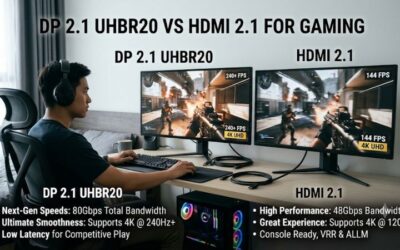
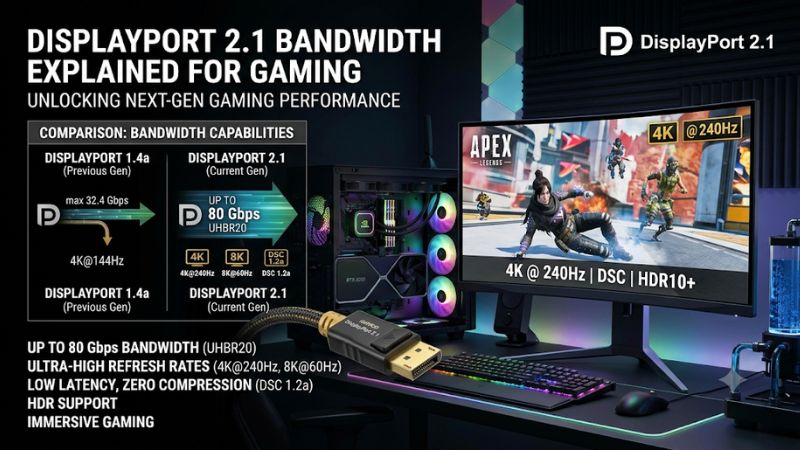
DisplayPort 2.1 introduces three Ultra-High Bit Rate (UHBR) transmission levels: UHBR10, UHBR13.5, and UHBR20. Each describes the transmission speed per lane. A conventional four-lane connection multiplies that figure by four to determine its total raw bandwidth.
The three levels provide 40 Gbps, 54 Gbps, and 80 Gbps, respectively. However, these figures represent total link bandwidth rather than usable video payload. This distinction matters when comparing specifications because encoding and error-correction overhead reduce the data available for video transmission.
2. Raw Bandwidth Versus Actual Data Throughput
A common mistake when reading DisplayPort specifications is treating raw bandwidth and usable throughput as interchangeable. DisplayPort 2.1 uses 128b/132b encoding, meaning 128 bits of data are represented by 132 transmitted bits. Forward error correction also introduces a small amount of overhead.
At the highest UHBR20 setting, an 80 Gbps connection provides approximately 77.37 Gbps of maximum payload. UHBR10 provides approximately 38.69 Gbps, while UHBR13.5 provides approximately 52.22 Gbps. These are link-level figures, not guarantees of a particular monitor resolution or refresh rate.
DisplayPort+1
3. How DisplayPort 2.1 Compares With DisplayPort 1.4
DisplayPort 1.4 uses HBR3 transmission, offering 32.4 Gbps of raw bandwidth and 25.92 Gbps of usable data rate. This remains sufficient for many gaming monitors, particularly when DSC is available to reduce the amount of transmitted video data.
DisplayPort 2.1 UHBR20 increases usable throughput to approximately three times the DisplayPort 1.4 HBR3 figure. That additional capacity creates more room for 4K high-refresh gaming, higher color depths, and demanding multi-monitor configurations without relying as heavily on compression.
| DisplayPort mode | Raw bandwidth | Maximum data rate |
| DisplayPort 1.4 HBR3 | 32.4 Gbps | 25.92 Gbps |
| DisplayPort 2.1 UHBR10 | 40 Gbps | 38.69 Gbps |
| DisplayPort 2.1 UHBR13.5 | 54 Gbps | 52.22 Gbps |
| DisplayPort 2.1 UHBR20 | 80 Gbps | 77.37 Gbps |
4. Why the DisplayPort 2.1 Label Can Be Misleading
Not every product advertised with DisplayPort 2.1 supports UHBR20. The specification includes multiple compliance requirements, and a device can qualify without supporting the highest UHBR transmission rate. VESA’s DisplayPort 2.1b certification requirements include DSC and at least one additional qualifying feature, which may be UHBR or another specified capability.
Consequently, checking only the DisplayPort version printed on a monitor or graphics card is insufficient. Look for the actual supported link rate, such as UHBR10 or UHBR20. This is particularly important when buying equipment intended for high-refresh 4K gaming.
DisplayPort+1
How to Understand DisplayPort 2.1 Bandwidth for Gaming
The practical benefit of DisplayPort 2.1 depends on the resolution, refresh rate, color depth, and compression settings you want to use. A 4K monitor running at 144Hz requires considerably more transmission capacity than a 1440p monitor running at 60Hz. The following factors help determine which connection capabilities matter.
1. Resolution and Refresh Rate Requirements
Resolution determines how many pixels a graphics card must transmit for each frame. Refresh rate determines how frequently the monitor receives a new frame. Increasing both simultaneously raises the required video bandwidth, especially when using high color depth and uncompressed RGB output.
For example, 4K at 240Hz demands substantially more bandwidth than 4K at 120Hz. This is one reason UHBR20 is attractive for premium gaming monitors. However, the actual supported combination depends on the monitor’s specifications, timing requirements, and whether DSC is enabled.
2. Color Depth, HDR, and Chroma Subsampling
Color depth also affects the amount of information transmitted for every pixel. An 8-bit signal carries less color information than a 10-bit signal. Consequently, enabling 10-bit output alongside a high resolution and refresh rate increases bandwidth requirements.
HDR gaming commonly involves 10-bit output, although the display’s HDR capabilities and signal configuration determine the available options. Chroma subsampling can reduce bandwidth requirements by reducing color information, but it may affect text clarity and fine colored details. Full RGB or YCbCr 4:4:4 is generally preferable for PC desktop use.
3. Understanding Display Stream Compression (DSC)
Display Stream Compression reduces the bandwidth required to transmit high-resolution video. VESA describes DSC as visually lossless, making it useful when a monitor’s desired resolution, refresh rate, and color depth exceed the available uncompressed bandwidth.
This technology is particularly relevant to high-refresh 4K and 8K displays. A DisplayPort 1.4 connection can support demanding display configurations through DSC, even though its native bandwidth is lower than DisplayPort 2.1 UHBR20.
DSC does not increase the graphics card’s rendering performance or the monitor’s native refresh rate. It simply makes the video signal more bandwidth-efficient. Check whether both the graphics card and monitor support the required DSC configuration before assuming a particular display mode will work.
DisplayPort+1
4. What Doesn’t Help When Choosing DisplayPort Bandwidth
Buying a more expensive DisplayPort cable does not automatically increase the bandwidth supported by your graphics card or monitor. The connection negotiates a transmission mode supported by the devices at both ends, subject to cable capability and signal quality.
Similarly, choosing a higher-bandwidth interface will not automatically improve FPS, reduce GPU rendering time, or lower input latency. DisplayPort bandwidth determines how much display data the connection can transport. Actual gaming performance remains dependent on the GPU, CPU, game, graphics settings, and monitor characteristics.
DisplayPort 2.1 Gaming Configuration Comparison
The following table summarizes the practical considerations when configuring a gaming display. These are connection-selection guidelines, not guaranteed maximum refresh rates for every monitor.
| Setting or Step | Where | Effect | Risk |
| Check UHBR support | GPU and monitor specifications | Identifies available link bandwidth | Version labels alone can mislead |
| Select native resolution | Windows Display Settings | Uses the monitor’s intended resolution | Higher resolutions require more bandwidth |
| Select refresh rate | Advanced Display Settings | Enables supported refresh modes | Unsupported modes may be unavailable |
| Configure color depth and DSC | GPU control panel and monitor settings | Balances color quality and bandwidth | Some combinations require compression or reduced refresh rates |
Step 1: Verify Your Graphics Card’s DisplayPort Output
Start by checking the technical specifications of your graphics card. Look for its supported DisplayPort revision and, more importantly, the maximum UHBR transmission rate. A card supporting UHBR20 can provide a higher-bandwidth connection than one limited to UHBR10.
Also check the monitor’s input specifications. Both devices must support the desired transmission mode. If one device has a lower maximum capability, the connection cannot operate at the higher device’s maximum bandwidth.
Step 2: Check the Monitor’s Supported Display Modes
Open Windows Settings, select System, choose Display, and navigate to Advanced display. Select your gaming monitor to review its current resolution and refresh rate.
Compare the available modes with the manufacturer’s monitor specifications. Some displays support their maximum refresh rate only through a particular input or when DSC is enabled. Do not assume every listed resolution and refresh-rate combination is available through every connector.
Step 3: Check Color Depth and DSC Settings
Open NVIDIA Control Panel or AMD Software: Adrenalin Edition, depending on your graphics card. Review the available resolution, refresh-rate, color-format, and color-depth options.
For NVIDIA GPUs, the resolution settings are available under Display and Change resolution. Select the appropriate output format and color depth supported by your monitor. If the desired mode is unavailable, check the monitor’s documentation for DSC requirements and supported input configurations.
Step 4: Confirm the Cable and Connection
Use a cable certified for the transmission rate required by your setup. VESA’s DP40 certification supports up to UHBR10, while DP80 supports up to UHBR20. These labels help identify cable capabilities rather than the performance of the entire display system.
Connect the monitor directly to the graphics card when possible, particularly when troubleshooting high-refresh configurations. Docking stations, adapters, USB-C connections, and intermediate devices can introduce additional bandwidth limitations. Recheck the available display modes after changing the cable or connection path.
DisplayPort+1
FAQ: DisplayPort 2.1 Bandwidth and Gaming
1. Is DisplayPort 2.1 better than DisplayPort 1.4 for gaming?
Yes, DisplayPort 2.1 can provide substantially more bandwidth, particularly with UHBR20. This makes it more suitable for demanding high-resolution and high-refresh-rate configurations. However, DisplayPort 1.4 remains sufficient for many gaming monitors, especially when DSC is supported.
2. Can DisplayPort 2.1 support 4K at 240Hz?
Yes, DisplayPort 2.1 UHBR20 has sufficient bandwidth for demanding 4K 240Hz configurations under appropriate signal conditions. However, the actual capability depends on the GPU, monitor, color depth, timing, and compression requirements. Check the manufacturer’s supported display modes before purchasing.
3. Does DisplayPort 2.1 improve gaming FPS?
No, DisplayPort 2.1 does not directly increase FPS. It provides more bandwidth for transmitting video signals between the graphics card and monitor. Your actual frame rate depends on GPU performance, CPU capability, game optimization, and graphics settings.
4. Do I need a DP80 cable for a DisplayPort 2.1 gaming monitor?
No, not every DisplayPort 2.1 monitor requires a DP80 cable. DP40 supports UHBR10, while DP80 supports UHBR20. Choose the cable according to the maximum transmission rate required by your monitor and graphics card, rather than purchasing the highest-rated cable automatically.
Final Thoughts
Understanding displayport 2.1 bandwidth explained for gaming helps you avoid confusing advertised bandwidth with actual display capabilities. UHBR20 offers substantial headroom for demanding gaming monitors, but compatibility across the GPU, monitor, and cable remains essential. Check their specifications before upgrading your display connection.