🛒 Best Price Today on Amazon
Prime members get fast, free shipping on everything above, plus member-only deals. New members get a 30-day free trial — cancel anytime.

Amazon Basics DisplayPort 1.4 Cable, 32.4Gbps HBR3 High-Speed, 8K@60Hz, 4K@120Hz, Ultra HD, Dynamic HDR and 3D, Gold-Plated Plugs, 3 Foot, Black
Included for 'DisplayPort vs HDMI: Essential Guide to Clear Display Tech' because the listing specifies 32.4Gbps HBR3 High-Speed and 8K@60Hz, details this guide uses to compare options.
View on Amazon
Amazon Basics DisplayPort to HDMI Display Cable, Uni-Directional, 4K@30Hz, 1920x1200, 1080p, Gold-Plated Video and Audio Plugs, 6 Foot, Black, 10-Pack
Included for 'DisplayPort vs HDMI: Essential Guide to Clear Display Tech' because the listing specifies Uni-Directional and 4K@30Hz, details this guide uses to compare options.
View on AmazonSelecting the right display connection between displayport vs hdmi directly dictates your gaming monitor performance and image clarity. Modern graphics processing units offer both connection types to drive high refresh displays. Understanding bandwidth limits ensures your desktop output achieves maximum refresh rates at native resolution.
What DisplayPort vs HDMI Really Comes Down To
Evaluating DisplayPort vs HDMI comes down to raw bandwidth allocation, protocol feature sets, and panel synchronization compatibility. Graphics cards rely on digital video interfaces to transmit uncompressed frame data to monitors without signal degradation. Choosing the proper connection prevents bandwidth bottlenecks during intensive gaming sessions.
Bandwidth and Refresh Rate Capabilities
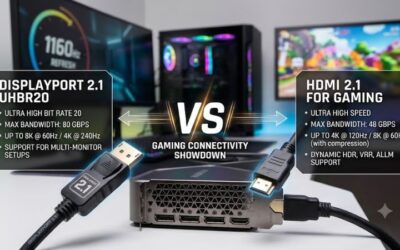
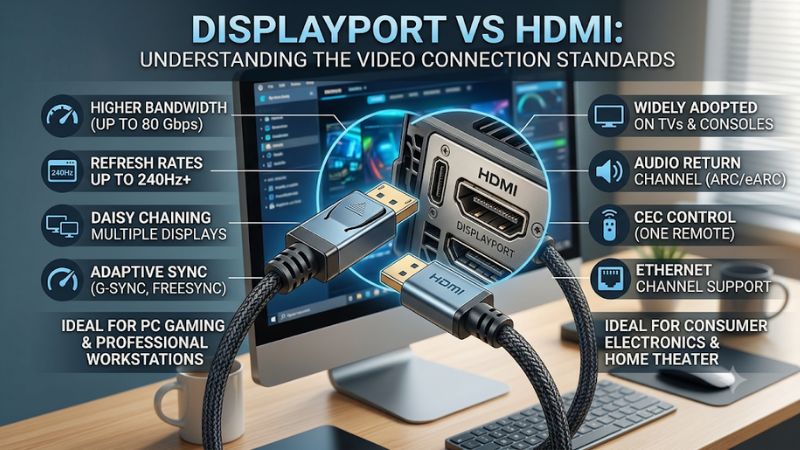
Bandwidth determines the maximum combination of screen resolution, frame rate, and color depth a display cable carries. DisplayPort 1.4 provides 32.4 Gbps bandwidth to support 4K panels at 120Hz natively. Meanwhile, DisplayPort 2.1 expands bandwidth up to 80 Gbps, enabling uncompressed 4K gaming at 240Hz on high-end desktop monitors.
HDMI standards offer competing bandwidth tiers across consumer display revisions. HDMI 2.0 provides 18 Gbps bandwidth, capping 4K output at 60Hz. Upgrading to HDMI 2.1 increases bandwidth to 48 Gbps using Fixed Rate Link technology, allowing 4K output at 120Hz or 144Hz without requiring Display Stream Compression on modern graphics cards.
Adaptive Sync and Variable Refresh Rate Support
Variable refresh rate technology syncs the monitor refresh frequency directly with GPU frame delivery to prevent screen tearing. DisplayPort includes VESA Adaptive-Sync as an open standard, ensuring native support for AMD FreeSync and NVIDIA G-Sync. Connecting via DisplayPort provides full variable refresh rate features across PC GPUs.
HDMI incorporates HDMI VRR within the official HDMI 2.1 specification standard. While HDMI 2.0 displays can run FreeSync over HDMI, NVIDIA G-Sync Compatible mode strictly requires HDMI 2.1 connections on GeForce GTX 16-series or RTX cards. Checking display specs ensures your monitor permits variable refresh rate over its specific HDMI port.
Multi-Display Daisy Chaining and Connectors
Physical port designs and multi-monitor capabilities differentiate DisplayPort vs HDMI connections. DisplayPort feature sets include Multi-Stream Transport, enabling users to daisy chain multiple monitors from a single graphics card output port. The physical DisplayPort connector includes a mechanical latching clip to keep cables secure.
HDMI lacks native Multi-Stream Transport support, requiring individual dedicated cable runs from the GPU for every connected screen. HDMI connectors rely on a friction fit without locking latches, making them prone to slipping out if cables are pulled. Consumer televisions and home theater AV receivers feature HDMI inputs as their standard.
What Doesn’t Help Display Output Performance
Installing third-party registry tweaking tools or running system optimizer scripts never improves video cable bandwidth or display frame rates. Signal throughput remains strictly defined by hardware controllers, cable specification tier, and physical port hardware. Software registry edits cannot bypass underlying physical interface limitations.
Disabling Windows telemetry services or running background RAM cleaners fails to increase display refresh rates or enable unsupported display resolutions. Hardware video output limits depend entirely on display controller clock speeds and interface protocols. Relying on snakebite software tweaks diverts focus from correct physical setup steps.
How to Configure DisplayPort vs HDMI: Step by Step
Configuring DisplayPort vs HDMI settings correctly ensures your display operates at its advertised refresh rate and color depth. Windows default display settings often default high-refresh panels to 60Hz upon initial connection. Following a step-by-step setup procedure allows your graphics card to deliver full video performance to your panel.
| Setting | Where | Effect | Risk |
| Cable Selection | GPU and Monitor Ports | Transmits maximum display protocol bandwidth | Low bandwidth cable caps panel refresh rate (Undo: Replace with DP 1.4 or HDMI 2.1 certified cable) |
| Desktop Refresh Rate | Windows Display Settings | Enables full panel native frame rate capability | Setting lowers if graphics driver resets (Undo: Re-select native frequency in Windows Display) |
| Variable Refresh Rate | GPU Control Panel | Synchronizes frame delivery to stop screen tearing | Incompatible panels show subtle brightness flicker (Undo: Disable G-Sync or FreeSync in GPU software) |
| Output Color Format | GPU Control Panel | Restores full 10-bit color depth and RGB range | Setting 10-bit on slow cable causes black screen (Undo: Revert output color depth to 8-bit in GPU panel) |
Step 1: Select the Cable Version Matched to Your Port
Begin configuration by inspecting the physical rating printed along the video cable jacket. DisplayPort 1.4 or 2.1 cables support high-bandwidth PC monitors, while Ultra High Speed HDMI cables handle 48 Gbps for HDMI 2.1. Matching cable specifications to your GPU output port prevents bandwidth drops and unexpected display signal cutouts.
Plug the chosen display cable directly into your dedicated graphics card output port rather than motherboard video ports. Motherboard video connectors route signal from integrated processors, which lack discrete GPU output speeds. Securing DisplayPort latching pins or seating HDMI plugs firmly ensures consistent electrical connection.
Step 2: Enable Maximum Refresh Rate in Windows
Open Windows Settings by pressing the Windows key plus I, then navigate to System and select Display. Click Advanced Display to view active signal resolution and current refresh rate details. In the drop-down menu for DisplayPort vs HDMI connections, select the highest available frequency supported by your monitor panel specifications.
If the desktop screen flickers briefly after selecting a high refresh rate, Windows is applying the new video mode timing. Click Keep Changes within fifteen seconds to confirm the selection. Verifying refresh rates in third-party diagnostic software like HWiNFO or MSI Afterburner confirms the panel operates at full target frequency.
Step 3: Configure Variable Refresh Rate in GPU Control Panel
Right-click the desktop and open NVIDIA Control Panel or AMD Software Adrenalin Edition based on your GPU brand. For NVIDIA cards, open Set up G-Sync, check Enable G-Sync, and select both windowed and full screen modes. For AMD cards, navigate to Display settings and toggle AMD FreeSync to Enabled for your active monitor port.
Test variable refresh rate functionality in dynamic games to confirm smooth frame delivery without screen tearing. If display brightness flickers rapidly during frame drops, disable custom overdrive settings in your monitor OSD menu. Undoing VRR configuration simply requires unchecking G-Sync or FreeSync inside your GPU control software.
Step 4: Verify Output Resolution and Color Depth Settings
Access GPU control software to verify output color depth and dynamic range options. Under Change Resolution settings, select Use NVIDIA Color Settings or AMD Color Format, then set Output Color Format to RGB and Output Dynamic Range to Full. Selecting 10-bit color depth enhances color gradients on supported HDR monitor displays.
If selecting 10-bit color causes the display to show a black screen, your video cable lacks necessary bandwidth for uncompressed color data. The display driver automatically reverts settings after twenty seconds if unconfirmed. To manually undo the change, re-select 8-bit color depth to restore stable video output over lower bandwidth connections.
Frequently Asked Questions About DisplayPort vs HDMI
Selecting between video interface standards requires understanding resolution limits, hardware compatibility, and gaming features. Choosing the proper cable standard ensures stable desktop performance across high refresh gaming displays. Reviewing common user questions clarifies technical differences between these prominent display connection types.
Is DisplayPort better than HDMI for PC gaming?
DisplayPort is generally better than HDMI for desktop PC gaming setups due to higher bandwidth capabilities and native Adaptive Sync integration. DisplayPort 1.4 and 2.1 standards natively drive high refresh rates on multi-monitor rigs using Multi-Stream Transport. When evaluating DisplayPort vs HDMI, PC gamers benefit from broader FreeSync support.
However, HDMI 2.1 matches DisplayPort performance for single-monitor gaming by supporting 4K resolution at 120Hz or 144Hz. Consoles like the PlayStation 5 and Xbox Series X strictly utilize HDMI 2.1 ports for VRR output. For dedicated desktop gaming rigs, DisplayPort remains the preferred choice across modern graphics processing units.
Can HDMI 2.1 handle 4K gaming at 120Hz or higher?
HDMI 2.1 easily handles 4K gaming at 120Hz or 144Hz thanks to its expanded 48 Gbps maximum bandwidth pipeline. Using Fixed Rate Link signaling, Ultra High Speed HDMI cables carry uncompressed 10-bit color signal at high refresh frequencies. Modern graphics cards with HDMI 2.1 ports deliver smooth 4K gameplay on compatible gaming monitors.
Older HDMI 2.0 ports cannot run 4K output beyond 60Hz due to their 18 Gbps bandwidth limit. Connectors must match HDMI 2.1 standards on both the graphics card and monitor to enable high refresh rates at 4K. Using high quality certified HDMI cables ensures stable signal transmission without visual artifacts or intermittent signal drops.
Does DisplayPort support audio transmission to monitors?
DisplayPort supports full digital multi-channel audio transmission alongside video data to connected monitors with built-in speakers. The DisplayPort audio standard passes uncompressed 8-channel 192kHz/24-bit audio streams directly to desktop displays. Selecting DisplayPort in Windows Sound Settings routes playback sound to your monitor.
While DisplayPort carries high quality audio downstream, it lacks Enhanced Audio Return Channel features found on HDMI 2.1 ports. HDMI eARC allows connected displays to pass audio signals back to AV receivers or soundbars in home theater setups. For basic monitor speakers or headphone jacks, DisplayPort delivers reliable sound transmission.
How do you fix black screen flickering on DisplayPort cables?
Black screen flickering on DisplayPort connections usually stems from insufficient cable bandwidth or loose physical port seating. Replacing uncertified cables with a VESA-certified DisplayPort 1.4 or 2.1 cable resolves signal loss issues at high refresh rates. Ensuring the cable latch fully engages into the graphics card port prevents signal drops.
Adjusting display protocol versions inside your monitor OSD menu can also stop screen flickering. Lowering DisplayPort mode from DP 1.4 to DP 1.2 isolates whether interface bandwidth causes output instability. Updating GPU graphics drivers and performing a clean driver reinstallation using Display Driver Uninstaller resolves software conflicts.
Final Thoughts
Selecting between DisplayPort vs HDMI depends on your monitor specs, GPU ports, and multi-display goals. DisplayPort delivers superior PC flexibility with daisy-chaining and native Adaptive Sync, while HDMI 2.1 provides excellent high-bandwidth performance for 4K displays. Matching certified cables to your hardware ensures optimal panel clarity.