🛒 Best Price Today on Amazon
Prime members get fast, free shipping on everything above, plus member-only deals. New members get a 30-day free trial — cancel anytime.
Modern curved monitor gaming displays wrap images around your vision to improve focus and peripheral awareness. Matching panel curvature to distance prevents image warping while maintaining sharp detail across ultra-wide resolutions. Understanding hardware specs ensures your graphics card delivers high refresh rates smoothly.
What Curved Monitor Gaming Really Comes Down To
Selecting a curved monitor gaming setup requires matching physical curvature with seating distance, panel type, and desktop real estate. Physical bend angles like 1000R or 1500R alter focal depth, while panel structures dictate contrast ratios and motion clarity. Proper configuration aligns these factors for immersive performance.
Curvature Radius and Distance Matching
The radius number on curved displays indicates the circle size formed if the screen wrapped completely around you. A 1000R rating represents a 1000mm radius, requiring a 1.0 meter sitting distance for optimal viewing alignment. Sitting farther away on aggressive curves distorts straight lines and reduces central sharpness.
Milder curves such as 1500R or 1800R accommodate longer viewing distances between 1.5 and 1.8 meters across wider desks. These gentler curves provide comfortable peripheral coverage without forcing severe angles on desktop applications. Selecting an incorrect radius forces your eyes to refocus constantly across the panel.
Field of View and Aspect Ratios
Ultrawide 21:9 and super ultrawide 32:9 aspect ratios gain the most practical benefits from curved panel manufacturing. Extending screen width on a flat surface forces screen edges outside comfortable human peripheral sightlines. Curved monitor gaming layouts keep peripheral elements equidistant to maintain consistent focal points.
Standard 16:9 displays measuring 27 inches or smaller gain minimal functional benefit from aggressive physical curves. The narrow physical width means flat panels already sit within natural sightlines without requiring edge bend. Reserved curves under 1800R on 27-inch displays serve primarily aesthetic purposes on small desks.
Panel Technologies and Pixel Density
Vertical Alignment panels dominate curved LCDs due to flexible substrate manufacturing that maintains high 3000:1 native contrast. Modern QD-OLED displays offer superior 0.03 millisecond response times alongside per-pixel dimming for deep black levels. Choosing panel architecture determines overall motion clarity and dark scene detail.
Pixel density directly determines edge sharpness across wider screen sizes like 34-inch ultrawide desktop monitors. A 3440×1440 resolution on a 34-inch panel yields roughly 110 pixels per inch, preventing visible pixel grids. Lower resolutions on large screens create fuzzy text rendering and soft textures in dense 3D environments.
What Doesn’t Help
Increasing in-game field of view settings beyond recommended limits does not fix poor physical monitor distance placement. Overextending digital slider values introduces fisheye distortion along display edges, ruining depth perception. Physical curvature cannot correct artificial camera stretching caused by misconfigured software engine settings.
Installing third-party display tuning software or registry tweaks fails to improve panel response times or color reproduction. Physical hardware limitations like pixel response rates depend strictly on monitor firmware and panel control voltage. Relying on software shortcuts distracts from proper physical calibration and driver setups.
How to Setup Curved Monitor Gaming: Step by Step
Configuring curved monitor gaming equipment demands systematic adjustments across hardware placement, operating system settings, and GPU controls. Aligning physical height and seating distance creates optimal focal depth before applying digital resolution settings. Following structured steps ensures smooth variable refresh rates without visual flaws.
| Setting | Where | Effect | Risk |
| Physical Position | VESA Desk Arm | Matches focal depth to curve rating | Strain if distance is incorrect; undo by sliding desk mount back |
| Native Resolution | Windows Display Settings | Delivers exact 1:1 pixel rendering | Blur if scaled down; undo by selecting recommended native preset |
| Variable Refresh | NVIDIA Control Panel | Prevents screen tearing without lag | Brightness flickering; undo by disabling G-SYNC for specific titles |
| In-Game FOV | Video Settings Menu | Corrects edge perspective distortion | Fisheye visuals; undo by resetting FOV slider to default 90 degrees |
Align Physical Distance and Eye Level
Position your display so your seating distance directly matches the specified radius rating of the panel substrate. For a 1500R screen, sit exactly 1.5 meters away to ensure all screen edges remain equidistant from your eyes. Centering your seated position prevents distorted peripheral angles and unnatural visual distortion.
Adjust the height stand so the top third of the panel sits directly at horizontal eye level when sitting upright. Correct vertical orientation minimizes neck muscle exertion during extended sessions while maintaining optimal panel viewing angles. Misaligned height angles degrade contrast performance on VA panel architectures.
Configure Windows Resolution and Refresh Rates
Open Windows Display Settings by right-clicking the desktop, then navigate to Advanced Display to set maximum refresh rate. Ensure the operating system runs at the panel native resolution, such as 3440×1440 for 34-inch ultrawides. Running non-native resolutions causes interpolation blur across curved subpixel structures.
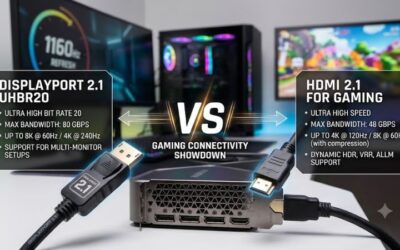
Connect your display using DisplayPort 1.4 or HDMI 2.1 cables to support uncompressed high bandwidth bandwidth limits. Older HDMI cables limit refresh rate bandwidth, dropping 175Hz or 240Hz panels down to standard 60Hz operating modes. Verify output color depth in driver settings operates at 10-bit color for high dynamic range.
Enable Adaptive Sync in Driver Control Panels
Optimizing curved monitor gaming display profiles requires enabling G-SYNC Compatible or AMD FreeSync inside driver software to synchronize display refresh rates with GPU output. Open NVIDIA Control Panel, select Set Up G-SYNC, and check full-screen mode. Synchronizing frame delivery stops screen tearing without introducing heavy V-Sync lag.
Test variable refresh rate functionality using demo applications to check for unwanted brightness flickering on custom panels. If flickering occurs in dark game scenes, adjust the lower VRR range threshold using Custom Resolution Utility software. Disabling full-screen optimization in Windows properties fixes occasional VRR glitches.
Adjust In-Game Field of View Sliders
Adjust in-game FOV sliders to account for wider aspect ratios when launching new title releases on ultrawide monitors. Standard games default to 80-degree horizontal field of view designed specifically for standard 16:9 flat screens. Increasing FOV to 95 or 100 degrees expands peripheral vision naturally on 21:9 curved displays.
Avoid maxing FOV sliders beyond 110 degrees to prevent unnatural camera stretching along the outer edges of the screen. Fine-tuning camera perspective ensures curved monitor gaming configurations maintain realistic proportions across game worlds. Test individual titles using fixed reference objects to spot edge distortion early.
Frequently Asked Questions
Addressing queries regarding curved monitor gaming helps clarify hardware requirements, ergonomic setups, and panel maintenance for prospective buyers. Understanding mounting tolerances, eye comfort mechanics, and GPU demands ensures seamless desktop integration. Below are factual answers to essential questions regarding curved gaming displays.
What Curvature Rating Is Best for Desk Gaming?
A 1500R curvature rating offers the best balance of immersion and desktop versatility for average sitting distances of 1.5 meters. This moderate bend suits both 27-inch standard and 34-inch ultrawide displays without distorting horizontal productivity lines. Aggressive 1000R curves suit deep simulation setups with close desk positions.
Gentler 1800R curves work best for multi-monitor setups where displays are angled inward on wide mounting arms. Selecting curvature ratings depends heavily on desktop depth and whether you perform precision line editing work alongside games. Proper radius selection ensures consistent focal distance across the entire panel surface.
Does a Curved Screen Reduce Optical Fatigue?
Curved screens reduce optical fatigue by keeping display edges at equal distances from your eyes, minimizing focal adjustments. On flat ultrawide monitors, peripheral pixels sit farther away than center pixels, forcing ciliary eye muscles to refocus constantly. Bending the panel maintains uniform focal depth across your field of view.
Evaluating curved monitor gaming comfort involves pairing panel curvature with flicker-free backlights and blue light filters during prolonged sessions. Reducing glare reflection angles also prevents eye strain caused by ambient room lighting bouncing into your eyes. Maintaining recommended seating distance remains critical for comfort.
Can You Mount a Curved Screen on a VESA Arm?
Yes, curved screens mount securely on standard VESA arms provided the arm supports the weight and center of gravity offset. Deeply curved monitors shift weight forward, requiring monitor arms rated for higher torque load capacities than flat panels. Checking VESA pattern dimensions like 100x100mm ensures physical hardware compatibility.
Using included VESA adapter standoff screws prevents the mounting plate from scratching curved rear cabinet housings during installation. Tighten tilt tension bolts on the arm joint to prevent heavy ultrawide panels from drooping forward over time. Proper arm adjustment allows easy distance positioning for optimal focal alignment.
Do Curved Displays Require Extra GPU Power?
Curved displays do not require extra graphics card processing power simply due to their physical curvature bend. Frame rates depend entirely on total pixel count and resolution, such as standard 2560×1440 versus ultrawide 3440×1440 resolutions. Driving 3440×1440 requires roughly 34 percent more GPU power than standard QHD monitors.
Pairing high refresh rate curved monitor gaming setups with GPUs like the NVIDIA GeForce RTX 4070 ensures smooth 144Hz performance. Demanding games at 3440×1440 resolution benefit from hardware upscalers like DLSS to maintain target frame rates reliably. Check GPU display output specs to confirm HDMI 2.1 or DisplayPort support.
Final Thoughts
Upgrading to curved monitor gaming setups enhances spatial awareness and visual comfort when tailored to your desk depth. Choosing matching curvature ratings, setting native resolution, and enabling adaptive sync maintains clean frame delivery. Proper physical positioning ensures you extract peak performance from modern hardware.