🛒 Best Price Today on Amazon
Prime members get fast, free shipping on everything above, plus member-only deals. New members get a 30-day free trial — cancel anytime.

Stouchi 10FT VESA Certified DisplayPort 2.1 Cable 80Gbps UHBR20 DP Cord | 16K 8K@240Hz 4K@360Hz | FreeSync G-Sync | DSC 1.2a | Snag-Free Connector | For RTX 5090 4090 Gaming Monitor
Included for 'DisplayPort 2.1 UHBR20 vs HDMI 2.1: Smart Gaming Guide' because the listing specifies 16K 8K@240Hz 4K@360Hz and FreeSync G-Sync, details this guide uses to compare options.
View on Amazon
Cable Matters 80Gbps DisplayPort 2.1 Cable, 9.8ft / 3m, Black | 16K@60Hz, 8K@240Hz, 4K@240Hz with DSC, UHBR20, FreeSync, G-SYNC, HDR, for Gaming Monitor PC
Included for 'DisplayPort 2.1 UHBR20 vs HDMI 2.1: Smart Gaming Guide' because the listing specifies 9.8ft / 3m and Black, details this guide uses to compare options.
View on AmazonChoosing between DisplayPort 2.1 UHBR20 vs HDMI 2.1 for gaming comes down to bandwidth, monitor compatibility, and your target resolution and refresh rate. DisplayPort offers greater maximum bandwidth, while HDMI provides excellent gaming support for PCs, consoles, and TVs. This guide explains which connection suits your setup.
What DisplayPort 2.1 UHBR20 vs HDMI 2.1 Really Comes Down To
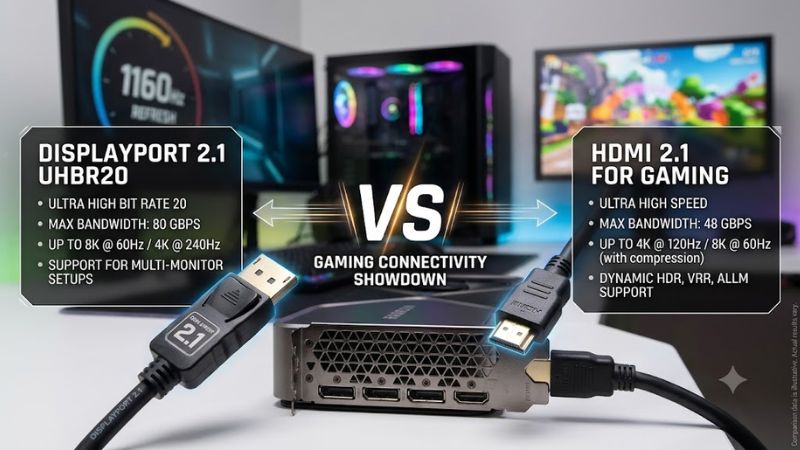
The biggest technical difference is bandwidth: DisplayPort 2.1 UHBR20 supports a maximum link rate of 80 Gbps, compared with HDMI 2.1’s 48 Gbps. However, higher bandwidth does not automatically produce more FPS or lower input latency. Your graphics card, monitor, display mode, and compression support determine the practical benefit.
1. Bandwidth and Image Quality
DisplayPort 2.1 UHBR20 uses four high-speed lanes, each operating at 20 Gbps, for a combined raw link rate of 80 Gbps. This provides more transmission capacity for demanding display configurations, including high resolutions, high refresh rates, and HDR. The available bandwidth after transmission overhead is lower than the headline rate.
HDMI 2.1 supports a maximum raw bandwidth of 48 Gbps. That is sufficient for many 4K high-refresh-rate gaming displays, although the available bandwidth can constrain particular combinations of resolution, refresh rate, color depth, and chroma format. Neither interface inherently produces sharper colors or better contrast when both deliver the same supported display signal.
2. Resolution, Refresh Rate, and DSC
DisplayPort’s extra bandwidth becomes valuable when targeting demanding combinations such as 4K at very high refresh rates or 8K gaming displays. NVIDIA specifies that the GeForce RTX 5090 can support up to 4K at 480Hz or 8K at 165Hz through DisplayPort 2.1b UHBR20 with Display Stream Compression (DSC).
HDMI 2.1 also supports demanding configurations. NVIDIA lists up to 4K at 480Hz or 8K at 120Hz through HDMI 2.1b with DSC on the RTX 5090. These are manufacturer-specified maximum capabilities, not guarantees that every monitor, cable, color format, and display mode will work at those settings.
DSC is a visually lossless compression technology designed to reduce the data required for a display signal. It is used with both DisplayPort and HDMI. Therefore, the bandwidth difference does not mean HDMI is automatically limited to lower gaming resolutions or refresh rates.
3. Variable Refresh Rate and Gaming Latency
Variable Refresh Rate (VRR) synchronizes the display’s refresh timing with the GPU’s frame delivery within the supported operating range. This can reduce screen tearing and make changes in frame rate appear smoother. HDMI 2.1 supports gaming-oriented features such as VRR and Auto Low Latency Mode (ALLM), while DisplayPort gaming monitors can support adaptive synchronization technologies such as VESA Adaptive-Sync and NVIDIA G-SYNC compatibility.
Neither connector guarantees lower input latency on its own. Actual latency depends on the monitor’s processing, refresh rate, pixel response, game engine, GPU workload, and synchronization settings. A well-configured HDMI connection can feel just as responsive as DisplayPort when both support the same refresh rate and gaming features.
4. What Doesn’t Help: Choosing by Version Number Alone
A monitor labeled DisplayPort 2.1 does not necessarily support UHBR20. DisplayPort 2.1 products can implement different link rates, including UHBR10, UHBR13.5, and UHBR20. Check the manufacturer’s specifications for the actual link rate and supported display modes rather than assuming every DisplayPort 2.1 port provides 80 Gbps.
The same caution applies to HDMI 2.1. The specification’s maximum capabilities do not establish that every HDMI 2.1 device implements every optional feature or maximum bandwidth. When comparing displays, verify the exact resolution, refresh rate, VRR range, HDR support, and required cable. The capabilities of the complete connection matter more than the label alone.
How to Choose Between DisplayPort 2.1 UHBR20 and HDMI 2.1
For a PC gaming setup, begin with the monitor’s native resolution and maximum refresh rate, then check which ports on your graphics card support that mode. DisplayPort 2.1 UHBR20 is particularly useful for bandwidth-intensive configurations, but HDMI 2.1 remains a capable choice for high-refresh-rate monitors and gaming TVs. The table below summarizes the main trade-offs.
| Setting or Feature | DisplayPort 2.1 UHBR20 | HDMI 2.1 |
| Maximum raw bandwidth | 80 Gbps | 48 Gbps |
| High-refresh-rate 4K | Supports demanding modes; DSC may be required | Supports demanding modes; DSC may be required |
| Maximum example on RTX 5090 | 4K 480Hz or 8K 165Hz with DSC | 4K 480Hz or 8K 120Hz with DSC |
| Gaming synchronization | Adaptive-Sync and compatible VRR implementations | VRR and compatible display features |
| Typical use | High-end PC monitors | Gaming monitors, TVs, and consoles |
| Main limitation | UHBR20 requires compatible hardware and a suitable cable | Lower maximum bandwidth; supported modes vary |
1. Check the GPU’s Actual Display Outputs
Your graphics card determines which signals it can transmit. For example, NVIDIA specifies DisplayPort 2.1b UHBR20 and HDMI 2.1b capabilities for the GeForce RTX 5090. AMD lists DisplayPort 2.1a and HDMI 2.1b on the Radeon RX 9070 XT. These examples illustrate why you should inspect the exact GPU model rather than assume all current graphics cards have identical outputs.
Also check the manufacturer’s specifications for the individual graphics card, especially if it is a custom model. Confirm the number of ports, supported display modes, and maximum refresh rate at your intended resolution. If the GPU cannot supply a particular mode through a port, changing cables alone will not add the missing capability.
2. Match the Connection to Your Monitor
For a 1440p or 4K gaming monitor, either connection may be suitable, depending on its specifications. Some monitors offer their highest refresh rates through DisplayPort, while others provide comparable modes over HDMI. Certain displays also reserve specific features or resolutions for particular inputs, so read the monitor manual before selecting a port.
If you are buying a high-end 4K 240Hz, 360Hz, or 480Hz monitor, pay particular attention to the supported input combinations. Check whether the desired mode requires DSC, a specific color format, reduced color depth, or a particular firmware version. These details matter more than simply confirming that both devices list the same interface generation.
3. Select the Correct Cable
For UHBR20, choose a VESA-certified DP80 cable that supports the intended link rate. VESA identifies DP80 cables as supporting DisplayPort UHBR20, with a maximum raw link rate of 80 Gbps. A cable’s physical connector may look identical to another DisplayPort cable even when its certified performance differs.
For HDMI 2.1 at up to 48 Gbps, use a certified Ultra High Speed HDMI cable. Certification helps verify that the cable meets the applicable performance requirements, but the connected devices must still support the desired display mode. Avoid assuming that a cable will support every resolution and refresh-rate combination merely because its packaging mentions 8K or 4K.
4. Configure and Verify the Display Mode
After connecting the display, open Windows Settings, navigate to System > Display > Advanced display, and select the monitor you want to configure. Review the displayed resolution and refresh-rate options. Choose the intended refresh rate if it is available, then confirm that the desktop and games operate correctly.
Next, open the GPU control panel or the monitor’s on-screen display to check available color settings, VRR options, and other relevant features. If the desired refresh rate is missing, check the monitor’s input settings, cable certification, graphics driver, and device specifications. Return to a supported resolution or refresh rate if the screen becomes unstable.
FAQ
Is DisplayPort 2.1 UHBR20 better than HDMI 2.1 for PC gaming?
DisplayPort 2.1 UHBR20 offers more maximum bandwidth, making it useful for demanding high-resolution and high-refresh-rate PC displays. HDMI 2.1 can deliver excellent gaming performance when it supports the monitor’s target mode. The right choice depends on your hardware and required display settings.
Can HDMI 2.1 support 4K at 240Hz?
Yes, HDMI 2.1 can support 4K at 240Hz under suitable hardware and display conditions, with DSC potentially required depending on the signal format. Check the monitor’s HDMI input specifications and your graphics card’s output capabilities before assuming the mode is available.
Does DisplayPort 2.1 UHBR20 increase FPS?
No, changing to DisplayPort 2.1 UHBR20 does not directly increase the FPS rendered by a game. It provides more display bandwidth, which can enable modes that a lower-bandwidth connection cannot accommodate. Actual FPS depends primarily on the GPU, CPU, game, and graphics settings.
Can I use HDMI 2.1 for a high-refresh-rate gaming monitor?
Yes, provided the graphics card and monitor support your desired resolution and refresh rate over HDMI. Verify VRR compatibility, HDR requirements, color depth, and cable certification. If HDMI cannot provide your preferred mode, check whether the monitor’s DisplayPort input supports it instead.
Final Thoughts
The choice between DisplayPort 2.1 UHBR20 vs HDMI 2.1 for gaming is primarily about the display mode you need, not a guaranteed difference in image quality or responsiveness. UHBR20 offers more bandwidth for demanding PC monitors, while HDMI 2.1 works well across many gaming displays and TVs. Check both devices’ specifications before choosing a cable.