🛒 Best Price Today on Amazon
Prime members get fast, free shipping on everything above, plus member-only deals. New members get a 30-day free trial — cancel anytime.
A proper display setup transforms your daily visual experience by removing harsh color shifts and oversaturated skin tones. Executing a monitor color calibration helps align hardware output with standard color profiles so games and media render as intended. Taking time to adjust tone curves prevents dark scenes from looking crushed.
What Monitor Color Calibration Really Comes Down To
Achieving proper color rendering depends on matching screen luminance, white point temperature, and gamma target with industry standards like sRGB or DCI-P3. Performing a monitor color calibration balances hardware settings on the display panel alongside software lookup tables inside Windows Color Management to deliver neutral gray tones.
Target White Point and Color Temperature
Standard SDR content targets a white point of 6500K, commonly known as D65, which matches standard daylight. Running a monitor color calibration brings warm yellow or cool blue factory tints back to a neutral reference point. Adjusting internal RGB gains inside the display menu helps align panel output with this 6500K reference baseline.
Incorrect white points skew every color across the spectrum because red, green, and blue pixels build upon that base. Setting temperature presets to Warm or Custom inside the display hardware provides the cleanest foundation. Most IPS panels ship with elevated blue output to appear brighter on retail shelves before end user adjustment.
Gamma Curves and Luminance Levels
Gamma defines how smoothly a panel transitions from deep black to pure white along a logarithmic scale. Targeting a standard gamma value of 2.2 ensures midtone shadows remain detailed without washing out contrast. Most factory displays set gamma slightly too low, making dark game corners appear artificially hazy during night sequences.
Luminance measured in nits determines overall screen brightness for dark or well lit room environments. Setting brightness between 120 and 150 nits reduces eye strain while preserving dark room contrast ratios. High ambient lighting requires higher brightness, but excessive brightness compromises shadow detail during competitive gaming sessions.
Color Profiles and Lookup Tables
An ICC profile contains numerical correction data that informs Windows how your specific display renders individual shades. Applying a monitor color calibration stores hardware correction curves directly into the graphics card video lookup table. This system level map translates application color values into precise physical panel signals.
Wide color gamut panels covering DCI-P3 often over-saturate standard sRGB web content and non-HDR games. Using specialized ICC profiles or display driver clamp tools restricts wide gamut displays to sRGB boundaries. This translation prevents neon red skin tones while maintaining natural color saturation across older desktop applications.
What Doesn’t Help
Downloading third party software that promises automatic registry performance boosts or RAM cleaning does not fix display inaccuracy. Color tracking is governed by panel hardware and GPU lookup tables rather than background system services. Disabling Windows telemetry or background update services similarly has zero impact on panel colors.
Copying preset color profiles from online forum threads rarely yields accurate results due to panel manufacturing variations. Two identical monitor models leaving the assembly line often display distinct tint differences and gamma drift. True accuracy requires calibrating the specific physical panel connected to your graphics card output.
How to Do Monitor Color Calibration: Step by Step
Systematic calibration begins with resetting internal monitor options before modifying Windows driver parameters or applying ICC profiles. Conducting a monitor color calibration requires a controlled lighting environment and a warm panel that has been active for thirty minutes to stabilize backlight temperature and voltage output levels.
| Setting | Where | Effect | Risk |
| Factory Reset & Warmup | Display OSD Menu | Clears rogue settings and lets backlight stabilize temperature | Resets custom user profiles |
| Hardware Brightness & Gain | Display OSD Menu | Aligns 6500K white point and 120 nits baseline luminance | Manual trial requires patient adjustment |
| Windows Color Calibration | Control Panel / DCCW | Adjusts system gamma 2.2 curve and neutral gray balance | Software curves can cause mild banding |
| Profile Loader Verification | Windows Color Management | Locks GPU lookup table curves at Windows startup | Third-party overlays may override profile |
Step 1: Reset Display OSD and Warm Up Panel
Begin by powering on your display and allowing it to run continuously for thirty minutes before taking measurements. Modern LED backlights shift in color temperature and luminance as their internal components reach operational heat. Skipping this warmup phase causes adjustments to drift as the panel gradually reaches heat equilibrium.
Navigate into the monitor internal OSD menu using physical buttons and select the factory reset option. This step removes active digital enhancements like dynamic contrast, black equalizer boosts, or aggressive sharpness filters. To undo this step later, simply re-enter the OSD menu and re-enable any preferred custom gaming preset features.
Step 2: Adjust Hardware OSD Brightness and RGB Gains
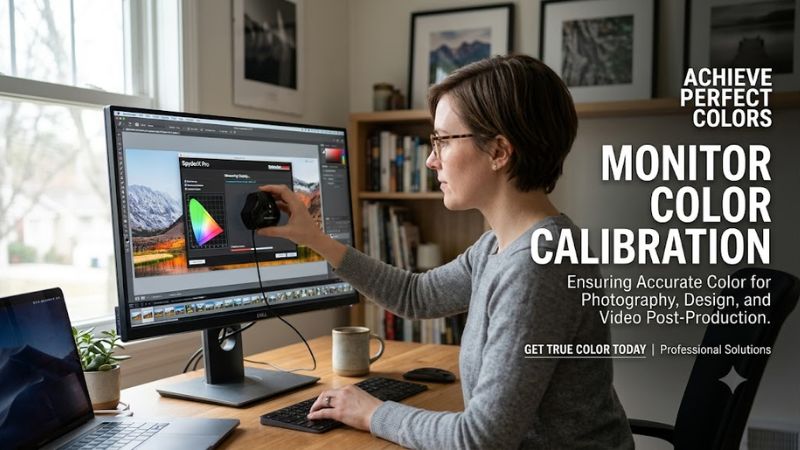
Enter the color settings menu within the monitor OSD to adjust individual Red, Green, and Blue gain sliders. Initiating a monitor color calibration at the hardware level preserves total dynamic range better than software adjustments alone. Reduce the dominant color channel until white test patterns appear completely neutral without tint.
Set display brightness to roughly 30 percent to achieve an approximate 120 nits baseline for indoor viewing. Avoid altering hardware contrast away from default 50 percent settings, as raising contrast clips bright highlights into pure white. You can undo these OSD changes anytime by restoring RGB sliders back to their default 100 values.
Step 3: Run Windows Display Color Calibration Utility
Open the Windows search bar, type dccw, and press Enter to launch the built-in Display Color Calibration tool. Follow the on-screen instructions to adjust system gamma until the center dots inside the sample circles blend smoothly into the background. This software step corrects gamma curves directly within your graphics driver lookup table.
Proceed through the color balance sliders to clear lingering tint in midtone grays across test gradients. Save the final settings to create an active software profile linked to your primary display adapter output. To undo this utility adjustment, open Windows Color Management and click Reset my settings to default user values.
Step 4: Lock ICC Profile with Windows Color Management
Search for Color Management in Windows Control Panel, select your active monitor, and check Use my settings for this device. Adding your generated ICC profile or vendor profile ensures consistent color handling across applications. Maintaining a monitor color calibration requires keeping this designated profile set as default.
Switch to the Advanced tab inside Color Management and select Change system defaults to enable calibration loading. Ensure the option for Use Windows display calibration is checked so GPU lookup tables apply on system startup. To undo this step, highlight the added ICC profile, click Remove, and restore the default system profile.
Frequently Asked Questions About Monitor Color Calibration
Understanding how hardware settings interact with operating system color spaces resolves common display issues after calibration. Performing a monitor color calibration clarifies differences between SDR and HDR modes while helping users fix banding or washed out images. Below are answers to frequent questions regarding display setups.
How Often Should You Calibrate a Gaming Monitor?
You should calibrate a gaming monitor every three to six months to correct natural backlight color drift over time. Executing a monitor color calibration periodically ensures that gradual LED aging does not skew gamma levels or color temperature targets. High precision tasks may require monthly checks to maintain strict color accuracy.
Backlight components undergo slight physical changes during operation, which alters peak luminance and white point balance over extended months. Newer IPS and OLED displays hold color accuracy longer than older CCFL designs, but subtle shifts still occur. Regular recalibration keeps dark shadow detail stable across seasonal ambient light changes.
Does Color Calibration Work in Windows HDR Mode?
Standard SDR ICC profiles do not function inside Windows HDR mode because HDR relies on fixed tone mapping curves like PQ or HLG. Modern operating systems bypass standard desktop lookup tables when HDR mode is active to preserve high peak brightness metadata. Users must adjust HDR calibration using the Windows HDR Calibration app instead.
Attempting to force an SDR color profile onto an active HDR screen causes severely washed out colors and broken contrast. Always toggle HDR off inside Windows Display Settings when working in standard SDR color spaces or running desktop ICC profiles. Switching modes allows the monitor hardware to apply correct tone mapping per display mode.
Why Do Games Override Windows Color Calibration Profiles?
Games override Windows color profiles because full-screen exclusive mode takes direct control over graphics hardware rendering pipelines. When a game bypasses Desktop Window Manager, graphics card lookup tables loaded by Windows can be ignored. Running games in Borderless Windowed mode forces full-screen applications to respect active ICC profiles.
Certain graphics driver utilities or third-party tools like Color Sustainer can re-apply lookup tables if full-screen games reset them. Checking NVIDIA Control Panel or AMD Software settings ensures Desktop Color Settings remain governed by Windows. Adjusting these driver options prevents sudden color pops when switching between applications.
Can Hardware Colorimeters Improve Panel Calibration Accuracy?
Hardware colorimeters significantly improve panel calibration accuracy by taking precise spectral measurements of screen light output. Devices like the Calibrite Display SL or Datacolor Spyder X2 remove human eye subjectiveness during adjustment. Connecting a physical sensor yields precise dE color accuracy metrics below target thresholds.
Pairing a hardware colorimeter with open source tools like DisplayCAL generates automated 3D lookup tables and highly detailed ICC profiles. The software measures hundreds of color patches to correct non-linear gamma curves across the entire panel spectrum. This hardware approach provides repeatable precision that manual visual tools cannot replicate.
Final Thoughts
Taking time to calibrate your display hardware ensures accurate color balance and natural contrast across all desktop applications. Maintaining a regular monitor color calibration workflow prevents shadow crush in dark game environments while preventing unnatural color casts. Balanced visuals provide a consistent baseline for daily media.