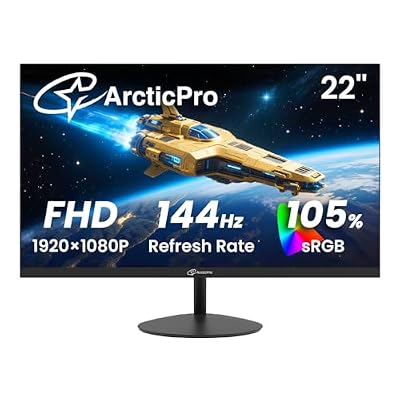
- Top Pick: Sceptre New 22-Inch Gaming Monitor, FHD 1080p, Up to 144Hz, HDMI, DisplayPort, Built-in Speakers, Machine Black (E225W-FW144 Series, 2026)
- Best Value: LG 24G411A-B 24-inch Ultragear Full HD (1920 x 1080) IPS Gaming Monitor, 144Hz (O/C), 1ms MBR, NVIDIA G-Sync Compatible, AMD FreeSync, HDR10, HDMI, DisplayPort, Slim Stand, Black
- Premium Choice: msi PRO MP243L E14 24-inch IPS 1920 x 1080 (FHD) Gaming Office Monitor, 144Hz, Free-Synch, HDR Ready, HDMI, VGA Port,VESA Mountable, Tilt, 4-Side Slim Bezel,1ms, Black
Shopping for a gaming monitor under $300 sounds easy until you actually start looking. The sub-$300 tier is the most crowded segment on the market, packed with panels that advertise 144Hz and “HDR Ready” but quietly cut corners on response times, color accuracy, or stand adjustability. Worse, the specs that matter most for actual gameplay — real motion clarity, low input lag, reliable adaptive sync — rarely make it onto the product page in any meaningful way.
This guide cuts through that noise. We’ve focused on 1080p monitors between 22 and 27 inches, because that’s where the budget sweet spot genuinely lives in 2026: high refresh rates without forcing a GPU upgrade to keep up. Below you’ll find our top picks, a practical buying checklist, and honest answers to the questions we hear most from readers building or upgrading a budget gaming setup.
As an Amazon Associate we earn from qualifying purchases at no extra cost to you.






⚡ Save on Your Next PC — Amazon Prime
Prime members get fast free shipping on the systems above, plus early access to Prime Day & Black Friday PC deals. New members get a 30-day free trial.
Watch: Best Gaming Monitor Under $300 — Video Review
How to Choose Gaming Monitor Under $300
- Refresh rate over resolution: At this budget, 1080p at 144Hz will feel dramatically smoother than 1440p at 60Hz. Prioritize frames you can actually see, and save the resolution jump for a future upgrade.
- Panel type matters more than marketing: IPS panels deliver noticeably better color and viewing angles than budget TN, and modern IPS is fast enough for everything short of competitive esports. Treat IPS as the default unless you have a specific reason not to.
- Check adaptive sync compatibility: FreeSync and G-Sync Compatible certification eliminate screen tearing without the performance cost of V-Sync. Confirm the monitor supports the standard your GPU uses, and verify the sync range covers your typical framerate.
- Be skeptical of “1ms” claims: Manufacturers quote gray-to-gray or MPRT figures measured under ideal conditions. Look for backlight strobing features like MBR or ELMB if motion clarity is your priority — those do more for perceived sharpness than any spec sheet number.
- Factor in the stand and inputs: Many budget monitors ship with tilt-only stands and a single DisplayPort. If you need height adjustment or plan to run multiple sources, either confirm those features or budget for a VESA arm.
The Best Picks Reviewed
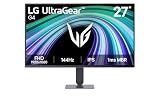
LG 27G414B-B UltraGear 27-inch
This is the most complete package under $300 — a 27-inch IPS panel with a genuine 144Hz refresh, G-Sync Compatible and FreeSync support, and a height-adjustable stand that most competitors skip entirely. The built-in speakers and Nintendo Switch-friendly HDMI make it an easy pick for mixed-use setups.
ASUS TUF Gaming VG249QE5A 24-inch
ASUS pairs a fast IPS panel with Extreme Low Motion Blur Sync, which delivers the cleanest motion of anything in this price bracket for fast-paced shooters. Variable Overdrive keeps ghosting in check across the refresh range, and the three-year warranty is unusually generous for a budget model.
LG 24G411A-B UltraGear 24-inch
Essentially the 27-inch UltraGear scaled down for smaller desks and competitive players who prefer a tighter field of view. You get the same IPS panel quality, G-Sync Compatible certification, and 1ms MBR strobing, though the slim stand is tilt-only.
MSI PRO MP243L E14 24-inch
A sensible dual-purpose choice if your monitor pulls double duty for work and gaming — the 4-side slim bezel suits multi-monitor arrangements, and the IPS panel handles spreadsheets and shooters equally well. The inclusion of VGA alongside HDMI also makes it useful for older secondary machines.
Sceptre E225W-FW144 22-inch
The budget entry point here, delivering 144Hz, DisplayPort, and built-in speakers at a price that leaves room for other components. Color accuracy won’t match the IPS options above, but for a secondary display or a first gaming build, the value is hard to argue with.
Frequently Asked Questions
Is 1080p still worth buying in 2026?
For gaming under $300, absolutely. A 1080p 144Hz panel lets mid-range GPUs push high framerates in demanding titles, whereas 1440p at this price typically means compromising on refresh rate, panel quality, or both.
Do I need G-Sync or FreeSync?
Adaptive sync is one of the biggest quality-of-life upgrades available, and it costs nothing extra on most modern monitors. Both LG UltraGear models here carry G-Sync Compatible certification alongside FreeSync, so they work well with either GPU vendor.
Is 27 inches too large for 1080p?
At normal desk distance, 27-inch 1080p is noticeably less sharp than 24-inch, with visible pixel structure on text. If you sit close or do a lot of reading, 24 inches is the safer choice; if you sit further back and want immersion, 27 works fine.
Does “HDR Ready” actually mean anything?
Not much at this price. Budget monitors lack the brightness and local dimming that make HDR worthwhile, so treat HDR10 support as a compatibility checkbox rather than a feature you’ll benefit from.
Final Thoughts
If you want the most monitor for your money, the LG 27G414B-B UltraGear is the clear overall winner — a 27-inch IPS panel with proper adaptive sync and a height-adjustable stand is genuinely rare under $300. Competitive players who value motion clarity above all else should look at the ASUS TUF VG249QE5A instead, while anyone building on a tight budget will find the Sceptre E225W-FW144 delivers the 144Hz fundamentals without stretching the wallet.