🛒 Best Price Today on Amazon
Prime members get fast, free shipping on everything above, plus member-only deals. New members get a 30-day free trial — cancel anytime.
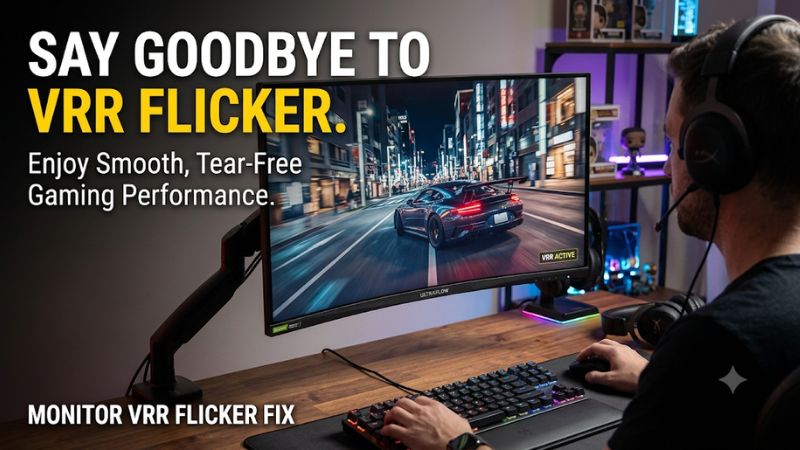
Monitor vrr flicker fix is a common search for gamers experiencing brightness fluctuations, flashing screens, or intermittent blackouts when Variable Refresh Rate is enabled. The right solution depends on whether the problem comes from frame-rate instability, G-SYNC or FreeSync compatibility, display settings, or the video connection.
Why Monitor VRR Flickering Happens
VRR flickering usually occurs when a monitor struggles to maintain consistent brightness or synchronization as its refresh rate follows changing game frame rates. OLED and some VA panels can be particularly susceptible to brightness fluctuations during unstable frame delivery. However, black-screen dropouts and driver-related flickering require different troubleshooting.
1. Unstable Frame Rates and Frame-Time Changes
Variable Refresh Rate synchronizes a monitor’s refresh rate with the graphics card’s changing frame output. This reduces tearing and can improve perceived smoothness, but it does not make inconsistent frame delivery disappear.
When frame times fluctuate significantly, some displays exhibit visible brightness changes. This behavior is especially noticeable in dark scenes, loading screens, menus, and games with sudden performance changes. OLED monitors can show these fluctuations because their near-black brightness response is sensitive to changes in refresh timing.
2. G-SYNC, FreeSync, and Monitor Compatibility
G-SYNC and FreeSync use adaptive synchronization to coordinate the GPU and display. Although they serve similar purposes, implementation and compatibility depend on the monitor, graphics card, connection, and supported refresh-rate range.
An Adaptive-Sync monitor that is not officially validated for NVIDIA G-SYNC Compatible operation may still work with a GeForce GPU, but behavior can vary. Dell also identifies certain VA gaming monitors as susceptible to flickering when G-SYNC is enabled without appropriate compatibility.
3. Panel Characteristics and Low Refresh Rates
Not every VRR flicker problem indicates defective hardware. OLED panels can exhibit brightness fluctuations when frame delivery changes, while some VA panels show noticeable flickering during large refresh-rate transitions.
Low frame rates can make the issue more visible, particularly when a game repeatedly moves near the lower boundary of the monitor’s VRR range. Low Framerate Compensation (LFC), when supported, helps extend adaptive synchronization below that range, but it cannot prevent every panel-related brightness fluctuation.
4. What Doesn’t Help
Randomly changing graphics settings, increasing GPU power limits, or installing multiple driver versions without diagnosing the problem can waste time. These actions do not establish whether the monitor, connection, driver, or VRR implementation is responsible.
Avoid immediately changing BIOS settings, modifying the Windows Registry, or purchasing another cable without checking the symptoms. A brightness fluctuation tied to frame-rate changes is different from a signal dropout caused by a connection problem.
Start by identifying whether the entire image flashes, dark scenes change brightness, or the monitor temporarily loses its signal. That distinction determines which troubleshooting steps are appropriate.
How to Fix Monitor VRR Flicker: Step by Step
The most useful monitor VRR flicker fix begins with a controlled comparison: temporarily disable adaptive synchronization and repeat the same gaming scenario. If the flicker disappears, investigate VRR behavior and compatibility first. If it continues, check the display driver, refresh settings, cable, and monitor hardware instead.
| Step | Where | How to Verify | Cost |
| 1. Test with VRR disabled | Monitor OSD and GPU software | Compare the same game scene | Free |
| 2. Adjust frame-rate behavior | Game graphics settings | Check brightness and frame-time stability | Free |
| 3. Check refresh and compatibility | Windows and GPU control panel | Confirm supported resolution and refresh rate | Free |
| 4. Update or roll back drivers | Device Manager or GPU software | Repeat the original comparison | Free |
| 5. Inspect the connection | GPU and monitor ports | Check for blackouts and signal interruptions | Free or low cost |
| 6. Adjust monitor settings | Monitor OSD | Compare overdrive and overclock behavior | Free |
1. Disable VRR Temporarily to Identify the Cause
The first diagnostic step is to disable FreeSync, Adaptive-Sync, or G-SYNC and see whether the flickering stops. Open your monitor’s On-Screen Display (OSD) using its physical buttons or joystick and locate the adaptive synchronization option.
For an NVIDIA graphics card, open NVIDIA Control Panel, select Display, then Set up G-SYNC. Disable G-SYNC and apply the change. For AMD, open AMD Software: Adrenalin Edition, select Display, and turn AMD FreeSync off if the option is available.
Replay the same scene under similar graphics settings. If the brightness fluctuations disappear, VRR behavior is likely involved. If they remain, investigate the driver, cable, application, or monitor separately.
Do not leave VRR disabled automatically. This is a diagnostic comparison, not necessarily the preferred permanent configuration.
2. Stabilize Game Frame Rates
If flickering occurs primarily during demanding scenes, investigate frame-rate instability. Large changes in GPU workload can produce inconsistent frame delivery, making brightness fluctuations more noticeable on susceptible panels.
Start by lowering demanding settings such as ray tracing, shadow quality, or resolution. You can also enable an in-game frame-rate limiter if the game provides one. Avoid changing several graphics settings simultaneously because that makes it harder to identify the actual improvement.
Keep the frame rate within the monitor’s supported VRR operating range whenever practical. If the game frequently drops below the lower boundary, LFC may help when both the monitor and graphics implementation support it.
A stable frame rate can reduce the conditions that trigger flickering, but it cannot correct every underlying panel limitation. If the problem remains visible with consistent frame delivery, test the monitor without VRR again.
3. Check Refresh Rate and Adaptive-Sync Compatibility
Incorrect display configuration can create additional instability. In Windows 11, open Settings, select System, Display, Advanced display, and check the selected monitor’s active refresh rate.
Choose a refresh rate supported by the monitor at the resolution you are using. Do not assume that every advertised maximum refresh rate is available through every HDMI or DisplayPort connection.
For NVIDIA users, open NVIDIA Control Panel and inspect Display, Set up G-SYNC. Confirm that the correct display is selected and that G-SYNC is enabled only when the monitor supports the intended configuration.
AMD users should check AMD Software: Adrenalin Edition under Display and verify FreeSync availability. Also inspect the monitor OSD because some displays require Adaptive-Sync or FreeSync to be enabled separately.
If you use multiple monitors, temporarily disconnect secondary displays and repeat the comparison. This helps identify whether the problem is associated with a particular display configuration.
4. Update or Roll Back the Graphics Driver
An outdated or incompatible graphics driver can cause flickering that resembles a VRR problem. If the issue started immediately after a driver update, consider rolling back to the previous version rather than repeatedly installing newer releases.
In Windows 11, right-click Start, open Device Manager, expand Display adapters, and select your graphics card. Open Properties, choose the Driver tab, and select Roll Back Driver if the option is available. Restart Windows and check whether the problem changes.
If the issue did not follow a recent update, install an appropriate driver from NVIDIA or AMD. Laptop owners should also consider the graphics driver supplied by their laptop manufacturer because hybrid graphics configurations can have additional compatibility requirements.
Avoid uninstalling drivers unnecessarily. If a driver change makes the display less stable, return to the previous working version when possible.
5. Inspect the Display Cable and Connection
A monitor that briefly turns black, loses its signal, or repeatedly reconnects may have a connection problem rather than ordinary VRR brightness flicker. This distinction is important because changing frame-rate limits will not repair an unreliable video connection.
Turn off the PC and monitor before reconnecting the cable. Check both ends for loose connections, visible damage, or debris. If you use an adapter, docking station, or extension, temporarily remove it and connect the monitor directly to the graphics card.
Try another suitable HDMI or DisplayPort cable if the problem continues. Make sure the cable supports the resolution and refresh-rate combination you are using. A connection that works at a lower refresh rate may become unstable at a higher bandwidth requirement.
If the blackouts disappear after changing the connection, investigate the original cable or adapter. If brightness fluctuations remain without signal interruptions, return to VRR and panel-related troubleshooting.
6. Adjust Monitor Overdrive and Overclock Settings
Some gaming monitors include overdrive, response-time acceleration, and refresh-rate overclocking options. These settings affect panel operation and can introduce unwanted visual artifacts when configured aggressively.
Open the monitor OSD and locate Response Time, Overdrive, or a similarly named option. If the setting is on its highest level, switch to a standard or moderate level and compare the results. Avoid assuming that the fastest response-time mode is always the best choice.
If your monitor has a refresh-rate overclock option, temporarily disable it and return to the manufacturer’s standard refresh rate. LG and Dell both identify monitor overclocking as a possible contributor to display instability or flickering.
Also disable motion-blur reduction or backlight strobing temporarily if enabled. These features use different display behavior from ordinary VRR and can complicate diagnosis. Change one setting at a time, record the original configuration, and restore it if the adjustment makes no difference.
How to Identify Persistent VRR Flickering
After completing the basic troubleshooting, determine whether the remaining issue is a limitation of the display or a wider graphics problem. A successful monitor VRR flicker fix should address the specific symptom without unnecessarily sacrificing refresh rate, image quality, or adaptive synchronization.
1. Distinguish Brightness Flicker From Signal Dropouts
Brightness flicker generally appears as repeated changes in image brightness, particularly in dark areas, without the monitor losing its connection. It may become more noticeable when entering menus, loading scenes, or moving between demanding and lightweight game environments.
Signal dropouts are different. The display may turn black briefly, show a no-signal message, or reconnect as though the video cable has been unplugged. These symptoms point toward a possible connection, bandwidth, driver, or monitor-input issue.
If flickering also occurs on the desktop with VRR disabled, investigate Windows and the graphics driver. Microsoft recommends checking whether Task Manager flickers along with the rest of the screen to help distinguish display-driver problems from incompatible applications.
2. Check Whether One Game or Every Game Is Affected
Reproduce the problem in more than one game using comparable display settings. If only one title causes flickering, investigate its frame-rate behavior, graphics configuration, and compatibility with adaptive synchronization.
A game that frequently changes rendering workloads can trigger visible fluctuations on certain panels even when other titles appear stable. This does not automatically mean that the monitor is defective.
If multiple games show the same behavior, compare them with a desktop workload and a VRR-disabled configuration. A consistent pattern across applications makes a monitor, driver, or system-level cause more plausible.
3. Understand the Limits of OLED and VA Displays
Some VRR flickering is related to panel characteristics rather than incorrect settings. OLED monitors can exhibit brightness fluctuations when refresh timing changes, especially in dark scenes and near-black image areas.
Certain VA panels can also display noticeable flickering when their refresh rates change substantially. The severity varies between monitor models, so two displays using similar panel technology may behave differently.
If the effect appears only with VRR enabled and disappears when adaptive synchronization is disabled, the panel’s interaction with changing refresh rates may be responsible. Firmware updates from the monitor manufacturer may improve specific compatibility problems, but they cannot be assumed to remove every inherent panel limitation.
4. When to Contact the Monitor Manufacturer
Contact the manufacturer when flickering continues with VRR disabled, appears in the monitor’s own diagnostic display, or is accompanied by persistent signal loss despite checking the connection and graphics driver.
Use the monitor’s built-in self-test if the manufacturer provides one. Dell, for example, recommends a Built-in Self-Test to help distinguish monitor-related problems from issues involving the PC, graphics card, or connection.
Before requesting service, record the monitor model, GPU model, connection type, resolution, refresh rate, driver version, and whether the problem disappears when VRR is disabled. This information helps support staff narrow down the cause.
Avoid attempting an unofficial firmware installation or opening the monitor enclosure. Firmware procedures should follow the manufacturer’s instructions, and internal repairs are better handled by qualified service personnel.
FAQ
1. Does Turning Off VRR Stop Monitor Flickering?
Turning off VRR can stop flickering caused by adaptive synchronization, but it is not a universal solution. If the image becomes stable after disabling FreeSync or G-SYNC, the problem is likely related to VRR behavior or monitor compatibility.
The trade-off is that you may experience screen tearing during gameplay. If disabling VRR fixes the problem, try adjusting frame-rate stability and checking for monitor firmware updates before deciding to leave it disabled.
2. Why Does My OLED Monitor Flicker With G-SYNC?
OLED monitors can exhibit brightness fluctuations when G-SYNC synchronizes the display with changing game frame rates. The effect is particularly noticeable in dark scenes, menus, and situations involving inconsistent frame delivery.
Try disabling G-SYNC temporarily and comparing the same scene. If the flickering disappears, consider stabilizing frame rates or disabling adaptive synchronization in games where the effect becomes distracting.
3. Can a DisplayPort Cable Cause VRR Flickering?
Yes, an unsuitable or damaged DisplayPort cable can cause intermittent signal interruptions that resemble VRR flickering. However, ordinary brightness fluctuations associated with changing frame rates do not automatically indicate a cable problem.
Reconnect the cable, remove unnecessary adapters, and try another cable that supports your display’s resolution and refresh rate. If the monitor still flickers only when VRR is active, investigate synchronization and panel behavior instead.
4. Should I Replace My Monitor If VRR Flickering Continues?
You should consider monitor replacement only after confirming that the problem is not caused by the GPU driver, connection, or incompatible settings. Some OLED and VA monitors have inherent VRR-related brightness limitations that cannot be completely corrected through software.
Check the manufacturer’s support documentation and warranty coverage first. If the flickering makes gaming uncomfortable and persists with supported configurations, consider a display with better documented VRR behavior.
Final Thoughts
A reliable monitor VRR flicker fix starts with identifying whether the problem comes from changing frame rates, panel characteristics, driver compatibility, or signal interruptions. Disable VRR temporarily, compare game behavior, and adjust one setting at a time. Keep adaptive synchronization enabled when it works reliably, and contact the manufacturer when problems persist.