🛒 Best Price Today on Amazon
Prime members get fast, free shipping on everything above, plus member-only deals. New members get a 30-day free trial — cancel anytime.
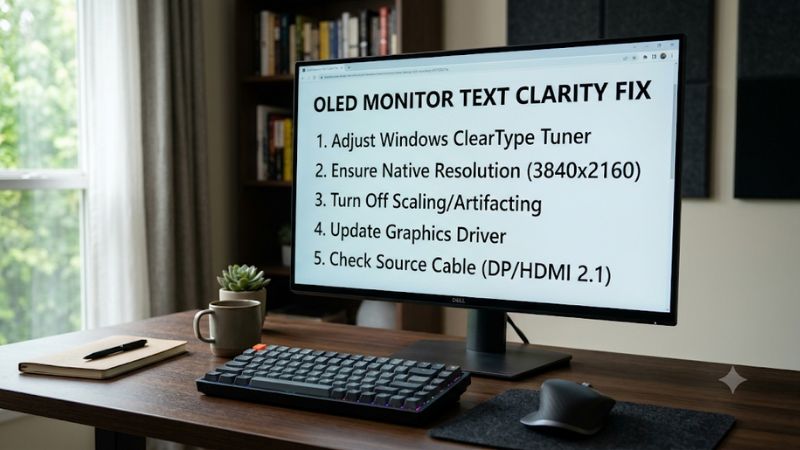
An oled monitor text clarity fix starts with identifying whether blurry letters come from Windows settings or the panel’s subpixel layout. This guide explains how to tune ClearType, correct resolution and scaling, adjust font rendering, and reduce distracting color fringing without replacing your monitor.
What OLED Monitor Text Clarity Really Comes Down To
OLED monitors can display exceptionally detailed images, but small text may look less defined than it does on a conventional IPS display. The main reasons are unusual subpixel arrangements, pixel density, and Windows font rendering. Before changing settings, identify whether the problem is colored edges, general softness, or text that looks too small.
1. Understand Why OLED Text Looks Blurry
Traditional LCD monitors commonly use an RGB stripe arrangement, with red, green, and blue subpixels positioned in a predictable sequence. Windows ClearType is designed to use subpixel information to improve font rendering. However, many OLED panels use different arrangements, so the rendering technique may not match the physical pixel structure.
QD-OLED panels typically use a triangular RGB subpixel arrangement, while WOLED panels can use four-subpixel layouts such as RWBG or RGWB. This mismatch can produce colored outlines around letters, particularly on small fonts and high-contrast backgrounds. RTINGS documents these differences in its monitor text-clarity research.
RTINGS.com+1
2. Recognize the Difference Between QD-OLED and WOLED
QD-OLED and WOLED do not necessarily produce identical text-rendering problems. QD-OLED panels can show colored fringing around letter edges and near the top or bottom of windows because of their triangular subpixel arrangement. The effect can be particularly noticeable when reading small white text against a dark background.
WOLED panels also have text-rendering limitations, but their appearance depends on the subpixel arrangement. Older RWBG layouts can produce more noticeable fringing than newer RGWB layouts. Consequently, an oled monitor text clarity fix that improves one display may produce different results on another model.
RTINGS.com+1
3. Check Resolution and Pixel Density
Pixel density affects how clearly individual letters appear. A 27-inch 1440p monitor has a lower pixel density than a 27-inch 4K monitor, so small text and curved letter edges can appear less refined at the same viewing distance. Higher pixel density can make OLED subpixel artifacts less noticeable.
Also check whether Windows is using the monitor’s native resolution. Running a display below its native resolution can make text appear softer because the image must be scaled to fit the physical pixel grid. Native resolution is the correct starting point before experimenting with font settings.
4. What Doesn’t Help
Increasing monitor sharpness to an extreme level does not correct an incompatible subpixel layout. Excessive sharpening can instead create bright outlines around letters and make small text less comfortable to read. Similarly, increasing brightness does not correct the underlying font-rendering problem.
Avoid assuming that reinstalling graphics drivers, changing refresh rates, or switching HDR on and off will automatically solve OLED text fringing. Those changes are not universal solutions for panel-related artifacts. Start with Windows resolution, ClearType, and scaling before considering more complicated troubleshooting.
How to Fix OLED Monitor Text Clarity: Step by Step
The best approach is to change one setting at a time and compare the same text before and after each adjustment. Start with Windows display resolution, then tune ClearType and scaling. These changes are reversible and do not require additional software, registry modifications, or monitor firmware updates.
| Setting or Step | Where | Effect | Risk |
| Native resolution | Windows Settings > System > Display | Restores the intended pixel mapping | Low |
| ClearType tuning | Windows Search > Adjust ClearType text | Changes subpixel font rendering | Low |
| ClearType on/off comparison | ClearType Text Tuner | Helps identify the better rendering mode | Low |
| Text size and scaling | Settings > Accessibility > Text size or Display > Scale | Improves readability and font size | Low |
Step 1. Set the Monitor to Its Native Resolution
Open Windows Settings with Win + I, then navigate to System > Display. Select your OLED monitor if you use multiple displays. Under Display resolution, choose the option marked Recommended. This should match the panel’s native resolution rather than an arbitrary lower resolution.
For example, a 2560 × 1440 OLED should normally use 2560 × 1440, while a 3840 × 2160 model should use 3840 × 2160. Check the desktop and browser text afterward. If the letters become more defined, the previous resolution was contributing to the softness.
Step 2. Run the Windows ClearType Text Tuner
Press the Windows key, type ClearType, and select Adjust ClearType text. Make sure Turn on ClearType is enabled before selecting Next. Follow the wizard and choose the text samples that look clearest on your OLED display.
Pay attention to thin letters, diagonal strokes, and small font sizes instead of selecting the sample that simply looks darker. If you use multiple monitors, evaluate the samples on the OLED screen rather than another display. ClearType preferences are subjective, and the best-looking option depends on the panel’s subpixel arrangement.
RTINGS.com
Step 3. Compare ClearType Enabled and Disabled
If the ClearType wizard does not improve the appearance of your letters, repeat the process and compare the result with ClearType disabled. Open Adjust ClearType text again and clear the Turn on ClearType checkbox. Check the same websites, documents, and Windows menus in both configurations.
This comparison is particularly useful for WOLED displays. Disabling ClearType can reduce colored fringing because Windows no longer uses the same subpixel-enhancement approach. However, text may look thinner or less defined, especially around diagonal strokes. QD-OLED users should also compare both modes, although disabling ClearType may not remove every panel-related artifact.
RTINGS.com+1
Step 4. Adjust Windows Text Size and Display Scaling
If text looks sharp but is too small to read comfortably, adjust its size rather than lowering the monitor’s resolution. In Windows 11, open Settings > Accessibility > Text size and move the slider until the sample is comfortable. Select Apply to confirm the change.
Alternatively, open Settings > System > Display > Scale to increase the size of apps, text, and other interface elements together. Microsoft notes that certain applications may require signing out and back in before scaling changes fully apply. Return to the previous setting if an application becomes uncomfortable to use or displays incorrectly.
Microsoft Support+1
Check Individual Applications After Changing Settings
Do not assume every program uses ClearType in the same way. RTINGS explains that ClearType affects text rendered by Windows, but it does not enhance text already embedded in an image. This distinction matters when comparing browser content, screenshots, scanned documents, and game interfaces.
RTINGS.com
For browser text, compare the same webpage at its normal zoom level and at a slightly larger zoom. In Microsoft Edge or Google Chrome, use Ctrl + 0 to restore the default zoom if your previous adjustments make the page look unusual. If only one application looks blurry, investigate its own display or font settings before changing the entire Windows configuration.
FAQ
1. Can ClearType completely fix OLED text fringing?
No, ClearType cannot completely correct text fringing caused by an OLED panel’s physical subpixel arrangement. It can improve how Windows renders certain fonts, but it cannot change the panel’s pixel structure.
Try both enabled and disabled configurations. If neither looks satisfactory, the remaining fringing may be an inherent characteristic of your display rather than a Windows configuration problem.
2. Does a 4K OLED monitor have better text clarity than a 1440p OLED?
Generally, yes, when comparing monitors of similar physical size and panel technology. A 4K display has a higher pixel density than a 1440p display of the same size, which can make individual pixels and subpixel artifacts less noticeable.
However, resolution is not the only factor. Panel generation, subpixel arrangement, screen coating, and viewing distance also affect perceived text clarity. A 4K OLED can still exhibit color fringing.
3. Should I disable ClearType on a QD-OLED monitor?
Not necessarily. Some QD-OLED owners prefer ClearType enabled because it can make letters appear more defined, while others prefer disabling it to change the appearance of colored edges.
Compare both configurations using the same text and viewing conditions. Keep whichever setting provides the most comfortable reading experience rather than assuming one option works for every QD-OLED generation.
4. Why does OLED text look blurry in some applications but sharp in others?
Different applications can use different font-rendering methods, and some text is displayed as part of an image rather than rendered directly by Windows. Consequently, ClearType may improve one application without changing another.
Check whether the problem appears in multiple browsers, Windows menus, and document editors. If it occurs in only one program, investigate that application’s zoom, font, and display settings before changing your monitor configuration.
Final Thoughts
An oled monitor text clarity fix is usually a combination of native resolution, ClearType tuning, and comfortable Windows scaling. Some color fringing may remain because of the panel’s subpixel structure. Try these free adjustments first, compare both rendering modes, and consider pixel density when choosing your next OLED display.