🛒 Best Price Today on Amazon
Prime members get fast, free shipping on everything above, plus member-only deals. New members get a 30-day free trial — cancel anytime.

ASUS ROG XG27AQNGV 27 Inch 1440p 360Hz G-SYNC Pulsar Gaming Monitor
Included for '240hz vs 360hz Performance: Essential Guide to Clear Display' as a relevant option in this category; details come from the product listing.
View on AmazonChoosing between high-frequency gaming displays requires analyzing frame delivery intervals and system demands. In competitive esports, the debate over 240hz vs 360hz centers on input responsiveness and visual tracking. Understanding these display thresholds ensures you balance hardware costs against measurable performance gains.
What 240hz vs 360hz Really Comes Down To
Evaluating a 240hz vs 360hz setup comes down to analyzing frame persistence times, rendering pipelines, and hardware bounds. Display refresh rate determines how often a panel draws a new image every second. Upgrading across these tiers yields tighter frame intervals, but demands substantial processor and graphics card performance.
Frame Time and System Latency
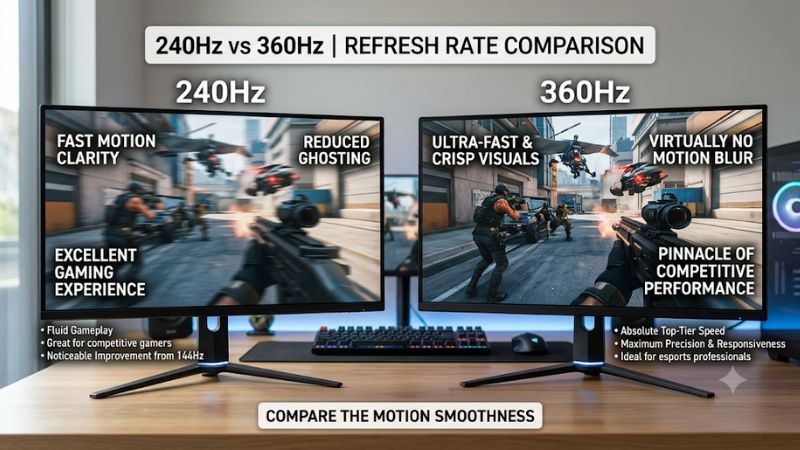
Comparing 240hz vs 360hz shows a structural shift in frame delivery times on high-end monitors. A panel operating at two hundred forty hertz refreshes its display buffer every 4.17 milliseconds. Shifting to three hundred sixty hertz drops that refresh cycle down to 2.78 milliseconds, yielding a raw hardware difference of 1.39 milliseconds.
That 1.39 millisecond delta reduces the end-to-end rendering pipeline between user input and screen update. In fast esports titles like Valorant or Counter-Strike 2, lower latency assists player positioning during rapid mouse flicks. However, human visual perception experiences diminishing returns beyond four milliseconds per frame.
Motion Blur and Visual Tracking
Higher refresh rates directly reduce sample-and-hold motion blur created by LCD and OLED panels. Operating at three hundred sixty hertz reduces image persistence by roughly thirty-three percent compared to two hundred forty hertz panels. This visual reduction keeps fast-moving enemy player models cleaner during rapid horizontal pans.
Visual tracking benefits most in fast first-person shooters where target movement across the display is frequent. Reduced pixel persistence allows players to read enemy animations and adjust crosshair placements with greater clarity. These benefits rely heavily on pixel response times keeping pace with the active refresh rate cycle.
Hardware Demands and Frame Rates
Hardware demands rise sharply when running a 240hz vs 360hz display in competitive scenarios. Maintaining three hundred sixty frames per second requires a high-tier central processing unit such as the AMD Ryzen 7 7800X3D paired with an NVIDIA GeForce RTX 4070 or better. If system frame rates drop, monitor advantages decline rapidly.
Platform compatibility requires modern hardware interfaces like DisplayPort 1.4 with Display Stream Compression or DisplayPort 2.1 on modern mainboards. Running system memory in dual-channel DDR5 configurations ensures the processor delivers frame instructions without bottlenecking the graphics bus during intense multiplayer battles.
What Does Not Help
Certain software tweaks fail to improve display latency or overall refresh rate output on modern operating systems. Third-party RAM cleaners and registry optimization tools do not increase frame output or smooth out frame times. These background utilities frequently consume system CPU cycles and degrade operating system stability.
Disabling telemetry services in Windows or running automated optimization scripts yields zero gain in graphics performance. Frame output depends strictly on hardware limits, driver settings, and game engine bottlenecks. Players should focus on proper graphics control panel configuration rather than unsafe system modifications.
How to Configure High Refresh Rates: Step by Step
Properly setting up a 240hz vs 360hz display requires adjusting operating system settings, graphics drivers, and game caps. Without correct configuration, a panel may default to sixty hertz despite hardware capabilities. Following structured steps ensures your graphics card and monitor operate at their intended refresh rates.
Setting | Where | Effect | Risk | Undo Step Refresh Rate | Windows Display Settings | Sets max panel refresh frequency | None | Revert refresh rate menu selection G-SYNC / FreeSync | Graphics Control Panel | Matches refresh rate to frame output | Slight input lag if misconfigured | Disable variable refresh rate toggle In-Game Frame Cap | Game Graphics Options | Prevents frame rate spikes and tearing | Capping below monitor Hz reduces fluid motion | Reset cap to unlimited or display Hz Display Cable | Physical GPU and Monitor Port | Provides DP 1.4 or DP 2.1 bandwidth | Incorrect cable limits maximum Hz | Swap to certified DisplayPort cable
Step 1: Windows Display Settings
Configuring the refresh rate in Windows Display Settings ensures the operating system sends correct display timing signals to your monitor. Open Windows Settings, navigate to System, click Display, and select Advanced Display. Under the refresh rate dropdown menu, choose the maximum supported rate for your installed panel.
Verifying this setting in Windows prevents your display driver from defaulting to lower desktop frequencies. If the option for maximum frequency is missing, re-seat your display cable or reinstall your graphics driver. Always confirm that Windows applies the desktop resolution natively alongside the high refresh setting.
Step 2: Graphics Control Panel Settings
Configuring driver controls in the NVIDIA Control Panel or AMD Software stabilizes high frame delivery for a 240hz vs 360hz monitor. Set Max Frame Rate or Variable Refresh Rate preferences within global 3D settings. Enabling Reflex Low Latency or Anti-Lag helps synchronize game engine frame queues with display refresh cycles.
These driver tools reduce queuing latency inside the GPU rendering pipeline during intense firefights. To verify proper execution, enable the driver overlay or use RivaTuner Statistics Server to monitor frame time graphs. If frame times show spikes, disable background overlays or adjust energy power plans in Windows.
Step 3: In-Game Frame Rate Caps
Setting in-game frame caps slightly below the maximum monitor refresh rate stabilizes frame times when using variable refresh rate tech. In titles like Counter-Strike 2 or Valorant, cap frame rates three frames below the panel limit. This prevents G-SYNC or FreeSync from disengaging and introducing added V-Sync latency.
If a game engine suffers from inconsistent frame delivery, capping performance ensures smoother motion persistence. Test stability by tracking frame time consistency using HWiNFO or MSI Afterburner during live matches. If frame pacing fluctuates widely, lower internal shadow or particle settings within the game menu.
Step 4: Display Cables and Interface Hardware
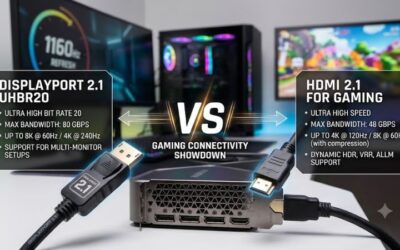
Upgrading display cables and verifying physical ports provides necessary bandwidth for fast refresh panels. High-frequency displays require DisplayPort 1.4 or DisplayPort 2.1 connections on both graphics card and monitor. Using older HDMI or low-spec DisplayPort cables restricts bandwidth, forcing lower refresh rates.
When purchasing cables, select VESA-certified DisplayPort cables rated for DP 1.4 or DP 2.1 specs. Ensure the graphics card is mounted securely in a PCIe 4.0 or PCIe 5.0 slot on the motherboard for full bus bandwidth. If signal dropouts occur, inspect cable connections and avoid using unrated display port extension cables.
Frequently Asked Questions
Understanding the practical details of a 240hz vs 360hz display setup helps players make informed hardware upgrade decisions. Questions often arise regarding noticeability, frame matching, cable requirements, and panel tech. The following answers address core competitive display questions using clear technical facts.
Can Human Eyes Notice the Difference in Refresh Rates?
Can human eyes notice the difference in a 240hz vs 360hz monitor setup? Yes, trained competitive players notice subtle improvements in motion clarity and frame time responsiveness when moving between these display tiers. The 1.39 millisecond frame time reduction provides cleaner tracking during fast flick movements.
However, casual gamers or those playing slow-paced strategy and RPG titles will find the visual difference minor. Diminishing returns become pronounced past two hundred forty hertz, making the perceptual shift far less dramatic than jumping from sixty to one hundred forty-four hertz on modern gaming desktops.
Do You Need 360 FPS to Benefit From a 360Hz Display?
Do you need three hundred sixty frames per second to benefit from a three hundred sixty hertz panel? Yes, your system must deliver output matching or exceeding the refresh rate to fully utilize panel capabilities. Operating below the native refresh rate causes the panel to redraw identical frames, negating latency benefits.
Running games at lower frame rates on a high refresh panel can also induce stutter unless variable refresh rate technology is active. Pairing a fast monitor with an AMD Ryzen 7 7800X3D processor and fast DDR5 memory ensures frame generation keeps pace with monitor refresh cycles across demanding esports titles.
Does DisplayPort 1.4 Support 360Hz Gaming Monitors?
Does DisplayPort 1.4 support three hundred sixty hertz at 1080p and 1440p resolutions? Yes, DisplayPort 1.4 supports high refresh rates using Display Stream Compression technology without loss of visual quality. Modern graphics cards with PCIe 4.0 connectivity handle this compressed bandwidth standard easily across current panels.
Users connecting via HDMI should ensure both the monitor and graphics card support HDMI 2.1 standards for maximum bandwidth. Older HDMI 2.0 ports lack required throughput, limiting resolution or refresh frequency. Always check manufacturer specifications for display input bandwidth ratings before purchasing new cables.
Are OLED Panels Better Than IPS Panels for High Hz Gaming?
Are IPS panels or OLED panels better for high refresh rate competitive gaming? OLED panels offer superior pixel response times under 0.03 milliseconds, making them ideal for high refresh gaming setups. Fast IPS panels remain popular for competitive play due to lower prices and excellent color clarity without burn-in risks.
While IPS displays achieve sub-millisecond response times using overdrive tuning, OLED panels eliminate ghosting transitions almost entirely. Competitive players choosing between these panel technologies should weigh budget constraints against desire for instant pixel transitions and deep contrast performance.
Final Thoughts
Choosing between a 240hz vs 360hz display depends on your budget, target frame rates, and competitive goals. While three hundred sixty hertz offers minimal latency gains and cleaner tracking, two hundred forty hertz remains the price-to-performance sweet spot. Match your display choice with capable hardware for optimal performance.