🛒 Best Price Today on Amazon
Prime members get fast, free shipping on everything above, plus member-only deals. New members get a 30-day free trial — cancel anytime.
An OLED display delivers excellent contrast and fast pixel response, but its self-emissive pixels require proper maintenance. oled gaming monitor pixel refresh explained means understanding how compensation cycles maintain panel uniformity, reduce temporary image retention, and help manage uneven pixel wear. This guide covers how refresh works, when to run it, and which settings matter for PC gamers.
What OLED Gaming Monitor Pixel Refresh Really Does
Pixel refresh is an electronic maintenance process built into many OLED gaming monitors. It helps compensate for differences in pixel behavior that develop during normal use. Rather than physically cleaning the screen, the monitor uses internal compensation routines to maintain image consistency. Understanding the different maintenance features helps prevent unnecessary manual refreshes and interruptions during gaming.
1. How OLED Pixels Work
Unlike traditional LCD monitors, OLED displays use self-emissive pixels. Each pixel generates its own light, so the panel does not require a separate backlight. This allows OLED monitors to produce deep blacks, high contrast, and fast response times that benefit gaming.
However, individual OLED pixels experience wear as they operate. Different areas of the screen may age at different rates because their brightness levels and usage patterns vary. For example, a frequently displayed game HUD, Windows taskbar, or static application interface can cause certain areas to experience more consistent pixel activity.
Over time, uneven pixel wear can contribute to image retention or visible uniformity differences. Pixel refresh and other OLED care features help the display manage these characteristics.
2. What Happens During Pixel Refresh?
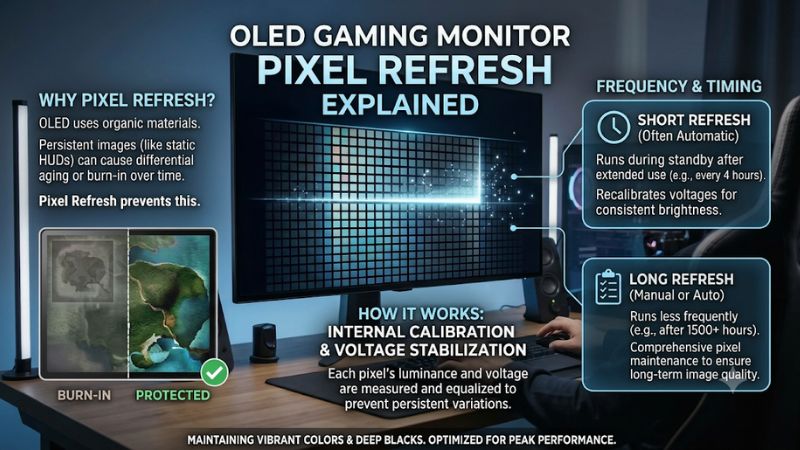
During a pixel refresh cycle, the monitor runs an internal compensation routine to assess or adjust panel behavior. Depending on the manufacturer’s implementation, this process helps reduce temporary image retention and maintain consistent brightness or color across the display.
The screen may turn black, enter standby, display a maintenance notification, or temporarily become unavailable. An indicator light may also blink while the process runs.
The exact process differs between manufacturers and monitor generations. Some models perform a short compensation cycle after several hours of cumulative use, while others offer a longer panel maintenance routine at much larger usage intervals.
Pixel refresh is not a physical repair procedure. It cannot restore permanently worn-out OLED material or reliably reverse established permanent burn-in.
3. Pixel Refresh vs. Pixel Shift vs. Panel Refresh
These three terms describe different OLED protection mechanisms. Understanding the distinction matters because using the wrong function or repeatedly running maintenance cycles does not necessarily improve display health.
- Pixel Refresh: An electronic compensation process that helps maintain panel uniformity and address temporary image-retention effects.
- Pixel Shift: Slightly moves the displayed image so static interface elements do not continuously occupy exactly the same physical pixels.
- Panel Refresh: A longer maintenance process intended to compensate for accumulated panel wear or address more persistent uniformity issues.
Some manufacturers use different names for similar functions. ASUS, for example, uses Pixel Cleaning, while Samsung uses Screen Optimization and Pixel Refresh on supported monitors. Alienware distinguishes between Pixel Refresh and Panel Refresh.
ASUS USA+2
4. Does Pixel Refresh Prevent OLED Burn-In?
Pixel refresh helps manage uneven pixel aging, but it does not make an OLED panel immune to burn-in. Permanent burn-in can develop when certain pixels experience substantially different usage patterns over an extended period.
Gaming can contribute to this risk when players repeatedly display fixed HUD elements, minimaps, health bars, or other bright interface components for long sessions.
OLED protection systems reduce the risk through a combination of compensation cycles, pixel shifting, screen dimming, and other manufacturer-specific controls. These features work together rather than relying on pixel refresh alone.
The most sensible approach is to keep the built-in protection features enabled and follow the maintenance schedule designed for the exact monitor model.
How to Use OLED Pixel Refresh: Step by Step
Most modern OLED gaming monitors manage routine panel maintenance automatically. However, users should understand where to find the relevant settings, what happens during each cycle, and when manual intervention is appropriate. The following steps provide a practical approach without applying one manufacturer’s maintenance schedule to every OLED display.
1. Find the OLED Maintenance Settings
Start by opening your monitor’s on-screen display (OSD) using its physical control button or joystick. Look for a menu named OLED Care, Panel Care, Screen Protection, or OLED Panel Maintenance.
The exact location depends on the manufacturer and model. ASUS ROG monitors may place the relevant options under System Setup or OLED Care. Samsung uses General & Privacy and Panel Care on supported displays. Alienware provides OLED Panel Maintenance under its OSD’s Others menu.
Identify the available options before changing anything. Some monitors provide separate controls for pixel shifting, screen dimming, and compensation cycles.
2. Understand the Available Refresh Options
The following table explains the main maintenance functions and their practical effects.
| Setting or Step | Where | Effect | Risk |
| Pixel Shift | OLED Care or Panel Care | Moves displayed content slightly to distribute static image exposure | Minor image repositioning |
| Automatic Pixel Refresh | Monitor standby or maintenance menu | Runs routine panel compensation | Temporary interruption |
| Manual Pixel Refresh | OLED maintenance menu | Starts a manufacturer-provided compensation cycle | May interrupt display use |
| Panel Refresh | Advanced panel maintenance menu | Performs a longer compensation process on supported models | Extended downtime |
These functions are not interchangeable. In particular, a longer panel refresh should not be treated as a routine substitute for the shorter automatic maintenance cycle.
3. Allow Automatic Maintenance to Finish
One of the easiest ways to maintain an OLED monitor is to let its automatic maintenance system operate as intended.
When the monitor displays a maintenance reminder, follow its instructions. If it needs to enter standby or turn off, allow the process to complete. Keep the monitor connected to power unless its manufacturer specifies otherwise.
Some monitors automatically perform maintenance after accumulated operating time. For example, ASUS describes a Pixel Cleaning process lasting approximately six minutes on supported models. Samsung describes Screen Optimization taking approximately 10–15 minutes on supported OLED monitors. These are manufacturer-specific examples, not universal OLED timings.
ASUS USA+1
Avoid cutting power through a switched power strip or unplugging the monitor during an active maintenance cycle.
4. Run Manual Refresh Only When Appropriate
Manual pixel refresh is useful when the manufacturer recommends it, when the monitor displays a maintenance warning, or when temporary image retention persists and the manual instructs you to use the function.
Before starting, save any open work and close applications if necessary. Open the OSD, locate the appropriate maintenance option, and follow the on-screen instructions.
Do not repeatedly activate refresh simply because you want to improve image quality. Some longer compensation routines are intended for occasional use rather than frequent manual operation.
If the display continues showing persistent marks after the recommended maintenance procedure, consult the manufacturer’s troubleshooting guidance. Permanent burn-in, panel defects, and connection problems require different responses.
OLED Monitor Maintenance: Best Practices for PC Gamers
Pixel refresh is only one part of OLED panel care. Daily usage habits also influence how frequently particular pixels display static content. For PC gamers who alternate between games, browsing, streaming, and productivity applications, a few sensible adjustments can reduce unnecessary exposure without compromising the overall experience.
1. Keep Pixel Shift and Screen Protection Enabled
Pixel Shift is designed to move displayed content slightly over time. This helps prevent static interface elements from occupying exactly the same physical pixel positions continuously.
Most manufacturers recommend keeping their built-in protection mechanisms enabled. Depending on the monitor, additional features may include screen savers, logo brightness adjustment, static-screen detection, and automatic dimming.
For example, Samsung provides Pixel Shift and Adjust Logo Brightness on supported OLED monitors. ASUS also offers Screen Move and logo brightness controls on applicable ROG displays.
Samsung pl+1
These settings may produce subtle changes in screen positioning or brightness. That behavior is generally intentional and should not automatically be mistaken for a display defect.
2. Reduce Unnecessary Static Screen Exposure
Gaming interfaces frequently display fixed elements such as health bars, minimaps, ammunition counters, and scoreboards. Using the same interface for extended periods can expose particular screen regions to consistent image patterns.
You do not need to avoid games with static HUDs. Instead, consider practical habits that reduce unnecessary exposure:
- Enable automatic screen-off or sleep settings when the PC is idle.
- Avoid leaving a paused game displayed for extended periods.
- Use automatic taskbar hiding when it suits your desktop workflow.
- Avoid unnecessarily high brightness for prolonged desktop sessions.
- Use a screen saver or display sleep function when stepping away.
These measures complement the monitor’s internal protection features. They are not substitutes for manufacturer-recommended maintenance.
3. Follow Your Manufacturer’s Maintenance Schedule
There is no universal refresh interval for every OLED gaming monitor. Different manufacturers use different compensation systems, operating-hour counters, and maintenance durations.
For example, Dell documents an automatic Pixel Refresh process on supported Alienware OLED monitors after at least four hours of use, with a process lasting approximately six to eight minutes. Its longer Panel Refresh routine uses a separate usage threshold and can take approximately an hour.
Dell Indonesia
Other manufacturers use different intervals and procedures. ASUS describes a shorter Pixel Cleaning process, while Samsung provides its own Screen Optimization and optional Pixel Refresh functions on supported models.
Check your exact model’s manual or support documentation rather than copying another monitor owner’s schedule.
4. Know When Refresh Is Not Enough
Pixel refresh is not a universal solution for every OLED display problem. Temporary image retention may fade after varied content is displayed or after the appropriate compensation cycle completes.
Permanent burn-in is different. If a static element remains visible across different applications and backgrounds, the issue may involve lasting panel wear.
Other visual problems can have unrelated causes, including defective pixels, cable or connection problems, graphics driver issues, and incorrect display settings.
If an abnormal mark remains after following the manufacturer’s recommended maintenance procedure, contact the monitor manufacturer’s support team. Avoid repeatedly running long compensation cycles in an attempt to repair a panel that may require warranty assessment.
Frequently Asked Questions
1. How Often Should You Run OLED Pixel Refresh?
You should follow the maintenance interval specified by your monitor manufacturer rather than manually running pixel refresh at a universal interval. Many monitors automatically initiate short compensation cycles after accumulated usage.
Allow automatic maintenance to complete when the monitor enters standby. Only start a manual cycle when the monitor requests it or its documentation recommends it. Longer panel refresh procedures should follow separate manufacturer instructions.
2. Can Pixel Refresh Fix OLED Burn-In?
Pixel refresh can help address certain temporary image-retention and panel-uniformity issues, but it cannot reliably reverse permanent burn-in. Burn-in involves lasting differences in OLED pixel wear.
If a visible image remains after the recommended maintenance procedure, contact the manufacturer for further diagnosis. Repeatedly running refresh cycles is not a reliable way to repair permanently damaged pixels.
3. Can I Use My Gaming Monitor While Pixel Refresh Is Running?
You generally cannot use the display normally while an active pixel refresh cycle is running. The monitor may turn off, enter standby, or display a maintenance indicator until the process finishes.
Avoid interrupting the procedure by powering on the monitor or disconnecting its power supply. Follow the instructions for your specific model because some maintenance systems operate differently.
4. Does Pixel Shift Do the Same Thing as Pixel Refresh?
No, Pixel Shift and Pixel Refresh perform different functions. Pixel Shift slightly repositions displayed content during normal operation, while Pixel Refresh performs an internal compensation routine.
Both features contribute to OLED panel care, but neither makes the display immune to permanent burn-in. Keeping both enabled when recommended by the manufacturer is a sensible maintenance practice.
Final Thoughts
Understanding oled gaming monitor pixel refresh explained helps PC gamers maintain their displays without unnecessary maintenance or interruptions. Keep OLED protection features enabled, allow automatic compensation cycles to finish, and follow your model’s maintenance instructions. Consistent everyday care is a better approach than repeatedly forcing manual refreshes.