🛒 Best Price Today on Amazon
Prime members get fast, free shipping on everything above, plus member-only deals. New members get a 30-day free trial — cancel anytime.
OLED gaming monitors deliver excellent contrast, deep blacks, and fast pixel response, but their self-emissive pixels can experience uneven wear over time. how to prevent oled monitor burn in while gaming comes down to managing static HUD elements, controlling brightness, enabling panel protection, and allowing automatic maintenance to run. These practical habits help reduce long-term display wear without compromising the gaming experience.
What Causes OLED Burn-In and How to Prevent It
OLED burn-in develops when individual pixels experience different levels of cumulative wear. Gaming can contribute to this problem when the same health bars, minimaps, scoreboards, crosshairs, and interface elements remain in fixed positions across repeated sessions. Understanding the difference between temporary image retention and permanent burn-in helps you choose appropriate preventive measures.
1. Understand the Difference Between Image Retention and Burn-In
Temporary image retention occurs when faint outlines remain visible after displaying a static image. For example, you might notice a minimap or health bar lingering briefly after exiting a game. This does not automatically mean the panel has permanent damage. Depending on the display, the marks may fade naturally or disappear after an appropriate maintenance cycle.
Permanent burn-in is different because it results from uneven pixel aging over extended use. Areas repeatedly displaying bright, fixed graphics can gradually develop visible differences in brightness or color. Unlike temporary retention, established permanent burn-in generally cannot be reversed through ordinary pixel-refresh functions.
2. Identify the Game Elements That Create the Most Risk
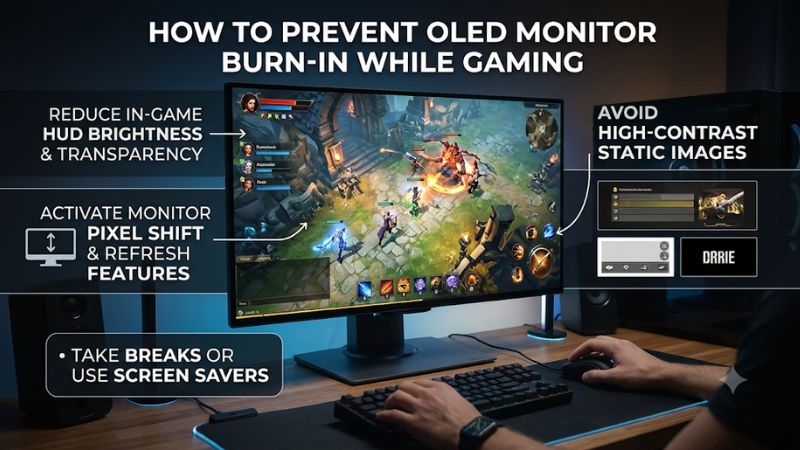
Gaming interfaces contain several elements that remain in approximately the same screen positions. Health bars, ammunition counters, minimaps, team indicators, and persistent ability icons are common examples. Their risk increases when they are bright, high-contrast, and displayed repeatedly for long periods.
This does not mean every gaming session creates meaningful damage. Games contain changing environments, animations, camera movement, and different lighting conditions. The more important concern is repeatedly exposing the same pixel areas to static graphics over many hours, particularly when combined with high brightness.
3. Understand Why Brightness and Usage Time Matter
Pixel wear is cumulative, so brightness and the number of hours spent displaying similar content both matter. Running an OLED panel at unnecessarily high brightness can increase the stress placed on its pixels. Reducing brightness to a comfortable level is therefore a sensible precaution, especially during long gaming sessions.
However, there is no universal brightness percentage that guarantees protection. OLED panels differ in technology, brightness characteristics, and manufacturer protection systems. A reasonable approach is to adjust brightness for your room rather than permanently using the maximum setting. Preserve sufficient visibility without making bright static interfaces unnecessarily intense.
4. What Doesn’t Help Prevent Burn-In
Playing a colorful video or switching between several games does not repair permanent burn-in. Varied content can help distribute display usage, but it cannot restore pixels that have already experienced permanent uneven aging. Similarly, repeatedly running pixel-refresh utilities is not a substitute for sensible daily display habits.
You should also avoid downloading unofficial pixel-repair videos or running repeated full-screen color patterns in an attempt to restore a damaged panel. Follow the maintenance instructions provided by your monitor manufacturer. Automatic compensation routines are designed around the panel’s specific hardware and should not be replaced with improvised procedures.
How to Prevent OLED Monitor Burn-In While Gaming: Step by Step
The most effective protection combines monitor-level features with sensible gaming habits. Start by enabling the manufacturer’s OLED protection options, then adjust game interfaces, brightness, and Windows power settings. The following steps are practical for gaming desktops, although individual menu names and available features depend on your monitor model.
1. Enable Pixel Shift and OLED Screen Protection
Pixel Shift, sometimes called Screen Move or Pixel Shift Protection, slightly changes the position of displayed content over time. This helps prevent individual pixels from repeatedly displaying the same static interface elements. The movement is generally subtle and should not interfere significantly with normal gameplay.
Open your monitor’s on-screen display (OSD) and look for OLED Care, Screen Protection, or a similarly named menu. Enable Pixel Shift, Screen Move, Logo Brightness Adjustment, and Screen Saver when available. ASUS documents these options across supported OLED displays, although availability and menu paths differ by model.
ASUS USA
2. Reduce Brightness and Adjust Game HUD Elements
Set your monitor brightness to a comfortable level instead of leaving it at maximum throughout every session. This is particularly useful when playing games with bright, persistent interface elements. HDR gaming can still look impressive without keeping the display at its highest possible output all the time.
Where a game provides customization, consider reducing HUD brightness, changing interface opacity, hiding unnecessary elements, or repositioning the minimap. Some competitive games require permanent health bars and status indicators, so prioritize adjustments that preserve important gameplay information. These changes can help reduce prolonged exposure of the same screen areas.
3. Configure Windows to Turn Off the Display When Idle
Windows can help protect your monitor when you leave your gaming setup unattended. Open Settings, select System, then Power & battery, and find Screen, sleep, & hibernate timeouts. Choose a reasonably short screen-off period so the display does not remain illuminated while you are away.
You can also configure a screen saver through Settings > Personalization > Lock screen > Screen saver. However, putting the display to sleep is generally preferable to leaving an animated screen saver running indefinitely. Microsoft documents both options for Windows 11 and Windows 10.
Microsoft Support+1
4. Allow Automatic Pixel Cleaning and Compensation Cycles
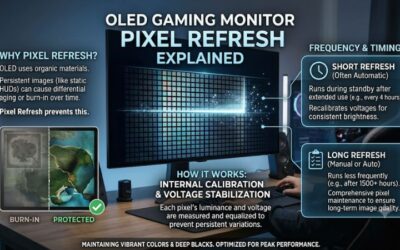
Most modern OLED gaming monitors include maintenance routines that compensate for changes in pixel characteristics over time. Depending on the manufacturer, these functions may appear as Pixel Cleaning, Pixel Refresh, Panel Refresh, or Compensation Cycle.
Allow the monitor to enter standby after gaming so its automatic maintenance process can run when required. Avoid disconnecting power immediately after every session because some displays need standby power to complete maintenance. Follow the manufacturer’s instructions rather than manually triggering a cleaning routine after every match.
| Setting or Step | Where | Effect | Risk |
| Pixel Shift | Monitor OSD > OLED Care | Moves image positions slightly to distribute pixel usage | Minor image repositioning |
| HUD adjustment | Individual game settings | Reduces persistent bright interface elements | Some interface information may be less visible |
| Brightness adjustment | Monitor OSD | Reduces unnecessary pixel brightness | Lower peak brightness |
| Screen-off timer | Windows 11 Power & battery | Turns off the display during inactivity | May interrupt long idle sessions |
| Pixel Cleaning | Monitor OSD or automatic standby process | Performs panel compensation or maintenance | Interrupts use temporarily |
The exact effects and risks depend on the panel and implementation. Pixel cleaning is not a universal repair function, and the maintenance process should follow the monitor’s own instructions.
FAQ
1. Can OLED Burn-In Happen From Playing the Same Game Every Day?
Yes, repeatedly playing the same game can increase burn-in risk if its interface displays bright, static elements in identical positions for extended periods. However, playing the same title does not automatically cause permanent damage.
A game with changing environments and relatively subtle HUD graphics presents a different usage pattern from one with bright, fixed interface elements. Adjusting HUD brightness, enabling pixel protection, and varying your gaming sessions can help reduce unnecessary wear.
2. Should I Run Pixel Refresh After Every Gaming Session?
No, you should not manually run pixel refresh after every gaming session unless your monitor manufacturer specifically instructs you to do so.
Many monitors perform automatic compensation cycles when entering standby. Some manufacturers also provide recommended maintenance intervals. For example, ASUS specifies pixel-cleaning guidance for supported models and explains that the process may take approximately six minutes. Always follow the instructions for your particular display rather than applying another model’s maintenance schedule.
ASUS USA
3. Does Dark Mode Prevent OLED Monitor Burn-In?
Dark Mode can help reduce the brightness of static desktop elements, but it does not completely prevent OLED burn-in.
Using dark themes, darker desktop backgrounds, and an automatically hidden Windows taskbar can reduce the amount of bright static content displayed outside games. However, dark mode does not change the fact that fixed game interfaces can contribute to uneven pixel aging. It should be treated as an additional precaution rather than a complete protection method.
4. Can You Fix Permanent OLED Burn-In?
Permanent OLED burn-in generally cannot be reversed through software settings or ordinary pixel-refresh routines.
First, determine whether the visible mark is temporary image retention or persistent panel degradation. Allow the display to cool down, power it off according to the manufacturer’s guidance, and use its recommended maintenance procedure if appropriate. If the mark remains visible across different content, contact the manufacturer about warranty coverage or professional service.
Final Thoughts
Learning how to prevent oled monitor burn in while gaming is primarily about consistent maintenance rather than sacrificing image quality. Enable OLED protection, manage static HUD elements, use comfortable brightness, and allow compensation cycles to complete. Check your monitor’s maintenance instructions and warranty terms to establish a sensible long-term care routine.