Affiliate disclosure: As an Amazon Associate we earn from qualifying purchases. This post contains affiliate links — we may earn a small commission at no extra cost to you. This never affects our picks. Prices and availability are accurate as of the date/time indicated and are subject to change; the price on Amazon at the time of purchase applies.
- Quick Comparison Table
- 1. MSI MAG 274QF E20: Best for Balanced 1440p
- 2. Dell 27 SE2726HG: Best for 1080p High Refresh
- 3. Samsung Odyssey G5 (G51F) 32″: Best Big-Screen QHD
- 4. Alienware 27 AW2726DL: Best for Fast Competitive Play
- 5. LG UltraGear 27GX704A-B: Best Premium OLED
- How to Choose
- Frequently Asked Questions
- About the Author
- Related Articles
Quick answer: For the best 144Hz monitors, the MSI MAG 274QF E20 is the balanced 1440p pick. The Dell 27 SE2726HG suits 1080p players, the Samsung Odyssey G5 offers a big 32-inch QHD screen, the Alienware AW2726DL targets fast esports, and the LG 27GX704A OLED is the premium choice.
A 144Hz screen is the entry point to smooth gaming, and today most models beat that figure. This guide compares five monitors that all run above 144Hz, so you keep headroom as your graphics card improves. Comparisons use each listing’s published specs, such as resolution, refresh rate and panel type. We did not run our own benchmarks or color measurements, so panel quality remarks are general guidance. The buying rules explain how to match a monitor to your PC.
Quick Comparison Table
| # | Model | Key specs (per listing) | Best for |
|---|---|---|---|
| 1 | MSI MAG 274QF E20 | 27-inch, 2560 x 1440, 200Hz, 0.5ms, FreeSync Premium, G-SYNC Compatible | Balanced 1440p |
| 2 | Dell 27 SE2726HG | 27-inch FHD 1920×1080, 240Hz, IPS, FreeSync Premium | 1080p high refresh |
| 3 | Samsung Odyssey G5 (G51F) 32″ | 32-inch QHD, 180Hz, 1ms MPRT, AMD FreeSync | Big screen QHD |
| 4 | Alienware 27 AW2726DL | 27-inch WQHD IPS, 280Hz, 1ms, 93% DCI-P3, 400 cd/m2 | Fast competitive play |
| 5 | LG UltraGear 27GX704A-B | 27-inch QHD OLED, 240Hz, 0.03ms, G-Sync Compatible, FreeSync Premium Pro | Premium OLED |
1. MSI MAG 274QF E20: Best for Balanced 1440p
Specs per the listing: 27-inch, 2560 x 1440 (WQHD), 200Hz, AMD FreeSync Premium, NVIDIA G-SYNC Compatible, HDR Ready, HDMI, VGA port, VESA mount, tilt, 0.5ms.
A 27-inch 1440p panel is the middle ground that works for most gamers: sharper than 1080p, and far easier to drive than 4K. At 200Hz it clears the 144Hz mark with room to spare, and support for both adaptive-sync standards means it pairs with AMD and NVIDIA cards.
The stand is tilt-only per the listing, so if you want height adjustment you may use the VESA mount with an arm. Panel type is not stated in the listing, so check the maker page if color matters to you.
- Pros: 1440p at 200Hz; supports FreeSync and G-SYNC Compatible; VESA mount; 0.5ms response
- Cons: Tilt-only stand; panel type not in the listing

msi MAG 274QF E20 27-inch 2560 x 1440 (WQHD) Gaming Monitor, 200Hz, AMD FreeSync Premium, NVIDIA G-SYNC Compatible, HDR Ready, HDMI, VGA Port, VESA, Tilt, 0.5ms, Black
Included for 'Best 144Hz Monitors: 1080p, 1440p and OLED Picks' as a representative home product in this roundup; selection reflects the product set returned for this topic.
View on Amazon2. Dell 27 SE2726HG: Best for 1080p High Refresh
Specs per the listing: 27-inch, FHD 1920×1080, 240Hz, in-plane switching (IPS), AMD FreeSync Premium, TUV 3-Star, two HDMI, DisplayPort 1.4, tilt.
If your graphics card is modest, a 1080p monitor at a high refresh rate gives smoother motion without demanding much power. At 240Hz this one is built for fast shooters and esports titles, and the IPS panel offers wider viewing angles than older panel types.
The catch is sharpness: spreading 1080p over a 27-inch screen looks softer than 1440p. It suits players who put frame rate first. Two HDMI inputs and a DisplayPort connection make it easy to link a PC and a console.
- Pros: 240Hz refresh; IPS panel; two HDMI plus DisplayPort 1.4; easy to drive
- Cons: 1080p is less sharp at 27 inches; tilt-only stand

Dell 27 240Hz Gaming Monitor - SE2726HG - 27-inch FHD (1920x1080) Display, in-Plane Switching (IPS) Technology, AMD FreeSync Premium, TÜV 3-Star, 2X HDMI, DisplayPort 1.4, Tilt
Included for 'Best 144Hz Monitors: 1080p, 1440p and OLED Picks' as a representative home product in this roundup; selection reflects the product set returned for this topic.
View on Amazon3. Samsung Odyssey G5 (G51F) 32″: Best Big-Screen QHD
Specs per the listing: 32-inch QHD, 180Hz refresh rate, 1ms response (MPRT), AMD FreeSync, model LS32FG510ENXZA.
At 32 inches the picture fills more of your view, which suits cinematic and open-world games and doubles well for movies. QHD at 180Hz keeps motion smooth while staying within reach of mid-range graphics cards.
Spread over that size, QHD has lower pixel density than a 27-inch QHD panel, so text looks slightly less crisp. Sit a little farther back for the best result. The listing does not mention the panel type or ports beyond FreeSync, so check the maker page.
- Pros: Large 32-inch screen; QHD resolution; 180Hz refresh; FreeSync support
- Cons: Lower pixel density than 27-inch QHD; panel type and ports not in listing

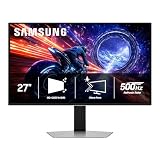
Samsung 32" Odyssey G5 (G51F) QHD 180Hz Gaming Monitor | Featuring QHD Screen, 180Hz Refresh Rate, 1ms Response Time (MPRT), and AMD FreeSync (LS32FG510ENXZA)
Included for 'Best 144Hz Monitors: 1080p, 1440p and OLED Picks' as a representative home product in this roundup; selection reflects the product set returned for this topic.
View on Amazon4. Alienware 27 AW2726DL: Best for Fast Competitive Play
Specs per the listing: 27-inch WQHD IPS panel, 280Hz, 1ms, 109 PPI, 2560×1440, HDMI, DisplayPort, 93% DCI-P3, 400 cd/m2, 1000:1 contrast, VESA 100×100.
This monitor pairs 1440p sharpness with a 280Hz refresh rate, which is a step above the typical 144Hz figure. The wide 93% DCI-P3 color coverage in the listing suits players who also edit photos or watch video. The 109 PPI number reflects a crisp 27-inch QHD image.
To use 280Hz you need a graphics card that can output that many frames at 1440p, which mostly means competitive titles at lower settings. Otherwise the extra refresh is headroom for the future.
- Pros: 280Hz at 1440p; IPS panel; wide color coverage; VESA mount
- Cons: Needs a strong GPU to use full refresh; adaptive-sync support not stated in the title

Alienware 27 Gaming Monitor AW2726DL, WQHD IPS Panel, 280Hz, 1ms | 109 PPI, 2560x1440, HDMI, DisplayPort, 93% DCI-P3, 400 cd/m2, 1000:1 Contrast, VESA 100x100
Included for 'Best 144Hz Monitors: 1080p, 1440p and OLED Picks' as a representative home product in this roundup; selection reflects the product set returned for this topic.
View on Amazon5. LG UltraGear 27GX704A-B: Best Premium OLED
Specs per the listing: 27-inch QHD OLED, 240Hz, 0.03ms, NVIDIA G-Sync Compatible, AMD FreeSync Premium Pro, VESA DisplayHDR TrueBlack 400, HDMI 2.1, DisplayPort.
OLED panels give very fast response and deep blacks because each pixel lights itself. At 240Hz and 0.03ms it combines smooth motion with strong contrast, and the TrueBlack HDR certification points to good dark-room performance. It is the pick for players who want the best image quality.
The caution is OLED care: static elements such as taskbars can cause image retention over time, so use screen-saver and pixel-refresh features. Check the maker page for warranty details on burn-in.
- Pros: OLED contrast and response; 240Hz; HDMI 2.1; supports both adaptive-sync standards
- Cons: Image-retention care needed; premium tier

LG 27GX704A-B 27-inch Ultragear QHD (2650x1440) OLED Gaming Monitor 240Hz, 0.03ms, NVIDIA G-Sync Compatible, AMD FreeSync Premium Pro, VESA Display HDR TrueBlack400, HDMI 2.1, DisplayPort, Black
Included for 'Best 144Hz Monitors: 1080p, 1440p and OLED Picks' as a representative home product in this roundup; selection reflects the product set returned for this topic.
View on AmazonHow to Choose
Match resolution to your graphics card
A 1080p monitor at 240Hz is easiest to drive, 1440p at 180Hz to 280Hz needs a mid-range or better card, and 4K at high refresh needs a high-end card. A good rule is to pick the resolution first, then check that your card can reach a frame rate near the monitor’s refresh rate in the games you play. A refresh rate you cannot reach gives no extra smoothness.
Understand panel types
IPS panels give good color and viewing angles, VA panels offer higher contrast, and OLED gives the best contrast and response but needs care about static images. Pick IPS if you want a safe all-rounder, and OLED if image quality is your top priority and your budget allows.
Use adaptive sync
FreeSync and G-SYNC Compatible reduce tearing when your frame rate varies. Check that the monitor lists support for your graphics card brand, and connect it through DisplayPort or HDMI 2.1 as the listing describes. Enable the feature in both the monitor menu and the graphics driver.
Check size, inputs and stand
For 1080p, 24 to 27 inches is typical, while 1440p works well at 27 inches and up to 32. Check that the ports match your devices and whether you need a height-adjustable stand or a VESA mount. Use the cable that came with the monitor or a certified one, because a cable that is too old can cap your refresh rate.
Frequently Asked Questions
Is 144Hz still worth it?
Yes. It is a clear improvement over 60Hz for gaming. Many monitors now go well beyond it, so buying a 180Hz or higher screen keeps you ahead.
Do I need to enable 144Hz or higher manually?
Often yes. Open your display settings in the operating system and choose the highest refresh rate, and use a DisplayPort or HDMI cable that supports it.
Is 1440p better than 1080p for gaming?
It looks sharper, but needs a stronger graphics card to reach high frame rates. If frame rate matters most, 1080p at 240Hz is easier to run.
Is OLED safe for everyday use?
Generally yes, if you vary what is on screen and use the built-in protection features. Avoid leaving static images up for long periods.
Which port should I use?
DisplayPort is a reliable choice for high refresh rates on PC. HDMI 2.1 also works if your graphics card supports it.