Affiliate disclosure: As an Amazon Associate we earn from qualifying purchases. This post contains affiliate links — we may earn a small commission at no extra cost to you. This never affects our picks. Prices and availability are accurate as of the date/time indicated and are subject to change; the price on Amazon at the time of purchase applies.
- Quick Comparison Table
- 1. Samsung 25″ Odyssey G4 (G40H): Best for fast 1080p esports
- 2. LG 27GS60QC-B UltraGear: Best for immersive curved 1440p
- 3. GIGABYTE M27Q2: Best for gaming plus desk setups
- 4. msi MAG 274QF E20: Best for straightforward 1440p
- 5. Alienware 27 AW2726DL: Best for high-refresh 1440p
- How to Choose
- Frequently Asked Questions
- About the Author
- Related Articles
Quick answer: The best monitors under 300 split by resolution. Samsung Odyssey G4 300Hz suits fast 1080p esports, LG 27GS60QC-B is a curved 1440p 180Hz pick, GIGABYTE M27Q2 adds USB-C and KVM, MSI MAG 274QF E20 is a clean 1440p 200Hz option, and Alienware AW2726DL goes to 280Hz.
Gaming monitors under the cap now reach 1440p and very high refresh rates, so the real decision is which trade-off you want. This guide compares five monitors using each listing’s published specs: resolution, refresh rate, panel type and ports. We did not run our own benchmarks or colour measurements, so we avoid claims such as input lag figures. Read the table, then use the checklist to match monitor size and resolution to your graphics card.
Quick Comparison Table
| # | Model | Key specs (per listing) | Best for |
|---|---|---|---|
| 1 | Samsung 25″ Odyssey G4 (G40H) | 25″, FHD, 300Hz, 1ms, Fast IPS, HDR10, G-Sync Compatible, FreeSync Premium | Competitive 1080p gaming |
| 2 | LG 27GS60QC-B UltraGear | 27″, QHD 2560×1440, 180Hz, 1ms, 1000R curved, FreeSync, HDR10 | Immersive 1440p play |
| 3 | GIGABYTE M27Q2 | 27″ SuperSpeed IPS, QHD, 200Hz (OC 210Hz), 1ms GTG, Type-C, KVM | Gaming plus desk setups |
| 4 | msi MAG 274QF E20 | 27″, 2560×1440 WQHD, 200Hz, 0.5ms, FreeSync Premium, G-SYNC Compatible | Straightforward 1440p |
| 5 | Alienware 27 AW2726DL | 27″, WQHD IPS, 280Hz, 1ms, 93% DCI-P3, 400 cd/m2 | High-refresh 1440p |
1. Samsung 25″ Odyssey G4 (G40H): Best for fast 1080p esports
Specs per the listing: 25-inch FHD, 300Hz, 1ms, Fast IPS panel, HDR10, G-Sync Compatible, AMD FreeSync Premium, Black Equalizer, Virtual Aim Point (model LS25HG402ENXZA).
If you play fast shooters and want the highest refresh rate in the group, this is it. 300Hz on a 25-inch Fast IPS panel is aimed at competitive players with a graphics card that can push high frame rates at 1080p. Both G-Sync Compatible and FreeSync Premium are listed, so it works with either GPU brand.
The trade-off is sharpness: at 25 inches, FHD is fine, but text and detail look softer than on the 27-inch 1440p models. HDR10 is mentioned, but at this class we would treat it as a spec-sheet item rather than a reason to buy. If you want a sharper image, look at the 1440p options below.
- Pros: 300Hz refresh with Fast IPS; G-Sync Compatible and FreeSync Premium; Compact 25-inch size for desks
- Cons: 1080p is less sharp than 1440p; HDR10 is a minor feature at this class
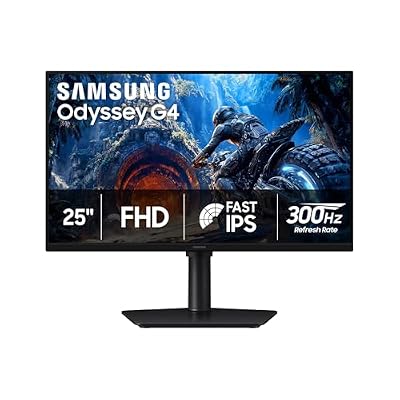
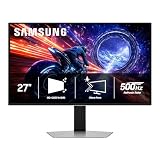
Samsung 25" Odyssey G4 (G40H) Series FHD Gaming Monitor | 300Hz, HDR10, 1ms, Fast IPS, G-Sync Compatible, AMD FreeSync Premium, Black Equalizer, Virtual Aim Point (LS25HG402ENXZA)
Included for 'Best Monitors Under 300: 1080p 300Hz and 1440p Gaming Picks' as a representative home product in this roundup; selection reflects the product set returned for this topic.
View on Amazon2. LG 27GS60QC-B UltraGear: Best for immersive curved 1440p
Specs per the listing: 27-inch curved QHD (2560×1440), 180Hz, 1ms, 1000R curve, AMD FreeSync, HDR10, 2 HDMI and DisplayPort, borderless design, Black Stabilizer, DAS, Crosshair, FPS counter.
The 1000R curve wraps the screen around your field of view, which many people like for immersive games. The listing gives 180Hz at 1440p, a refresh rate that suits mid-range graphics cards, plus two HDMI ports and a DisplayPort for multiple devices.
Curved screens are not for everyone: if you do precise design work or multi-monitor setups, a flat panel is easier. The title does not specify panel type, so check the maker page before assuming IPS-like colours. For a general gaming monitor, though, this one is balanced.
- Pros: 1000R curve for immersion; 180Hz at 1440p; Two HDMI ports and DisplayPort
- Cons: Panel type not stated in the title; Curves are awkward for design work

LG 27GS60QC-B Ultragear 27-inch Curved Gaming Monitor QHD (2560x1440) 180Hz 1ms 1000R AMD FreeSync HDR10 HDMIx2 DisplayPort Borderless Design Black Stabilizer DAS Crosshair FPS Counter - Black
Included for 'Best Monitors Under 300: 1080p 300Hz and 1440p Gaming Picks' as a representative home product in this roundup; selection reflects the product set returned for this topic.
View on Amazon3. GIGABYTE M27Q2: Best for gaming plus desk setups
Specs per the listing: 27-inch SuperSpeed IPS, QHD 2560×1440, 200Hz (overclock to 210Hz), 1ms GTG, AMD FreeSync Premium, G-Sync Compatible, Type-C, KVM, HDMI, DisplayPort, height and tilt adjustable.
This is the most desk-friendly monitor in the list. A Type-C port and built-in KVM let you share one keyboard and mouse between a gaming PC and a laptop, and the height-adjustable stand helps ergonomics. The IPS panel at 200Hz (with a 210Hz overclock mode) is a good fit for a mix of work and play.
The title does not list USB-C power delivery wattage, so check the maker page if you plan to charge a laptop through the cable. The overclock mode is a bonus rather than a promise, and you may need to enable it in the on-screen menu.
- Pros: Type-C and KVM for dual-PC desks; Height and tilt adjustable; IPS at 200Hz with 210Hz OC mode
- Cons: USB-C power delivery not listed; OC mode needs enabling

GIGABYTE M27Q2 27" SuperSpeed IPS QHD AMD Freesync Premium Gaming Monitor | Black, QHD 2560x1440, 200HZ-OC 210Hz, 1ms GTG, G-Sync Compatible, Type-C, KVM, HDMI, DP, Height and Tilt Adjustable
Included for 'Best Monitors Under 300: 1080p 300Hz and 1440p Gaming Picks' as a representative home product in this roundup; selection reflects the product set returned for this topic.
View on Amazon4. msi MAG 274QF E20: Best for straightforward 1440p
Specs per the listing: 27-inch 2560×1440 (WQHD), 200Hz, 0.5ms, AMD FreeSync Premium, NVIDIA G-SYNC Compatible, HDR Ready, HDMI, VGA port, VESA mount, tilt stand.
A simple 27-inch 1440p monitor with a 200Hz refresh rate and a 0.5ms response claim. It keeps the feature list plain and adds a VESA mount for arms, which is useful if you want a better position than the tilt-only stand.
The tilt-only stand and the VGA port suggest an entry-level design, so expect fewer ergonomic extras than the GIGABYTE. Panel type is not stated in the title; confirm on the maker page if colour accuracy matters to you.
- Pros: 200Hz at 1440p; VESA mount available; FreeSync Premium and G-SYNC Compatible
- Cons: Stand is tilt-only; Panel type not listed

msi MAG 274QF E20 27-inch 2560 x 1440 (WQHD) Gaming Monitor, 200Hz, AMD FreeSync Premium, NVIDIA G-SYNC Compatible, HDR Ready, HDMI, VGA Port, VESA, Tilt, 0.5ms, Black
Included for 'Best Monitors Under 300: 1080p 300Hz and 1440p Gaming Picks' as a representative home product in this roundup; selection reflects the product set returned for this topic.
View on Amazon5. Alienware 27 AW2726DL: Best for high-refresh 1440p
Specs per the listing: 27-inch WQHD IPS, 280Hz, 1ms, 109 PPI, 2560×1440, HDMI and DisplayPort, 93% DCI-P3, 400 cd/m2, 1000:1 contrast, VESA 100×100.
This one pairs 1440p with a high 280Hz refresh rate on an IPS panel, so it suits players with a strong GPU who want both sharpness and speed. The 93% DCI-P3 colour coverage and 400 cd/m2 brightness are listed, which gives it more colour range than a basic gaming panel.
The 280Hz rate only matters if your graphics card can deliver that many frames at 1440p, which is demanding. Adaptive sync support is not named in the title, so check the maker page for FreeSync or G-Sync compatibility.
- Pros: 280Hz IPS at 1440p; 93% DCI-P3 and 400 cd/m2 listed; VESA 100×100 mount
- Cons: Needs a strong GPU to use 280Hz; Adaptive sync not named in the title

Alienware 27 Gaming Monitor AW2726DL, WQHD IPS Panel, 280Hz, 1ms | 109 PPI, 2560x1440, HDMI, DisplayPort, 93% DCI-P3, 400 cd/m2, 1000:1 Contrast, VESA 100x100
Included for 'Best Monitors Under 300: 1080p 300Hz and 1440p Gaming Picks' as a representative home product in this roundup; selection reflects the product set returned for this topic.
View on AmazonHow to Choose
Pick resolution by graphics card
1080p needs less GPU power and suits fast esports play. 1440p is a better overall balance for a mid-range card or better. If your GPU struggles at 1440p, the 300Hz 1080p panel may feel smoother than a high-resolution one with lower frame rates.
Refresh rate and adaptive sync
Above 144Hz the gains shrink unless your frame rates are high. Confirm FreeSync or G-Sync Compatible support for your GPU brand. Only chase 280Hz or 300Hz if you play competitive titles and can reach those frame rates.
Size, panel and ergonomics
25 inches is good for close desks and esports; 27 inches is the 1440p standard. IPS panels give wider viewing angles; curved panels add immersion but suit single-screen use. Check for height adjustment or a VESA mount if you want better posture.
Ports and what to skip
Check that the monitor has DisplayPort for high refresh rates and HDMI for consoles. Skip monitors that do not clearly list resolution and refresh rate, and treat HDR claims on budget panels as modest, since most do not deliver true HDR brightness.
Frequently Asked Questions
Is 1440p worth it over 1080p?
For most gamers with a mid-range or better GPU, yes. It gives a sharper image at 27 inches. If you play fast competitive games and want maximum frame rates, 1080p at 300Hz is still a valid choice.
Do I need a 280Hz or 300Hz monitor?
Only if your PC can produce frame rates near that number. Otherwise a 144Hz to 200Hz panel feels very similar. Spend extra on resolution or ergonomics instead if your frame rates are lower.
Is a curved monitor good for gaming?
Many players like the immersion, especially on a 27-inch screen. It is less suited to precise design work or side-by-side monitor setups. Try the curve preference with a return window in mind.
What does KVM mean on a monitor?
A KVM switch lets you share a keyboard and mouse between two computers connected to the monitor. It is handy if you use both a laptop and a desktop at one desk.
Do these monitors work with consoles?
They have HDMI inputs, but the refresh rates and features you can use depend on the console. Check the maker page for HDMI version details before assuming high refresh on a console.