Affiliate disclosure: As an Amazon Associate we earn from qualifying purchases. This post contains affiliate links — we may earn a small commission at no extra cost to you. This never affects our picks. Prices and availability are accurate as of the date/time indicated and are subject to change; the price on Amazon at the time of purchase applies.
- Quick Comparison Table
- 1. AOC Q27G41ZE: Best for 1440p All-Round Play
- 2. ASUS TUF VG279QM5A: Best for 1080p Esports
- 3. Dell SE2426HG: Best for Simple FHD Setups
- 4. MSI MAG 272QP QD-OLED X24: Best for OLED Contrast at 1440p
- 5. LG 32GX870A-B: Best for Large 4K OLED
- How to Choose
- Frequently Asked Questions
- About the Author
- Related Articles
Quick answer: For the best 240Hz monitors, the AOC Q27G41ZE is our first pick for a 1440p IPS screen. The ASUS TUF VG279QM5A suits fast 1080p esports, the Dell SE2426HG fits a simple FHD setup, the MSI MAG 272QP gives a QD-OLED panel, and the LG 32GX870A targets 4K OLED.
A 240Hz display only pays off when your graphics card can push high frame rates, so resolution and panel type matter as much as the refresh number. This guide compares five monitors that list 240Hz, from full HD IPS to 4K OLED, using the specifications printed in each listing: size, resolution, panel, adaptive sync and response time. We did not run our own tests or measure colour, so all numbers are the makers’ figures.
Quick Comparison Table
| # | Model | Key specs (per listing) | Best for |
|---|---|---|---|
| 1 | AOC Q27G41ZE 27″ | QHD 2560×1440, IPS, 240Hz native (260Hz OC), G-SYNC Compatible | 1440p all-rounder |
| 2 | ASUS TUF VG279QM5A 27″ | 1080p, 240Hz Fast IPS, 0.3ms, FreeSync Premium, 99% sRGB | Esports at 1080p |
| 3 | Dell SE2426HG 24″ | 23.8-inch FHD 1920×1080, 240Hz IPS, FreeSync Premium | Simple FHD setups |
| 4 | MSI MAG 272QP QD-OLED X24 27″ | 2560 x 1440 QD-OLED, 240Hz, 0.03ms, HDMI 2.1 | OLED contrast at 1440p |
| 5 | LG 32GX870A-B 32″ | 4K 3840 x 2160 OLED, Dual-Mode, 240Hz, 0.03ms | Large 4K OLED |
1. AOC Q27G41ZE: Best for 1440p All-Round Play
Specs per the listing: 27-inch QHD 2560×1440 IPS, 240Hz native with 260Hz overclock, NVIDIA G-SYNC Compatible.
The appeal here is the sharper QHD resolution at 240Hz. A 27-inch screen at 1440p gives more pixel detail than the same size at 1080p, while the IPS panel keeps colours consistent across viewing angles. It works well for players who split time between fast shooters and single-player games.
Running 240 frames per second at 1440p takes a capable graphics card, so make sure your system can supply it. The 260Hz overclock is optional and depends on your setup.
- Pros: QHD IPS; 240Hz native; G-SYNC Compatible; 27-inch size
- Cons: demands a strong GPU; overclock gain is small

AOC 27" Gaming Monitor QHD 260Hz Overclocked IPS NVIDIA G-SYNC Q27G41ZE | 2560×1440 Computer Monitor, 240Hz Native / 260Hz OC, NVIDA G-SYNC Compatible, 0.3ms, HDR, VESA, Audio Out, 3-Yr Warranty
Included for 'Best 240Hz Monitors: 1080p, 1440p and OLED Picks' as a representative home product in this roundup; selection reflects the product set returned for this topic.
View on Amazon2. ASUS TUF VG279QM5A: Best for 1080p Esports
Specs per the listing: 27-inch 1080p, 240Hz Fast IPS, G-SYNC compatible, ELMB Sync, 0.3ms, FreeSync Premium, 99% sRGB, HDMI and DisplayPort.
This monitor trades resolution for easy-to-reach frame rates, which is the usual esports choice. A 1080p panel is simple for mid-range graphics cards to drive at 240 frames per second. ELMB Sync is ASUS’s motion blur reduction technology, and the listing notes support for variable overdrive.
At 27 inches, 1080p looks softer than 1440p for desktop work, so choose it if frame rate is the priority.
- Pros: Fast IPS; 99% sRGB; ELMB Sync; variable overdrive; easier on the GPU
- Cons: softer image at 27 inches; HDR support not listed

ASUS TUF VG279QM5A 27 Inch 1080p 240Hz Fast IPS G-SYNC Gaming Monitor | ELMB Sync, 0.3ms, FreeSync Premium, Variable Overdrive, 99% sRGB, HDMI, DisplayPort, 3yr warranty
Included for 'Best 240Hz Monitors: 1080p, 1440p and OLED Picks' because the listing lists an explicit depth/thickness, which is the attribute this article compares.
View on Amazon3. Dell SE2426HG: Best for Simple FHD Setups
Specs per the listing: 23.8-inch FHD 1920×1080, 240Hz, IPS, AMD FreeSync Premium, TUV 3-Star certification.
The 24-inch size is a good fit for small desks, and at this size 1080p stays sharp. It is a straightforward monitor for players who want the 240Hz experience without extra features or large footprints. Dell also offers a 27-inch sibling at the same resolution, so choose the size that fits your desk.
It lacks the extras of gaming-branded models, and the listing does not mention response time, so check the maker page if that matters to you.
- Pros: compact 24-inch; IPS panel; FreeSync Premium; 240Hz refresh
- Cons: basic feature set; response time not stated in the title

Dell 24 240Hz Gaming Monitor - SE2426HG - 23.8-inch FHD (1920x1080) 240Hz Display, in-Plane Switching (IPS) Technology, AMD FreeSync™ Premium, TÜV 3-Star, 2X HDMI, DisplayPort 1.4, Tilt
Included for 'Best 240Hz Monitors: 1080p, 1440p and OLED Picks' as a representative home product in this roundup; selection reflects the product set returned for this topic.
View on Amazon4. MSI MAG 272QP QD-OLED X24: Best for OLED Contrast at 1440p
Specs per the listing: 27-inch WQHD 2560 x 1440 Quantum Dot OLED panel, 240Hz, 0.03ms, Adaptive-Sync, HDMI 2.1, DP 1.4a, tilt and height adjustment.
OLED panels light every pixel individually, which gives deep blacks and very fast pixel response. The 0.03ms figure is far quicker than typical IPS panels, so motion looks clean at 240Hz. It is a strong choice for dark games and fast shooters where contrast and clarity matter.
OLED has trade-offs: static elements can cause burn-in over long use, and brightness limits vary by content. Use screen savers and check the maker’s warranty coverage.
- Pros: QD-OLED contrast; 0.03ms response; QHD resolution; HDMI 2.1 and height adjust
- Cons: burn-in risk with static images; text rendering differs from IPS

msi MAG 272QP QD-OLED X24 27-Inch WQHD Gaming Monitor, 2560 x 1440 Quantum Dot OLED Panel, 240Hz, 0.03ms, Adaptive-Sync, HDMI2.1, DP 1.4a, Tilt/Height Adjustable, Black
Included for 'Best 240Hz Monitors: 1080p, 1440p and OLED Picks' as a representative home product in this roundup; selection reflects the product set returned for this topic.
View on Amazon5. LG 32GX870A-B: Best for Large 4K OLED
Specs per the listing: 32-inch Ultragear 4K UHD 3840 x 2160 OLED, Dual-Mode, 240Hz, 0.03ms, NVIDIA and AMD FreeSync Premium Pro support, VESA DisplayHDR.
This is the one to choose when you want sharpness, size and speed together. Dual-Mode lets you switch to a lower resolution at a higher refresh rate, which the listing mentions for competitive play. At 4K, driving 240 frames per second is realistic only in lighter games or with a top-tier graphics card.
It is also useful for work, movies and editing thanks to the large screen and HDR support, but it needs more desk space than the 24 and 27-inch models.
- Pros: 4K OLED; Dual-Mode refresh options; 0.03ms response; HDR support
- Cons: hard to drive at 4K 240Hz; large size; OLED burn-in care
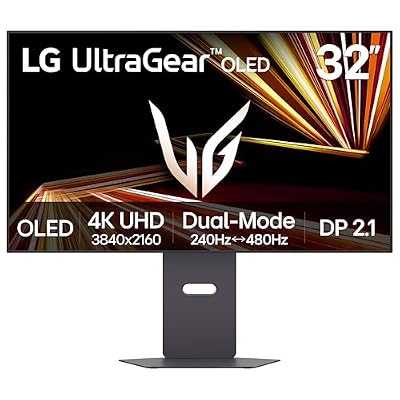
LG 32GX870A-B 32-inch Ultragear 4K UHD (3840 x 2160) OLED Gaming Monitor, Dual-Mode, 240Hz, 0.03ms, NVIDIA, AMD FreeSync Premium Pro, VESA DisplayHDR True Black 400, USB Type-C, DP2.1
Included for 'Best 240Hz Monitors: 1080p, 1440p and OLED Picks' as a representative home product in this roundup; selection reflects the product set returned for this topic.
View on AmazonHow to Choose
Match resolution to your graphics card
To benefit from 240Hz you need frames to match. A mid-range card can supply them at 1080p in esports games, while 1440p needs a stronger card and 4K needs a flagship. If your card tops out at 120 frames in your games, a 144Hz or 165Hz monitor at higher resolution may be the better trade.
Choose panel type for what you play
IPS panels offer good colour and lower burn-in risk. OLED gives deep blacks and quick response but needs care with static images. For competitive shooters, response time and clean motion matter most. For mixed use with long office hours, IPS is the safer choice.
Check ports and adaptive sync
Use DisplayPort or HDMI 2.1 to reach 240Hz at higher resolutions, since older HDMI versions cap out. Look for FreeSync, G-SYNC Compatible or both depending on your graphics card. Adaptive sync prevents tearing when your frame rate varies.
Pick a size that fits your desk
Twenty-four inches suits close esports setups. Twenty-seven is a common middle size, and 32 inches suits 4K and larger desks. Sit at arm’s length and avoid a screen so large you cannot see the corners without moving your head.
Set it up properly after unboxing
Many people never reach 240Hz because the refresh rate is left at 60Hz in the operating system. After connecting the monitor, open your display settings and choose the highest refresh rate, then confirm it in the graphics driver panel. Turn on adaptive sync, set a frame cap slightly below the maximum, and enable overdrive in the monitor menu only at the level that avoids visible trails. Update your graphics driver and the monitor firmware if the maker offers it. Reading each listing closely also helps: confirm the exact model number and size, because sibling monitors in the same line can differ in resolution or panel type.
Frequently Asked Questions
Is 240Hz worth it?
It is noticeable in fast games if your system outputs high frame rates. For slower games or low frame rates, the gain is small.
Do I need a special cable for 240Hz?
Use DisplayPort or HDMI 2.1 for higher resolutions. Check the monitor manual for the supported combination of resolution and refresh rate.
Is OLED better than IPS for gaming?
OLED has faster response and deeper blacks, while IPS is more resistant to burn-in. The better choice depends on your habits and tolerance for care.
Can my graphics card run 240Hz at 1440p?
In esports titles with lowered settings, many mid to high-end cards can. In demanding games, expect lower frame rates.
What is G-SYNC Compatible?
It is NVIDIA’s label for adaptive sync monitors validated to work with its cards. FreeSync monitors can often run the same way.