🛒 Best Price Today on Amazon
Prime members get fast, free shipping on everything above, plus member-only deals. New members get a 30-day free trial — cancel anytime.
Understanding wireless headset latency is crucial when selecting gaming audio gear for competitive PC titles. Wireless audio signals travel over radio frequencies that convert digital data into sound waves, introducing minor delays. Understanding transmission protocols helps gamers reduce lag without sacrificing spatial audio precision.
Quick answer: Our top pick in 2026 is the Setting — our #1 rated choice. See the full ranked comparison, alternatives and buying advice below.
What Wireless Headset Latency Really Comes Down To
Managing wireless headset latency comes down to audio packet compression, radio transmission speed, and receiving buffer sizes on PC systems. Dedicated 2.4GHz connections bypass standard Bluetooth overhead to transmit audio packets in near real time. System settings and hardware placement refine packet timing for consistent output.
2.4GHz Proprietary Radio Protocols
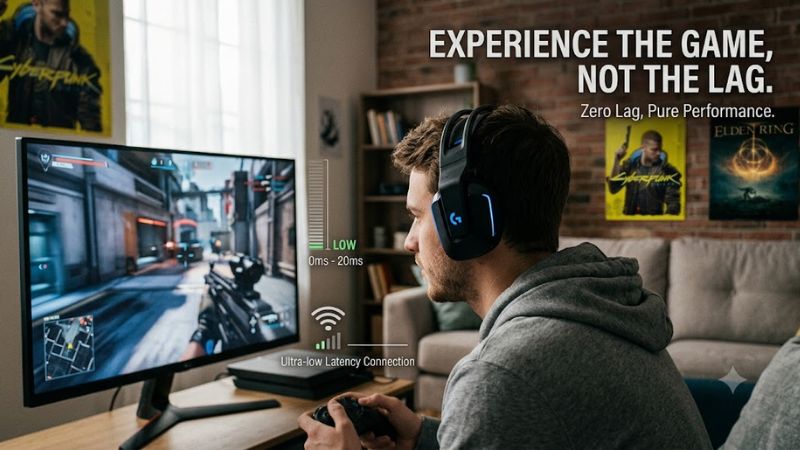
Evaluating wireless headset latency requires examining the RF protocols used by USB dongles. Standard 2.4GHz gaming transmitters use custom uncompressed or lightly compressed audio codecs. This architecture delivers transmission delays between 15ms and 25ms, which maintains synchronization with fast video frames on modern displays.
Hardware manufacturers build dedicated USB adapters to control both ends of the connection. By avoiding generic Windows audio stack delays, the wireless transmitter maintains high polling rates without buffering extra frames. This dedicated pathway ensures reliable directional audio during fast gameplay sequences on Windows 11.
Bluetooth Codecs and Polling Rates
Bluetooth audio relies on standardized profiles that prioritize connection stability over latency. Standard SBC codecs incur delays between 150ms and 200ms due to packet buffering. While specialized codecs like aptX Low Latency reduce lag to roughly 40ms, native Windows driver support for high-speed Bluetooth profiles remains limited.
Enabling the microphone on a Bluetooth connection triggers the Hands-Free Profile, which drops sound sample rates to 16kHz while increasing latency. This dual-channel limitation creates noticeable audio lag during multiplayer communication, making Bluetooth unsuited for competitive first-person shooters on PC setups.
Radio Frequency Interference and USB Bus Traffic
External radio noise directly degrades wireless headset latency by causing dropped audio packets that force retransmissions. USB 3.0 ports generate broad-spectrum 2.4GHz interference near the physical connector. Plugging a headset dongle adjacent to active USB 3.0 storage drives causes signal corruption and audio stuttering.
Crowded Wi-Fi routers operating on 2.4GHz bands also compete for transmission channels in home offices. When channel congestion occurs, the headset receiver increases its internally buffered frame count to prevent complete sound dropouts. This automatic buffering mechanism raises total output lag by several milliseconds.
What Doesn’t Help
Software optimizers like memory cleaners, registry scripts, or background telemetry toggles do not alter radio frequency transmission. Audio delays occur in hardware transceivers and Windows audio buffer queues, making system RAM tweaks ineffective. Applying third-party system scripts introduces system instability without lowering lag.
Similarly, adjusting CPU thread priorities for audio background services does not bypass packet buffering. Hardware wireless controllers require physical isolation from radio noise and proper sample rate matching instead of aggressive OS tweaks. Focus optimization efforts on physical hardware connections and Windows audio settings.
How to Reduce Audio Lag: Step by Step
Optimizing wireless headset latency involves systematic hardware positioning, driver configuration, and audio format selection on Windows PC systems. The following procedure isolates physical interference sources and configures Windows audio routing to minimize processing delay without altering hardware firmware.
| Setting | Where | Effect | Risk |
| 2.4GHz RF Mode | Headset Physical Switch | Drops latency to 15-25ms | Reduces battery life by ~10% |
| USB 2.0 Extension | Desk Surface | Reduces 2.4GHz RF interference | Adds minor cable clutter |
| Spatial Sound Off | Windows Sound Panel | Removes DSP processing delay | Disables virtual 7.1 effects |
| 16-Bit 48000 Hz | Device Properties | Eliminates sample rate resampling | Limits ultra-high sample rates |
Connect via 2.4GHz USB Dongle
Prioritizing the proprietary 2.4GHz transmitter is the most effective way to lower wireless headset latency. Switch the physical power toggles on the headset earcup from Bluetooth mode to the 2.4GHz radio setting. Insert the USB Type-A or Type-C dongle into a front-panel PC port or dedicated USB hub.
Verify the connection in Windows Settings under Sound Devices to ensure audio channels route directly through the USB transceiver. If audio drops out unexpectedly, unplug the dongle, toggle headset power off for five seconds, and reconnect the dongle to force a clean radio channel handshaking routine.
Reposition Dongle with Extension Cable
Physical distance and metallic chassis shielding degrade radio signal strength, leading to packet loss and extended buffer delays. Connect the wireless USB dongle to a USB 2.0 extension cable and place the receiver directly on your desk, keeping it within three feet of the headset and clear of motherboard rear IO panels.
Placing the dongle on USB 2.0 ports prevents high-frequency bus noise generated by adjacent USB 3.0 storage drives or high-bandwidth webcams. If signal stuttering recurs, move the extension cable away from Wi-Fi router antennas to minimize co-channel radio interference across the 2.4GHz frequency band.
Disable Windows Spatial Sound Enhancements
Windows Spatial Sound filters apply real-time digital signal processing that adds 10ms to 20ms of audio buffer delay. Open the Control Panel Sound applet, right-click your headset device, choose Properties, navigate to Spatial Sound, and turn off Windows Sonic for Headphones or Dolby Atmos for Headphones.
Additionally, switch to the Enhancements tab inside the same Properties menu and check Disable All Enhancements to stop secondary equalization filters. Click Apply to save settings. Re-enable spatial processing options individually if positional audio clarity is preferred over absolute minimum response timing.
Set Format to 16-Bit 48000 Hz
Mismatching sample rates forces the Windows Audio Session API to resample game audio streams, introducing buffering delay. Open Sound Device Properties, select the Advanced tab, and select 16-bit, 48000 Hz (DVD Quality) or 24-bit, 48000 Hz from the Default Format drop-down menu to match PC game engine output standard.
Click Test to verify clean sound output without distortion, then click OK to confirm changes. Matching native engine sampling rates prevents real-time audio conversion layers, reducing processing overhead and keeping wireless headset latency predictable during intense multiplayer sessions on modern gaming hardware.
Frequently Asked Questions
Answers below address common questions regarding wireless gaming headset measurements, connection protocols, and audio configuration settings. Each response clarifies technical constraints to help gamers choose optimal hardware configurations and maintain low latency during competitive gaming on Windows setups.
What Is Considered Low Latency for Gaming Headsets?
Low latency for gaming headsets is generally defined as audio transmission delay under 30 milliseconds. Standard 2.4GHz USB transmitters achieve 15ms to 25ms delay, which human ears perceive as synchronized with visual cues on screen. This threshold ensures audio cues match on-screen action without noticeable lag.
By comparison, wired 3.5mm analog headsets deliver near-zero transmission latency due to direct hardware signals. However, high-quality 2.4GHz wireless hardware keeps delay sufficiently low that competitive performance remains unhindered, making wireless setups popular among tournament players on PC.
Can Bluetooth Headsets Match 2.4GHz Dongle Speed?
Bluetooth headsets cannot match 2.4GHz dongle speeds due to protocol overhead and higher buffering. Standard Bluetooth audio connections register delays from 100ms to 200ms, which creates obvious sync delays in shooters. Choosing 2.4GHz connections remains essential for minimizing wireless headset latency.
Advanced Bluetooth codecs such as aptX Low Latency can lower delay down to approximately 40ms on supported hardware. However, desktop Windows systems rarely support these low-latency codecs natively, requiring specialized transmitter adapters to achieve acceptable speeds for media consumption.
Does USB 3.0 Interference Affect Headset Performance?
USB 3.0 ports generate 2.4GHz radio frequency noise that degrades wireless headset performance when receivers are plugged nearby. Unshielded USB 3.0 data transfer generates broadband noise in the 2.4GHz spectrum. This radio radiation leads to dropped sound packets and forces higher receiver buffering.
Plugging the wireless adapter into a USB 2.0 port or using a short extension cable distances the receiver from electrical interference. Moving the dongle just six inches away from active USB 3.0 ports restores full signal stability and prevents latency spikes caused by packet retransmission loops.
Do Virtual Surround Drivers Increase Sound Lag?
Virtual surround sound drivers increase audio lag by adding digital signal processing buffers to calculate multi-channel audio virtualization. Processing surround algorithms on host PC systems can introduce 10ms to 25ms of computational latency. Turning off surround processing reduces transmission buffer queues.
Competitive FPS titles already build spatial audio simulation directly into their sound engines. Disabling secondary Windows or software spatial enhancements allows game engines to output direct stereo streams to headset hardware, achieving cleaner directional cues and faster audio response timing on PC.
Final Thoughts
Understanding and configuring wireless headset latency ensures responsive audio during competitive gameplay. Using a dedicated 2.4GHz RF adapter, isolating the dongle from USB 3.0 ports, and turning off unnecessary software processing keeps transmission lag under 20ms for optimal gaming audio synchronization on Windows.
Ready to decide? Our #1 pick for 2026 is the Setting.
Live price & availability on Amazon.