- Top Pick: 3Dconnexion CadMouse Compact Wireless
- Best Value: 3Dconnexion SpaceMouse Wireless – Bluetooth Edition 3DX-700115
- Premium Choice: 3DConnexion 3DX-700059 Spacemouse Compact 3D Mouse
A dedicated CAD mouse can dramatically improve how you work in 3D design software, giving you precise navigation, programmable buttons, and ergonomics tuned for long modeling sessions. For engineers, architects, and 3D artists, the difference between a generic mouse and purpose-built input hardware shows up as both speed and comfort over a full workday.
- Watch: Cad Mouse — Video Review
- Design & Build
- Performance
- Pros & Cons
- Alternatives to Consider
- How a CAD Mouse Setup Works
- Step-by-Step: Configuring a CAD Mouse
- Which Feature Helps With Which Task
- Common Mistakes
- Troubleshooting
- Choosing a Mouse Shape for Long Sessions
- Related Guides
- Related Guides
- Frequently Asked Questions
- Verdict
- Related Articles
This review looks at the leading options, from 3Dconnexion’s specialized CadMouse and SpaceMouse controllers to versatile alternatives, so you can build the input setup that best fits your CAD workflow and hands.
As an Amazon Associate we earn from qualifying purchases at no extra cost to you.


🎮 Get More From Your Setup — Free
Prime Gaming gives you free PC games every month, in-game loot, and a free Twitch channel sub — plus fast free shipping on all the gear above. New members get a 30-day free trial.
Watch: Cad Mouse — Video Review
Design & Build
3Dconnexion dominates this category with hardware built specifically for CAD. The CadMouse Compact Wireless and CadMouse Pro Wireless feature a dedicated middle mouse button and a smart scroll wheel designed for CAD navigation, in comfortable, well-built shells. The SpaceMouse Wireless and Compact are a different animal entirely, a controller cap you manipulate with your off-hand to pan, zoom, and rotate models fluidly while your other hand handles the CadMouse. The ProtoArc EM01 trackball offers a thumb-controlled alternative for those who prefer a stationary hand, and the Logitech G305 is a precise, budget wireless option for lighter use.
Performance
The ideal CAD setup is actually two devices: a SpaceMouse in your non-dominant hand for smooth 3D navigation, paired with a CadMouse in your dominant hand for precise selection and clicking. Used together, they make orbiting and zooming through complex assemblies feel natural and fast. The CadMouse Pro Wireless is the standout pointing device, its dedicated middle button and CAD-tuned wheel eliminate awkward keyboard shortcuts. The ProtoArc trackball reduces wrist movement for those with limited desk space or strain concerns, while the Logitech G305, though a gaming mouse, offers accurate tracking for occasional CAD users on a budget.
Pros & Cons
- CAD-specific ergonomics and buttons on the 3Dconnexion devices.
- SpaceMouse enables fluid two-handed 3D navigation.
- Reduced strain over long modeling sessions.
- Options for every budget, from trackball to premium.
- Premium 3Dconnexion pricing, especially for a full setup.
- SpaceMouse has a learning curve for newcomers.
- Budget mice lack dedicated CAD features.
Alternatives to Consider
If you can’t justify a full 3Dconnexion setup, starting with just the CadMouse Pro and using keyboard shortcuts for navigation is a solid middle ground. Users with wrist strain might prefer the ProtoArc trackball to reduce arm movement. And occasional CAD hobbyists can get precise, reliable performance from a quality general mouse like the Logitech G305 before investing in specialized hardware.
How a CAD Mouse Setup Works
Three-dimensional design software asks the hand to do two jobs: point at small features and move the whole model. A conventional mouse handles both with one hand, using the wheel and a modifier key to pan, zoom, and orbit. A dedicated setup often splits the work. The dominant hand keeps a precise mouse for selecting edges and dragging sketches, while the other hand rests on a six-degrees-of-freedom controller such as a SpaceMouse that moves the model in all directions at once. That split reduces how often you need to hold a key and hunt for a viewing angle.
Step-by-Step: Configuring a CAD Mouse
- Install the manufacturer’s driver before plugging the device in, then restart the CAD program so it detects the hardware.
- Open the driver software and list the three or four commands you use every minute, such as fit view, front view, and undo.
- Assign those commands to the side buttons or programmable keys.
- Lower the pointer speed to a DPI that lets you hit small sketch points without overshooting.
- Adjust the sensitivity and dead zone of any six-axis controller until the model holds still when your hand rests.
- Practice a short routine, such as orbiting around a part and zooming to an edge, until it feels automatic.
Which Feature Helps With Which Task
| Task | Helpful feature |
|---|---|
| Selecting small edges and vertices | Accurate sensor and moderate DPI |
| Rotating a complex assembly | Six-axis controller |
| Repeated commands | Programmable side buttons |
| Long modeling sessions | Shape that fits your hand |
| Scrolling long feature trees | Free-spinning or smooth wheel |
Common Mistakes
- Buying by size labels alone. Sizing is not standardized across brands. Compare the dimensions to your hand and grip style.
- Leaving every button unassigned. A device with extra buttons does little until commands are mapped to them.
- Setting the DPI too high. A fast pointer makes sketch points hard to hit.
- Skipping the driver. Without it, programmable buttons and the six-axis controller may not work inside the CAD program.
- Ignoring posture. Keep the wrist straight and the forearm supported. Repetitive strain can build up over a workday.
Troubleshooting
The model drifts when your hand is at rest
Raise the dead zone or lower the sensitivity in the driver. Check that the device sits on a flat surface and is not nudged by the keyboard.
Buttons do nothing in the CAD program
Confirm the application profile is enabled in the driver and that the CAD software is on the supported list. Restart the program after changing profiles.
The pointer jitters or skips
Clean the sensor lens and try a different mousepad. Matte cloth surfaces are generally easier on optical sensors than glossy ones.
Wireless lag
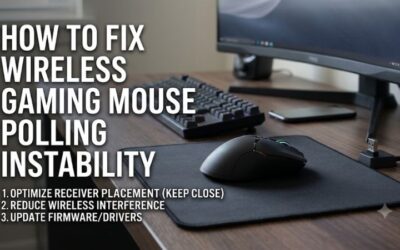
Move the receiver closer using a short extension cable, away from large metal objects and other radio-heavy devices.
Choosing a Mouse Shape for Long Sessions
Grip style shapes which mouse feels natural. A palm grip rests the whole hand on the body and favors larger, rounded shells. A claw grip arches the fingers and suits a taller back. A fingertip grip touches only with the fingers and favors lighter, smaller designs. Match the shape to how your hand already rests.
Weight is the next variable. Lighter mice take less effort to move across a desk, while heavier ones feel steadier during slow, precise sketch work. Check that side buttons sit where the thumb falls naturally and are not pressed by accident. A cable that reaches without tugging, or a wireless model with a reliable receiver, prevents small annoyances from adding up across a workday.
Related Guides
- Best Wired Gaming Mice (2026)
- Mouse Comparisons (2026)
- Best Mouse For Programmers (2026)
- 1000hz Gaming Mouse (2026)
- Best Productivity Mouse (2026)
Frequently Asked Questions
Do I need both a CadMouse and a SpaceMouse?
Not required, but together they’re ideal, the SpaceMouse navigates while the CadMouse selects. Many pros use both; beginners often start with one.
Is a SpaceMouse hard to learn?
There’s a short adjustment period, but most users find fluid two-handed navigation becomes second nature within a few days.
Can I use a regular gaming mouse for CAD?
Yes, a precise mouse like the Logitech G305 works for light CAD, though it lacks the dedicated middle button and CAD-tuned wheel of a CadMouse.
Is a trackball good for CAD?
The ProtoArc trackball suits users who want minimal hand movement and stationary control, though it’s a personal-preference choice.
Verdict
For serious CAD work, the 3Dconnexion ecosystem is worth the investment: pair a CadMouse Pro Wireless with a SpaceMouse Wireless for the smoothest, most efficient workflow. Budget-conscious or occasional users can start with the CadMouse alone or a precise mouse like the Logitech G305, and strain-conscious users should try the ProtoArc trackball.