🛒 Best Price Today on Amazon
Prime members get fast, free shipping on everything above, plus member-only deals. New members get a 30-day free trial — cancel anytime.
Wireless gaming mice can experience inconsistent input reporting even when their advertised polling rate is high. How to fix wireless gaming mouse polling instability starts with identifying whether the problem comes from wireless interference, receiver placement, battery power, USB connectivity, or excessive report rates. This guide explains how to isolate each cause and restore consistent mouse input.
Why Wireless Gaming Mouse Polling Instability Happens
Polling instability occurs when a mouse does not deliver input reports consistently to the PC. The configured polling rate may remain unchanged while actual report intervals fluctuate. Start by checking whether the problem affects wireless mode only, whether it occurs outside games, and whether changing receiver placement improves consistency.
1. Wireless Interference and Receiver Placement
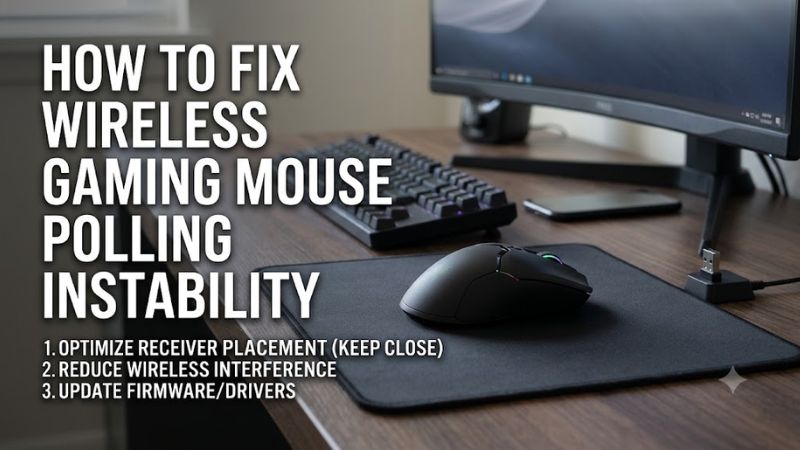
A 2.4 GHz wireless gaming mouse communicates with its USB receiver over a radio connection. Nearby wireless equipment, obstructed receiver placement, and USB 3.0 devices can interfere with that connection, potentially causing delayed inputs, missing reports, or inconsistent movement.
USB 3.0 interference deserves particular attention because electrical noise from USB 3.0 equipment can extend into the 2.4 GHz frequency range. Razer and Logitech both document this issue and recommend separating wireless receivers from USB 3.0 devices and cables.
Hỗ Trợ Razer+1
2. High Polling Rates and System Processing Limitations
A high polling rate increases how frequently the mouse sends input reports to the computer. At 1,000 Hz, the nominal reporting interval is 1 millisecond. Higher rates, such as 4,000 Hz or 8,000 Hz, require the system to process substantially more input updates.
Some computers may struggle with these higher report rates, particularly when games already place significant demands on the CPU. Pulsar specifically identifies system processing limitations as a possible cause of instability with 4K and 8K wireless configurations.
Pulsar Support+1
3. Battery, Firmware, and Connection Problems
Low battery power can affect wireless operation, while outdated firmware, pairing problems, and receiver faults can produce intermittent input behavior. These issues should not automatically be classified as polling-rate failures because they can create similar symptoms.
Check whether the mouse behaves differently when fully charged or connected through its supported wired mode. If wired operation remains consistent but wireless operation continues to fail, investigate the receiver, radio environment, and wireless firmware before considering sensor damage.
What Doesn’t Help
Repeatedly increasing the polling rate does not repair an unstable wireless connection. Setting a mouse to 8,000 Hz when its receiver cannot maintain a reliable connection may make troubleshooting harder and increase system processing demands.
Likewise, changing DPI, reinstalling unrelated game software, or running generic PC optimization utilities does not address radio interference. A browser-based polling-rate test alone is also insufficient evidence of a hardware fault because browser scheduling and measurement limitations can affect displayed results.
How to Fix Wireless Gaming Mouse Polling Instability: Step by Step
Follow these troubleshooting steps in order, beginning with free physical checks before changing software or considering replacement hardware. Change one variable at a time and compare mouse behavior under the same conditions. This makes it easier to identify the actual cause instead of applying several unrelated fixes.
| Step | Where | How to Verify | Cost |
| 1. Reposition receiver | Desk and USB connection | Check whether input becomes consistent | Free |
| 2. Reduce polling rate | Mouse software | Compare report consistency at lower rates | Free |
| 3. Check battery and pairing | Mouse software and receiver | Retest after charging or reconnecting | Free |
| 4. Update software and firmware | Manufacturer application | Check whether instability disappears | Free |
| 5. Test another USB port or PC | Computer USB connections | Determine whether the issue follows the mouse | Free |
| 6. Replace a faulty receiver | Wireless receiver | Retest using a compatible replacement | Varies |
1. Move the Wireless Receiver Closer to the Mouse
Start by connecting the wireless receiver to a USB port with a clear connection to the mouse. Avoid placing it behind a desktop tower, inside a crowded USB hub, or directly beside external storage devices and USB 3.0 cables.
If your mouse includes a receiver extension cable, use it to position the receiver on the desk. Keep it away from nearby wireless equipment where practical. Razer recommends placing its HyperPolling Wireless Dongle within 30 cm of the mouse with a clear line of sight; this is model-specific guidance rather than a universal requirement.
Razer Asia-Pacific+1
Retest the mouse using the same movement pattern and game. If the polling behavior becomes more consistent after repositioning the receiver, interference or signal quality was likely contributing to the problem. Keep the new placement and avoid changing other settings until you establish a stable baseline.
2. Reduce the Polling Rate Temporarily
Open your mouse manufacturer’s configuration software and locate the polling-rate or report-rate setting. Depending on the manufacturer, this may appear in Logitech G HUB, Razer Synapse, Corsair iCUE, or another dedicated application.
If the mouse currently operates at 4,000 Hz or 8,000 Hz, temporarily reduce it to 1,000 Hz. If instability remains, compare a lower supported setting, such as 500 Hz. Do not assume every mouse supports all these options.
Test both desktop movement and gameplay after each adjustment. A stable lower rate that produces consistent input suggests the original configuration may have exceeded the practical processing capacity of the PC or wireless setup. Higher polling rates also increase power consumption, so the lower setting may provide a useful battery-life benefit.
Logitech+1
3. Check Battery Level and Wireless Pairing
Charge the mouse fully or install fresh batteries if it uses replaceable cells. Open its configuration application and check whether the battery indicator reports an appropriate charge level. Battery-saving modes may also affect how the device manages wireless reporting.
Next, check whether the receiver is correctly paired with the mouse. Follow the manufacturer’s instructions to reconnect the device if the connection appears unreliable. Avoid using pairing utilities intended for different receiver models because wireless compatibility varies between product families.
After reconnecting, restart the mouse and retest it at the same polling rate. If the problem disappears after charging or pairing again, there is less reason to change Windows USB settings or replace the receiver.
4. Update Mouse Software and Firmware Carefully
Open the manufacturer’s official configuration application and check whether an applicable software or firmware update is available for your exact mouse model. Firmware updates can address device-specific problems, but they should not be treated as a universal solution for wireless interference.
Before updating, charge the mouse, connect the receiver as instructed, and avoid interrupting the update process. Some manufacturers require a wired connection or a specific receiver configuration. Follow those instructions rather than assuming every firmware update uses the same procedure.
After updating, restart the mouse and computer if requested. Restore your preferred polling rate and repeat the original comparison. If the update introduces a new problem, consult the manufacturer’s recovery instructions instead of attempting an unsupported firmware downgrade.
5. Test Another USB Port or Computer
Move the receiver to another USB port directly connected to the computer. Temporarily remove unnecessary hubs, docking stations, KVM switches, and extension devices from the connection path. If USB 3.0 equipment is nearby, increase the physical separation before deciding that the port itself is defective.
Then connect the mouse to another computer, preferably using the manufacturer’s standard wireless connection procedure. Keep the same polling-rate setting where the software supports it and compare behavior in ordinary desktop use.
If the mouse works consistently on another PC, investigate the original computer’s USB connections, wireless environment, and processing limitations. If instability follows the mouse across computers, the receiver or mouse hardware becomes a more plausible cause.
6. Consider Receiver Replacement or Hardware Service
Consider replacing the receiver only after checking its connection, pairing, placement, and compatibility. Some gaming mice require a specific receiver, while high-polling-rate operation may require a separate compatible dongle. A generic USB wireless receiver is not necessarily interchangeable.
If the manufacturer sells a replacement, confirm the exact mouse model and supported receiver before purchasing. Follow its pairing instructions and repeat the wireless test at a conservative polling rate before increasing the setting.
If a compatible replacement receiver does not resolve the problem, the mouse itself may have a hardware fault. Contact the manufacturer’s support team while the device remains under warranty rather than opening the mouse or attempting an unsupported repair.
FAQ
Why Does My Wireless Gaming Mouse Polling Rate Keep Dropping?
A wireless gaming mouse polling rate can fluctuate because of radio interference, receiver placement, low battery power, or system processing limitations. Start by moving the receiver closer to the mouse and temporarily reducing the polling rate. Also distinguish actual input interruptions from measurement variations in browser-based polling tools.
Does USB 3.0 Interfere With Wireless Gaming Mice?
Yes, USB 3.0 equipment can interfere with some 2.4 GHz wireless mouse connections. Noise from USB 3.0 cables and devices can affect nearby receivers, resulting in delayed or missing input reports. Move the receiver away from USB 3.0 equipment and use an extension cable if necessary.
Is 8,000 Hz Polling Rate Too High for Wireless Gaming?
No, 8,000 Hz is not inherently unsuitable, but it requires compatible mouse hardware, a supported receiver, and sufficient system processing capacity. If input becomes inconsistent, reduce the rate to 1,000 Hz and compare behavior before increasing it again.
When Should I Replace My Wireless Mouse Receiver?
Replace the receiver when instability persists across different USB ports and computers after checking interference, battery power, pairing, and firmware. Confirm that the replacement is compatible with your exact mouse model. If a replacement receiver does not help, contact the manufacturer about possible mouse hardware failure.
Final Thoughts
Fixing how to fix wireless gaming mouse polling instability starts with receiver placement, interference checks, battery condition, and sensible polling-rate adjustments. Avoid replacing hardware before isolating the problem. If instability persists across multiple computers, contact the manufacturer to investigate a defective receiver or mouse.