🛒 Best Price Today on Amazon
Prime members get fast, free shipping on everything above, plus member-only deals. New members get a 30-day free trial — cancel anytime.
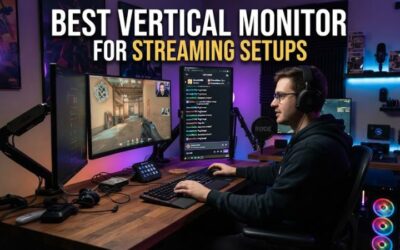
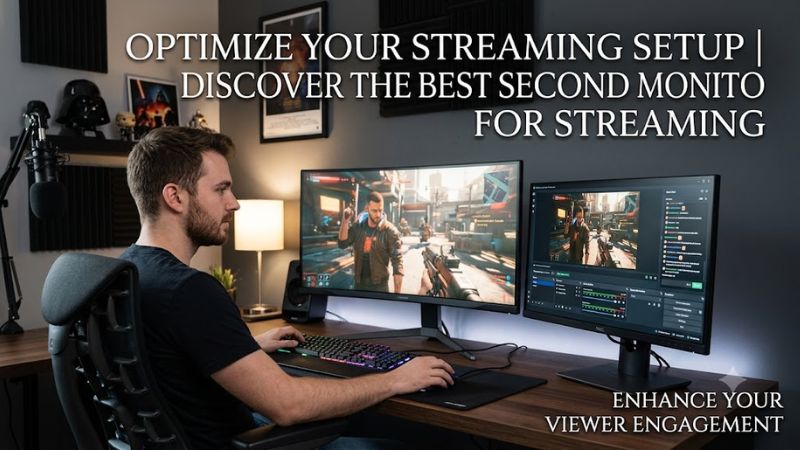
A best second monitor for streaming should make OBS, chat, alerts, and stream controls easy to monitor without consuming the budget needed for your primary gaming display. For most setups, a 23.8-inch 1080p IPS screen with useful ergonomics and suitable video inputs is enough for the control side.
How to Choose a Second Monitor for Streaming
The right secondary display is mainly about workspace, connectivity, and physical positioning rather than gaming-class performance. A 1080p IPS monitor can provide enough room for OBS and chat, while a higher-resolution option makes sense when you also use the screen for editing, documents, or detailed dashboards.
Screen Size and Resolution
For the best second monitor for streaming, 23.8 to 24 inches is a practical starting point because 1920×1080 provides readable text without demanding excessive desk space. A 27-inch display can provide more room for multiple OBS panels, but it also occupies more horizontal space beside the main screen.
Resolution should follow the software you intend to keep open. Full HD is sufficient for chat, alerts, Discord, and basic OBS controls, while QHD can provide a denser workspace for editing or several windows. LG’s 24U631A-B uses a 23.8-inch 2560×1440 IPS panel, giving it more desktop detail than typical FHD alternatives.
Ergonomics and Orientation
A secondary screen is often positioned at an angle or rotated vertically, so its stand can matter more than a high refresh rate. The Dell S2425HS includes height adjustment, swivel, tilt, and ±90-degree pivot, making it particularly flexible for a chat-oriented setup.
Vertical orientation is useful when chat is the main workload because a portrait display can show more messages within the same physical height. If the monitor has only tilt adjustment, such as the LG 24U631A-B, a VESA-compatible arm can provide additional positioning flexibility because the monitor supports a 100×100 mm mounting pattern.
Ports and PC Compatibility
Compatibility means checking both the monitor inputs and the graphics output before buying. A desktop with a discrete GPU should normally connect the secondary display directly to an available GPU output; the required cable depends on the ports available on both devices. Modern Windows systems can extend the desktop across multiple displays.
The BenQ GW2490 provides two HDMI 1.4 inputs and one DisplayPort 1.2 input, while the ASUS VA24EHF provides one HDMI 1.4 input. These options work with PCs that provide the corresponding digital video output, but the ASUS is less flexible if your graphics card already has limited HDMI connectivity.
Refresh Rate and Panel Type
A secondary display does not need the high refresh rate normally prioritized for competitive gaming. For OBS, chat, browser windows, and stream dashboards, IPS is useful because wide viewing angles help maintain a consistent image when the monitor sits beside the primary display rather than directly in front of you.
The BenQ GW2490, Dell S2425HS, and ASUS VA24EHF all use IPS panels and offer 100Hz maximum refresh rates. The 100Hz specification can make scrolling and window movement feel smoother, but it is not a requirement for streaming software.
Top Picks for Streaming
The four options below cover different secondary-monitor priorities without assuming that every streamer needs a premium gaming panel. The table focuses on manufacturer specifications and practical streaming requirements; no fabricated gaming or streaming benchmark is included where an independent source did not provide comparable data.
| Product | Best For | Key Spec | Compatibility | Watch Out For |
| Dell S2425HS | Best Overall | 23.8″ FHD IPS, 100Hz | HDMI 1.4; Windows PC with compatible output | US Dell listing currently shows unavailable |
| BenQ GW2490 | Best Value | 23.8″ FHD IPS, 100Hz | 2× HDMI 1.4, DisplayPort 1.2 | Stand only tilts |
| LG 24U631A-B | Best For QHD Detail | 23.8″ QHD IPS, 100Hz | HDMI, USB-C with 15W PD | Stand only tilts |
| ASUS VA24EHF | Best For Simple Setups | 23.8″ FHD IPS, 100Hz | HDMI 1.4 | No speakers; one video input |
Dell S2425HS: Best Overall
The Dell S2425HS fits the best second monitor for streaming role particularly well because its 23.8-inch FHD IPS panel is paired with a stand offering height adjustment, swivel, tilt, and pivot. Its 100Hz refresh rate and 99% sRGB coverage are more than adequate for OBS, chat, browser windows, and general desktop work.
Its main weakness is availability rather than a missing streaming feature: Dell’s US product page currently lists the S2425HS as unavailable. It should not be the first choice for someone who needs a monitor immediately from Dell’s US store. The two HDMI inputs also make it straightforward for a PC with spare HDMI outputs.
BenQ GW2490: Best Value
The BenQ GW2490 is a practical value option with a 23.8-inch IPS panel, 1920×1080 resolution, 100Hz refresh rate, 250-nit typical brightness, and 99% sRGB coverage. Its two HDMI 1.4 inputs plus DisplayPort 1.2 provide useful flexibility for desktops with different available video outputs.
The real compromise is its basic stand, which provides tilt adjustment but not the height, swivel, or pivot movement available on the Dell. That makes it less convenient for a portrait chat layout unless you add a compatible VESA arm; the monitor supports a 100×100 mm VESA mount.
LG 24U631A-B: Best For QHD Detail
The LG 24U631A-B is the best second monitor for streaming when the secondary display also handles detailed productivity work. Its 23.8-inch IPS panel runs at 2560×1440 and 100Hz, with 99% sRGB coverage. USB-C supports video and up to 15W Power Delivery, which can simplify a compatible laptop setup.
Its weakness is physical adjustment: the supplied stand only tilts. The QHD resolution also costs more than a basic FHD secondary monitor without adding much benefit if the screen only shows chat and OBS. It makes more sense for creators who also need sharper text or additional desktop space for editing and productivity.
ASUS VA24EHF: Best For Simple Setups
The ASUS VA24EHF suits streamers who want a straightforward FHD IPS display without paying for features they will not use. It provides 1920×1080 resolution, 100Hz refresh, 250-nit typical brightness, 178-degree viewing angles, Adaptive-Sync, and a single HDMI 1.4 input.
The limitation is connectivity and adjustment. There is only one HDMI video input, and ASUS lists no integrated speakers. The fixed-style stand is also less flexible than the Dell’s height-adjustable pivot stand, so this model is better suited to a conventional horizontal arrangement or a separate VESA mounting solution.
FAQ
A second display for streaming primarily improves workflow rather than stream encoding performance, so the useful questions concern screen size, refresh rate, matching, and the hardware connection. These answers apply to a conventional Windows PC streaming setup where the secondary screen displays OBS, chat, alerts, browser windows, or other controls.
Is 1080p enough for a second streaming monitor?
Yes, 1080p is enough for a second streaming monitor when its main jobs are OBS, chat, alerts, Discord, and browser windows. A 23.8-inch FHD display gives these applications a practical workspace without requiring the GPU output or additional budget associated with higher-resolution screens.
QHD becomes more useful when the secondary monitor also handles video editing, detailed timelines, documents, or several dense application windows. The LG 24U631A-B demonstrates this approach with 2560×1440 resolution on a 23.8-inch IPS panel, while the Dell S2425HS and BenQ GW2490 stay at 1920×1080.
Does a second monitor affect streaming FPS?
A second monitor can add some display workload, but its presence does not automatically create a specific FPS penalty. The effect depends on the GPU, applications running on the second screen, display settings, and the game or encoder workload, so a universal FPS reduction number would not be reliable.
The secondary display itself is not an encoding upgrade or replacement for appropriate OBS settings. Its main benefit is keeping chat, scenes, alerts, and monitoring panels away from the gameplay display. This lets the streamer manage those applications without repeatedly switching away from the game.
Should the second monitor match the main monitor?
No, the second monitor does not need to match the primary display in size, resolution, refresh rate, or panel technology. For streaming, the primary screen normally handles gameplay or the main content while the secondary screen handles control software, chat, alerts, and other supporting applications.
Matching screens can make the desktop look more uniform, but it is not a streaming requirement. A 1440p or 4K gaming display can reasonably be paired with a 1080p IPS secondary panel when the second screen is mainly used for text and controls, reducing unnecessary spending on unused display specifications.
Can one GPU run two monitors for streaming?
Yes, a desktop GPU can run two monitors when it has suitable available video outputs and supports the required display configurations. The exact connection depends on the GPU’s HDMI or DisplayPort outputs and the inputs available on each monitor, so the ports should be checked before purchase.
The BenQ GW2490 offers two HDMI 1.4 inputs and DisplayPort 1.2, while the ASUS VA24EHF has one HDMI 1.4 input. Windows can then use an extended desktop so OBS and chat remain on the secondary display while the primary screen remains dedicated to gameplay.
Final Thoughts
The best second monitor for streaming is usually a practical IPS display rather than another high-end gaming screen. Dell’s S2425HS emphasizes ergonomics, BenQ’s GW2490 offers flexible inputs, LG’s 24U631A-B adds QHD and USB-C, while ASUS keeps the setup simple. Choose based on workflow, ports, and mounting needs.