🛒 Best Price Today on Amazon
Prime members get fast, free shipping on everything above, plus member-only deals. New members get a 30-day free trial — cancel anytime.
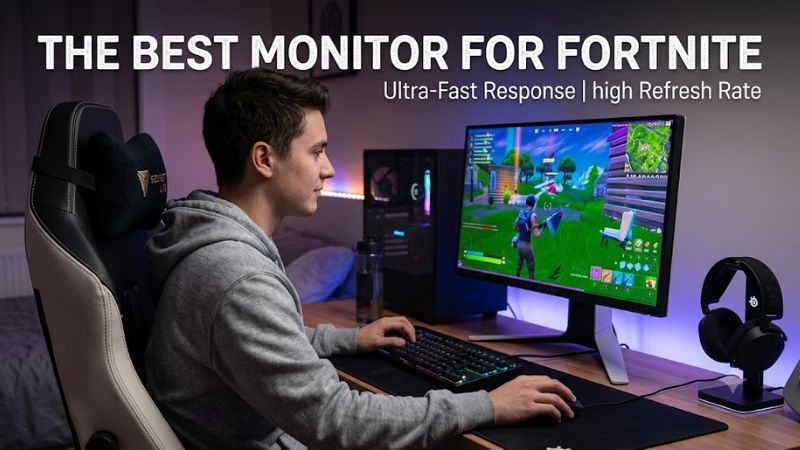
The best monitor for fortnite depends mainly on how many frames your PC can sustain, whether you favor 1080p competitive play or 1440p image quality, and which sync standard your GPU supports. For competitive play, 240Hz or higher makes the most sense when your hardware can feed it consistently.
How to Choose a Fortnite Gaming Monitor
For Fortnite, prioritize refresh rate, motion handling, resolution, and hardware compatibility rather than simply choosing the largest panel. A 540Hz display only has value when the PC can produce very high frame rates, while a 1440p OLED can make more sense for players who also want stronger image quality. RTINGS’ monitor comparisons support separating these use cases.
Refresh Rate Should Match Your PC
The best monitor for fortnite should match the frame rate your system can actually produce. A 240Hz panel refreshes every 4.17ms, 360Hz every 2.78ms, and 500Hz every 2ms, so the intervals become progressively smaller. That makes 240Hz a practical target for many high-FPS systems, while 500Hz and above suit specialized competitive setups.
A higher refresh rate also requires an appropriate connection and operating-system configuration. ZOWIE specifies Windows 11 for 540Hz operation on the XL2586X and recommends recent high-end GPU and CPU platforms; its guidance lists NVIDIA RTX 40-series or AMD RX 7000-series graphics cards for 540Hz and 600Hz models.
Resolution Changes the Hardware Load
At 1080p, Fortnite places less rendering demand on the GPU than 1440p, leaving more headroom for very high frame rates. That is why esports-oriented displays commonly use 24-25-inch 1080p panels. By contrast, 1440p provides a sharper desktop and game image but requires more graphics performance to reach the same frame rate.
The ASUS PG27AQDP illustrates the other approach: it combines 2560×1440 resolution with a 480Hz OLED panel. RTINGS describes its PC gaming performance as strong, while also noting VRR flicker and software issues. This makes it more appropriate for someone balancing competitive Fortnite with broader PC gaming.
Panel Type Affects More Than Speed
Fast TN panels remain relevant when motion clarity and extremely high refresh rates take priority. The ASUS PG248QP uses an esports-focused TN panel at 540Hz, while the ZOWIE XL2586X uses Fast TN technology at 540Hz. Independent measurements from RTINGS describe the ASUS as having very fast response handling across its VRR range.
IPS and OLED models can offer a different balance. The Alienware AW2524HF uses Fast IPS at 500Hz, while the ASUS PG27AQDP uses WOLED at 480Hz. IPS generally gives wider viewing angles than TN, while OLED provides very strong contrast and fast pixel response, but OLED ownership also involves burn-in considerations.
Compatibility Includes Ports and GPU Output
The best monitor for fortnite must support the refresh rate through the connection you actually plan to use. The Alienware AW2524HF reaches 500Hz through DisplayPort overclocking, while HDMI is limited to 255Hz; its DisplayPort inputs therefore matter for a 500Hz PC setup.
The ASUS PG248QP uses DisplayPort 1.4 with DSC for its 540Hz mode and HDMI 2.0 for lower maximum refresh rates. The ZOWIE XL2586X supports 1080p at 540Hz through DisplayPort 1.4 or HDMI 2.1. Neither model requires a particular RAM generation or CPU socket merely because it is a monitor; the important platform requirements are the GPU output, cable, operating system, and frame-rate capability.
Top Picks for Fortnite
The four displays below cover distinct use cases rather than one universal specification target. The best monitor for fortnite for a competitive 1080p player can therefore differ substantially from a 1440p OLED intended for Fortnite plus other games. Specifications are manufacturer figures, while motion and input-lag observations are based on independent RTINGS measurements where available.
| Product | Best For | Key Spec | Compatibility | Watch Out For |
| ASUS ROG Swift Pro PG248QP | Best Overall | 1080p, 540Hz, E-TN | DP 1.4 DSC; NVIDIA G-SYNC | TN picture quality |
| Dell G2524H | Best Value | 1080p, 280Hz, IPS | FreeSync Premium, G-SYNC Compatible | 1080p resolution |
| Alienware AW2524HF | Best For 500Hz IPS | 1080p, 500Hz, Fast IPS | DP 1.4, FreeSync Premium | 500Hz needs DP |
| ASUS ROG Swift OLED PG27AQDP | Best For 1440p OLED | 1440p, 480Hz, WOLED | HDMI 2.1, DP 1.4 DSC | VRR flicker and burn-in risk |
ASUS ROG Swift Pro PG248QP
The ASUS ROG Swift Pro PG248QP is the most specialized choice here, with a 24.1-inch 1920×1080 TN panel and a maximum 540Hz refresh rate. ASUS lists 0.2ms GTG response time, Adaptive-Sync, G-SYNC certification, and DisplayPort 1.4 DSC. RTINGS also reports low input lag and strong motion handling.
Buy it if your priority is competitive Fortnite at very high frame rates and you prefer a compact 24-inch esports format. Do not buy it primarily for HDR movies, broad viewing angles, or detailed 1440p gaming. RTINGS notes mediocre contrast, narrow viewing angles, and limited picture quality, which are meaningful trade-offs outside fast competitive play.
Dell G2524H
The Dell G2524H is the value-oriented option, using a 25-inch 1920×1080 IPS panel with a maximum 280Hz refresh rate. RTINGS identifies it as an entry-level high-refresh monitor and records support for FreeSync Premium and G-SYNC Compatibility. Its lower refresh target also makes it easier to pair with a less extreme gaming PC.
Buy it if you want high-refresh 1080p Fortnite without moving into 500Hz-class pricing. Do not buy it if your main reason for upgrading is 1440p sharpness or OLED contrast. RTINGS’ comparison with the LG 24GS65F-B shows the Dell’s 280Hz ceiling as its main refresh-rate advantage over that 180Hz alternative.
Alienware AW2524HF
The Alienware AW2524HF is aimed at players who want 500Hz without switching to a TN panel. Dell lists a 24.5-inch 1920×1080 Fast IPS display, 500Hz through DisplayPort overclocking, 480Hz native DisplayPort operation, and 255Hz over HDMI. It also provides AMD FreeSync Premium and VESA Adaptive-Sync support.
Buy it if your PC can sustain extremely high frame rates and you prefer IPS viewing angles and color characteristics. Do not buy it just because 500Hz sounds faster; Dell’s own specifications show that the maximum mode depends on DisplayPort, while the monitor remains a 1080p display. A weaker GPU or CPU can leave much of that refresh capacity unused.
ASUS ROG Swift OLED PG27AQDP
The ASUS ROG Swift OLED PG27AQDP is the broadest-use option, combining a 26.5-inch 2560×1440 WOLED panel with 480Hz, 0.03ms GTG, FreeSync Premium, and G-SYNC compatibility. ASUS also lists HDMI 2.1 and DisplayPort 1.4 DSC, making it suitable for modern PC hardware and high-bandwidth signals.
Buy it if you want Fortnite performance alongside strong image quality in other PC games. Do not buy it if you want to avoid OLED-specific concerns or if your PC cannot generate high frame rates at 1440p. RTINGS reports excellent motion performance and picture quality but also notes VRR flicker, software issues, and a risk of permanent burn-in from static elements.
FAQ About Fortnite Monitors
There is no single specification that suits every player, because refresh rate, resolution, GPU output, and intended use interact. The best monitor for fortnite depends on whether the goal is maximum competitive refresh, a lower-cost high-refresh upgrade, or a display that also prioritizes 1440p image quality.
Is 240Hz Enough for Fortnite?
Yes, 240Hz is enough for Fortnite when your system typically operates around that frame-rate range and you do not need an extreme esports display. The jump from 60Hz to 240Hz is much larger than the later increments to 360Hz, 500Hz, or 540Hz in terms of refresh interval, so 240Hz remains a practical high-refresh target.
A 240Hz display refreshes every 4.17ms, while 360Hz is 2.78ms and 500Hz is 2ms. That does not mean a 500Hz monitor automatically produces better gameplay; the PC must also deliver enough frames and the game must sustain them. The monitor cannot create missing frames by itself.
Should Fortnite Use 1080p or 1440p?
Choose 1080p when maximizing frame rate is the primary objective, particularly with a 24-25-inch esports display. The current high-refresh examples from ASUS, Dell, and Alienware all use 1920×1080, while ASUS’s PG27AQDP demonstrates the 1440p alternative at 480Hz.
Choose 1440p when you also value sharper image detail and play other games where image quality matters. The trade-off is graphics workload: a GPU rendering at 2560×1440 has substantially more pixels to process than at 1920×1080, so the same hardware may produce fewer frames at the higher resolution.
Does Fortnite Need G-SYNC or FreeSync?
No, adaptive sync is not a mandatory Fortnite feature, but it can help when frame rates fluctuate below the display’s maximum refresh rate. The ASUS PG248QP supports Adaptive-Sync and G-SYNC, while the Alienware AW2524HF supports VESA Adaptive-Sync and AMD FreeSync Premium.
For a very high-FPS competitive setup, the importance of VRR depends on how consistently the game runs. A PC that stays near the monitor’s refresh ceiling presents a different situation from one with frequent frame-rate swings. Check GPU compatibility and the monitor’s connection-specific limits before enabling a particular sync mode.
Can a Console Use These Fortnite Monitors?
Yes, but consoles cannot use the extreme PC refresh rates offered by these displays. ZOWIE specifies 1920×1080 at 120Hz for PS5 and Xbox Series X/S on the XL2586X, while RTINGS notes 1080p up to 120Hz for the Alienware AW2524H.
For PC Fortnite, the situation is different because the graphics card and DisplayPort connection can target much higher refresh rates. If the display will mainly serve a PS5 or Xbox Series X|S, paying specifically for 500Hz or 540Hz provides little benefit because the console’s supported refresh modes are much lower.
Final Thoughts
The best monitor for fortnite is usually a 240Hz-or-higher 1080p display for competitive players, while 1440p OLED makes more sense for mixed gaming. Match refresh rate to actual PC output, verify the required connection, and choose panel type according to whether motion speed or image quality matters more.