🛒 Best Price Today on Amazon
Prime members get fast, free shipping on everything above, plus member-only deals. New members get a 30-day free trial — cancel anytime.
If you want the best gaming monitor under 150, focus first on resolution, refresh rate, panel type, and VRR support rather than headline response-time figures. The current sub-$150 market includes fast 1080p IPS and VA displays, plus occasional 1440p models. Your GPU, available video outputs, desk space, and preference for image sharpness should determine which specification matters most.
How to Choose a Gaming Monitor Under $150
The right budget display depends on four things: resolution, refresh rate, panel behavior, and compatibility. For most PCs, 24-inch 1080p remains a practical match for high frame rates, while 27-inch 1440p demands substantially more GPU rendering. IPS generally offers wider viewing consistency, while VA can provide higher native contrast. Adaptive Sync is also useful when frame rates fluctuate. The four picks below cover these different priorities without treating one specification as universally superior.
Match Resolution to Your GPU
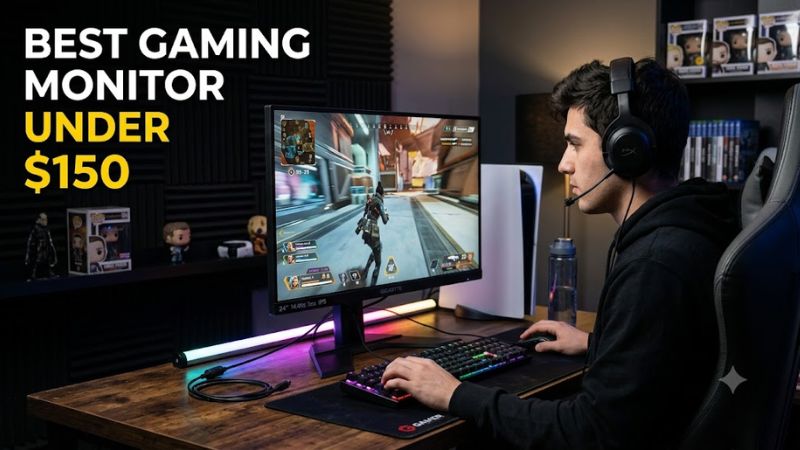
For the best gaming monitor under 150, start by deciding whether your graphics card is better suited to 1080p or 1440p. A 1080p display reduces the rendering workload compared with 2560×1440, which can make higher frame rates easier to reach in demanding games. A 1440p monitor provides a sharper image, but its additional pixels increase the GPU workload.
The AOC 24G42E and Acer Nitro KG241Y M3BIIP are 23.8-inch Full HD models designed around this lower rendering load. AOC lists 1920×1080 at up to 180Hz on its current 24G42E specification, while Acer lists 1920×1080 at 180Hz for the KG241Y M3BIIP.
Choose Refresh Rate for Your Games
Refresh rate matters most when the PC can consistently produce frame rates high enough to use it. A 144Hz or 180Hz monitor can display considerably more frames per second than a 60Hz screen, but the practical difference depends on the game, GPU, and settings. Competitive games often make better use of high refresh rates than graphically intensive single-player titles.
The AOC 24G42E reaches 180Hz, while the Acer KG241Y M3BIIP also reaches 180Hz. LG’s 24G414B-B uses a 144Hz native refresh rate, making it a reasonable alternative when ergonomics and VRR compatibility matter more than the additional refresh headroom.
Compare IPS and VA Panels
Panel type affects the character of the picture beyond refresh rate. IPS panels generally provide broad viewing angles and consistent colors, while VA panels commonly offer higher native contrast. That makes VA attractive for darker games and movies, although individual models can differ in motion behavior. Do not treat a stated response-time number as a complete measurement of motion clarity.
The Acer KG241Y M3BIIP uses IPS, while the KOORUI 24E4 uses VA with a manufacturer-listed 3000:1 contrast ratio. KOORUI also lists 165Hz, 1920×1080 resolution, AdaptiveSync, HDMI, DisplayPort, and a 1ms MPRT mode for the 24E4.
Check Ports and Stand Compatibility
Compatibility includes more than whether the monitor physically connects to your PC. Check the GPU’s HDMI or DisplayPort outputs, the monitor’s input versions, the desired resolution and refresh rate, and whether the stand fits your desk. A VESA mount can also matter if you plan to use an arm instead of the supplied stand.
For example, the AOC 24G42E provides HDMI 2.0 and DisplayPort 1.4, while the Gigabyte GS27QA provides two HDMI 2.0 inputs and one DisplayPort 1.4 input. The LG 24G414B-B has HDMI and DisplayPort, plus a height-adjustable stand.
Top Picks for the Best Gaming Monitor Under $150
The following four models represent different priorities rather than identical displays with different branding. Current prices can move with promotions and stock, so the $150 ceiling should be checked at purchase. The LG is currently listed by LG USA at $109.99, while the Gigabyte GS27QA has appeared at $145.99 through Newegg listings.
| Product | Best For | Key Spec | Compatibility | Watch Out For |
| AOC 24G42E | Best Overall | 23.8″ Fast IPS, 180Hz | HDMI 2.0, DP 1.4, Adaptive Sync | Tilt-only stand |
| KOORUI 24E4 | Best Value | 23.8″ VA, 165Hz, 3000:1 | HDMI x2, DP, AdaptiveSync | VA panel and basic ergonomics |
| LG UltraGear 24G414B-B | Best For Ergonomics | 24″ IPS, 144Hz | HDMI, DP, FreeSync, G-SYNC Compatible | Lower refresh rate |
| GIGABYTE GS27QA | Best For 1440p | 27″ IPS, 2560×1440, 180Hz | HDMI 2.0 x2, DP 1.4 | Basic tilt-only stand |
AOC 24G42E — Best Overall
The AOC 24G42E is a strong all-around choice for buyers who want a compact Full HD screen with a high refresh rate and IPS panel. AOC specifies a 23.8-inch Fast IPS panel, 1920×1080 resolution, 180Hz maximum refresh rate, 1ms GtG response time, Adaptive Sync, HDR10, and a 100×100mm VESA mount. AOC also documents a 48–180Hz sync range and G-SYNC Compatible support.
Buy it if you want a fast 1080p monitor for competitive games, general PC gaming, and a graphics card that can make meaningful use of high frame rates. The main weakness is the stand: AOC lists tilt adjustment but no height adjustment. Do not buy it if desk ergonomics are your priority and you do not intend to use a monitor arm.
KOORUI 24E4 — Best Value
The KOORUI 24E4 targets buyers who want high refresh without spending heavily on the monitor. Its manufacturer specification lists a 23.8-inch VA panel, 1920×1080 resolution, 165Hz refresh rate, 3000:1 static contrast, 100% sRGB coverage, HDMI inputs, DisplayPort, and AdaptiveSync support. KOORUI lists the US price at $100, although availability can change.
Buy it when contrast and cost matter more than IPS viewing characteristics. Its real weakness is the VA panel and simpler ergonomic design compared with the LG. The supplied stand does not provide height adjustment, so buyers with a fixed desk height or strong preference for IPS should look elsewhere rather than assuming the lower price covers every use case.
LG UltraGear 24G414B-B — Best For Ergonomics
The LG UltraGear 24G414B-B is aimed at buyers who spend long sessions at a fixed desk and want more adjustment from the supplied stand. LG specifies a 24-inch 1920×1080 IPS panel with 144Hz native refresh, HDR10, up to 99% sRGB, AMD FreeSync, and NVIDIA G-SYNC Compatible support. LG also lists height and tilt adjustment, while its US store currently shows $109.99.
Buy it if positioning the screen correctly matters more to you than moving from 144Hz to 180Hz. Its weakness is the lower refresh ceiling and single HDMI connection compared with some alternatives. Buyers seeking maximum refresh rate per dollar, or a native 1440p image, should consider the AOC or Gigabyte instead.
GIGABYTE GS27QA — Best For 1440p
The Gigabyte GS27QA is the unusual option here because it combines a 27-inch QHD panel with 180Hz refresh. Gigabyte specifies 2560×1440 resolution, Super Speed IPS technology, 300 cd/m² typical brightness, 180Hz maximum refresh, 1ms MPRT, two HDMI 2.0 inputs, and DisplayPort 1.4. Its stand supports tilt but not height adjustment.
Buy it if your GPU can comfortably render at 2560×1440 and you want more desktop detail without moving to a higher price tier. The weakness is that 1440p places more rendering demand on the graphics card than 1080p, while the basic stand offers limited positioning. Entry-level GPUs that struggle at QHD are better matched to the AOC, Acer, or KOORUI class of display.
FAQ: Choosing a Gaming Monitor Under $150
These four questions cover the main buying decisions: whether 1080p or 1440p fits the GPU, whether 144Hz is sufficient, whether IPS or VA is preferable, and whether HDMI or DisplayPort affects compatibility. The answers depend on the PC and games rather than a universal specification.
Is 144Hz enough for gaming under $150?
Yes, 144Hz is enough for many gaming systems, particularly if the GPU commonly produces around or above that frame-rate range in the games you play. A higher refresh rate can provide additional headroom, but it is not useful if the graphics card cannot generate enough frames to use it consistently.
The LG 24G414B-B illustrates this point with its 144Hz native refresh rate, while the AOC and Acer offer 180Hz. For competitive gaming, either class can be appropriate; the deciding factors can instead be GPU performance, VRR support, response behavior, and whether the display’s ergonomics fit your desk.
Is 1440p worth choosing under $150?
1440p can be worth choosing under $150 when the PC has enough GPU performance for the games and settings you use. The Gigabyte GS27QA combines 2560×1440 resolution with a 27-inch IPS panel and 180Hz refresh, giving the category a higher-resolution option without dropping to a conventional 60Hz specification.
The trade-off is rendering demand. Moving from 1920×1080 to 2560×1440 increases the number of pixels the GPU must generate, so a monitor that costs less than $150 can still require a comparatively capable graphics card. If high frame rates are the main goal, 1080p remains the simpler pairing.
Is IPS better than VA for gaming?
Neither IPS nor VA is automatically better for every gaming setup. IPS generally offers broad viewing consistency, while VA commonly provides stronger native contrast. The choice therefore depends on whether you value consistent off-angle color and typical IPS characteristics or deeper native contrast for darker scenes.
The AOC 24G42E, Acer KG241Y M3BIIP, LG 24G414B-B, and Gigabyte GS27QA use IPS panels, while the KOORUI 24E4 uses VA. The KOORUI’s manufacturer-listed 3000:1 contrast ratio illustrates why panel type can matter as much as refresh rate when comparing budget displays.
Do I need DisplayPort for a high-refresh monitor?
Not always, because the required connector depends on the monitor’s supported modes and the GPU output. The AOC 24G42E supports 1920×1080 at 180Hz through its listed video interfaces, while Gigabyte specifies HDMI 2.0 and DisplayPort 1.4 for the GS27QA. Check the manufacturer’s supported resolution and refresh combinations before buying.
For PC gaming, DisplayPort can be convenient when it provides the desired high-refresh mode and VRR combination, but HDMI can also be fully suitable on compatible hardware. Console users should check the console’s supported resolution and refresh modes separately rather than assuming every high-refresh PC monitor will operate at its maximum specification.
Final Thoughts
The best gaming monitor under 150 is usually a 1080p high-refresh model when frame rate matters most, while 1440p makes more sense when the GPU has sufficient rendering capacity. Compare panel type, VRR, inputs, stand adjustment, and actual compatibility before choosing, because those details shape daily use beyond the headline refresh rate.