🛒 Best Price Today on Amazon
Prime members get fast, free shipping on everything above, plus member-only deals. New members get a 30-day free trial — cancel anytime.
Motherboard settings help determine how a gaming PC starts, manages memory, controls cooling, and communicates with its graphics card. Most users can keep default values for everyday gaming, then adjust specific options when needed. Understanding UEFI, memory profiles, Secure Boot, and Resizable BAR makes it easier to configure a system without introducing avoidable instability.
What Motherboard Settings Really Come Down To
The main goal is to configure the firmware for your existing hardware and operating system, not to enable every available performance option. Modern boards generally use UEFI firmware, commonly called BIOS. The available menus depend on the motherboard model, processor platform, firmware version, and installed components. Start by identifying the board and checking its manual before making changes.
Entering UEFI and Understanding the Menus
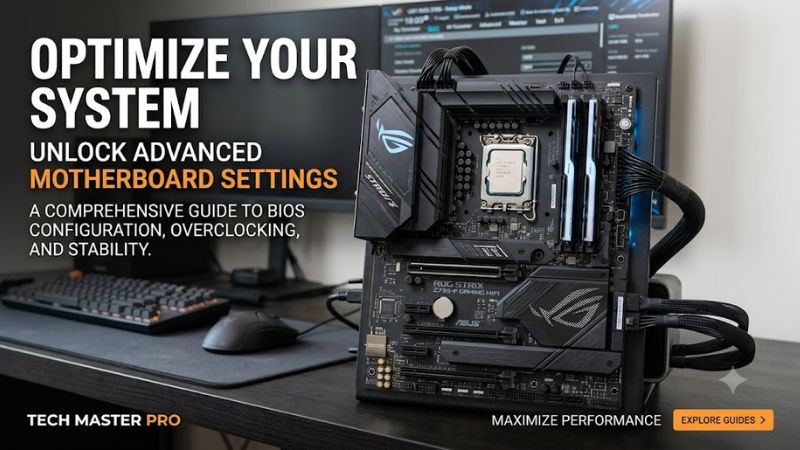
To open firmware setup, restart the computer and press the key shown by the motherboard manufacturer during startup. Delete and F2 are common choices, but the correct key depends on the model. Some Windows 11 systems also provide access through Settings, Recovery, Advanced startup, and UEFI Firmware Settings, avoiding the need to catch the startup prompt.
Once inside, look for the simple interface, often called EZ Mode, before switching to Advanced Mode. The simple view commonly displays memory information, boot priority, fan status, and basic system details. Advanced Mode provides more controls, but menu names differ between manufacturers and board generations. Read the on-screen key legend because the same function key can perform different actions on different brands.
Memory Profiles and Compatible RAM
XMP and EXPO let supported memory kits load predefined speed and timing profiles rather than operating only at default JEDEC settings. Intel platforms commonly use XMP, while AMD platforms commonly use EXPO, although the exact profile options depend on the motherboard and memory kit. Check the board’s memory support information and processor specifications before enabling a profile.
A profile is a memory overclock, so its advertised speed is not a universal guarantee of stability on every CPU and motherboard combination. If the PC begins restarting, fails memory training, or produces errors after the change, return to the previous profile or firmware defaults. DDR4 and DDR5 modules are physically and electrically different, so the board must support the memory generation you own.
Boot Mode, TPM, and Secure Boot
UEFI boot mode, TPM 2.0, and Secure Boot matter for Windows 11 compatibility and some games’ security requirements. AMD systems may expose firmware TPM as fTPM, while Intel systems may label the equivalent option PTT. The exact menu location varies by board. Check Windows System Information and the TPM management console before changing firmware options that are already configured correctly.
Secure Boot changes require particular care on an older Windows installation. MSI’s guidance specifies UEFI boot mode and a GPT-partitioned system disk for its documented procedure; switching from Legacy or CSM without checking the existing installation can prevent Windows from starting. Verify the BIOS Mode and partition style first, and back up important files before changing boot configuration.
What Doesn’t Help
Changing unrelated firmware options is not a reliable way to increase frame rates. Disabling security features, forcing aggressive CPU voltages, or applying unfamiliar timing values can create new problems without addressing a game’s actual bottleneck. Keep automatic or manufacturer-recommended settings unless you have a clear reason to change them. For performance problems, compare CPU and GPU utilization, temperatures, and frame-time behavior in the game first.
How to Configure Motherboard Settings Step by Step
Make one change at a time, save it, and confirm that Windows starts normally before moving to the next option. These settings are optional unless your hardware or operating system requires them. The locations below are examples, not universal menu paths, so use the manual for your specific board when labels differ.
| Setting | Where | Effect | Risk |
| XMP or EXPO | Memory or overclocking menu | Applies a supported RAM profile | Memory instability |
| Secure Boot | Boot or Security menu | Verifies trusted boot software | Boot problems if configured incorrectly |
| Resizable BAR | PCIe or graphics-related menu | Allows supported CPUs to access a larger portion of GPU memory | Requires compatible hardware and firmware |
| Fan control | Hardware Monitor or fan menu | Adjusts connected fan behavior | Excessive temperatures if cooling is inadequate |
Enable a Memory Profile Carefully
Before enabling XMP or EXPO, confirm that the memory kit supports the profile and that the motherboard and processor can accommodate the configuration. Enter UEFI, locate the memory profile option, select the appropriate supported profile, and save. After Windows starts, check the reported memory speed and run a suitable stability check before relying on the system for long gaming sessions.
If the computer fails to start reliably, return to UEFI and disable the profile or restore the previous settings. Some boards may attempt memory training or restart more than once after a change. Avoid adjusting voltage and timings at the same time, since changing several variables makes it harder to identify the source of instability.
Check Secure Boot and TPM Status
Open System Information in Windows and check the BIOS Mode and Secure Boot State fields. Open the TPM management console by running tpm.msc to see whether a compatible TPM is available. If Windows 11 or a game reports a missing requirement, compare those results with the motherboard manual before changing firmware options.
If Secure Boot is disabled, check that the Windows system disk uses GPT and that the installation boots in UEFI mode before proceeding. Do not simply switch off CSM or change boot mode without checking the current installation. If disk conversion is necessary, follow Microsoft’s supported procedure and back up important data first.
Configure Resizable BAR for Supported Hardware
Resizable BAR can let a compatible processor access a larger region of graphics memory at once. Support depends on the motherboard BIOS, graphics card firmware, and driver, so the option may be absent or unavailable on some systems. Check the board and GPU documentation before changing the setting, and leave it alone if your hardware does not support the feature.
After enabling it, save the firmware changes and verify the status in NVIDIA Control Panel’s System Information or with GPU-Z, as applicable. ASUS notes that its documented configuration requires CSM to be disabled. If the option remains unavailable, check firmware and driver support rather than forcing unrelated boot settings. Actual performance gains vary by game and hardware.
Adjust Fan Control Without Compromising Cooling
Fan-control settings are commonly found in Hardware Monitor, Smart Fan, or a similarly named firmware menu. They regulate fans connected to the motherboard and may allow temperature-based curves. Start with the default profile, then make small changes only if you need a different noise or cooling balance. The exact options depend on the board and connected fan type.
After saving a fan curve, monitor CPU and GPU temperatures during a representative gaming session and listen for unexpected fan behavior. Do not lower fan speeds simply to reduce noise if temperatures are already high. If cooling performance worsens, restore the earlier curve or the manufacturer’s defaults. GPU fans may use separate controls in graphics-card software rather than motherboard firmware.
Frequently Asked Questions
Which motherboard settings should I change for gaming?
For most gaming PCs, start with the correct memory profile and verify that cooling works properly. Check Resizable BAR if your CPU, graphics card, firmware, and driver support it. Security and boot options should match your Windows installation, while manual CPU voltage and memory timing adjustments are unnecessary for most users.
How do I reset motherboard settings if my PC will not boot?
You can usually recover by restoring firmware defaults, using the board’s documented CMOS reset procedure if necessary. The exact method varies by model, so consult its manual before removing a battery or using a reset jumper. A reset can erase custom memory profiles, fan curves, and boot priorities, requiring you to configure them again.
Can motherboard settings increase FPS?
Yes, some settings can affect performance, but the improvement depends on the hardware and game. Enabling a supported memory profile or Resizable BAR may help in certain configurations, while other changes produce little or no difference. Compare results using the same game, resolution, graphics settings, and benchmark method before drawing conclusions.
Is it safe to change BIOS settings?
Changing documented settings is generally manageable when you understand their effects and keep a recovery path. Memory overclocking, boot-mode changes, and manual voltage adjustments can cause instability or prevent Windows from starting. Record existing values, change one option at a time, and restore the previous configuration if problems appear.
Final Thoughts
The most useful motherboard settings are those that match your hardware and solve a specific need. Begin with memory compatibility, boot security, graphics features, and cooling, leaving advanced tuning at its defaults unless necessary. Check your motherboard manual before saving changes, and prioritize stable operation over unverified performance tweaks.