🛒 Best Price Today on Amazon
Prime members get fast, free shipping on everything above, plus member-only deals. New members get a 30-day free trial — cancel anytime.
- Identify the shutdown signature
- Stop immediately for electrical symptoms
- Return the system to supported settings
- Measure heat without chasing a shutdown
- Verify PSU capacity on paper
- Inspect external and internal power paths
- Separate GPU, CPU, and combined load
- Rule out software-triggered restarts
- When warranty or professional service is the fix
- Top Pick: KOTIN Prebuilt Gaming PC RTX 5070 12GB, Ryzen 7 9700X, 32GB DDR5, 1TB SSD
- Best Value: Skytech Gaming Archangel 5 Gaming PC, Intel i5 14400F 2.5GHz, NVIDIA RTX 5060, 1TB NVMe SSD, 16GB DDR5 RAM 6000, 750W Gold PSU, Wi-Fi, Win 11, Desktop
- Premium Choice: OKAMUS Pre-Built PC, i5 CPU Up to 3.6GHz, Integrated Graphics Only, 256 GB M.2, 8 GB RAM Cheap Budget Gaming PC, RGB Fans x 3, Win 11 Home,WiFi 6 + BT 5.3, 400W PSU (i5+No GPU+8GB+256GB)
PC Shuts Down While Gaming: Safe Diagnosis
An instant power-off during a game deserves a different investigation from a game crash. If the screen goes black, fans stop, and the PC remains off—or must be switched off at the PSU before it will restart—power delivery or thermal protection moves high on the list. If Windows restarts and shows a stop code, drivers, memory, and hardware errors remain plausible.
The central rule is safety: never open a power supply, never defeat protection circuits, and never repeat a shutdown test after electrical warning signs. Use short, controlled tests and change one variable at a time.
As an Amazon Associate we earn from qualifying purchases at no extra cost to you.






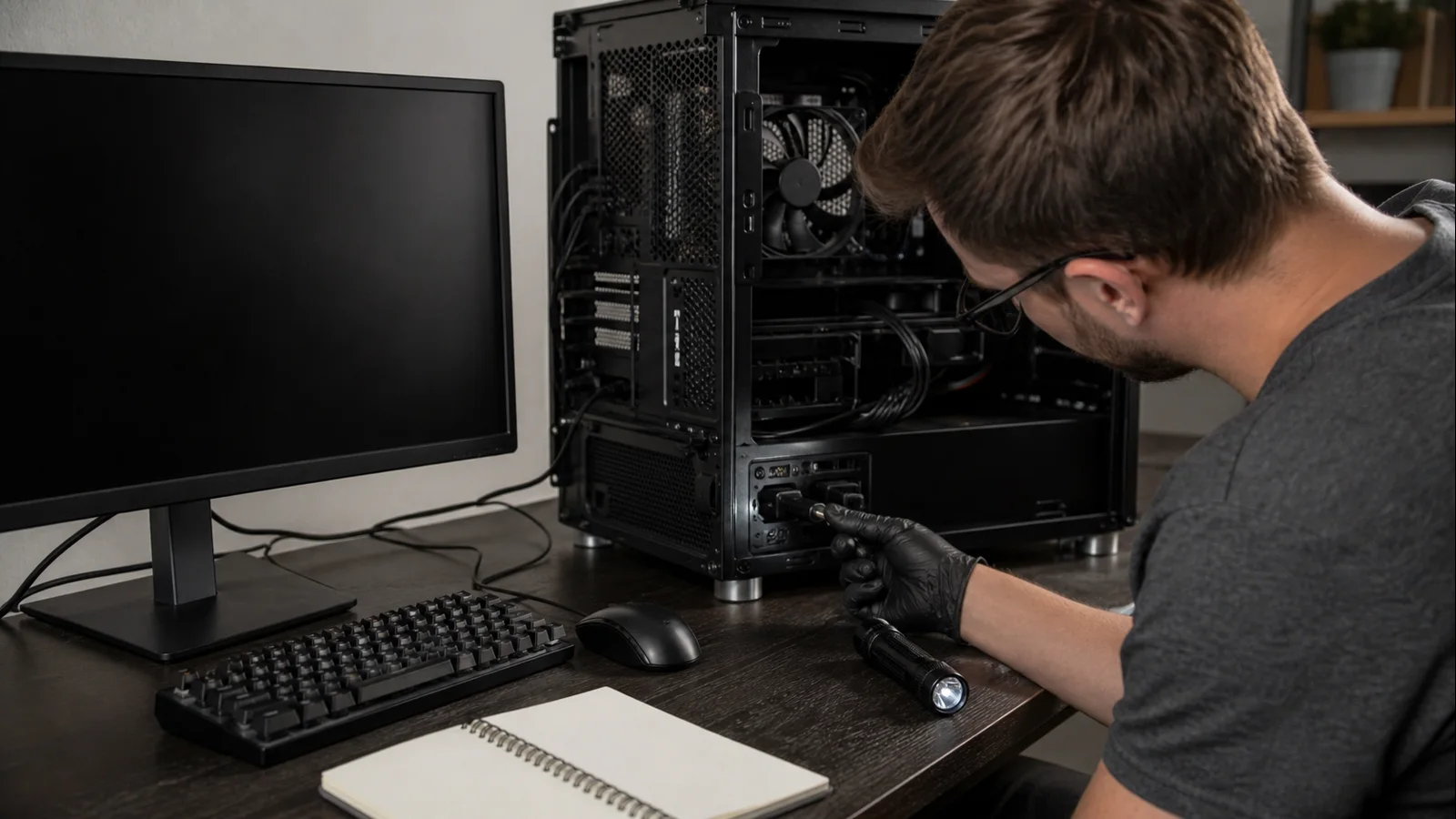
AI-created editorial illustration; not product photography or benchmark evidence.
Identify the shutdown signature
Write down exactly what happens. Does the PC turn fully off, reboot immediately, show a blue screen, or return to the desktop? Does motherboard lighting remain on? Can it restart at once, or only after cooling? Is the shutdown tied to one game, every demanding game, or combined CPU-and-GPU load? Note the time and load duration.
After rebooting, open Reliability Monitor and Event Viewer. Match events to the recorded time. A Kernel-Power event commonly records that Windows did not shut down cleanly; it does not name the bad component. A stop code, WHEA hardware event, display-driver error, or thermal warning is more specific. Microsoft’s unexpected restart and stop-code guide recommends recording the code and considering recently added hardware, updates, and Device Manager errors.
Turn off Windows’ automatic restart after system failure only if you know how to restore it; that can make a stop code visible, but it does not help a true loss of power. Do not disable PSU or motherboard protection features.
Stop immediately for electrical symptoms
Unplug the PC and do not power it again if you smell burning, see smoke or sparks, hear arcing or repeated electrical clicks, find melted or browned connectors, notice liquid, or feel abnormal heat at a plug or wall outlet. Move nothing until hot components cool. Use the system builder, PSU maker, electrician, or qualified repair service as appropriate.
Never open a PSU enclosure, even when unplugged; internal capacitors can retain dangerous energy. Do not bridge pins, probe live connectors, use improvised adapters, or perform the “paperclip test” as a load diagnosis. A PSU turning on without a system load does not prove that it is safe or stable during gaming.
Return the system to supported settings
Restore CPU, GPU, and memory settings to factory defaults. Remove overclocks, undervolts, custom power limits, and automatic tuning profiles one category at a time. Start with GPU tuning if shutdowns happen only in graphically heavy scenes. Then test CPU tuning, then XMP or EXPO separately.
Use the same game, save point, frame cap, and session duration. If removing one tune stops a repeatable shutdown, leave it disabled. A profile that was stable in a lighter game is not necessarily stable under a new combined load.
AMD’s system stability guidance recommends a stock configuration, correct GPU seating and direct PSU connections, a PSU that meets system requirements, and controlled software checks. A default baseline also keeps warranty discussions clear.
Measure heat without chasing a shutdown
Begin with a cool system and log CPU package temperature, GPU temperature, GPU hotspot if supported, clocks, and fan RPM. Run the lightest repeatable game segment. Stop manually if temperature climbs continuously toward the component maker’s published maximum, clocks collapse, a fan stops, or cooling makes abnormal noise. Do not wait for protective shutdown.
Compare sustained CPU behavior with our guide to normal gaming CPU temperatures. For the graphics side, use our non-invasive steps to lower GPU temperature. Clean accessible filters with the PC powered off and confirm intake and exhaust fans rotate normally.
A side-panel-off test can indicate restricted case airflow, but make it a separate, brief test and keep children, pets, cables, and hands away. A dramatic improvement points toward case airflow; it does not prove the PSU is healthy. Restore the panel afterward.
For new pump noise, no apparent coolant flow, a loose cooler, or rapidly rising CPU temperature, stop and seek service. Removing a cooler, changing pads, or repasting a laptop or in-warranty prebuilt may affect coverage.
Verify PSU capacity on paper
Identify the exact PSU model, rated wattage, age, and GPU power-connector requirements without opening the PSU. Compare the complete system with the GPU maker’s recommendation and the PSU’s available connectors. Our PSU wattage selection guide explains why label wattage alone is not the full compatibility check.
Account for CPU and GPU combined demand, not just average game power. A quality unit with appropriate capacity and connectors can still degrade or trip due to a fault; an oversized label does not rule that out. Conversely, a shutdown does not prove the PSU is bad. Thermal protection, a short, unstable tuning, motherboard power delivery, or a faulty GPU can create similar behavior.
Do not solve a connector shortage with splitters not approved by the GPU and PSU manufacturers. Never mix modular cables between PSU brands or models. The device-side plug can fit while the PSU-side pinout differs, potentially destroying components.
Inspect external and internal power paths
First test the wall path without opening the PC. Connect the system directly to a known-good grounded outlet for one test, bypassing a questionable extension or overloaded power strip. Keep monitor and peripheral arrangement otherwise unchanged. Do not bypass a UPS permanently; check its load rating and event log if the issue occurs only through it.
If warranty terms allow internal inspection, shut down, switch off the PSU, unplug mains power, and wait for all lighting to go dark. Use antistatic precautions. Photograph connections before touching them. Confirm the motherboard 24-pin, CPU EPS, and GPU PCIe power plugs are fully latched. Check only for visible damage; do not dismantle connectors.
For a high-power GPU that specifies separate PCIe cables, follow the GPU and PSU manuals. AMD specifically recommends independent cables directly from the PSU in its stability checklist. Make cable correction the only change, close the case, and repeat the controlled test.
If connectors are discolored, melted, loose, or difficult to seat, stop. Replace or service the affected parts through the manufacturer. Do not scrape contacts, bend terminals, or hold a loose connector in place.
Separate GPU, CPU, and combined load
Use reputable monitoring and diagnostics, beginning with a short GPU-only workload that stays below known shutdown conditions. Then, after cooling, use a short CPU-only workload. Do not run both together until each passes individually, and do not use an extreme synthetic “power virus.”
If GPU-only load shuts the PC down while CPU-only load does not, the GPU, its power cable, PSU response, or graphics thermal path becomes more likely. The reverse points toward CPU cooling, EPS power, motherboard power delivery, or CPU stability. If both pass alone but a normal combined gaming load fails, total power, PSU transient response, case heat soak, or a shared stability setting deserves attention.
These are routing clues, not permission to swap live components. A known-good PSU substitution is persuasive only when the replacement is compatible, adequately rated, and uses its own modular cables. Have a technician perform it if you are not experienced.
Rule out software-triggered restarts
If the PC reboots rather than losing all power, note the graphics driver version and recent Windows, game, or BIOS changes. Return the GPU driver panel to default, install the correct stable driver, and reproduce the same scene. Test one prior driver only when the issue began with an update.
Check memory using Windows Memory Diagnostic and investigate any error before further gaming. Check Device Manager for warning icons. Do not reinstall Windows or flash the BIOS while electrical or thermal evidence remains unresolved; software work cannot repair a burned connector or failed cooling pump.
A BIOS update is reasonable only when the exact motherboard or system release notes address relevant CPU compatibility, stability, or power behavior. Verify the precise model, secure recovery keys, and ensure reliable power. Never flash firmware on a PC that may lose power during the update.
When warranty or professional service is the fix
Escalate when the PC shuts down at factory settings with safe temperatures, when a compatible known-good PSU changes the result, when diagnostic errors or repeatable WHEA events appear, or when any connector or component shows physical damage. New prebuilts and newly purchased PSUs should usually be returned or serviced before invasive part swapping.
Prepare the component list, PSU model and age, shutdown signature, exact reproduction, temperature log, relevant Windows events, stock-settings confirmation, outlet or UPS result, and the cable layout specified by the manuals. This evidence helps a builder distinguish PSU, GPU, motherboard, and cooling service.
Do not open the PSU, replace its fan, flash unofficial firmware, raise voltages, bypass protections, or continue testing a machine that smells hot. A controlled diagnosis should narrow risk, not create it. When a shutdown remains repeatable at supported settings, warranty service is a valid conclusion—not an unfinished troubleshooting step.
Top picks from this guide
 The Horizon PcsThe Horizon Autherium Dragon RGB I9 RTX Gaming PC ||…$3,200 \xc2\xb7 99/100
 OKAMUSOKAMUS Pre-Built PC, i5 CPU Up to 3.6GHz, Integrated Graphics…$246 \xc2\xb7 99/100
 Skytech GamingSkytech Gaming PC Desktop, Intel i5 14400F, RTX 5060, 16GB…$1,250 \xc2\xb7 98/100
 LenovoLenovo Legion Tower 5i – AI-Powered Gaming PC - Intel®…$2,483 \xc2\xb7 95/100