🛒 Best Price Today on Amazon
Prime members get fast, free shipping on everything above, plus member-only deals. New members get a 30-day free trial — cancel anytime.
- Top Pick: Replacement 8.4" Uconnect LCD Dispaly Touch-Screen Assembly with Bracket Radio Navigation New OEM Replacement LA084X02(SL)(01) LA084X02-SL01
- Best Value: TsuperU Touch Screen Digitizer Replacement for Mazda 6 GRT7611J0 50-Pin 2017 2018 2019 Radio Screen, OEM Upgraded Ultra-Sensitive High-Definition Touchscreen fit Mazda 6 Display Navigation System
- Premium Choice: IPS LCD for Nokia XR20 Black Display Assembly Screen Replacement Screen Size 6.67
Monitor Ghosting Fix: Tune Motion Clearly
Monitor ghosting is a visible trail behind moving objects because pixels have not completed one color transition before the next image arrives. The fix is rarely “set overdrive to maximum.” Aggressive overdrive can overshoot the target color and create a bright or oddly colored halo called inverse ghosting. A useful adjustment makes both kinds of trail less distracting at the refresh rates you actually use.
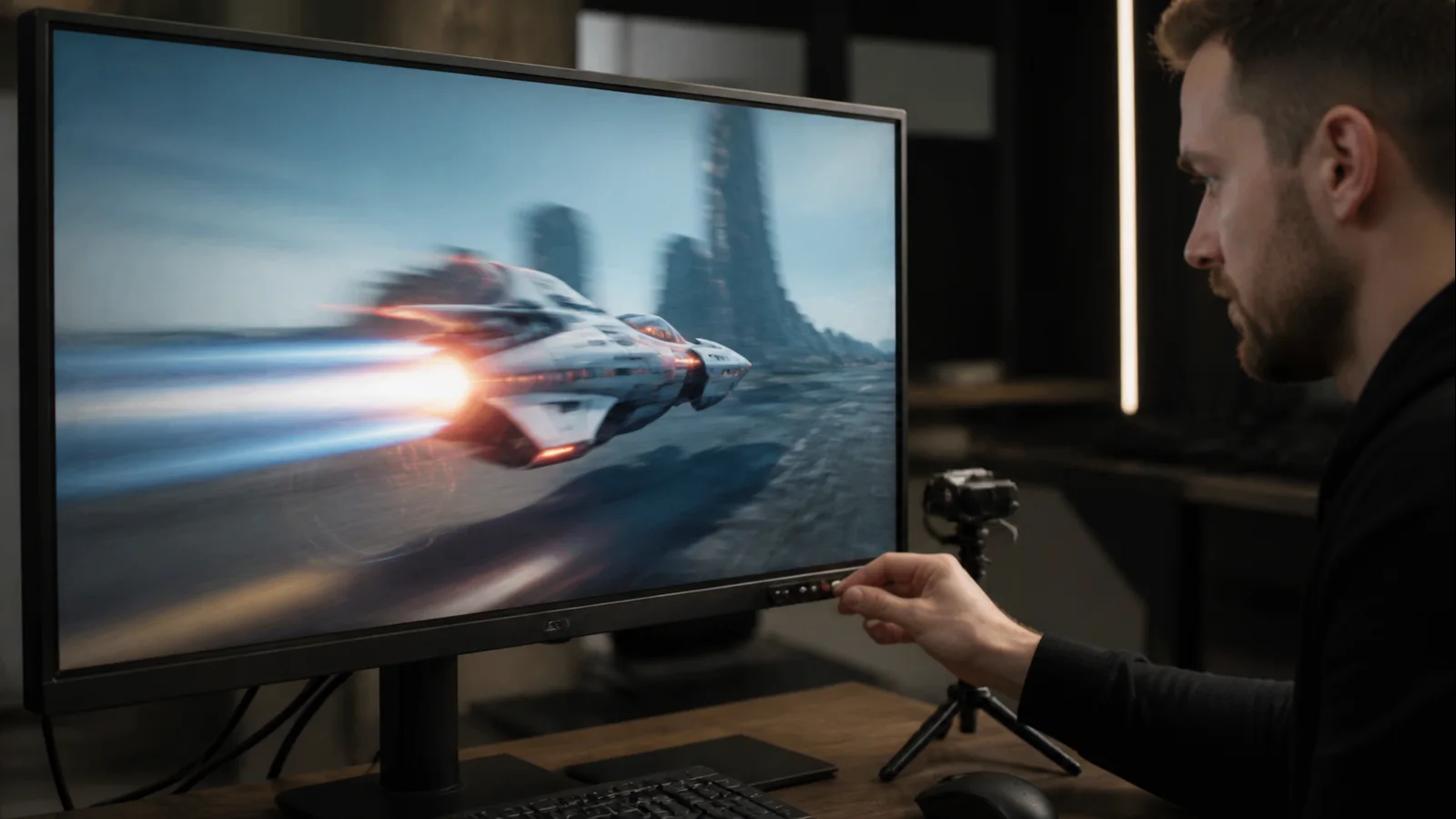
AI-created editorial illustration; not product photography or benchmark evidence.
As an Amazon Associate we earn from qualifying purchases at no extra cost to you.




First, name the trail you see
Open a repeatable scene with a dark object moving across a mid-tone background, then reverse the contrast. Use a game with a consistent training map or the supporting Blur Busters TestUFO ghosting test. TestUFO makes comparison easier, but it is not a substitute for instrumented measurements or real-game evaluation.
Ordinary ghosting looks like a smeared copy that generally follows the object’s colors. It points toward a slow pixel transition for the current refresh interval. Inverse ghosting looks brighter, darker, purple, green, or otherwise unlike the object. That is overshoot or undershoot, usually caused by an overdrive setting that is too strong.
Do not confuse either with persistence blur. Your eyes track a moving object while a sample-and-hold display keeps each frame visible, so even very fast pixels can look blurred in motion. A higher refresh rate can reduce that component, but an overdrive control cannot eliminate it. Double images with backlight strobing may instead indicate that frame rate and strobe timing do not align.
Establish a clean baseline
Warm the monitor for roughly 20 minutes because LCD response can change with temperature. Set its native resolution and verify the active refresh rate in Windows under Settings, System, Display, Advanced display. Microsoft’s refresh-rate guide explains where Windows reports the selected display’s current mode.
Reset only the monitor’s gaming or picture profile if you know how to restore calibrated settings. Disable motion-blur reduction or backlight strobing for the baseline. Turn off any dynamic contrast mode. Leave the game scene, camera path, brightness, and frame cap unchanged while comparing overdrive levels.
If the display has separate overdrive names such as Response Time, Trace Free, AMA, OD, Fast, or Faster, record the current value. Marketing labels do not map consistently between brands. “Extreme” may be useful on one model and visibly unusable on another.
Tune overdrive as a ladder
Begin at Off or the lowest level. Watch both light-to-dark and dark-to-light transitions. Move up one step, retest, and stop when the original smear improves without a contrasting halo appearing. The best setting is often Normal, Medium, or Fast rather than the maximum.
Now repeat at three useful refresh points: maximum refresh, a middle rate, and the lower end you commonly reach in demanding games. Pixel tuning that behaves well at 165 Hz may overshoot at 60 Hz because the monitor applies the same voltage drive while frames remain longer. Some displays have variable overdrive that adapts with refresh rate; others require a compromise setting.
With variable refresh rate enabled, cap or reproduce frame rates in those regions rather than selecting only fixed refresh rates in Windows. If one overdrive level is clean near the maximum but produces inverse ghosting at low frame rates, use a milder setting for variable-refresh gaming. If the monitor saves settings per input or picture preset, build separate high-refresh and 60 Hz profiles only when switching is easy and reliable.
VESA’s Adaptive-Sync update describes certification tests that include gray-to-gray response and limits on overshoot and undershoot, not merely maximum refresh rate. That makes the VESA Adaptive-Sync certification explanation more informative than a single manufacturer response-time claim when shopping.
Decide whether VRR helps or exposes the problem
Variable refresh rate matches display refreshes to delivered frames, reducing tearing and repeated-frame stutter. It does not accelerate the LCD’s physical pixel transitions. Enable VRR only after finding a reasonable fixed-refresh baseline, then follow our G-Sync and FreeSync setup guide so the GPU and monitor settings agree.
If trails change dramatically as frame rate moves, overdrive behavior across the VRR range is the likely issue. Compare VRR on and off at approximately the same frame rate; do not compare 55 fps in one mode with 160 fps in another. A frame cap that keeps performance in a stable range may provide cleaner motion than frequent swings through the bottom of the display’s VRR window.
VRR flicker is a brightness fluctuation, most visible in dark scenes, not a trailing image. Treat it separately. Turning off adaptive sync may remove flicker but will not cure a consistently slow dark transition.
Check the signal path without blaming it for pixel speed
A defective or marginal cable more commonly causes sparkles, dropouts, colored lines, black screens, or mode failures than stable object-shaped trails. Still, confirm that Windows is actually running the intended native resolution and refresh rate. A bandwidth problem that forces a lower rate can increase perceived blur even though the cable did not change panel response.
Connect the PC directly to the monitor for one test, bypassing docks, splitters, converters, and KVMs. Use a known-good cable suitable for the mode. Restore the intended refresh rate, then repeat the same motion scene. If artifacts or signal loss accompany the trail, solve the connection fault before tuning overdrive.
Update the graphics driver only when the active mode, VRR behavior, or display detection is wrong. Drivers do not rewrite an LCD’s native transition characteristics. Change one item at a time so a cable swap, driver update, and overdrive adjustment do not blur into an unrepeatable “fix.”
Account for panel behavior
VA LCDs can show slow dark transitions as black smearing even when brighter transitions look clean. IPS panels often have more balanced transitions but can still overshoot with aggressive tuning. TN panels can be fast, yet viewing angles and color trade-offs remain. OLED transitions are typically much faster, although sample-and-hold motion blur still exists.
These are tendencies, not guarantees. Panel implementation and tuning matter more than the three-letter label alone. Our TN versus IPS versus VA guide explains the wider trade-offs, while the gaming-monitor selection guide helps weigh motion against contrast, resolution, size, and adaptive-sync support.
If a VA monitor shows black smearing only in its hardest near-black transitions, no overdrive level may remove it without objectionable inverse ghosting elsewhere. Choose the least distracting balance. Changing dark-game settings or ambient lighting may improve visibility, but it does not physically speed up the panel.
Know what cannot be fixed in a menu
Service or return is reasonable when one area of the screen trails much more than the rest, the monitor suddenly changes behavior at settings that were previously stable, or severe artifacts persist after a factory profile, known-good signal, and supported mode. Capture video in manual exposure if possible and provide the monitor model, firmware, refresh rate, overdrive setting, temperature state, and reproduction scene.
Do not open the display. Internal power components can retain dangerous charge. Firmware should be updated only when the manufacturer lists a relevant correction for the exact model and provides a recovery procedure.
FAQ
Does a 1 ms setting remove ghosting?
No. A “1 ms” claim may describe one transition, an MPRT strobing mode, or a test condition unlike normal use. Real panels perform many color transitions at different speeds. Judge the complete motion result, including overshoot.
Why does the fastest response-time mode look worse?
It applies stronger overdrive. Pixels pass beyond the requested shade before settling, so the original smear becomes a bright or colored inverse trail. Reduce overdrive one level and compare again.
Can a higher refresh rate fix ghosting?
It can reduce persistence blur and shorten the refresh interval, but the pixels must still complete transitions quickly enough. A higher rate can expose slow transitions, while good overdrive at that rate can improve clarity. Refresh rate and pixel response work together; neither replaces the other.
Should I return a monitor with some ghosting?
All LCDs have finite transition times. Return or exchange when the best usable setting remains distracting in your content, inverse ghosting is unavoidable across normal refresh rates, or measured reviews show the model is a poor fit for your priorities.