🛒 Best Price Today on Amazon
Prime members get fast, free shipping on everything above, plus member-only deals. New members get a 30-day free trial — cancel anytime.
- Why a 1080p webcam for PC gaming beats chasing 4K
- USB bandwidth: why your 60fps camera keeps dropping to 30
- MJPEG, YUY2 and H.264: the hidden CPU tax
- Field of view for a seated gaming setup
- Lighting is the biggest quality lever you have
- Mounting on an ultrawide or a triple-monitor setup
- Do webcams that pan up and down earn their price?
- Webcam or a mirrorless camera through a capture card?
- Picking a budget friendly webcam for streaming
- Frequently Asked Questions
For a facecam that sits beside gameplay, 1080p at 60fps is the spec that actually shows on stream. Your head turns, your hands move off the keyboard, you lean back after a clutch round — the extra frames keep that motion crisp instead of smeared. Resolution above 1080p, RGB trim and clever autofocus all matter less than frame rate, light and where the camera is mounted.
Why a 1080p webcam for PC gaming beats chasing 4K
A facecam is usually rendered 320–480 pixels wide in the OBS scene, and even a full-screen “just chatting” layout tops out at a 1080p source that Twitch transcodes down again. Feeding a 4K sensor into that pipeline does almost nothing for the viewer and a lot to your encoder budget.

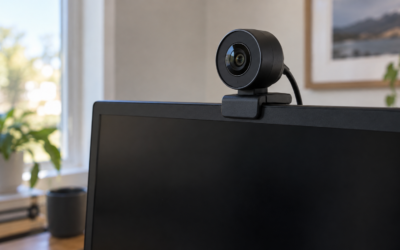
Logitech C920e / C920 HD Webcam, Full HD 1080p Video Calling and Recording, Dual Stereo Audio, Stream Gaming - Black
Included for 'Best 1080p Webcams for PC Gaming and Streaming' because the listing specifies Full HD 1080p Video Calling and Recording and Dual Stereo Audio, details this guide uses to compare options.
View on AmazonWhat the viewer does notice is motion. At 30fps, a fast head turn or a hand gesture lands as two or three blurred frames. At 60fps it stays readable. That is why 1080p60 is the sweet spot for reaction content, variety streaming, racing and anything where you are physically animated. Cameras built around this include the Elgato Facecam MK.2, the Razer Kiyo Pro, the Logitech StreamCam and the Logitech Brio when you drop it out of 4K mode.
When 1080p30 is genuinely fine
If your facecam is a small corner box and you mostly sit still — strategy games, card games, podcasts, coding streams — 30fps is invisible to viewers and buys you a quieter, cheaper camera. The Logitech C920 family has lived on this fact for a decade. It is also the right call if you are recording alongside a heavy game and want the CPU headroom for the encoder settings that actually affect quality.
USB bandwidth: why your 60fps camera keeps dropping to 30
This is the single most common “my webcam is broken” complaint, and it is almost never the camera. A 1080p60 stream in MJPEG needs real, sustained USB bandwidth. Plug that camera into a shared hub alongside a capture card, an audio interface and a couple of RGB peripherals and the controller starts rationing. The camera negotiates down, OBS quietly shows 30fps, and nothing warns you.
Fixes, in order of how often they work: plug the camera into a rear motherboard port, not a front-panel header or monitor hub; keep it off the same controller as a capture card; use the supplied cable, since long third-party extensions are often USB 2.0 internally; and avoid adapter chains on USB-C cameras like the StreamCam.
MJPEG, YUY2 and H.264: the hidden CPU tax
Webcams send video in one of a few formats and the choice quietly changes how much CPU your stream burns.
| Format | What it is | USB bandwidth | CPU cost | Best for |
|---|---|---|---|---|
| MJPEG | Each frame JPEG-compressed in camera | Moderate | Low-moderate (decode per frame) | Default for most 1080p60 cams |
| YUY2 / uncompressed | Raw frames, no compression artifacts | Very high | Lowest decode, highest bus load | Short USB run, best image fidelity |
| H.264 (UVC) | Camera encodes a full video stream | Lowest | Lowest on capture, less flexible | Bandwidth-starved setups, video calls |
| NV12 | Semi-planar raw, common on newer cams | High | Low | Cameras with modern UVC drivers |
In practice: if the CPU is already your bottleneck, force MJPEG in the OBS device properties instead of leaving it on “Any”. On a short, direct USB 3 run, YUY2 gives a source with no per-frame JPEG artifacts — the Razer Kiyo Pro will hand you an uncompressed 1080p60 feed. Anyone encoding on the same machine as the game should check our notes on splitting the streaming load first.
Field of view for a seated gaming setup
Webcam FOV is quoted diagonally, usually 65–103 degrees, and wider is not better at a desk. At a typical 60–80cm sitting distance a 90°-plus lens pulls in the whole room and stretches whatever sits near the frame edges — at that distance, usually your own shoulders.
For a solo facecam, 65–78° is the comfortable range: head and shoulders, a little desk, nothing else. Cameras with selectable FOV (Brio, Kiyo Pro, StreamCam crop modes) let you dial it in. Go wide only for two people in frame, a full-body racing rig shot, or a very shallow desk.
Lighting is the biggest quality lever you have
A $70 camera in good light beats a $200 camera in bad light, every single time. Small webcam sensors handle low light by raising gain, which adds grain, and by dropping the shutter speed, which silently halves your frame rate — the camera says 60fps and delivers 30 because each exposure is taking too long. That is the real reason so many “60fps” streams look like 30.
Practical fixes: a soft key light slightly off-axis in front of you rather than overhead; no bright window behind your head; and manual exposure lock so the camera stops hunting when the monitor flashes. Some cameras build the light in — the original Razer Kiyo’s ring light, several NexiGo models with a light bar — which suits a cramped desk. Our guide to arranging a small streaming desk covers where it can physically go.
What about RGB webcams?
“RGB webcam” usually means one of two things: a camera with a colored accent ring that matches your peripherals, or a cam with an adjustable built-in light that happens to do color. The accent ring does nothing for image quality — it is a cosmetic match for an RGB keyboard and mouse. The adjustable light versions are genuinely useful, but check that the light is dimmable and reasonably neutral in white balance; cheap fixed-brightness rings blow out your face and cast a visible circle in your glasses.
Mounting on an ultrawide or a triple-monitor setup
Standard webcam clips are designed for a thin laptop lid. They cope badly with a thick ultrawide bezel, a curved panel, or a monitor already hanging off an arm. Three approaches work:
- Tripod or arm mount. Nearly every webcam hides a 1/4″-20 thread under the clip. A desk tripod or spare monitor arm puts the camera at eye level independent of the screen — the answer for curved ultrawides, where a clip sits at an angle to your face.
- Center-mount above the middle monitor. On a triple setup, mount above the center panel so your gaze reads as roughly forward. Off to one side and you look permanently distracted.
- Below the screen, angled up. Works, but it is the least flattering angle. Only do this if the top of your monitor is out of reach.
Eye level or slightly above is the target: much higher and you spend the stream looking down, much lower and it is an up-the-nose angle. Heavier cameras like the Brio also sag on a thin clip attached to a curved panel — another reason for the arm or tripod route.
Do webcams that pan up and down earn their price?
PTZ webcams like the Obsbot Tiny 2 and Insta360 Link sit on a motorized gimbal and track you with on-device AI. They excel at one job: presenting while standing, moving between desk and whiteboard, or a shared space you cannot pre-frame.
For a seated gamer they are largely wasted money. You do not move. The tracking occasionally decides your headset or a passing housemate is the subject, and the motors add noise and another failure point. A fixed 1080p60 camera on a tripod, framed once, gives a more consistent shot for less. Buy PTZ if you already know you leave the chair on camera; otherwise put the difference into lighting or a better microphone, which viewers notice far sooner than they notice framing.
Webcam or a mirrorless camera through a capture card?
A mirrorless body with a fast lens produces a genuinely different image — real background separation, clean low-light performance, gradeable color. Through an Elgato Cam Link 4K or similar it appears in OBS as an ordinary source.
| Factor | 1080p60 webcam | Mirrorless + capture card |
|---|---|---|
| Total outlay | One device | Body, lens, capture card, dummy battery, mount |
| Setup time per session | Plug in, it works | Power, HDMI, clean-output settings, framing |
| Image quality | Good with light, average without | Clearly better, especially in dim rooms |
| Background blur | Software only | Optical, natural |
| Reliability mid-stream | High | Overheating and 30-minute record limits on some bodies |
| Desk footprint | Tiny | Needs a stand and clearance |
The honest split: stream a few hours a week and want it to just work, buy the best 1080p60 webcam you can light properly. Make edited YouTube content where the face is the product, and the camera route pays off. Plenty of streamers run both and share one capture card setup.
Picking a budget friendly webcam for streaming
At the low end, expect 1080p30, a fixed-focus lens and heavy reliance on good light — not a disaster, and a perfectly usable corner facecam. A step up buys real 1080p60, a better sensor and usable software controls. Above that you are paying for 4K, uncompressed output, PTZ motors or built-in lighting, in that rough order of usefulness for gaming.
Whatever the budget, prioritize in this order: a direct USB port, a light source, a mount at eye level, then the camera itself. Those first three are cheap and they change the picture more than another $100 of sensor will.
Frequently Asked Questions
Is 1080p 60fps actually necessary for a facecam?
Necessary, no — noticeable, yes. If you gesture, turn your head quickly or react physically to gameplay, 60fps keeps that motion readable instead of blurred across frames. If you sit still for strategy games or talk shows, 1080p30 looks essentially identical to viewers and puts less load on your USB bus and your encoder.
Why does my 1080p60 webcam only run at 30fps in OBS?
Three usual causes. First, USB bandwidth: a shared hub or front-panel port cannot sustain the data rate, so the camera negotiates down. Second, the output format is set to something the camera cannot deliver at 60fps — force MJPEG in device properties. Third and most common, low light makes the camera lengthen its exposure, halving the effective frame rate regardless of the setting.
Do RGB webcams improve image quality at all?
Only when the RGB is an actual adjustable light rather than a decorative accent ring. A dimmable, reasonably neutral built-in light genuinely helps a dark room and can replace a separate key light on a cramped desk. A colored ring that simply matches your keyboard changes nothing about the picture and occasionally reflects in glasses.
Are pan-tilt webcams worth it for gaming streams?
Rarely, if you stream seated. PTZ cameras earn their price when you move around a room, present while standing, or share the camera between people. A seated gamer gets a more consistent shot from a fixed camera framed once on a tripod, with no motor noise and no risk of the tracking locking onto the wrong subject mid-stream.
Should I buy a better webcam or better lighting first?
Lighting, almost always. Small webcam sensors depend entirely on available light; add a soft key light slightly off-axis and a cheap camera cleans up dramatically, while an expensive camera in a dim room still produces grain and dropped frames. Spend on light and mounting position first, then upgrade the camera with whatever budget remains.