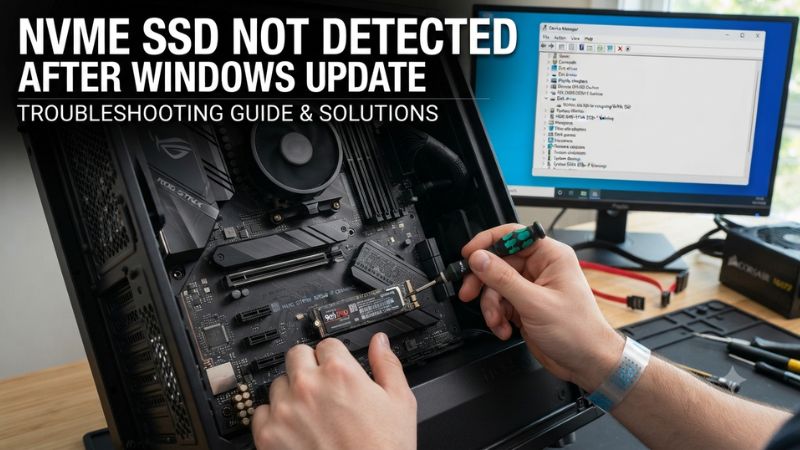
When an nvme ssd not detected after windows update problem appears, the drive may still be physically healthy. A Windows update can introduce storage driver conflicts, affect Intel VMD or RST configurations, or change how Windows identifies connected hardware. This guide explains how to diagnose the problem, restore drive visibility, and protect your files without unnecessary formatting.
Why an NVMe SSD Disappears After a Windows Update
An NVMe drive disappearing immediately after an update does not automatically indicate hardware failure. The first priority is determining where detection stops: BIOS/UEFI, Windows Device Manager, or Disk Management. These locations provide different clues and help narrow the problem before you change drivers, firmware settings, or partitions.
1. Storage Driver Conflicts After Windows Update
Storage drivers allow Windows to communicate with NVMe devices through the motherboard’s storage controller. Depending on the platform, the configuration may use a standard Microsoft NVMe driver, Intel Rapid Storage Technology (RST), or an Intel Volume Management Device (VMD) controller.
If an update changes or replaces a relevant driver, Windows may lose access to a drive even when the SSD remains visible in BIOS. A driver conflict becomes more likely when the problem starts immediately after a driver installation or appears alongside Device Manager warnings.
Intel VMD configurations deserve particular attention because the NVMe device may be managed through the Intel storage controller rather than appearing as a directly accessible device. The correct driver depends on the motherboard or laptop configuration.
2. Intel VMD or RAID Configuration Changes
Some Intel-based gaming PCs and laptops use VMD or RAID configurations to manage NVMe storage. Windows needs the appropriate storage controller driver to communicate with these devices.
If the controller configuration and installed driver no longer match, the operating system may fail to detect the SSD. ASUS documents this dependency in its Windows installation troubleshooting guidance, which explains how to load the appropriate Intel RST VMD driver when an installer cannot see a drive.
ASUS UK+1
This is particularly important if the missing SSD contains Windows itself. Changing VMD or RAID settings without understanding the existing configuration can prevent the operating system from booting.
3. Disk Management or Partition Recognition Problems
Sometimes the NVMe drive is detected by Windows but does not appear in File Explorer. This is different from a drive that is completely missing from the operating system.
Possible explanations include:
- The drive has no assigned drive letter.
- Its partition is marked offline.
- Windows has encountered a partition or filesystem problem.
- Storage Spaces has claimed the physical drive.
- The disk appears with an unexpected status in Disk Management.
Dell documents a specific situation in which Storage Spaces can prevent an SSD from appearing as an independent disk in Disk Management. This demonstrates why checking the drive’s actual status is important before attempting repairs.
Dell Vietnam+1
4. What Doesn’t Help
Several common troubleshooting suggestions can make the situation worse when applied without diagnosis.
Avoid these actions:
- Formatting the SSD: Formatting can destroy access to existing files and does not resolve a missing storage controller.
- Initializing an existing drive: Initialization can overwrite partition information needed to access previous data.
- Disabling VMD immediately: This can break access to Windows installations or RAID configurations that depend on the controller.
- Updating BIOS without a reason: Firmware updates introduce additional variables and carry risks if interrupted.
- Running random registry scripts: Unverified registry changes can damage Windows storage configuration.
Start with observation and non-destructive checks. If the SSD contains important data, avoid write operations until its condition and partition layout are understood.
How to Fix NVMe SSD Not Detected After Windows Update: Step by Step
The safest repair sequence begins with checking hardware detection and Windows storage tools. Only move to driver rollback, controller-specific drivers, or update removal when the evidence supports that action. This approach helps distinguish an operating-system problem from a physical connection or drive failure.
Step 1. Check BIOS or UEFI Detection
Restart the computer and enter BIOS/UEFI using the motherboard or laptop manufacturer’s designated key. Common keys include Delete, F2, and manufacturer-specific alternatives.
Look under Storage Information, NVMe Configuration, or the system’s device information page. The exact location depends on the firmware interface.
Check whether the missing NVMe SSD appears by model name or capacity.
| BIOS result | Likely explanation | Next action |
| SSD appears normally | Hardware is detected at firmware level | Investigate Windows |
| SSD is missing | Possible connection, slot, firmware, or hardware issue | Inspect hardware |
| SSD appears intermittently | Possible connection or drive instability | Check drive and slot |
| Boot drive appears but Windows cannot start | Possible driver or boot configuration problem | Investigate recovery options |
If the drive is missing from BIOS, Windows driver troubleshooting is unlikely to solve the underlying problem. Check the motherboard manual for supported M.2 slots and installation requirements.
For a desktop PC, power down, switch off the PSU, disconnect power, and follow appropriate electrostatic precautions before reseating an SSD. Laptop owners should follow the manufacturer’s service instructions.
Do not change SATA, RAID, or VMD settings simply to experiment.
Step 2. Scan Device Manager for the Missing Drive
If BIOS recognizes the NVMe SSD, check whether Windows identifies the device.
- Right-click Start.
- Select Device Manager.
- Expand Disk drives.
- Expand Storage controllers.
- Check for unfamiliar devices or yellow warning icons.
- Select View and enable Show hidden devices.
- Select Action > Scan for hardware changes.
Look for the SSD model, Standard NVM Express Controller, Intel RST controller, or Intel VMD controller, depending on your system.
Open the relevant device’s Properties and inspect Device status under the General tab. Error codes can provide clues about missing, corrupted, or malfunctioning drivers. Microsoft documents the recommended responses to different Device Manager error codes.
Microsoft Support+1
If the drive appears with a warning, record the error code before making changes.
Step 3. Check Disk Management and Assign a Drive Letter
A missing drive in File Explorer does not necessarily mean Windows has lost access to the physical SSD.
Press Win + X and select Disk Management. Wait for the disk list to load, then locate the NVMe drive using its capacity and partition information.
Check the displayed status before taking action:
- Healthy partition without a drive letter: Right-click the partition and select Change Drive Letter and Paths. Assign an unused letter if appropriate.
- Offline: Right-click the disk label and select Online, provided the disk is not intentionally offline or part of a protected storage configuration.
- Unallocated: Stop if the SSD previously contained files. Do not create a new volume until the existing partition information has been assessed.
- Not initialized: Do not initialize an existing data drive simply because Windows displays this prompt.
If the drive is part of Storage Spaces, inspect Settings > System > Storage > Advanced storage settings > Storage Spaces before changing its configuration.
Dell’s documentation explains how a storage pool can affect independent drive visibility.
Dell Canada
Step 4. Roll Back or Reinstall the Relevant Storage Driver
If the SSD disappeared immediately after a storage driver update, investigate the driver history.
Open Device Manager, expand Storage controllers, and locate the relevant controller. Right-click it, select Properties, and open the Driver tab.
If Roll Back Driver is available, use it when the current driver was installed immediately before the problem started. Restart Windows and check whether the SSD returns.
If rollback is unavailable, download the correct storage driver from your laptop or motherboard manufacturer’s official support page. Verify the exact device model, Windows version, and storage configuration before installing it.
For Intel VMD systems, the appropriate Intel RST VMD package may be required. Do not install a generic driver simply because it has a newer version number.
Microsoft specifically recommends considering driver rollback when a problem begins after a Windows Update.
Microsoft Support+1
| Setting or Step | Where | Effect | Risk |
| BIOS detection check | BIOS/UEFI | Identifies firmware-level detection | Low; avoid changing settings |
| Hardware rescan | Device Manager | Refreshes device detection | Low |
| Drive-letter assignment | Disk Management | Restores File Explorer access | Low when applied to the correct volume |
| Storage driver rollback | Device Manager | Reverts a problematic driver | May affect storage-controller operation |
| Manufacturer storage driver | OEM support page | Restores controller compatibility | Incorrect packages can cause boot problems |
| Windows update removal | Update History | Reverses a recent problematic update | Removes changes introduced by that update |
Step 5. Remove the Recent Windows Update When Appropriate
If the issue began directly after a specific Windows update and driver troubleshooting has not resolved it, consider removing that update.
In Windows 11:
- Open Settings.
- Select Windows Update.
- Select Update history.
- Find Related settings.
- Select Uninstall updates.
- Identify the relevant recent update.
- Select Uninstall if Windows allows removal.
Restart the computer and check whether the NVMe drive is detected again.
If Windows cannot start, access Windows Recovery Environment and select Troubleshoot > Advanced options > Uninstall Updates.
Microsoft confirms that uninstalling a recent update can help resolve problems that begin after an update, although some updates cannot be removed.
Microsoft Support+1
Avoid removing unrelated security updates or repeatedly uninstalling updates without identifying a connection to the problem. Once storage access is restored, investigate an appropriate replacement driver or subsequent corrective update.
Step 6. Investigate Hardware Only After Software Checks
If the SSD remains missing from BIOS, investigate the physical connection and drive condition.
For desktop systems, check whether the M.2 drive is seated correctly and whether the selected slot supports the drive’s interface. Some motherboards share PCIe lanes or disable particular connectors when certain slots are occupied.
Consult the motherboard manual before moving the SSD to another M.2 slot.
For laptops, check the manufacturer’s service documentation before opening the chassis. Some models have restricted access or warranty conditions.
If the drive remains undetected in multiple compatible systems or shows signs of intermittent failure, professional diagnosis may be necessary. Do not repeatedly power-cycle a drive containing important data if it is behaving unreliably.
FAQ
1. Can a Windows update make an NVMe SSD disappear?
Yes, a Windows update can cause storage driver or controller compatibility problems that make an NVMe SSD inaccessible. However, the update may coincide with an unrelated hardware or partition issue. Check BIOS, Device Manager, and Disk Management to establish where detection fails.
2. Why does my NVMe SSD appear in BIOS but not Windows?
This usually indicates that firmware recognizes the physical drive but Windows cannot access it correctly. Possible causes include missing Intel RST/VMD drivers, controller problems, or disk configuration issues. Check Device Manager and install the appropriate manufacturer-provided storage driver.
3. Will reinstalling Windows fix an NVMe SSD that is not detected?
Not necessarily. Reinstalling Windows will not resolve a physical connection failure or automatically correct every storage-controller problem. If Windows Setup cannot see the SSD, investigate the required storage driver first. Back up important data before considering any operating-system reinstallation.
4. Should I update my BIOS if Windows no longer detects my NVMe SSD?
Only consider a BIOS update when the motherboard manufacturer documents a relevant compatibility or storage issue. Confirm the exact motherboard model, firmware version, and update instructions first. A BIOS update is not a general solution for missing Windows storage drivers and can introduce additional boot complications.
Final Thoughts
An nvme ssd not detected after windows update issue does not automatically mean your drive has failed. Start with BIOS detection, inspect Device Manager and Disk Management, and investigate storage drivers before changing firmware settings. Protect important files throughout the process, and seek hardware diagnosis if the SSD remains missing.