A BIOS update can change CPU power behavior, fan curves, and cooling controls, potentially causing cpu thermal throttling after bios update even when the hardware worked normally before. The right fix depends on temperature readings, clock speeds, and cooling behavior. This guide explains how to identify the cause and restore normal performance without unnecessary hardware changes.
Why CPU Thermal Throttling Happens After a BIOS Update
When a processor reaches its thermal limit, it reduces operating frequency and power to control heat. If this starts immediately after a firmware update, investigate changed BIOS settings before replacing the cooler. A reset fan profile, altered CPU power configuration, or cooling-control problem can explain the change, but temperature and telemetry must confirm the actual cause.
1. BIOS Updates Can Reset Fan Curves and Cooling Profiles
A firmware update can restore default motherboard settings or change how existing settings are interpreted. Your previous custom fan curve might disappear, leaving the CPU fan running too slowly under sustained gaming loads. A similar problem can occur when a motherboard changes its automatic fan-control behavior.
This makes the cooling system less responsive even though the fans and heatsink have not physically changed. Check CPU fan RPM and temperature under load rather than relying on the fan noise. Also inspect whether the CPU_FAN and AIO_PUMP headers report the expected speeds.
2. CPU Power Limits and Boost Behavior May Change
Motherboard firmware controls important processor settings, including power limits, boost behavior, and voltage-related parameters. A new BIOS version can change defaults or remove custom configurations such as AMD Precision Boost Overdrive, Curve Optimizer, or Intel power-limit adjustments.
Higher sustained CPU power can increase heat output, while more restrictive power limits can reduce performance without necessarily indicating thermal throttling. Compare CPU package power, temperature, and effective clock speeds before changing anything. Do not increase voltage or remove power limits simply to recover benchmark performance.
3. Cooler Detection or Pump Configuration May Be Incorrect
An AIO liquid cooler depends on both pump operation and radiator fan airflow. After a BIOS update, a changed header mode or fan-control configuration may interfere with how the motherboard controls or reports cooling hardware. A pump connected to an incorrectly configured header deserves particular attention.
Check the motherboard’s hardware monitoring screen for pump RPM, CPU fan speed, and temperature. Compare those readings with the cooler manufacturer’s specifications. If the pump reports zero RPM, makes unusual noises, or the CPU temperature rises rapidly under light workloads, stop demanding workloads until the cooling system has been inspected.
What Doesn’t Help
Several popular troubleshooting shortcuts can make this problem worse:
-
Increasing CPU voltage: Higher voltage can increase power consumption and heat.
-
Disabling thermal protection: This removes an important safeguard rather than fixing cooling.
-
Immediately reinstalling Windows: Operating-system reinstallation does not restore motherboard fan or pump settings.
-
Applying an aggressive overclock: Additional frequency can increase thermal demand.
-
Assuming every high temperature is throttling: Modern processors can operate near their specified thermal limits during demanding workloads without indicating a failed component.
Intel explains that thermal throttling is a protective mechanism, while AMD recommends investigating processor temperature using a stock configuration and checking the cooling solution.
How to Fix CPU Thermal Throttling After BIOS Update: Step by Step
Start with free diagnostic checks before changing firmware settings or purchasing cooling hardware. Record CPU temperature, effective clock speed, package power, and fan or pump RPM during the same workload. This establishes whether the processor is actually reaching its thermal limit and helps separate cooling problems from ordinary power-limit behavior.
Step 1. Check CPU Temperature and Throttling Indicators
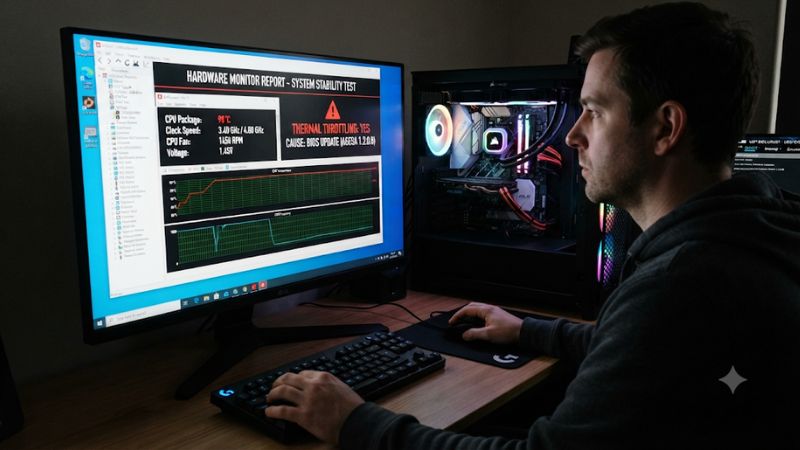
Use HWiNFO64 to inspect processor telemetry in Windows. Open the Sensors window and look for CPU Package temperature, Core Temperatures, Core Effective Clocks, CPU Package Power, and thermal throttling indicators. The exact sensor names depend on your processor and motherboard.
Run a familiar game or a short, controlled CPU workload while monitoring these readings. Look for thermal-limit flags that become active alongside falling effective clock speeds. A high temperature alone does not establish the cause. Compare the readings with your exact CPU’s published thermal specifications.
Step 2. Restore the Correct BIOS Fan and Pump Settings
Restart your PC and enter BIOS/UEFI by pressing the motherboard’s designated key, commonly Delete or F2. Open the Hardware Monitor, Fan Control, or Q-Fan section, depending on the manufacturer. Check whether the CPU fan header is configured for the fan’s actual control method.
For a PWM fan, select PWM mode; for a three-pin DC fan, select DC mode when supported. Verify that the AIO pump uses the header and operating mode specified by its manufacturer. Restore an appropriate automatic fan curve, save changes, and restart. Avoid setting the pump to a low-speed profile without checking the cooler’s requirements.
Step 3. Review CPU Power and Performance Settings
Check whether the firmware changed processor power or boost settings. On AMD platforms, relevant options can include Precision Boost Overdrive (PBO), Eco Mode, and Curve Optimizer. On Intel platforms, inspect processor power limits and motherboard-specific performance profiles.
Begin with the manufacturer’s default CPU configuration. If you previously used an undervolt, overclock, or custom power profile, do not immediately reapply it. First establish stable temperatures and normal operation at stock settings. Change only one setting at a time and compare telemetry after each adjustment.
Step 4. Inspect the Cooler and Consider BIOS Recovery
If temperatures remain abnormal with appropriate fan settings and stock CPU configuration, inspect the physical cooling system. Check fan rotation, radiator airflow, dust buildup, cooler mounting, and pump operation. For air coolers, verify that the heatsink remains firmly attached. For liquid coolers, check for pump or circulation problems.
If the problem began with a particular firmware release and the hardware checks out, consult the motherboard manufacturer’s release notes and support documentation. A newer stable BIOS may address firmware problems. Consider rolling back only when the manufacturer explicitly supports it for your motherboard and CPU. An interrupted firmware flash can make the system unbootable.
| Step | Where | How to Verify | Cost |
|---|---|---|---|
| Check temperatures and throttling | HWiNFO64 Sensors | Compare temperature, effective clocks, power, and thermal flags | Free |
| Restore fan and pump control | BIOS/UEFI Hardware Monitor | Confirm appropriate RPM and fan response under load | Free |
| Review CPU power settings | BIOS/UEFI CPU configuration | Check temperatures and clocks at stock settings | Free |
| Inspect cooling hardware | Inside the PC case | Verify fan rotation, pump operation, mounting, and airflow | Free to low cost |
| Update or roll back firmware | Motherboard manufacturer’s BIOS utility | Confirm firmware version and repeat the same workload | Usually free; repair may cost extra |
How to Interpret Your Diagnostic Results
The following patterns help narrow down the cause without assuming that every performance drop comes from overheating.
| Observed behavior | Likely explanation | Recommended action |
|---|---|---|
| High temperature with active thermal flags and falling clocks | Genuine thermal throttling | Inspect cooler, fan curve, and pump |
| High temperature with unusually low fan RPM | Incorrect fan profile or control mode | Correct the fan configuration |
| Rapid temperature increase with missing pump RPM | Possible AIO pump or connection problem | Inspect pump connection and cooler |
| Lower clocks without thermal-limit flags | Power limit or boost configuration | Review CPU power settings |
| Lower gaming performance with normal temperatures | Memory profile or other firmware setting changed | Check RAM configuration and game performance |
| Temperature spikes at idle | Background activity, monitoring software, or cooling issue | Inspect CPU utilization and background processes |
A useful distinction is that thermal throttling, power-limit throttling, and current-limit throttling are different conditions. Intel’s documentation explains that current and power limits can restrict processor operation independently of thermal protection. AMD likewise recommends examining temperatures, cooling, and stock operating configuration when diagnosing performance problems.
Intel+1
FAQ
1. Can a BIOS Update Cause CPU Thermal Throttling?
Yes, a BIOS update can indirectly cause thermal throttling by changing fan profiles, pump control, CPU power limits, or boost settings. However, the update itself does not necessarily indicate a processor problem. Compare temperatures and cooling behavior before and after restoring appropriate default settings.
2. How Do I Know Whether My CPU Is Actually Thermal Throttling?
Monitor CPU temperature, effective clock speeds, and thermal-limit indicators using HWiNFO64. Genuine thermal throttling typically involves an active thermal-limit indicator and reduced processor frequency or power. Check your specific CPU’s thermal specifications rather than applying a universal temperature threshold.
3. Should I Reset BIOS Settings After a Firmware Update?
Resetting or loading optimized defaults can help resolve conflicting settings after an update, but it is not always necessary. Record existing configurations first, particularly boot mode, storage settings, fan profiles, and memory settings. After resetting, verify that Windows boots correctly and restore only the configurations you actually need.
4. Should I Downgrade My BIOS If CPU Temperatures Increase?
Not immediately. First rule out incorrect fan settings, pump problems, and changed CPU power behavior. If the issue appears specific to the new firmware, check the motherboard manufacturer’s supported BIOS recovery or downgrade procedure. Never interrupt a firmware flash or install an incompatible BIOS version.
Final Thoughts
CPU thermal throttling after BIOS update does not automatically mean your processor or cooler is failing. Start by checking HWiNFO64 readings, restoring appropriate fan and pump settings, and verifying stock CPU behavior. If temperatures remain abnormal, inspect the cooling hardware before considering firmware recovery or replacement.