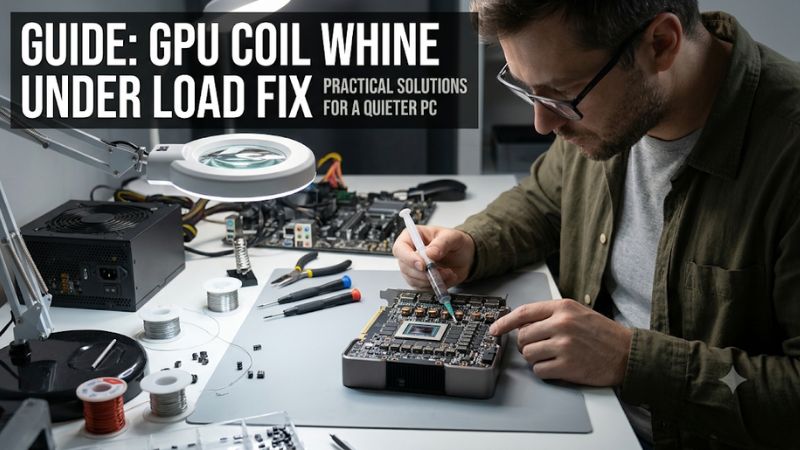
Hearing a high-pitched electrical buzzing sound when playing games can be distracting, especially when your graphics card is under heavy load. A gpu coil whine under load fix usually starts with limiting unnecessary frame rates and checking power behavior. This guide explains the causes, safe adjustments, and warning signs that require further investigation.
Why GPU Coil Whine Under Load Happens
GPU coil whine happens when electrical components, particularly inductors in the graphics card’s power delivery circuitry, vibrate as electrical current passes through them. The sound often changes with GPU workload, frame rate, and power consumption. It is generally an acoustic characteristic rather than evidence of hardware failure, but identifying its source is important before changing settings.
1. High Frame Rates Increase Electrical Noise
One common reason for noticeable coil whine is an unusually high frame rate. When a graphics card renders hundreds of frames per second, particularly in lightweight games or menus, its electrical workload can change substantially. Certain operating conditions make component vibrations more audible.
This explains why a GPU might sound relatively quiet during demanding gameplay but produce a sharp buzzing noise in a game menu. An FPS limiter can reduce unnecessary rendering and sometimes lower the intensity of the noise without requiring a hardware upgrade.
2. GPU Power Consumption and Load Changes
A graphics card’s power delivery components operate under changing electrical conditions. When GPU utilization and power consumption fluctuate, the vibration frequency or intensity of certain components can change. Consequently, coil whine may become more noticeable during demanding games, benchmarks, or sudden workload transitions.
Different graphics cards can produce different acoustic characteristics even when they use similar GPU architectures. Component selection, circuit design, manufacturing variation, and the interaction between the graphics card and other PC components can influence the sound.
3. The Power Supply May Also Produce Coil Whine
Not every high-pitched electrical noise comes directly from the graphics card. Power supplies contain inductors and other electrical components that can produce similar sounds. In some systems, electrical interactions between the PSU and GPU voltage-regulation circuitry can contribute to audible noise.
Check whether the sound appears to originate near the graphics card or the PSU, without touching components while the computer is running. A sound that changes with GPU load does not automatically identify which component produces it. Never open a power supply to investigate internal noise.
What Doesn’t Help
Several common troubleshooting approaches are unlikely to solve coil whine and may introduce unnecessary risks.
-
Cleaning GPU drivers repeatedly: Driver reinstallation does not address physical vibration in electrical components.
-
Increasing fan speed: This adds fan noise without directly correcting electrical coil vibration.
-
Applying aggressive overclocks: Higher power consumption can make some coil whine more noticeable.
-
Changing random BIOS settings: Disabling motherboard power-management features without a specific diagnosis can create instability.
-
Using registry optimization scripts: Registry modifications are not a reliable solution for electrical noise.
The objective should be reducing the conditions that make the noise audible, not attempting to modify the graphics card’s internal electrical components.
How to Fix GPU Coil Whine Under Load: Step by Step
The most sensible troubleshooting approach starts with free software adjustments. Establish when the sound occurs, limit excessive frame rates, and then evaluate GPU power behavior. Avoid changing several settings simultaneously because doing so makes it difficult to identify which adjustment actually affects the noise.
Step 1. Set an Appropriate FPS Limit
Start by limiting the number of frames your graphics card renders. Open the affected game’s graphics or display settings and look for an option called Frame Rate Limit, Maximum FPS, or Max Frame Rate.
Choose a reasonable limit based on your monitor and gameplay requirements. For example, competitive players using high-refresh-rate displays may prefer a higher cap than players prioritizing quieter operation. Also check whether the game has a separate frame-rate setting for menus and background screens.
If the noise becomes less noticeable after applying the limit, excessive frame rendering may have contributed to the problem. You can also use NVIDIA Control Panel’s Manage 3D Settings section and its Max Frame Rate option when supported by your driver.
Step 2. Enable V-Sync When Appropriate
V-Sync synchronizes frame presentation with the monitor’s refresh cycle. It can prevent a GPU from rendering unnecessarily high frame rates in situations where performance exceeds the display’s refresh rate.
For NVIDIA graphics cards, open NVIDIA Control Panel, select Manage 3D Settings, and locate Vertical Sync. You can configure the option globally or separately for an individual game. AMD users can check the game’s graphics settings or available synchronization controls in AMD Software: Adrenalin Edition.
V-Sync can introduce additional input latency depending on the game, hardware, and synchronization configuration. Competitive players may prefer an FPS limiter instead. If the change does not improve the sound or affects gameplay responsiveness, restore the previous setting.
Step 3. Reduce GPU Power Consumption Carefully
A moderate reduction in GPU power consumption can sometimes reduce coil whine. Graphics cards draw different amounts of power depending on workload, and changing the power limit can alter the operating conditions that produce audible electrical vibration.
For supported NVIDIA and AMD graphics cards, manufacturer software or a compatible tuning utility may provide power-management controls. MSI Afterburner, for example, offers a Power Limit adjustment on supported hardware. Reduce the setting conservatively rather than applying an aggressive restriction.
After changing it, repeat the same game scene and compare the sound, frame rate, and stability. A lower power limit can reduce performance, and its effect on coil whine varies between cards. Restore the original setting if you experience instability or an unacceptable performance reduction.
Step 4. Check the PSU and GPU Power Connections
If software adjustments do not help, investigate the power delivery setup. Confirm that your PSU meets the graphics card manufacturer’s power requirements and that all GPU power connectors are fully seated. Check the PSU manufacturer’s cable instructions, particularly when using modular power supplies.
Use only cables approved for your specific PSU model. Modular PSU cables are not universally interchangeable, even when their connectors appear physically compatible. Never force a connector or use an unapproved adapter to resolve a noise problem.
If the PSU itself appears to produce electrical noise, consult its manufacturer or a qualified technician. Do not open the PSU or attempt internal repairs. If the computer also shuts down, loses display output, or exhibits other electrical symptoms, stop treating the problem as ordinary coil whine.
Diagnostic and Fix Comparison
The following table summarizes a practical troubleshooting order, including where to make each adjustment and what to watch for.
| Step | Where | How to Verify | Cost |
|---|---|---|---|
| Identify the noise | GPU and PSU area | Compare noise during idle and gaming | Free |
| Limit FPS | In-game graphics settings | Compare noise before and after limiting FPS | Free |
| Enable V-Sync | Game settings or NVIDIA Control Panel | Check noise and input responsiveness | Free |
| Adjust power limit | Supported GPU tuning software | Compare power behavior, noise, and stability | Free |
| Inspect PSU connections | PC power connections | Check connector seating and cable compatibility | Free |
| Seek professional inspection | Manufacturer or repair service | Check for electrical or mechanical faults | Varies |
Important: These steps reduce potential causes of audible noise; they do not guarantee that every graphics card will become quieter. Some cards retain noticeable coil whine even when operating normally.
FAQ
1. Is GPU Coil Whine Dangerous Under Heavy Load?
No, ordinary GPU coil whine is generally not dangerous and does not independently indicate that the graphics card is failing. Manufacturers including MSI, ASUS, and Intel describe this sound as a characteristic of electrical components vibrating during operation.
However, investigate additional symptoms such as unexpected shutdowns, graphical artifacts, burning smells, or persistent mechanical grinding. These symptoms should not be dismissed as ordinary coil whine. If you notice a burning smell or signs of electrical damage, shut down the computer and disconnect power safely.
2. Can Undervolting Reduce GPU Coil Whine?
Yes, undervolting can sometimes reduce coil whine by changing GPU voltage and power consumption, but the results depend on the individual graphics card and workload. It is an optional adjustment rather than a necessary repair.
Use a supported GPU tuning utility, make conservative changes, and check stability with your normal games. An unstable undervolt can cause crashes, driver resets, or graphical problems. Restore the original voltage settings if instability appears. Do not assume undervolting will remove the sound completely.
3. Does GPU Coil Whine Mean I Need a New PSU?
No, coil whine alone does not establish that your power supply needs replacement. The sound may originate from the graphics card, PSU, or interactions between their electrical components.
Before considering replacement, verify that the PSU meets the GPU manufacturer’s requirements and uses the correct power cables. If the PSU produces abnormal noises alongside shutdowns, electrical smells, or other faults, seek professional assistance. Replacing a functioning PSU without identifying the noise source may not improve the situation.
4. When Should I Replace or RMA a Graphics Card?
Consider contacting the graphics card manufacturer or retailer when the noise is unusually intrusive, changes unexpectedly, or occurs alongside functional problems. Warranty eligibility depends on the manufacturer’s policy, retailer terms, region, and the specific circumstances.
Record the noise and note which workloads trigger it. Include any crashes, temperature abnormalities, or visual artifacts when submitting a support request. A manufacturer can determine whether inspection or replacement is appropriate. Remember that coil whine alone may not qualify for warranty replacement because many manufacturers classify it as normal electrical behavior.
Final Thoughts
A gpu coil whine under load fix usually begins with an FPS cap, appropriate synchronization settings, and careful power management. These adjustments can reduce audible noise without replacing functioning hardware. First identify whether the GPU or PSU produces the sound, then contact the manufacturer if abnormal symptoms or excessive noise remain.