🛒 Best Price Today on Amazon
Prime members get fast, free shipping on everything above, plus member-only deals. New members get a 30-day free trial — cancel anytime.
- The replay test: new event or new location?
- Let the game complete its own preparation
- Preserve caches before clearing anything
- Compare graphics APIs as a diagnostic
- Reset interference without dismantling Windows
- Measure frame time, not just the FPS counter
- What players can fix and what developers must fix
- Controlled test order
- Stop conditions and service boundaries
- Official references
Shader Compilation Stutter: Practical Fixes
Shader compilation stutter has a recognizable rhythm: a sharp hitch appears the first time a new material, effect, enemy, weather state, or pipeline configuration is shown, then becomes smaller or disappears when the same event is repeated. That pattern matters more than a generic “stutter” label.
There is no universal user-side switch that can repair an incomplete game pipeline cache. The goal is to verify the pattern, let legitimate precompilation finish, preserve useful caches, and rule out look-alike problems. Some lasting fixes must come from the game developer.

Xbox Wireless Controller – Black
Included for 'Shader Compilation Stutter: Practical Fixes' because the listing specifies Black, details this guide uses to compare options.
View on Amazon
WD_BLACK SN850X 1TB NVMe SSD - M.2 2280, Up to 7,300 MB/s Read speeds, Up to 6,300 MB/s write speeds, Gaming Expansion, High Performance Internal Solid State Drive - WDS100T2X0E
Included for 'Shader Compilation Stutter: Practical Fixes' because the listing specifies M.2 2280 and Up to 7, details this guide uses to compare options.
View on Amazon
Crucial X10 1TB Portable SSD, Up to 2,100MB/s, USB 3.2 USB-C, External Solid State Drive, Compatible with Windows, Mac & Android, Durable Storage for Games, Photos & Files, Blue - CT1000X10SSD9-02
Included for 'Shader Compilation Stutter: Practical Fixes' because the listing specifies Up to 2 and 100MB/s, details this guide uses to compare options.
View on Amazon
8Bitdo Ultimate 2C Wireless Controller for Windows PC and Android, with 1000 Hz Polling Rate, Hall Effect Joysticks and Triggers, and Remappable L4/R4 Bumpers (Transparent Black)
Included for 'Shader Compilation Stutter: Practical Fixes' because the listing specifies with 1000 Hz Polling Rate and Hall Effect Joysticks and Triggers, details this guide uses to compare options.
View on Amazon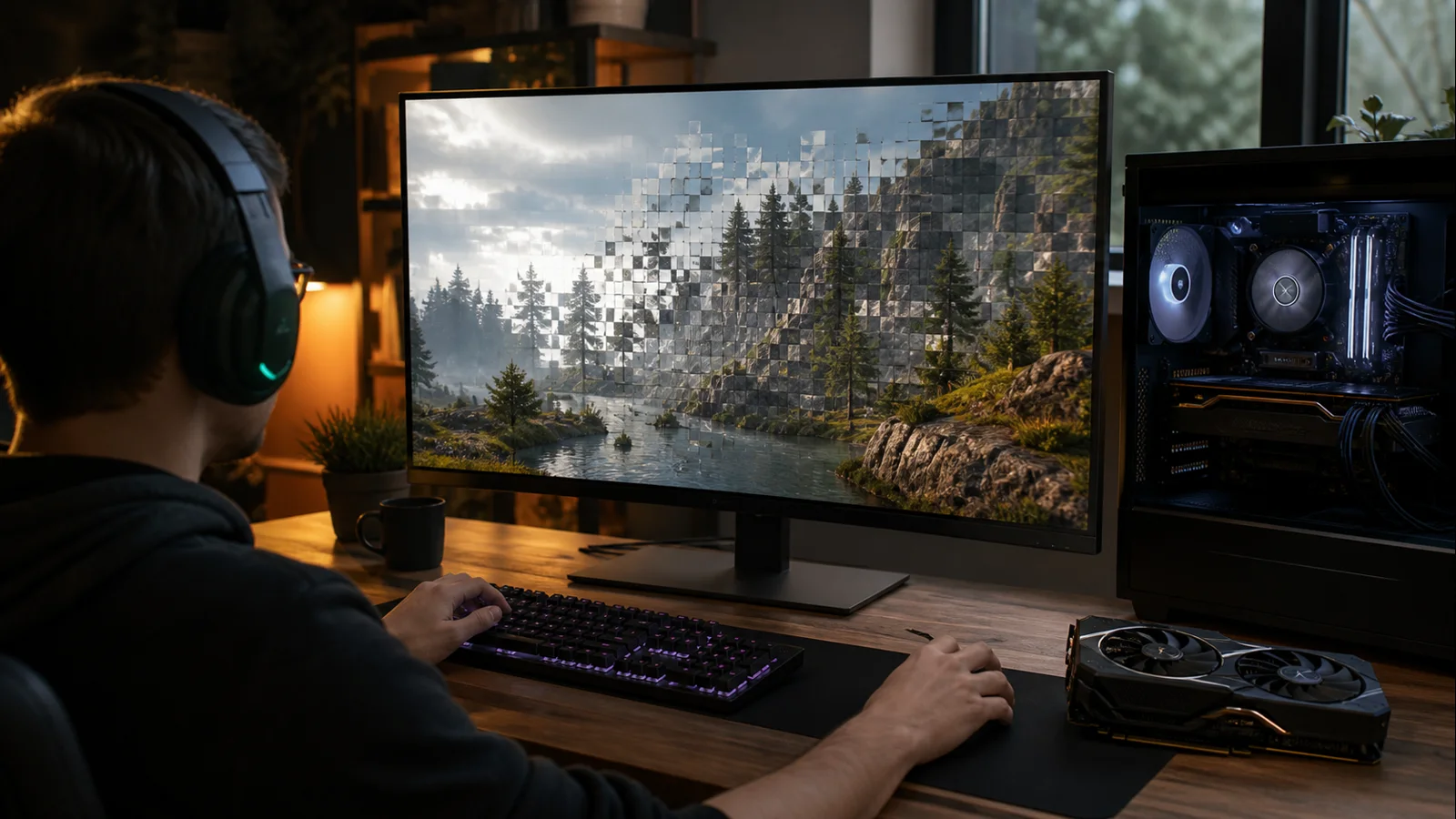
AI-created editorial illustration; not product photography or benchmark evidence.
The replay test: new event or new location?
Load a repeatable area and perform the same action twice without changing settings. On the first pass, trigger a distinct effect: a weapon, spell, explosion, enemy ability, or weather transition. Then repeat it.
If the first occurrence hitches but the immediate repeat is smooth, on-demand shader or Pipeline State Object compilation is plausible. Modern APIs package shader programs and render state into PSOs. Epic Games’ Unreal Engine documentation explains that creating an unseen PSO on demand can block a draw, while precaching prepares those states earlier.
Traversal stutter follows a different pattern. It tends to happen when crossing the same map boundary or turning toward the same asset-dense area, even after effects have already appeared. That points more toward asset streaming, storage access, decompression, world construction, or CPU work. The two can coexist, so label each hitch by trigger.
Use a simple notebook:
- Novel effect: first grenade explosion hitches; second does not.
- Boundary: crossing the bridge hitches every lap.
- Periodic: a spike occurs every fixed interval anywhere.
- Load-linked: spikes appear when VRAM or system memory pressure rises.
This classification prevents a shader-cache fix from being applied to an unrelated streaming fault.
Let the game complete its own preparation
If the game displays “compiling shaders,” “optimizing shaders,” or a similar progress screen, let it finish before entering gameplay. Keep the system awake and avoid launching another CPU-heavy task. Compilation can legitimately use substantial CPU resources.
After a game patch, graphics-driver update, graphics-API change, or major settings change, compilation may run again because cached data can be invalid for the new combination. One rough first launch does not prove a persistent fault. Test a second run after the game exits normally and saves its cache.
Do not interrupt the process unless it is clearly frozen for an unreasonable period and the game developer’s support guidance says to restart. Repeatedly cancelling at 90 percent can guarantee that preparation never completes.
Preserve caches before clearing anything
The internet’s most repeated shader-stutter advice—delete every cache—is often backwards. A valid cache exists to prevent repeated compilation. Clearing it deliberately recreates the cold-cache experience and can make the next run worse.
Only clear a cache when you have evidence of corruption: a developer support article names it, compilation repeatedly fails, or a specific update left invalid data that the application does not replace. Rename the relevant cache folder when practical instead of deleting it, and change no other variable. Launch once, allow rebuilding, then replay the same scene.
Do not use registry cleaners or broad scripts that erase driver, game, launcher, and DirectX data together. You lose rollback and cannot learn which cache mattered. Avoid downloading another person’s shader cache; caches may depend on the game build, driver, hardware, API, and settings, and redistributed files introduce trust and compatibility risks.
Compare graphics APIs as a diagnostic
If the title officially supports DirectX 11, DirectX 12, or Vulkan alternatives, compare two supported APIs. Keep resolution, quality settings, driver, save, and route constant. Each API may use a different rendering path and cache behavior.
A smoother DirectX 11 mode can be a practical workaround, but it may trade away ray tracing, features, or CPU efficiency. A rough DirectX 12 first pass that becomes smooth on replay is different from a persistent hitch on every pass. Give each API a clean launch and a warm replay before deciding.
Do not force undocumented launch flags. If the game developer supports only one API, stay on that path and focus on patches and clean settings.
Reset interference without dismantling Windows
Return the GPU to stock clocks and voltage. Close optional overlays, injectors, capture hooks, post-processing tools, and monitoring overlays. Verify game files through the official launcher. Then test the exact same sequence.
If the problem began after a driver update, reset per-game driver overrides before reinstalling anything. If needed, compare the current official driver with a known-good earlier release. One driver version per test, one game build, one route.
Security exclusions are not a first-line fix. Shader and pipeline caches can involve many small file operations, but disabling real-time protection broadly creates risk and may not address the bottleneck. If the game developer documents a specific conflict, use the narrowest supported exception and remove it after testing.
Storage still matters for traversal and cache reads. Keep adequate free space on the game and system drives, check drive health through supported tools, and avoid moving the installation at the same time you change the API. If the hitch repeats at geographic boundaries, use the broader PC stuttering in games guide rather than assuming compilation.
Measure frame time, not just the FPS counter
An FPS number averaged over a second can hide a 100-millisecond interruption. Frame time shows the duration of each frame, so a compilation hitch appears as a narrow spike. PresentMon is an official open-source option that records CPU, GPU, and display frame-duration metrics across common graphics APIs.
Capture a short, repeatable route rather than hours of gameplay. Mark when the novel effect occurs, repeat it, and compare the two spikes. Monitoring itself can add overhead, so use the same capture setup in every run and avoid stacking multiple overlays.
Frame-time evidence does not automatically identify shader compilation. It establishes when the hitch happened. The first-use/replay pattern, game logs, an on-screen compilation phase, or developer acknowledgement supplies the attribution.
For a general remediation ladder beyond shaders, consult how to fix game stuttering after completing the classification step.
What players can fix and what developers must fix
Players can allow precompilation to finish, preserve a healthy cache, use a supported alternate API, remove third-party hooks, verify files, and choose a stable driver. These steps repair local disruption and expose a usable workaround.
Developers control whether required PSOs are discovered, bundled, precached, or compiled asynchronously before first use. Epic documents both automatic PSO precaching and bundled caches. Its guidance also notes that a missed PSO encountered during play can coincide with a hitch. When a clean installation on supported hardware always stutters on the first presentation of the same effects, a game update is the appropriate durable fix.
Report the exact effect or location, game build, API, driver, hardware, cache state, and whether immediate repetition becomes smooth. A short video with a frame-time graph is more diagnostic than “the game stutters constantly.”
Controlled test order
Use this sequence without combining rows:
- Finish the game’s shader preparation; run the route cold, then repeat it warm.
- Restart the game and repeat the same route to see whether the cache persists.
- Verify files, then run the identical cold-and-warm comparison.
- Disable optional overlays and injectors only, then repeat.
- Compare one other officially supported graphics API.
- Compare one known-good official driver if timing implicates an update.
Record whether the hitch is first-use, boundary-based, periodic, or persistent. Stop clearing caches after one controlled rebuild; repeated clearing invalidates the warm-run comparison.
Stop conditions and service boundaries
Shader compilation should not cause smoke, an electrical smell, display artifacts before the operating system loads, or hard power loss. Stop immediately and unplug the PC if any electrical warning appears. Seek hardware service when several known-good games crash or artifact at stock settings across multiple drivers.
Contact the game’s support team when the hitch is reproducible on a clean, supported configuration and follows first-use content after every fresh build or cache regeneration. Include the minimal reproduction and logs. Do not keep modifying Windows services, permissions, and registry keys to compensate for a reproducible game-side PSO miss.
Official references
- Epic Games: PSO precaching in Unreal Engine
- Epic Games: Creating bundled PSO caches
- GameTechDev: PresentMon official GitHub repository