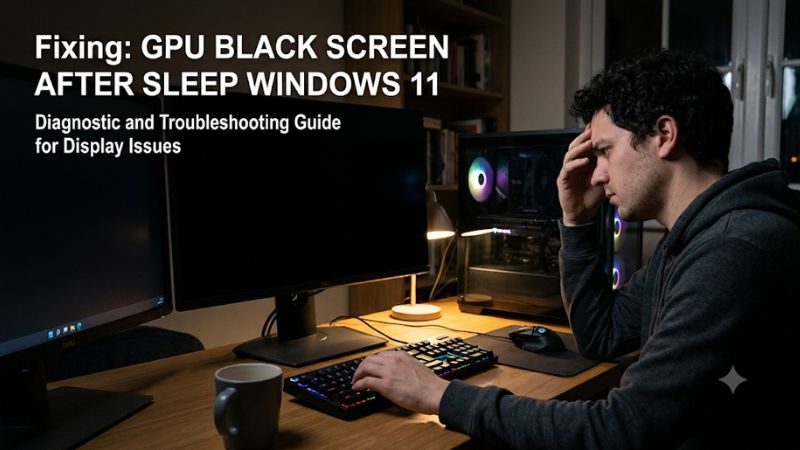
GPU black screen after sleep Windows 11 is commonly associated with graphics driver recovery problems, display connection issues, or power-state transitions that fail when the computer wakes. The right fix depends on whether Windows is still running, the GPU has stopped responding, or the monitor has lost its signal. This guide explains how to identify the cause and troubleshoot it safely.
Why GPU Black Screen After Sleep Windows 11 Happens
A black display after waking does not automatically mean the graphics card is failing. Windows may have resumed successfully while the graphics driver or monitor connection failed to recover. Start by pressing Windows + Ctrl + Shift + B to reset the graphics driver. If the screen flickers or returns, investigate the driver and display recovery process before considering hardware replacement.
1. Graphics Driver Fails to Recover
A graphics driver manages communication between Windows, the GPU, and connected displays. During sleep, Windows changes the system’s power state. When the computer wakes, the driver must restore graphics output and coordinate with the display hardware.
If that process encounters an error, the computer may appear operational while the monitor remains black. Keyboard lighting, audio playback, or network activity can indicate that Windows is still running. However, these symptoms alone do not prove that the graphics driver is responsible.
Driver problems become more likely when the issue starts immediately after installing a new NVIDIA or AMD graphics package. A recent Windows update can also change the software environment. Compare the timing of the problem with recent changes before reinstalling drivers.
2. Monitor, DisplayPort, or HDMI Connection Problems
A monitor can fail to restore its connection even when the GPU and Windows are functioning. This is particularly relevant to systems using multiple displays, high-refresh-rate monitors, DisplayPort connections, or monitor features that automatically switch inputs.
The display may report No Signal, remain in standby, or take longer than expected to recognize the graphics card. A loose cable, problematic adapter, monitor firmware issue, or incorrect input selection can produce symptoms similar to a failed GPU driver.
Test with one monitor connected directly to the graphics card. If possible, temporarily switch between DisplayPort and HDMI. Avoid changing several display settings simultaneously because that makes it harder to identify the actual cause.
3. Windows Power Management and Sleep Transitions
Windows manages hardware power states to reduce energy consumption when the computer is inactive. Problems can occur when the graphics card, PCIe connection, motherboard firmware, or display does not resume as expected.
Fast Startup is another setting worth investigating, particularly when black-screen behavior also occurs after shutdown and startup. However, Fast Startup and ordinary Sleep are different processes. Disabling it should be treated as a diagnostic experiment rather than a guaranteed solution.
Laptop users should also consider manufacturer-specific power management. Integrated graphics, dedicated GPUs, hybrid graphics switching, and OEM power profiles can influence how the internal and external displays resume.
What Doesn’t Help
Several commonly suggested fixes are either unrelated or unnecessarily risky when used without diagnosis.
-
Increasing GPU power limits does not address a display that fails to resume from sleep.
-
Overclocking or undervolting can introduce additional instability.
-
Registry cleaner utilities are not reliable solutions for graphics recovery problems.
-
Reinstalling Windows should not be the first troubleshooting step.
-
Replacing the GPU without checking the monitor, cable, driver, and power behavior can waste money.
A useful diagnosis starts with the simplest reversible checks and progresses toward software or hardware intervention only when the symptoms justify it.
How to Fix GPU Black Screen After Sleep Windows 11: Step by Step
Work through the following troubleshooting sequence, starting with checks that do not modify system settings. Record whether the monitor displays No Signal, whether Windows responds to keyboard shortcuts, and whether the problem affects every wake cycle. These observations help separate a display connection failure from a driver or power-management problem.
| Step | Where | How to Verify | Cost |
|---|---|---|---|
| Reset graphics driver | Windows keyboard shortcut | Display returns after reset | Free |
| Check monitor and cables | GPU and monitor connections | Display works with one monitor or another cable | Free |
| Roll back graphics driver | Device Manager | Previous driver restores normal wake behavior | Free |
| Adjust power settings | Control Panel | Repeated sleep and wake cycles work correctly | Free |
| Reinstall manufacturer driver | NVIDIA, AMD, or laptop manufacturer’s support page | Correct GPU driver loads without errors | Free |
1. Reset the Graphics Driver and Check Display Output
Start with the least disruptive recovery method. Press Windows + Ctrl + Shift + B simultaneously. Windows attempts to reset the graphics driver, and you may hear a beep or see the display flicker. Give the monitor a moment to recover before trying another shortcut.
If the screen remains black, press Windows + P, then press P again and Enter to cycle through available display modes. This can help when Windows has resumed using an unexpected display configuration. Also try Ctrl + Alt + Delete to determine whether the Windows security screen appears.
If the computer responds but the monitor still shows No Signal, turn the monitor off and on. Check its selected input and reconnect the display cable. Disconnect additional monitors temporarily and connect one display directly to the GPU. These checks help isolate the display connection from the graphics driver. Microsoft’s blank-screen guidance recommends the same graphics reset and display-mode recovery shortcuts.
Microsoft Support+1
2. Roll Back or Update the Graphics Driver
If the problem started after a graphics driver update, rolling back is generally a better first experiment than immediately installing another version. Press Windows + X, select Device Manager, and expand Display adapters.
Right-click your NVIDIA GeForce or AMD Radeon GPU, select Properties, and open the Driver tab. If available, select Roll Back Driver and follow the instructions. Restart Windows and test several sleep-and-wake cycles.
If Roll Back Driver is unavailable, Windows may not have retained an earlier driver package. In that situation, identify the GPU model and download an appropriate driver from NVIDIA, AMD, or the laptop manufacturer’s support page. Laptop owners should pay particular attention to OEM drivers because some systems use manufacturer-specific graphics and power-management configurations.
Avoid installing several driver versions over one another without checking which package is active. After installation, open Device Manager and inspect Display adapters. Confirm that the intended GPU appears without a warning icon. If the issue persists, check the manufacturer’s release notes for relevant fixes or known problems.
Microsoft Support+2
3. Adjust Windows Power Management Settings
Power-management changes can help determine whether the failure is associated with sleep or shutdown behavior. Start by checking Fast Startup if the same black-screen symptom also appears after shutting down and turning the computer back on.
Open Control Panel > Hardware and Sound > Power Options. Select Choose what the power buttons do, then Change settings that are currently unavailable. Under Shutdown settings, temporarily clear Turn on fast startup if the option is available. Save the changes and restart.
Test ordinary Sleep separately. If the problem continues, you can inspect PCI Express Link State Power Management:
-
Open Control Panel > Hardware and Sound > Power Options.
-
Select Change plan settings beside your active power plan.
-
Select Change advanced power settings.
-
Expand PCI Express > Link State Power Management, if available.
-
Record the original setting and temporarily select Off for the active power profile.
-
Apply the change and test sleep recovery.
Disabling PCIe link-state power management is a diagnostic experiment, not a universal performance improvement. It can increase power consumption, particularly on laptops. Restore the original setting if it makes no difference. Some Windows systems or manufacturer power plans may not expose this option.
Microsoft Learn+1
4. Inspect Windows Errors and Test Hardware Connections
If the previous steps do not resolve the issue, inspect Windows logs before making more substantial changes. Press Windows + X, select Event Viewer, and navigate to Windows Logs > System.
Look for warnings and errors around the exact time the screen went black or the computer resumed. Pay attention to display-driver events, unexpected shutdowns, and hardware-related errors. An event mentioning a graphics driver can help narrow the investigation, but one event alone does not establish the root cause.
For additional information, open Device Manager and inspect the GPU’s Properties > General tab. A warning icon or device error code provides useful evidence that the graphics device is not operating normally.
Next, isolate the physical display connection:
-
Test another HDMI or DisplayPort cable.
-
Try another port on the GPU.
-
Connect only one monitor.
-
Temporarily test another monitor if available.
-
Avoid adapters and docking stations during initial troubleshooting.
If the problem follows one monitor or cable, investigate that connection before changing GPU drivers again. If it persists across different displays and cables while Windows records recurring graphics-device errors, further GPU, motherboard, or power-delivery diagnosis may be necessary.
FAQ
1. Why Does My GPU Only Show a Black Screen After Sleep?
A GPU can show a black screen after sleep because Windows, the graphics driver, or the monitor fails to restore normal display output. Driver compatibility, power-state transitions, and display connections are common areas to investigate.
If the computer remains responsive, start with the graphics reset shortcut. If the issue began after a driver update, investigate that version before changing hardware.
2. Can a Windows 11 Update Cause a Black Screen After Sleep?
Yes, a Windows or graphics driver update can introduce compatibility problems that affect display recovery. However, the timing alone does not establish which update caused the issue.
Check Windows Update history and the graphics driver’s installation date. If the problem appeared immediately after a driver update, try rolling back that driver. If it followed a Windows update, check for subsequent corrective updates and relevant manufacturer guidance before uninstalling system updates.
3. Is It Safe to Force Restart a PC With a Black Screen?
A forced restart is generally a last-resort recovery option when the computer is completely unresponsive. However, holding the power button can cause unsaved work to be lost and interrupt active disk operations.
First, try the graphics reset shortcut and Ctrl + Alt + Delete. If neither works and the system remains unresponsive, use the power button to shut down, then restart. Avoid repeatedly interrupting startup or updates.
4. When Should I Suspect a Failing Graphics Card?
Consider a GPU hardware problem when black screens also occur during normal desktop use, gaming, or other workloads, particularly when accompanied by recurring device errors, artifacts, or unexpected system restarts.
Check display cables, GPU power connections, and driver behavior before replacing hardware. If problems persist across different displays and known-compatible driver versions, seek professional diagnosis. A graphics card replacement should follow evidence of hardware failure rather than a single failed wake cycle.
Final Thoughts
GPU black screen after sleep Windows 11 is not necessarily a sign of a defective graphics card. Start with the graphics reset shortcut, inspect display connections, and investigate recent driver changes. Adjust power settings only when symptoms justify it, and seek hardware diagnosis if the problem persists across multiple configurations.