🛒 Best Price Today on Amazon
Prime members get fast, free shipping on everything above, plus member-only deals. New members get a 30-day free trial — cancel anytime.
- Likely Causes
- Fix 1: Precompile or Clear Shader Caches
- Fix 2: Clean GPU Driver Reinstall
- Fix 3: Disable Hardware-Acelerated GPU Scheduling
- Fix 4: Set Power Plan and GPU Clock Behavior
- Fix 5: Eliminate Background Process and Overlay Interference
- Fix 6: Address Storage Bottlenecks and Write Caching
- Fix 7: Tune Texture Streaming and VRAM Budget
- If Nothing Works
- FAQ
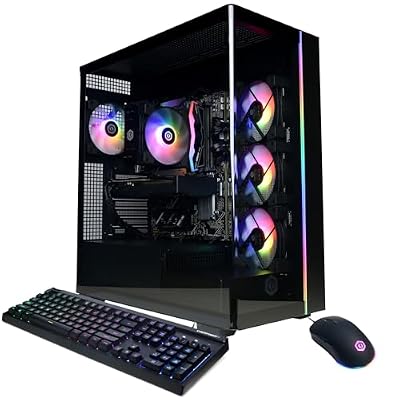
- Top Pick: WIWB Gaming PC Desktop Core I9-14900HX, RTX 5060 Ti 8G, 1TB NVME SSD
- Best Value: CyberPowerPC Gamer Master Gaming PC, AMD Ryzen 7 8700F 4.1GHz, GeForce RTX 5060 Ti 8GB, 16GB DDR5, 1TB PCIe 4.0 SSD, WiFi Ready & Windows 11 Home (GMA2900A2)
- Premium Choice: AMD Ryzen™ 7 9850X3D Desktop Processor
When a high-end PC stutters in games, the frustration is disproportionately maddening because the hardware should never be the bottleneck. You are watching frame times spike from a smooth 16ms to 80ms or more while your GPU barely breaks 60 percent utilization. That mismatch is the diagnostic fingerprint: the issue is almost never raw compute power, but rather something interrupting the data pipeline between your drives, RAM, CPU, and GPU. In 2026, with shader compilation systems, hardware-accelerated scheduling, and increasingly complex memory hierarchies, the number of potential interruption points has multiplied rather than shrunk. The good news is that the majority of these causes are identifiable with a handful of tools and can be resolved without wiping your system.
Likely Causes
| Cause | How to confirm | Fix difficulty |
|---|---|---|
| Runtime shader compilation | Stutters only occur the first time you see a new effect or enter a new area; smooth on revisit | Low |
| GPU driver regression or corruption | Stuttering began after a specific driver update; DDU reinstall resolves it | Low |
| Windows power management throttling | GPU clocks drop to idle states mid-game; confirmed via HWiNFO64 sensor log | Medium |
| Background process interference | Task Manager shows CPU spikes coinciding with stutters; DPC latency checker reveals spikes above 500us | Medium |
| Storage write contention | Stutters align with save-game writes or streaming texture loads; CrystalDiskInfo shows high active time | Medium |
| Hardware-accelerated GPU scheduling conflict | Disabling it in Windows Settings eliminates micro-stutter in DX12 titles | Low |
| In-engine texture streaming misconfiguration | VRAM usage sits just above available memory; streaming budget warnings appear in console logs | Medium |
| Resizable BAR misconfiguration or BIOS instability | Stutters correlate with large asset loads; toggling ReBAR in BIOS changes behavior | High |
Fix 1: Precompile or Clear Shader Caches
Most modern engines (Unreal Engine 5, Frostbite, id Tech) compile shaders at runtime on first encounter. The stutter you experience is the CPU pausing the render thread while the driver builds a pipeline variant. Once compiled, the shader is cached, and subsequent encounters are smooth.
As an Amazon Associate we earn from qualifying purchases at no extra cost to you.





How to check
Open NVIDIA Control Panel and navigate to Manage 3D Settings, then scroll to Shader Cache Size. If it is set to “Off” or 0 MB, every session starts cold. On AMD, the equivalent is found in Adrenalin under Graphics, Global Settings, Shader Cache. You can also inspect the cache directory at C:\Users\[yourname]\AppData\Local\NVIDIA\NV_Cache or C:\Users\[yourname]\AppData\Local\AMD\DXCache and note the folder size. A cache under 100 MB after dozens of hours of play suggests it is being purged or disabled.
What to do
Set Shader Cache Size to 10 GB or the maximum allowed in NVIDIA. In Steam, right-click the game, Properties, General, and ensure “Pre-cache shaders” is enabled if the game supports it. For UE5 titles, run the game at reduced resolution for 30 minutes after a major patch to force compilation of new shader permutations before pushing settings back to native.
How to undo it
Return Shader Cache Size to “Default Driver Settings” or 0 MB. This will not harm anything; the driver simply manages cache automatically.
Fix 2: Clean GPU Driver Reinstall
A driver update layered on a corrupted previous install is one of the most common sources of stutter on otherwise capable systems. Partial registry entries and orphaned INF files can cause the display subsystem to mismanage memory allocation.
How to check
Run Display Driver Uninstaller (DDU) in Safe Mode. Before doing so, check Device Manager under Display Adapters for any device with a yellow triangle or the string “Base Video Device,” which indicates a failed driver load.
What to do
Download your driver package first. Boot to Safe Mode, run DDU, select “Clean and restart,” then install the latest driver using the Express or Custom path with “Perform a clean installation” checked in the NVIDIA installer. For AMD, use the Factory Reset option in the Adrenalin installer.
How to undo it
There is nothing to undo; this restores the driver to a known-good state. If the new driver itself is the problem, repeat DDU and install the previous known-good version from NVIDIA’s driver archive page.
Fix 3: Disable Hardware-Acelerated GPU Scheduling
Windows 11 introduced GPU scheduling to reduce CPU overhead, but on certain driver versions and in specific engines it introduces frame pacing irregularities that manifest as micro-stutter, particularly in DX12 titles.
How to check
Open Settings, System, Display, Graphics, Change default graphics settings. Note the toggle state of Hardware-accelerated GPU scheduling. Run a DX12 title and observe whether stuttering is consistent frame-to-frame or occurs in periodic bursts.
What to do
Toggle the setting off, reboot, and retest. If stuttering disappears, the interaction between the Windows scheduler and the GPU’s command queue is the source. Some users report that re-enabling it after a subsequent driver update resolves the issue, so treat this as a diagnostic step as much as a permanent change.
How to undo it
Toggle it back on and reboot. No files or registry entries are modified beyond the single policy value.
Fix 4: Set Power Plan and GPU Clock Behavior
Windows Balanced power plan allows the GPU to drop into low-power states between frames, particularly in CPU-bound scenarios or during menu navigation. The transition latency from P8 idle to P0 full load can produce a visible hitch.
How to check
Use HWiNFO64 in sensor-only mode. Filter to GPU and look at Core Clock. If it drops to 300-400 MHz during gameplay and then ramps back up, the power state transition is confirmed.
What to do
Open Power Options, select High Performance or Ultimate Performance (the latter requires a registry modification under C:\Windows\System32\power if not visible). Then in NVIDIA Control Panel under Manage 3D Settings, set Power Management Mode to “Prefer Maximum Performance.” For AMD, go to Adrenalin, Graphics, and set Workload to Gaming with the power tuning slider toward Performance.
How to undo it
Return to Balanced in Power Options and set Power Management Mode back to “Normal” or “Optimal Power.”
Fix 5: Eliminate Background Process and Overlay Interference
Overlays that hook into DirectX or Vulkan pipelines (Discord, Steam, GeForce Experience) occasionally conflict with shader compilation threads or frame submission. DPC latency spikes caused by USB polling from RGB software can also introduce periodic stutter.
How to check
Run LatencyMon or DPC Latency Checker. Open a game in windowed-borderless mode and let the tool run for 60 seconds. Look for a max DPC latency above 1000 microseconds or a report line reading “Your system appears to be having trouble handling real-time audio and other tasks.” Cross-reference the offending driver with the ISR/DPC table.
What to do
Disable Discord overlay (Settings, Game Overlay, toggle off). Disable Steam overlay for the specific title (Library, right-click, Properties, uncheck “Enable the Steam Overlay while in-game”). Disable GeForce Experience in-game overlay if present. Set RGB software polling to 1000 Hz or disable it entirely during our research.
How to undo it
Re-enable each overlay and setting individually after identifying which one caused the conflict, so you retain the features that do not interfere.
Fix 6: Address Storage Bottlenecks and Write Caching
Open-world games stream terrain and object data continuously. If the NVMe drive is operating near capacity or lacks proper write-back caching, stream-in requests stall the render pipeline waiting for assets to load.
How to check
Open CrystalDiskInfo and note the drive health and transfer mode. In Task Manager, Performance, Disk, watch Active Time during gameplay. Consistently above 90 percent with high queue depth indicates saturation. Check drive free space; NVMe drives begin to throttle write performance when capacity exceeds 85 percent.
What to do
Ensure the game resides on the fastest available drive (Gen4 NVMe preferred). Enable write-back caching via Device Manager, Disk Drives, Properties, Policies. Maintain at least 20 percent free space on the game drive. If the drive is on a SATA bridge or secondary controller, move it to a direct M.2 slot on the motherboard.
How to undo it
Uncheck write-back caching in device policies. This is safe to reverse at any time; Windows defaults to write-through for data protection.
Fix 7: Tune Texture Streaming and VRAM Budget
When a game’s texture streaming pool exceeds available VRAM, it thrashes between system RAM and the GPU across the PCIe bus. This produces stuttering that worsens over time as more assets load into the scene.
How to check
In-game, enable the developer console where available (UE5: open with tilde key, type stat unit). In the console, type r.Streaming.PoolSize and note the value. Compare it against your actual VRAM shown in Task Manager, Performance, GPU, Dedicated GPU Memory. If pool size plus UI overhead exceeds VRAM by more than 200 MB, thrashing is occurring.
What to do
Lower texture quality one tier from Ultra/High to the next step down. Alternatively, set r.Streaming.PoolSize in the console to a value 200-400 MB below actual VRAM. In games without console access, use the NVIDIA Profile Inspector or game-specific ini files (found under Documents\My Games\ or AppData) to override the streaming budget parameter.
How to undo it
Delete the ini edit or return the streaming pool size to the engine default by typing r.Streaming.PoolSize 0 in console.
If Nothing Works
If you have worked through every fix above and stuttering persists, the problem is likely at the firmware or platform level. Check for motherboard BIOS updates that address PCIe ASPM (Active State Power Management) bugs, which can cause latency spikes during device wake. Verify that XMP or EXPO memory profiles are stable using TestMem5 or MemTest86; unstable memory timings produce silent corruption that manifests as irregular frame pacing rather than a crash. Resizable BAR is another candidate: enter BIOS and toggle it off, then retest. Some chipsets in early 2026 firmware revisions still exhibit ReBAR interaction bugs with specific GPU BIOS revisions. As a last resort, back up your data and perform a clean Windows install with chipset drivers installed before any GPU drivers, ensuring no legacy registry debris is influencing the display stack.
FAQ
Why does my game stutter even when GPU utilization is below 90 percent?
Low GPU utilization is itself the diagnostic clue. It means the GPU is waiting on something, usually the CPU, which is blocked on shader compilation, asset streaming, or a synchronization primitive. The bottleneck is upstream in the pipeline.
Does reinstalling Windows fix stuttering permanently?
It fixes software-induced stutter if the root cause is driver conflict or registry corruption. It will not resolve stutter caused by misconfigured BIOS settings, unstable memory overclocks, or a failing NVMe drive, so verify hardware health before wiping the OS.
Can a game stutter only at certain resolution or settings?
Yes. Pushing VRAM past its streaming budget at higher resolutions, or enabling ray tracing which adds additional shader compilation passes, can cross a threshold where the engine’s streaming system begins thrashing. This is why lowering one setting by a single tier often eliminates the stutter entirely.
Is stuttering the same as low FPS?
No. Low FPS means the average frame delivery rate is insufficient. Stuttering means frames arrive at irregular intervals despite an acceptable average. A game running at an average 90 FPS can stutter terribly if frame time varies between 8ms and 50ms. Tools like CapFrameX or MSI Afterburner RTSS overlay display frame time graphs to distinguish these two problems clearly.