When CPU clock speed dropping during gaming causes stuttering, inconsistent FPS, or sudden performance losses, the cause is not always overheating. Thermal throttling, power limits, laptop power profiles, and background processes can all affect processor frequency. This guide explains how to identify the cause and correct it without unnecessary hardware upgrades.
What CPU Clock Speed Dropping During Gaming Really Comes Down To
A CPU does not maintain its advertised maximum boost frequency throughout every gaming session. Its operating speed changes according to workload, temperature, available power, and processor limits. The important distinction is whether the frequency reduction is normal power management or an unexpected restriction that coincides with worse gaming performance.
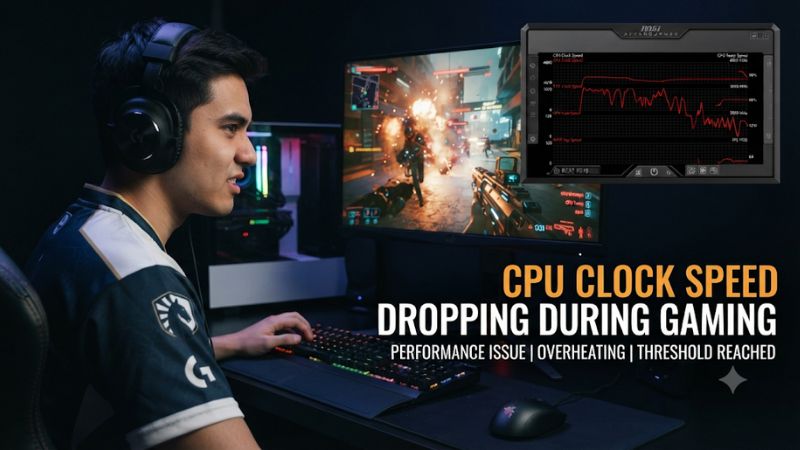
1. Thermal Throttling Reduces CPU Frequency
Thermal throttling occurs when a processor approaches its specified temperature limit. The CPU reduces its operating frequency and power consumption to control heat. If this happens during a demanding game, you may notice lower FPS, inconsistent frame times, or stuttering after playing for several minutes.
The cause can be inadequate cooler mounting, accumulated dust, restricted airflow, failing fans, or an unsuitable cooling solution. Intel and AMD processors have different temperature limits, so compare readings against the specifications for your exact model rather than assuming one temperature applies to every CPU.
2. Power Limits Can Restrict Clock Speeds
A processor can reduce its frequency even when temperatures appear reasonable. Modern CPUs operate within configured power and electrical limits, and their firmware can lower performance when those limits are reached. On Intel platforms, indicators such as PL1, PL2, and Current/EDP Limit can help identify these restrictions.
AMD systems use different power-management controls, including PPT, TDC, and EDC on supported Ryzen platforms. Laptop manufacturers may also impose additional limits through firmware and performance profiles. A power-limit indicator does not automatically mean something is broken; it may represent the processor operating within its intended configuration.
3. Workload and Power Management Change CPU Frequency
Low clock speeds are not necessarily a problem when a game is waiting for the GPU, loading assets, or performing relatively little CPU work. Modern processors dynamically adjust frequency according to demand, so a reduction between demanding scenes can be completely normal.
Windows power settings, battery operation, and manufacturer utilities can also influence available CPU performance. Gaming laptops are particularly sensitive to these conditions because their power and cooling budgets are shared across compact hardware. Check whether the frequency changes alongside actual frame-rate problems before treating it as a fault.
What Doesn’t Help
Forcing the processor to maintain its maximum advertised boost frequency is not a reliable solution. Maximum boost is generally a conditional operating target, not a guaranteed all-core speed. Disabling thermal protection or arbitrarily increasing voltage and power limits can create excessive temperatures, instability, and hardware risks.
RAM cleaning utilities, registry optimization scripts, and disabling Windows telemetry do not address CPU thermal or electrical restrictions. Likewise, changing a Windows power plan without checking temperatures and power-limit indicators can conceal the symptom rather than resolve its cause.
How to Diagnose and Address CPU Clock Speed Drops
The safest approach is to identify what limits the processor before changing system settings or hardware. Start by recording CPU frequency, effective clocks, temperature, and power consumption while the game is running. Then compare those readings with FPS and frame-time behavior to determine which adjustment is appropriate.
Step 1: Monitor CPU Temperature, Frequency, and Power
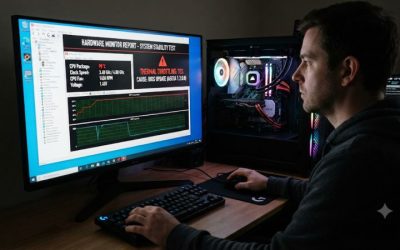
Install HWiNFO64 and open its Sensors window before launching your game. Locate CPU temperature, Core Effective Clocks, CPU Package Power, and available thermal or power-limit indicators. Sensor names vary between Intel and AMD processors, so use the readings available for your hardware.
Play the game until the slowdown occurs, then inspect the sensor values. Look for a temperature increase followed by reduced effective clocks, or a power-limit indicator becoming active. Recording sensor data can help identify what happened immediately before performance deteriorated.
Step 2: Check Cooling and Improve Airflow
If monitoring indicates thermal throttling, inspect the cooling system before changing software settings. On a desktop, check whether CPU cooler fans spin correctly, whether the heatsink is obstructed by dust, and whether case intake and exhaust fans provide adequate airflow.
For a laptop, keep the ventilation openings unobstructed and place the computer on a hard, flat surface. Clean accessible vents according to the manufacturer’s instructions. If temperatures remain excessive, inspect the cooling assembly and thermal interface material through an appropriate repair procedure rather than immediately increasing fan speeds or processor voltage.
Step 3: Review Windows and Manufacturer Power Settings
On Windows 11, open Settings > System > Power & battery > Power mode and select Best performance when playing demanding games. On a laptop, connect the original or manufacturer-approved power adapter and check the manufacturer’s control utility for available performance profiles.
Some gaming laptops have separate Silent, Balanced, Performance, and Turbo modes. These profiles can change processor power allocation and fan behavior. If the issue occurs only on battery power, compare the same game under plugged-in conditions before concluding that the processor has a cooling problem.
Step 4: Inspect BIOS Limits and Hardware Configuration
If HWiNFO indicates power or current limitations rather than excessive temperatures, check whether the motherboard or laptop firmware is enforcing the expected processor limits. Intel systems may report PL1, PL2, or Current/EDP Limit indicators, while supported AMD systems expose PPT, TDC, and EDC readings.
Do not increase these limits simply to force higher frequency. Check the processor and motherboard documentation first, and restore default settings if a previous overclock, undervolt, or custom BIOS profile introduced instability. If a cooler, fan, or power-delivery component appears defective, arrange a proper inspection before replacing parts.
Diagnostic and Troubleshooting Reference
| Setting or Step | Where | Effect | Risk |
|---|---|---|---|
| Monitor effective clocks | HWiNFO64 Sensors | Identifies frequency reductions under load | Low; monitoring only |
| Check cooling | CPU cooler, case, or laptop vents | Helps address thermal restrictions | Moderate if disassembling hardware |
| Change power mode | Windows Settings > System > Power & battery | Adjusts performance and energy preferences | Higher power consumption and heat |
| Review power limits | BIOS/UEFI or manufacturer utility | Identifies electrical and firmware restrictions | High if limits are changed incorrectly |
FAQ
1. Is CPU Clock Speed Dropping During Gaming Normal?
Yes, CPU clock speed dropping during gaming can be completely normal when the processor has less work to perform or enters a lower-power operating state. Modern CPUs dynamically adjust frequency according to workload, temperature, and available power.
A reduction becomes concerning when it repeatedly coincides with stuttering, FPS drops, or unusually low effective clocks under sustained CPU demand. Check temperature and power-limit indicators before assuming the processor is malfunctioning.
2. Why Does My CPU Clock Speed Drop After 10–20 Minutes of Gaming?
A delayed frequency reduction can indicate heat buildup or a sustained power restriction. As the cooling system reaches its thermal capacity, the processor may reduce power and frequency to remain within its operating limits.
However, elapsed time alone cannot establish the cause. Monitor temperature, effective clocks, and power consumption from the beginning of a gaming session. If temperature rises before frequency falls, investigate cooling. If power restrictions appear first, examine firmware and manufacturer power settings.
3. Does 100% CPU Usage Always Mean My Processor Is Overheating?
No, 100% CPU usage does not automatically indicate overheating or thermal throttling. It means the monitored processor resources are fully occupied, but temperature and power conditions must be examined separately.
A CPU can operate at full utilization without reaching its thermal limit. Conversely, a processor can experience thermal restrictions without reporting 100% overall utilization. Check individual core usage, effective frequency, temperature, and throttling indicators together to understand the situation.
4. Should I Upgrade My CPU If Its Clock Speed Keeps Dropping?
No, you should investigate cooling, power delivery, and firmware restrictions before purchasing another processor. Replacing the CPU will not necessarily resolve a problem caused by a poorly mounted cooler, restricted laptop ventilation, or an unsuitable power configuration.
Consider an upgrade only when diagnostics establish that the processor itself is insufficient for your gaming workload or has a hardware fault that cannot reasonably be repaired. Check motherboard compatibility, BIOS support, cooling capacity, and power requirements before choosing a replacement.
Final Thoughts
CPU clock speed dropping during gaming is not automatically a sign of failing hardware. The important step is identifying whether thermal throttling, power restrictions, or normal frequency management explains the behavior. Start with HWiNFO64 monitoring, address confirmed cooling or power issues, and consider hardware replacement only when diagnostics justify it.