
🛒 Best Price Today on Amazon
Prime members get fast, free shipping on everything above, plus member-only deals. New members get a 30-day free trial — cancel anytime.
- Likely Causes
- Fix 1: Disable Fullscreen Optimizations
- Fix 2: Turn Off Game Bar and Background Recording
- Fix 3: Roll Back or Reinstall GPU Drivers Cleanly
- Fix 4: Disable Hardware-Accelerated GPU Scheduling
- Fix 5: Switch the Power Plan to High Performance
- Fix 6: Disable Overlays
- Fix 7: Clear Shader and Pipeline Caches
- Fix 8: Disable HDR in Windows
- Fix 9: Verify RAM Stability and XMP Profile
- If Nothing Works
- FAQ
- Related Guides
If your frame average looks fine but the game still feels choppy every few seconds, you are probably dealing with micro stuttering. Unlike a sustained frame rate drop, micro stuttering presents as brief hitches—single frames taking 50ms, 80ms, or more to render while everything around them runs at normal speed. The symptom varies by engine. Unreal Engine 4 and UE5 titles commonly hitch when the streaming system loads new texture pages. Unity games tend to stutter during garbage collection cycles or when addressables load on the fly. Custom engines like id Tech often stutter when the renderer hits a shader compilation pass at runtime. The fix is rarely one-size-fits-all, so start with the least invasive changes and work down.
Likely Causes
| Cause | How to confirm | Fix difficulty |
|---|---|---|
| Fullscreen optimizations interfering | Right-click the game .exe > Properties > Compatibility tab, check if “Disable fullscreen optimizations” is unchecked | Low |
| Windows Game Bar or background recording | Settings > Gaming > Captures, check “Record in the background while I’m playing a game” | Low |
| GPU driver bug or regression | Compare frame time graphs before and after a driver update using CapFrameX or FrameView | Medium |
| Hardware-accelerated GPU scheduling conflict | Settings > System > Display > Graphics > Default graphics settings, toggle off and test | Low |
| Power plan limiting GPU clocks | Power plan set to Balanced; GPU boost clocks not sustained under load | Low |
| Overlay hooking conflicts | Steam in-game overlay, Discord overlay, or Xbox Game Bar active simultaneously | Low |
| Stale or corrupted shader cache | Stutter clusters around shader compile events visible in RenderDoc or after a fresh install | Medium |
| HDR toggle causing display handshake | Windows HDR enabled; stutter at scene transitions or brightness changes | Low |
| Unstable XMP/EXPO memory profile | Frame time variance correlates with memory stress tests; errors appear in Windows Event Viewer under MemoryDiagnostics | High |
Fix 1: Disable Fullscreen Optimizations
How to check
Navigate to the game’s executable inside its install folder (typically Steam\steamapps\common\[GameName]\). Right-click the .exe, select Properties, open the Compatibility tab, and look for “Disable fullscreen optimizations.” If the box is empty, Windows is intercepting the exclusive fullscreen call.

Thermalright Peerless Assassin 120 SE CPU Cooler, 6 Heat Pipes AGHP Technology, Dual 120mm PWM Fans, 1550RPM Speed, for AMD:AM4 AM5/Intel LGA 1700/1150/1151/1200/1851,PC Cooler
Included for 'Micro Stuttering in Games: Causes, Checks and Fixes' because the listing specifies 6 Heat Pipes AGHP Technology and Dual 120mm PWM Fans, details this guide uses to compare options.
View on Amazon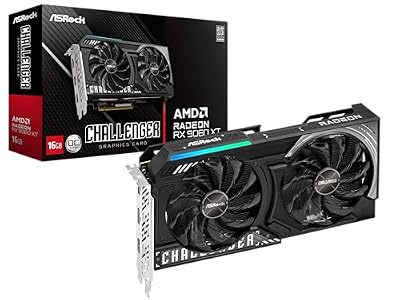
ASRock Radeon RX 9060 XT Challenger 16GB OC, RDNA 4, 3290MHz Boost, 16GB GDDR6 128-bit, PCIe 5.0, Dual Fans, 0dB Silent, LED Indicator, DisplayPort 2.1a, HDMI 2.1b
Included for 'Micro Stuttering in Games: Causes, Checks and Fixes' because the listing specifies RDNA 4 and 3290MHz Boost, details this guide uses to compare options.
View on AmazonWhat to do
Check the box and apply. For a Steam-wide approach, add -fullscreen alongside -nographicspresets in launch options, but the per-executable compatibility flag is more direct. Some titles respect a command-line argument instead—try -window-mode exclusive for Source-engine games.
How to undo it
Uncheck the same box in the Compatibility tab. No system state is altered.
Fix 2: Turn Off Game Bar and Background Recording
How to check
Open Windows Settings (Win+I), go to Gaming > Captures. If “Record in the background while I’m playing a game” is toggled on, the system allocates a shared buffer and a background encoder thread that can introduce scheduling jitter.
What to do
Toggle it off. Then go to Gaming > Xbox Game Bar and disable “Open Xbox Game Bar using this button on a controller.” Some users also need to stop the GameBarPresenceWriter service via services.msc, set it to Manual.
How to undo it
Re-enable the toggles in Settings > Gaming. Restart the GameBarPresenceWriter service to Automatic if you changed it.
Fix 3: Roll Back or Reinstall GPU Drivers Cleanly
How to check
Note your current driver version (NVIDIA: right-click desktop > NVIDIA Control Panel > Help > System Information; AMD: Adrenalin > Settings gear > System). Open CapFrameX or FrameView, capture a 30-second run, and look at the 99th percentile frame time. If the spike appears only after a recent driver update, a regression is plausible.
What to do
Download Display Driver Uninstaller (DDU) from Guru3D, boot into Safe Mode, run DDU, select “Clean and restart,” then install the driver again. On NVIDIA, the shader cache lives in %LOCALAPPDATA%\NVIDIA\DXCache and %LOCALAPPDATA%\NVIDIA\GLCache; DDU clears these during the process.
How to undo it
Reinstall whichever driver version you prefer via the standard installer. No rollback is needed beyond a clean install.
Fix 4: Disable Hardware-Accelerated GPU Scheduling
How to check
Settings > System > Display > Graphics > Default graphics settings. The toggle reads “Hardware-accelerated GPU scheduling.” If it is on and your driver was installed months ago, the feature may not be fully supported by the current game’s API calls.
What to do
Toggle it off and restart the PC. This reverts to the legacy WDDM scheduler. Some users report this specifically helps with Vulkan titles and Unreal Engine 4 games.
How to undo it
Toggle it back on in the same location and restart.
Fix 5: Switch the Power Plan to High Performance
How to check
Run powercfg /getactivescheme in an elevated Command Prompt. If it returns the “Balanced” GUID, your GPU and CPU may be downclocking between frame batches.
What to do
Open Control Panel > Hardware and Sound > Power Options and select High Performance. On Windows 11 24H2 and later, the setting also lives under Settings > System > Power > Power mode > Best performance. This prevents the scheduler from parking cores mid-render.
How to undo it
Select Balanced again. You can restore the original plan with powercfg /setactive <original-GUID>.
Fix 6: Disable Overlays
How to check
Try reproducing the stutter with all overlays off. Common culprits: Steam (Settings > In-Game > uncheck “Enable the Steam Overlay while in-game”), Discord (User Settings > Game Overlay > toggle off), and the NVIDIA in-game overlay (GeForce Experience or the new NVIDIA App, Settings > General > In-Game Overlay).
What to do
Disable one overlay at a time to isolate the offender. For a quick Steam test, add -noreactlogin -noborder -overlay is not valid; instead use the full disable via the client settings above. For Epic, there is no native overlay, so skip it.
How to undo it
Re-enable each toggle in its respective client. No files are modified.
Fix 7: Clear Shader and Pipeline Caches
How to check
If stutter occurs during first-time encounters with new assets in a session and resolves after a second playthrough, the game is compiling shaders at runtime. NVIDIA stores DX12 shaders in %LOCALAPPDATA%\NVIDIA\DXCache and Vulkan shaders in %LOCALAPPDATA%\NVIDIA\GLCache. AMD stores them in C:\Users\[You]\AppData\Local\AMD\DxCache.
What to do
Close the game, delete the contents of the relevant cache folder, relaunch, and let the game rebuild. For UE4 titles you can also precompile by launching with -shaderlog -log and watching the log file in [Game]\Saved\Logs\ for compile bursts.
How to undo it
Nothing to undo. The caches regenerate automatically on next launch.
Fix 8: Disable HDR in Windows
How to check
Settings > System > Display > Use HDR. If this is enabled alongside Auto HDR in gaming, the display may renegotiate EDID timing at scene changes, causing visible hitches on some panel and GPU combinations.
What to do
Toggle HDR off and test for one full session. If the stutter disappears, you may resolve it by updating the monitor firmware or disabling Auto HDR specifically in Settings > Display > HDR > Auto HDR while keeping native HDR on.
How to undo it
Toggle HDR back on in the same panel.
Fix 9: Verify RAM Stability and XMP Profile
How to check
Run Windows Memory Diagnostic (mdsched.exe), then run OCCT Memory or MemTest86 for a full pass. Also check Event Viewer > Windows Logs > System for WHEA-Logger entries or “Memory diagnostic tool found hardware problems.” Frame time variance that correlates with high memory bandwidth demand (large open worlds, texture-heavy scenes) points here.
What to do
Enter BIOS, set RAM to its JEDEC default speed (disable XMP or EXPO), and retest. If the stutter disappears, the overclock is not stable for your silicon. Either tighten timings, lower frequency by one notch, or increase DRAM voltage within manufacturer spec.
How to undo it
Re-enable XMP/EXPO in BIOS if the issue was unrelated, or load a stable profile saved earlier. Some boards store profiles under “Profile 1 / 2 / 3” in the OC section.
If Nothing Works
At this point the problem may be hardware-level. Check for thermal throttling with HWiNFO64 monitoring the GPU hot spot and CPU package temperatures during a stutter event. Inspect the Windows Event Viewer for repeated display.exe crashes or TDR (Timeout Detection and Recovery) errors logged as “Display driver nvlddmkm stopped responding and has successfully recovered.” A failing SSD—particularly an NVMe drive approaching its rated TBW—can also introduce I/O stalls that manifest as micro stutter during asset streaming. As of 2026, Windows 11’s DirectStorage support means games relying on GPU decompression will hitch noticeably if the drive controller is dropping IOPS under sustained load.
FAQ
Is micro stuttering the same as frame rate drops?
No. A frame rate drop lowers average FPS and is visible on any overlay counter. Micro stuttering keeps average FPS high but produces irregular frame time intervals visible only in capture tools like CapFrameX or by eye during fast camera pans.
Does VSync cause micro stuttering?
VSync can introduce stutter if your GPU alternates between hitting and missing the vertical sync deadline, producing a pattern of 16.6ms and 33.3ms frames. Switching to G-Sync or FreeSync with VSync enabled in the driver control panel (the hybrid approach) often resolves it.
Will an SSD upgrade fix streaming stutter?
It depends on the engine. Games using asynchronous texture loading (UE4’s streaming system, for example) benefit from low-latency drives. If your current drive has low random read IOPS or is nearly full, a replacement may help. If the stutter is CPU-side (shader compilation, garbage collection), an SSD will not resolve it.
Should I disable MSI Mode to fix stuttering?
MSI mode is generally preferable to legacy line-based interrupts. Only consider disabling it via Device Manager > your GPU > Properties > Driver Details > Interrupt Management if you have confirmed a driver conflict through Event Viewer errors mentioning MSI or Interrupt. For most systems, leaving MSI mode enabled is the correct choice.








