
🛒 Best Price Today on Amazon
Prime members get fast, free shipping on everything above, plus member-only deals. New members get a 30-day free trial — cancel anytime.
- Likely Causes
- Fix 1: Clean reinstall your GPU driver
- Fix 2: Disable fullscreen optimizations
- Fix 3: Lower VRAM pressure in graphics settings
- Fix 4: Remove conflicting overlays
- Fix 5: Clear the GPU shader cache
- Fix 6: Increase TDR delay via registry
- Fix 7: Disable Hardware-Acelerated GPU Scheduling
- Fix 8: Fall back to DirectX 11 or Vulkan
- If Nothing Works
- FAQ
- Related Guides
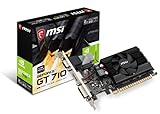
- Top Pick: msi Gaming GeForce GT 710 2GB GDRR3 64-bit HDCP Support DirectX 12 OpenGL 4.5 Heat Sink Low Profile Graphics Card (GT 710 2GD3H LP)
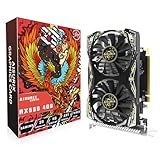
- Best Value: AISURIX RX 550 4GB Graphics Card GDDR5 128Bit Computer Video Card with HDMI/DVI Ports DirectX 12 PCI Express 3.0 X8 GPU Graphics Card for Gaming PC
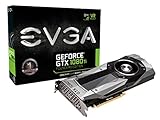
- Premium Choice: EVGA GeForce GTX 1080 Ti Founders Edition Gaming, 11GB GDDR5X, LED, DX12 OSD Support (PXOC) Graphic Cards 11G-P4-6390-KR
A DirectX 12 crash is rarely a single failure point. When the game freezes, the screen goes black for a few seconds, and the desktop returns with an error string like DXGI_ERROR_DEVICE_HUNG or D3D12: Device Removed, what actually happened is that the GPU watchdog timer expired. Windows detected that the graphics processor failed to complete a command submission within the allotted time (typically 2 seconds) and forcibly reset the driver. In engines built around the DirectX 12 API — Unreal Engine 4 and 5, id Tech 7, the Frostbite pipeline in recent titles — this usually means the GPU ran out of VRAM, the driver encountered an illegal memory access, or a third-party software layer intercepted a critical present call. Understanding which of these three buckets your crash falls into saves hours of blind troubleshooting.
Likely Causes
| Cause | How to confirm | Fix difficulty |
|---|---|---|
| Outdated or corrupted GPU driver | Check driver version in NVIDIA Control Panel or AMD Adrenalin; compare against latest release on manufacturer site | Low |
| VRAM exhaustion at high texture resolutions | Open Task Manager > Performance > GPU while game runs; watch Dedicated GPU Memory bar near 100% | Low |
| Overlay software conflict (Discord, Steam, GeForce Experience) | Crash disappears when all overlays disabled; check Event Viewer for nvlddmkm or atidxx64.dll in faulting module |
Low |
| Fullscreen optimization or DWM compositor conflict | Crash only in exclusive fullscreen, not borderless windowed mode | Low |
| GPU hardware instability (overclock, thermal throttle) | GPU-Z sensor tab shows hotspot above 95C or clock dropping sharply before crash; crash also in benchmark tools | Medium |
| Windows TDR timeout too short for heavy shader compilation | Crash happens during first load or when entering a new area; Event ID 4101 with “Display driver stopped responding” | Medium |
| Corrupted game shader cache or config files | Deleting the shader cache folder resolves crash on next launch but returns over time | Medium |
| GPU failing (artifacting, dead VRAM cells) | Crash persists after all software fixes; artifacts visible in other 3D applications | High |
Fix 1: Clean reinstall your GPU driver
How to check
Open Device Manager, expand Display Adapters, and note the driver version and date. Then check whether the driver was installed via Windows Update (often an older generic version) or through the manufacturer installer. A mismatch here causes DXGI_ERROR_DEVICE_REMOVED on DX12 titles that query driver capabilities during initialization.
As an Amazon Associate we earn from qualifying purchases at no extra cost to you.



What to do
Download DDU (Display Driver Uninstaller) and run it in Safe Mode. Select your GPU vendor, click “Clean and restart.” After reboot, install the latest Game Ready or Adrenalin driver using a custom install and check “Perform a clean installation.” Do not install HD Audio or 3D Vision components unless you use them.
How to undo it
There is nothing to undo beyond reinstalling your preferred driver version. If the newer driver introduces a different bug, repeat the DDU process and roll back one release.
Fix 2: Disable fullscreen optimizations
How to check
Right-click the game’s .exe in its installation folder, open Properties, go to the Compatibility tab, and check whether “Disable fullscreen optimizations” is unchecked. Many DX12 games crash specifically when Windows attempts to compose the desktop frame alongside the exclusive fullscreen swap chain.
What to do
Check “Disable fullscreen optimizations,” apply, then launch the game. If the game also offers a “Borderless” or “Windowed Borderless” display mode in its settings, switch to that as a secondary test.
How to undo it
Uncheck the box. Revert the display mode setting inside the game to Exclusive Fullscreen.
Fix 3: Lower VRAM pressure in graphics settings
How to check
During a session, press Ctrl+Shift+Esc, navigate to Task Manager > Performance > GPU, and watch the Dedicated GPU Memory utilization. If it touches 95% or more right before the crash, VRAM exhaustion is the trigger.
What to do
In the game’s settings, reduce Texture Quality one step, disable Ray Tracing or set it to Low, and turn off any “High Resolution Texture Pack” option. In Unreal Engine games, you can also edit GameUserSettings.ini in %localappdata%\[GameName]\Saved\Config\WindowsNoEditor\ and set r.Streaming.PoolSize to a value 256 MB below your total VRAM.
How to undo it
Raise settings back up incrementally. Restore or delete the GameUserSettings.ini file to return to defaults.
Fix 4: Remove conflicting overlays
How to check
Event Viewer > Windows Logs > Application. Look for errors from the game executable with a faulting module path pointing to d3d12.dll, dxgi.dll, or overlay injection libraries like GameOverlayRenderer64.dll.
What to do
Disable the Discord overlay (Settings > Game Overlay > toggle off), disable Steam overlay per-game (Right-click game > Properties > General > uncheck “Enable the Steam Overlay while in-game”), and disable GeForce Experience or AMD overlay in the in-game overlay menu.
How to undo it
Re-enable each overlay individually and test after each change to identify which one caused the conflict.
Fix 5: Clear the GPU shader cache
How to check
Crashes that occur during initial load or when entering a new level suggest stale or corrupted shader data. The cache path differs by vendor.
What to do
For NVIDIA: delete contents of %localappdata%\NVIDIA\DXCache and %localappdata%\NVIDIA\GLCache. For AMD: delete the “ShaderCache” folder under %localappdata%\AMDDXCache or the “DxCache” folder in %appdata%\AMD\AMDCommon. Also delete the game’s own shader cache, commonly found in its install folder under a ShaderCache subdirectory.
How to undo it
The cache rebuilds automatically on next launch. The first session will have longer load times. Nothing needs to be undone manually.
Fix 6: Increase TDR delay via registry
How to check
Open Event Viewer > Windows Logs > System. Filter for Event ID 4101 with source “Display.” If entries show “The display driver stopped responding and has successfully recovered” coinciding with game crashes, the watchdog is firing too early for a long GPU operation.
What to do
Open regedit, navigate to HKEY_LOCAL_MACHINE\SYSTEM\CurrentControlSet\Control\GraphicsDrivers. Create a new DWORD (32-bit) value named TdrDelay and set it to 8 (seconds). Create another DWORD named TdrDdiDelay and set it to 8. Restart.
How to undo it
Delete both TdrDelay and TdrDdiDelay values from the same registry key. Restart. Windows reverts to the default 2-second timeout.
Fix 7: Disable Hardware-Acelerated GPU Scheduling
How to check
Settings > System > Display > Graphics > Change default graphics settings. If “Hardware-accelerated GPU scheduling” is On, try toggling it off. Some DX12 implementations (particularly older Unreal Engine 4 titles) were not validated against this Windows feature when it shipped, and enabling it can cause inconsistent IDXGISwapChain::Present behavior.
What to do
Toggle the setting off, restart Windows, and test the game. The setting appears grayed out on older drivers; update first per Fix 1.
How to undo it
Toggle the setting back on and restart.
Fix 8: Fall back to DirectX 11 or Vulkan
How to check
Launch the game, open its configuration or launcher options, and look for an “API” or “Renderer” dropdown. Many games expose -dx11, -vulkan, or -force-vulkan as launch arguments through Steam, Epic, or Battlenet.
What to do
In Steam: Right-click game > Properties > Launch Options > type -dx11. In Unreal games, the flag is -d3d11. If the game supports Vulkan natively, try that instead. This eliminates DX12-specific driver bugs from the equation.
How to undo it
Clear the launch options field and relaunch the game normally.
If Nothing Works
If the crash persists across all fixes, run a GPU stress test using a benchmark like 3DMark Time Spy or FurMark for 20 minutes. If the system crashes or artifacts appear during the benchmark, the GPU itself is likely failing — check warranty coverage. A GPU that crashes in DX12 titles but remains stable in DX11 games more often points to a driver bug specific to the DX12 runtime path; check the NVIDIA or AMD driver release notes for known issues with your card model. On a 2026 hardware timeline, the DX12 Ultimate feature set is fully mature, so driver bugs affecting only DX12 are uncommon but still tracked by vendors in their monthly release notes.
FAQ
Does a DX12 crash mean my GPU is dying?
No. The vast majority of DXGI_ERROR_DEVICE_HUNG events are software-triggered: a driver bug, an overlay conflict, or VRAM overflow. Hardware failure typically shows persistent artifacts in the desktop compositor or crashes in multiple unrelated 3D applications.
Why does it only crash at certain points in the game?
Specific areas often trigger on-demand shader compilation or load high-resolution assets that push VRAM usage past the driver’s internal limit. If the crash location is consistent, lower texture resolution or pre-cache shaders if the game offers that option.
Will upgrading to a newer GPU guarantee the fix?
Not necessarily. A more powerful GPU with more VRAM reduces the chance of memory-overflow crashes, but driver-level bugs or software conflicts can affect any card. Exhaust the software fixes first.
Is there a DirectX version I should install to fix this?
Windows 10 and 11 ship with the DX12 runtime built into the OS. You cannot install a “newer DirectX 12” independently. What you can do is update your GPU driver, which bundles the corresponding D3D12 runtime libraries, and ensure Windows itself is fully patched.








