
🛒 Best Price Today on Amazon
Prime members get fast, free shipping on everything above, plus member-only deals. New members get a 30-day free trial — cancel anytime.
- Likely Causes
- Fix 1: Isolate and Reset the Addon Suite
- Fix 2: Switch the Graphics API
- Fix 3: Clear the WoW and Battle.net Cache
- Fix 4: Lower Mouse Polling Rate
- Fix 5: Configure Battle.net to Close on Game Launch
- Fix 6: Disable Hardware-Accelerated GPU Scheduling (HAGS)
- Fix 7: Rebuild the GPU Shader Cache
- If Nothing Works
- FAQ
- Related Guides
World of Warcraft occupies a unique space in PC gaming. Despite its stylized, cartoonish aesthetic, it is one of the most CPU-bound and storage-intensive titles on the market. Unlike modern engines built from the ground up for multithreading, WoW runs on a heavily modified, decades-old engine. Its main thread handles the game loop, rendering instructions, and the Lua-based user interface simultaneously.
When you experience hitching or micro-stutters, it is rarely a simple case of your graphics card running out of horsepower. Instead, these stutters are typically frame-time spikes caused by the engine’s main thread stalling. This stall usually happens while waiting for storage I/O assets to load, processing poorly optimized Lua code from outdated addons, or waiting on DirectX 12 shader compilation pipelines. As we dive into the latest expansions in 2026, keeping this engine running smoothly requires a targeted approach to troubleshooting.

Thermalright Peerless Assassin 120 SE CPU Cooler, 6 Heat Pipes AGHP Technology, Dual 120mm PWM Fans, 1550RPM Speed, for AMD:AM4 AM5/Intel LGA 1700/1150/1151/1200/1851,PC Cooler
Included for 'World of Warcraft Stuttering: Causes, Checks and Fixes' because the listing specifies 6 Heat Pipes AGHP Technology and Dual 120mm PWM Fans, details this guide uses to compare options.
View on Amazon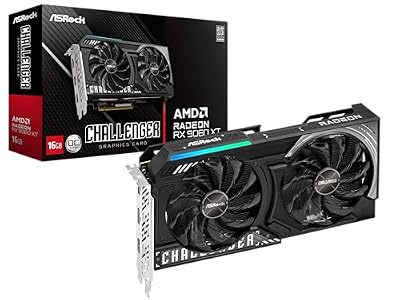
ASRock Radeon RX 9060 XT Challenger 16GB OC, RDNA 4, 3290MHz Boost, 16GB GDDR6 128-bit, PCIe 5.0, Dual Fans, 0dB Silent, LED Indicator, DisplayPort 2.1a, HDMI 2.1b
Included for 'World of Warcraft Stuttering: Causes, Checks and Fixes' because the listing specifies RDNA 4 and 3290MHz Boost, details this guide uses to compare options.
View on AmazonLikely Causes
Before diving into the step-by-step solutions, it helps to understand where the bottleneck is occurring. The table below outlines the most common culprits behind World of Warcraft stuttering, how to identify them, and the general difficulty of the resolution.
| Potential Cause | How to Confirm | Fix Difficulty |
|---|---|---|
| Outdated or Error-Heavy Addons | Stuttering spikes during combat, especially when opening UI panels or when raid bosses cast spells. | Easy |
| DirectX 12 API Conflicts | Consistent micro-stuttering while panning the camera in heavily populated zones. | Easy |
| Corrupted Cache Files | Severe hitching when loading into new zones, flight paths, or when encountering new player models. | Easy |
| High Mouse Polling Rates | Stuttering occurs exclusively when dragging the right or left mouse button to rotate the camera. | Medium |
| Battle.net Update Agent Activity | Random, massive frame drops accompanied by hard drive thrashing in the background. | Easy |
| Windows Hardware-Accelerated GPU Scheduling (HAGS) | Micro-stutters that persist despite lowering in-game graphics settings to minimum. | Medium |
| Corrupted Shader Cache | Stutters that occur every time a specific spell effect or environmental asset is rendered for the first time. | Medium |
Fix 1: Isolate and Reset the Addon Suite
Because WoW’s user interface runs on a single-threaded Lua interpreter, a single outdated addon throwing silent errors can completely choke the game’s main thread, leading to severe micro-stuttering during combat.
How to check
To see if silent Lua errors are causing your stutters, open your in-game chat box and type /console scriptErrors 1 and press Enter. This command forces WoW to display a pop-up window every time an addon encounters an error. If you are bombarded with error screens during gameplay, your addons are almost certainly causing performance degradation.
What to do
To perform a clean test without losing your settings permanently, close World of Warcraft completely. Open your installation folder (usually found at C:\Program Files (x86)\World of Warcraft\_retail_\). Locate the Interface and WTF folders. Rename them to Interface_Backup and WTF_Backup. Launch the game. WoW will automatically recreate clean, default versions of these folders. Play the game for a few minutes to see if the stuttering has subsided.
How to undo it
If the stuttering persists on the default UI, you can easily restore your old setup. Close the game, delete the newly created Interface and WTF folders, and rename your backup folders back to Interface and WTF.
Fix 2: Switch the Graphics API
World of Warcraft default to DirectX 12, which allows for modern features like ray-traced shadows. However, depending on your GPU driver stability and hardware architecture, DirectX 12 can sometimes cause erratic frame-pacing.
How to check
Press the Esc key in-game, navigate to Options, and search for “Graphics API” in the search bar. Note whether it is currently set to DirectX 12 or DirectX 11.
What to do
Change the Graphics API dropdown from DirectX 12 to DirectX 11. Click Apply and restart the game client. If the game fails to launch or crashes before you can change this setting, open the Battle.net Launcher, click the cogwheel next to the Play button for WoW, select Game Settings, check “Additional command line arguments”, and type -d3d11 before launching.
How to undo it
Navigate back to the in-game Graphics API settings and change the selection back to DirectX 12, or remove the -d3d11 command line argument from the Battle.net Launcher settings.
Fix 3: Clear the WoW and Battle.net Cache
The game client constantly writes temporary files to your drive to speed up loading times for item tooltips, NPC data, and zone assets. If these database files become fragmented or corrupted, the engine will stutter while trying to parse them.
How to check
If you experience a noticeable hitch every time you hover your mouse over an item in your bags, or when you open the Auction House, a bloated cache is the likely culprit.
What to do
Close World of Warcraft and the Battle.net launcher completely. Ensure that Agent.exe is not running in your Windows Task Manager. Navigate to your WoW directory (e.g., C:\Program Files (x86)\World of Warcraft\_retail_\) and delete the Cache folder entirely. Next, press Windows Key + R, type %ProgramData%, and press Enter. Locate and delete the Blizzard Entertainment and Battle.net folders. This will clear the launcher’s temporary data cache.
How to undo it
You do not need to manually undo this step. The next time you launch the Battle.net app and World of Warcraft, these folders will be automatically recreated with fresh, uncorrupted files. Note that your first loading screen might take slightly longer as the game builds a new cache database.
Fix 4: Lower Mouse Polling Rate
This is a highly specific but incredibly common hardware conflict in World of Warcraft. High-end gaming mice often default to a 1000Hz or higher polling rate. Every time you move your camera, your mouse sends 1000+ positional updates per second, which can overwhelm WoW’s legacy input processing thread.
How to check
If your framerate is perfectly smooth when running in a straight line, but drops drastically or stutters the moment you hold down your right mouse button to look around, you are likely experiencing a polling rate conflict.
What to do
Open your mouse manufacturer’s software (such as Logitech G HUB, Razer Synapse, or Corsair iCUE). Locate your active mouse profile and find the “Report Rate” or “Polling Rate” setting. Lower this value from 1000Hz (or higher) to 250Hz or 125Hz. Test the camera rotation in-game to see if the panning motion becomes fluid.
How to undo it
Open your mouse software utility again and restore the polling rate back to its original setting (typically 500Hz or 1000Hz).
Fix 5: Configure Battle.net to Close on Game Launch
The Battle.net launcher runs helper processes like Agent.exe to scan for game updates and stream news content. These background web-helper processes can occasionally spike CPU usage, interrupting WoW’s primary execution thread.
How to check
Launch World of Warcraft, open Windows Task Manager (Ctrl + Shift + Esc), and look for the CPU utilization of “Battle.net Update Agent” or “Battle.net Desktop App” while you are playing. If you see erratic spikes in CPU usage from these apps, they may be interrupting your gameplay.
What to do
Open the Battle.net Launcher. Click the Blizzard logo in the top-left corner and select Settings. Under the General tab, look for the “WHEN I LAUNCH A GAME” option. Change this dropdown menu to “Exit Battle.net completely”. Click Done. Now, whenever you click Play, the launcher will close itself entirely, freeing up system interrupts and CPU cycles.
How to undo it
Return to the General settings menu within the Battle.net Launcher and change the dropdown back to “Keep Battle.net window open” or “Minimize Battle.net to the system tray”.
Fix 6: Disable Hardware-Accelerated GPU Scheduling (HAGS)
Hardware-Accelerated GPU Scheduling is a Windows feature designed to reduce latency by allowing the graphics card to manage its own memory. While beneficial for some modern titles, it has a history of causing frame-pacing issues and micro-stuttering in older engines running DirectX 12.
How to check
If you experience rhythmic stutters every few seconds that feel like a heartbeat, even when standing completely still in an empty zone, HAGS may be conflicting with your graphics driver’s memory management.
What to do
Right-click your Windows desktop and select Display settings. Scroll down and click on Graphics. Click on “Change default graphics settings”. Locate the toggle for “Hardware-accelerated GPU scheduling” and turn it Off. You must restart your computer for this change to take effect.
How to undo it
Navigate back to the same Windows Graphics menu, toggle the “Hardware-accelerated GPU scheduling” switch back to On, and restart your PC.
Fix 7: Rebuild the GPU Shader Cache
When game patches or graphics drivers update, the pre-compiled shader cache can become mismatched. This forces your GPU to compile shaders on the fly during gameplay, resulting in a sharp freeze or stutter every time a player casts a spell you haven’t seen during that session.
How to check
If your game stutters specifically when a combat encounter starts, or when visual effects like fire, ice, or portals appear on screen for the first time, your GPU is likely struggling with real-time shader compilation.
What to do
For NVIDIA users: Right-click your desktop, open the NVIDIA Control Panel, go to Manage 3D Settings, locate “Shader Cache Size”, set it to “Disabled”, click Apply, and restart your PC. Next, navigate to %LocalAppData%\NVIDIA\DXCache and delete all files inside. Go back to the Control Panel, turn “Shader Cache Size” back to “Driver Default” or “10GB”, and restart once more. For AMD users: Open the AMD Software: Adrenalin Edition, go to Gaming -> Graphics -> Advanced, and click “Reset Shader Cache”.
How to undo it
Since this process simply purges temporary cache files, there is nothing to undo. Your graphics driver will automatically begin rebuilding fresh, uncorrupted shader files as you play.
If Nothing Works
If you have exhausted the steps above and World of Warcraft still stutters, the issue may lie with your hardware configuration. First, verify that World of Warcraft is installed on a solid-state drive (SSD). Running WoW from a mechanical hard drive (HDD) or an extremely slow external drive will cause constant asset-streaming stalls as the engine attempts to load high-resolution textures and character models on the fly.
Second, monitor your CPU temperatures. WoW is highly sensitive to single-core clock speeds. If your processor is thermal throttling, its clock speed will drop sharply, causing immediate in-game micro-stutters. Finally, if you suspect a deeper system conflict, you can perform a clean installation of your graphics drivers using Display Driver Uninstaller (DDU) in Windows Safe Mode, followed by a complete reinstall of the World of Warcraft game client via the Battle.net launcher.
FAQ
Why does World of Warcraft stutter in main expansion cities even on high-end hardware?
Major player hubs like Valdrakken or newer capital cities load hundreds of players, pets, mounts, and transmog gear profiles simultaneously. Because WoW’s engine processes player position and skeleton animations primarily on a single CPU thread, your system becomes CPU-bound regardless of how powerful your graphics card is. Lowering your “Character Detail” and “Spell Density” settings can help mitigate this specific bottleneck.
Can Discord or browser hardware acceleration cause WoW to hitch?
Yes. Web browsers and voice communication tools like Discord use hardware acceleration to render their interfaces using your GPU. If WoW is running in DirectX 12 mode, background apps demanding GPU scheduling slots can interrupt the game’s render pipeline. Disabling hardware acceleration in Discord’s Advanced settings and your web browser’s settings can resolve this conflict.
Does enabling “Optimize Network for Speed” in the game options reduce physical stutters?
No. The “Optimize Network for Speed” option alters how the game client packages network data packets. While it may affect your latency (ping) or cause rubber-banding if you have an unstable connection, it does not affect your local graphics rendering or frame-rate pacing. If you are experiencing physical video stutters, this setting will not resolve the issue.
Will upgrading my RAM help resolve frame drops during 40-man raids?
World of Warcraft is highly sensitive to memory bandwidth and latency. If you are running single-channel RAM (a single stick of memory) or low-frequency memory, your CPU will stall while waiting for game data to transfer. Upgrading to dual-channel RAM with optimized XMP/EXPO profiles can significantly improve your 1% low framerates and reduce hitching during chaotic raid encounters.








