🛒 Best Price Today on Amazon
Prime members get fast, free shipping on everything above, plus member-only deals. New members get a 30-day free trial — cancel anytime.
A best monitor with a kvm switch for gaming and work should combine the right display connection, USB-C power, refresh rate, and KVM behavior for your two-PC setup. For most buyers, the key split is between fast gaming panels such as OLED and productivity-focused IPS displays with stronger docking features.
How to Choose a KVM Monitor
The right choice depends on four things: how your computers connect, how much gaming speed you need, how much USB-C power your laptop requires, and whether OLED or IPS better suits your work. These criteria separate the Gigabyte M32U, MSI MPG 322URX, ASUS ROG Swift OLED PG32UCDP, and Dell U3225QE into clearly different use cases.
Check the Computer Connections
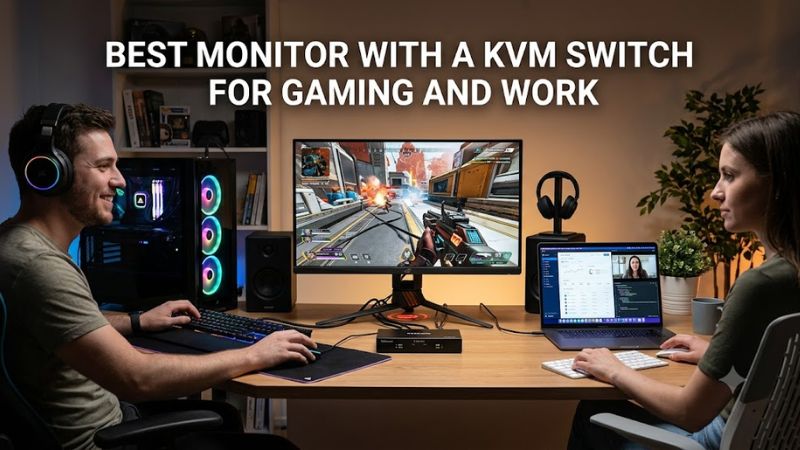
A KVM monitor needs both video and USB paths configured correctly, not merely two video inputs. The Gigabyte M32U pairs DisplayPort, HDMI 2.1, and USB-C with its KVM, while the Dell U3225QE adds Thunderbolt 4 and a separate USB-C KVM upstream connection for more elaborate desk setups.
For a best monitor with a kvm switch for gaming and work, compatibility means checking the ports on both computers before buying. A desktop can normally use DisplayPort or HDMI while a laptop may use USB-C DisplayPort Alt Mode; the USB connection required by the KVM still needs to reach the correct computer.
Match Refresh Rate to Gaming
Refresh rate matters because the work side of a dual-purpose monitor does not require the same speed as competitive gaming. The M32U reaches 144Hz at 4K, while the MSI MPG 322URX and ASUS PG32UCDP reach 240Hz at 4K. The ASUS can also switch to 1080p at up to 480Hz.
For a best monitor with a kvm switch for gaming and work, choose refresh rate according to your PC hardware rather than the headline number alone. A GPU capable of driving 4K at high frame rates is useful for 240Hz gaming, while a productivity PC may gain more from USB-C docking, text clarity, and a convenient KVM workflow.
Check USB-C Power Delivery
USB-C power delivery can turn the monitor into a central connection point for a laptop, but wattage varies considerably. The M32U supplies USB-C charging at a much lower level than premium alternatives, while the MSI MPG 322URX provides 98W and the ASUS PG32UCDP provides 90W.
If your best monitor with a kvm switch for gaming and work will replace a laptop dock, check the laptop’s charging requirement before choosing. Higher USB-C power is particularly useful for performance laptops, whereas a lighter notebook may have no difficulty operating from a lower-power USB-C connection.
Choose OLED or IPS for Your Desk
Panel choice changes the balance between gaming image quality and long-duration productivity. OLED models such as the MSI and ASUS offer very fast response characteristics and deep blacks, while the Dell U3225QE uses Enhanced IPS Black and emphasizes text clarity, ergonomics, connectivity, and office use.
For a best monitor with a kvm switch for gaming and work, OLED is attractive when gaming and HDR are major priorities, but static desktop elements create a long-term burn-in consideration. IPS avoids that specific OLED concern and can be a more natural fit when spreadsheets, browsers, development tools, and other static applications occupy the screen for many hours.
Top Picks
The four models below cover different priorities rather than one identical setup. The M32U focuses on 4K gaming with KVM at 144Hz, the MSI targets high-end 4K OLED gaming, the ASUS adds a 480Hz 1080p mode, and the Dell emphasizes productivity connectivity with 140W power delivery.
| Product | Best For | Key Spec | Compatibility | Watch Out For |
| Gigabyte M32U | Best Overall | 32-inch 4K, 144Hz, KVM | DP 1.4, HDMI 2.1, USB-C; PC/console | USB-C charging is limited |
| MSI MPG 322URX QD-OLED | Best Value | 31.5-inch 4K, 240Hz, 98W USB-C | DP 2.1 UHBR20, HDMI 2.1, USB-C | OLED burn-in risk |
| ASUS ROG Swift OLED PG32UCDP | Best For Competitive Gaming | 4K 240Hz / 1080p 480Hz | DP 1.4 DSC, HDMI 2.1, USB-C | 480Hz requires 1080p |
| Dell U3225QE | Best For Work-First Setups | 32-inch 4K, 120Hz, 140W | Thunderbolt 4, DP, HDMI, USB-C KVM | Motion handling is weaker |
Gigabyte M32U — Best Overall
The Gigabyte M32U is a practical best monitor with a kvm switch for gaming and work when 4K at 144Hz is sufficient. Its 31.5-inch SS IPS panel runs at 3840×2160 and 144Hz, while HDMI 2.1, DisplayPort 1.4 with DSC, USB-C, three USB 3.0 ports, and KVM give it broad desktop and console connectivity.
RTINGS data describes the M32U as strong for office work because of its 4K text clarity and large workspace, while its gaming data notes low input lag and good high-refresh motion handling. The weakness is image quality in dark rooms, where its mediocre contrast can make blacks appear gray.
MSI MPG 322URX QD-OLED — Best Value
The MSI MPG 322URX combines a 31.5-inch 3840×2160 QD-OLED panel with 240Hz, KVM, HDMI 2.1, DisplayPort 2.1a UHBR20, and 98W USB-C power. That makes it particularly suitable for someone who wants one display to handle a gaming desktop and a powerful work laptop without giving up high-end gaming connectivity.
For a best monitor with a kvm switch for gaming and work, the MSI’s real limitation is the OLED panel rather than its KVM feature set. RTINGS data notes excellent text clarity and gaming characteristics but also identifies burn-in as a risk from prolonged static content, while bright ambient light can raise black levels and make them appear purple.
ASUS ROG Swift OLED PG32UCDP — Best For Competitive Gaming
The ASUS ROG Swift OLED PG32UCDP is unusual because it combines 4K at 240Hz with a dual-mode option reaching 480Hz at 1080p. It also includes KVM, USB-C DisplayPort Alt Mode, three USB 3.2 Gen 1 Type-A ports, and 90W USB-C power delivery, making the display suitable for a gaming PC plus laptop arrangement.
Its main limitation is the tradeoff behind that 480Hz headline. The maximum rate applies in the reduced 1920×1080 mode rather than native 4K, so buyers wanting both maximum resolution and maximum refresh should use its 240Hz 4K mode. RTINGS data also identifies OLED burn-in as a consideration for long-term static desktop use.
Dell U3225QE — Best For Work-First Setups
The Dell U3225QE is the best monitor with a kvm switch for gaming and work when productivity is the primary requirement and gaming speed is secondary. Its 32-inch 4K Enhanced IPS Black panel reaches 120Hz, while Thunderbolt 4, USB-C KVM connectivity, multiple USB ports, and up to 140W power delivery make it function more like a display-centered workstation hub.
The tradeoff is gaming motion. RTINGS data describes the U3225QE as impressive for office work but notes bad motion handling despite its 120Hz refresh rate, making it less suitable for fast-paced games than the OLED alternatives. Buyers focused mainly on esports or high-refresh gaming should therefore look at the MSI or ASUS instead.
FAQ
Is a KVM Monitor Worth It for Two Computers?
Yes, a built-in KVM can be worthwhile when one keyboard and mouse must control two computers because the monitor can switch the USB peripherals along with the selected display source. The exact setup depends on the monitor’s upstream USB connections and the video connection used by each computer.
For a best monitor with a kvm switch for gaming and work, KVM is most useful when both computers regularly share the same desk. It is less important when one machine is rarely used or already has a dedicated keyboard, mouse, and dock, because the monitor’s switching capability may add little practical value.
Can a KVM Monitor Charge a Gaming Laptop?
Yes, but the amount of USB-C power varies by model and should be checked against the laptop’s requirements. The ASUS PG32UCDP supplies 90W, the MSI MPG 322URX supplies 98W, and the Dell U3225QE can provide up to 140W through its USB-C or Thunderbolt connectivity.
That power does not make every gaming laptop equivalent to a desktop connection. A laptop with high power demand may still require its normal AC adapter during demanding gaming, so treat monitor power delivery as a convenience rather than assuming it replaces the manufacturer’s charger.
Does KVM Affect Gaming Performance?
No, the KVM function itself does not change a monitor’s advertised refresh rate or resolution, but the selected video connection still determines what signal the computer can send. The MSI supports 4K at 240Hz through DisplayPort 2.1a or HDMI 2.1, while the M32U reaches 4K at 144Hz.
The important distinction is between KVM switching and display bandwidth. A high-refresh gaming PC still needs a compatible GPU, cable, and display output, while the USB side of the KVM handles peripherals. Connecting both computers correctly matters more than the presence of the KVM label alone.
Is OLED or IPS Better for Gaming and Work?
Neither panel type is universally better because the priority changes the tradeoff. OLED models provide the strongest contrast and very fast motion characteristics, while IPS displays such as the Dell U3225QE emphasize text clarity, connectivity, ergonomics, and long productivity sessions.
For a best monitor with a kvm switch for gaming and work, OLED makes more sense when gaming and HDR carry substantial weight, while IPS can fit a work-heavy routine with many static applications. OLED buyers should account for burn-in risk, whereas IPS buyers should pay closer attention to motion performance and contrast.
Final Thoughts
The best monitor with a kvm switch for gaming and work depends on how the two computers connect and which task dominates your day. The M32U balances 4K gaming and KVM, MSI and ASUS prioritize high-refresh OLED gaming, while Dell focuses on workstation connectivity, USB-C power, and productivity features.