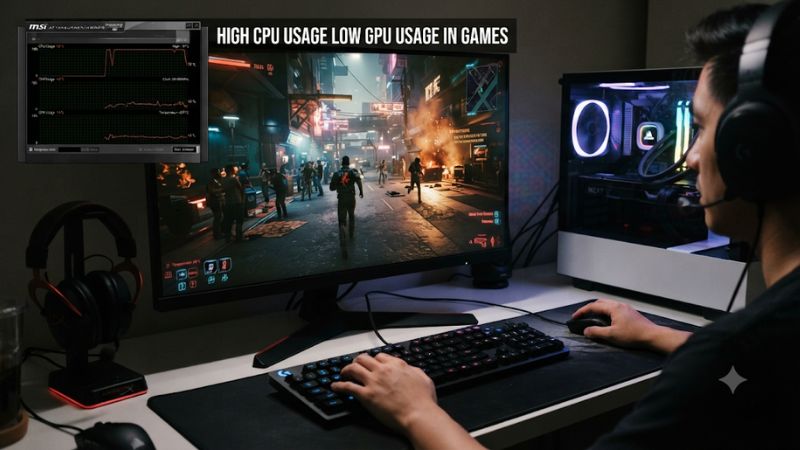
High CPU usage low GPU usage in games usually indicates a CPU bottleneck, but it can also result from background applications, frame rate limits, memory constraints, or incorrect GPU selection. This guide explains how to identify the actual cause, monitor performance, and apply practical fixes without unnecessary hardware upgrades.
What High CPU Usage and Low GPU Usage Really Comes Down To
When your processor is working hard while your graphics card remains underutilized, the GPU may be waiting for the CPU to prepare the next frame. However, utilization percentages alone cannot confirm a bottleneck. Check FPS, frame times, individual CPU cores, temperatures, and power behavior together before changing your system.
1. Understand CPU Bottlenecks in Gaming
A CPU bottleneck occurs when the processor cannot prepare game instructions quickly enough to keep the GPU busy. This commonly happens in CPU-intensive games involving complex physics, large numbers of NPCs, simulation systems, or multiplayer environments with many active players.
The important detail is that overall CPU usage can be misleading. A game may depend heavily on one or two processing threads while other cores remain relatively idle. Consequently, the total CPU percentage might look moderate even when the processor is limiting frame delivery.
2. Check Whether Your Game Is Naturally CPU-Limited
Different games distribute workloads differently. Strategy games, simulation titles, competitive shooters, and open-world games can place substantial demands on the CPU. A graphics card with considerable unused capacity does not necessarily indicate a hardware malfunction.
Resolution and graphics settings also influence the balance. Lower resolutions and reduced visual settings generally decrease GPU workload, potentially exposing CPU limitations. Increasing resolution or GPU-intensive settings may increase GPU utilization, but it does not automatically improve performance.
3. Distinguish a Real Problem From Normal GPU Behavior
Low GPU utilization is not automatically a problem. If your game consistently reaches its FPS target and delivers smooth frame times, the graphics card may simply have enough processing capacity to finish each frame without running at maximum load.
The situation deserves investigation when FPS is unexpectedly low, frame times fluctuate, or gameplay stutters despite substantial GPU headroom. In that case, high CPU usage low GPU usage becomes a useful diagnostic clue rather than a definitive diagnosis.
What Doesn’t Help
Chasing 99% GPU utilization is not a sensible performance target. Increasing graphics settings simply to make the GPU busier can reduce FPS without addressing the underlying limitation. Similarly, forcing every CPU core to maximum usage is neither necessary nor desirable.
Avoid RAM cleaner applications, registry boost scripts, and random Windows service changes advertised as gaming optimizations. They do not reliably resolve CPU bottlenecks. Start by measuring the actual workload and identifying which component or setting restricts performance.
How to Fix High CPU Usage and Low GPU Usage: Step by Step
The safest troubleshooting approach is to start with performance monitoring, then check software limits, GPU selection, and system power behavior. Change one setting at a time and compare results in the same game, location, and graphics configuration. This makes it easier to identify which adjustment actually improves performance.
| Setting or Step | Where | Effect | Risk |
| Monitor CPU and GPU | Task Manager or monitoring software | Identifies the limiting component | Low |
| Check FPS limits | In-game graphics settings | Identifies artificial GPU workload limits | Low |
| Select the dedicated GPU | Windows Graphics settings | Prevents unintended power-saving GPU selection | Low |
| Review background tasks and power | Task Manager and Windows Settings | Reduces unnecessary CPU load and power restrictions | Low to moderate |
1. Monitor CPU, GPU, and Individual Core Usage
Start by establishing a performance baseline. Open Task Manager with Ctrl + Shift + Esc, select Performance, and observe CPU, GPU, memory, and disk activity while the game is running. Also check the Processes tab to identify applications consuming significant CPU resources.
For more detailed information, use a monitoring utility such as MSI Afterburner with its hardware monitoring features. Display CPU per-core usage, GPU utilization, temperatures, clock speeds, FPS, and frame times. If one CPU thread is heavily loaded while FPS remains low, a CPU limitation becomes more likely.
2. Check FPS Caps, V-Sync, and Graphics Settings
Open your game’s Video or Graphics settings and look for Maximum FPS, Frame Rate Limit, V-Sync, and any background frame rate restriction. A frame rate cap can intentionally prevent the GPU from working harder once the selected FPS target is reached. This is normal behavior rather than evidence of a defective graphics card.
Temporarily remove an unnecessary frame cap and compare performance in the same scene. If GPU utilization increases while FPS rises, the previous limit was restricting rendering demand. Restore your preferred cap afterward if it provides smoother frame pacing, lower temperatures, or reduced power consumption.
3. Make Sure the Game Uses the Dedicated GPU
This check is particularly important on gaming laptops and computers with both integrated and dedicated graphics. If Windows assigns a game to the power-saving graphics processor, the system may not use the intended GPU for rendering. Check the actual GPU engine in Task Manager rather than assuming the dedicated card is active.
In Windows 11, navigate to Settings > System > Display > Graphics. Find your game, select Options, choose High performance, and save. Restart the game before checking utilization again. This setting is useful on supported multi-GPU systems; desktop computers with only one active graphics adapter generally do not need it.
4. Reduce Background CPU Load and Check Power Settings
Background applications can compete with games for processor time. Browsers, recording software, RGB utilities, game launchers, update services, and unnecessary overlays may contribute to CPU load. Open Task Manager > Processes and identify which applications are consuming resources during gameplay.
Close unnecessary applications and repeat the same performance comparison. On Windows 11, you can also navigate to Settings > System > Power & battery > Power mode and select Best performance when appropriate. This can increase power consumption and temperatures, particularly on laptops. Return to Balanced if the additional power draw does not provide a meaningful benefit.
Additional Checks When the Problem Persists
If the initial adjustments do not improve performance, investigate hardware behavior rather than immediately replacing components. Memory configuration, thermal throttling, and game-specific optimization can all influence how efficiently the CPU supplies work to the GPU.
Check RAM Capacity and Memory Configuration
Insufficient system memory can cause performance problems when a game competes with background applications for available RAM. Watch memory usage in Task Manager > Performance > Memory. If usage approaches capacity and disk activity increases, memory pressure may contribute to stuttering and inconsistent frame delivery.
Also check whether your memory is operating in the intended configuration. Dual-channel memory can improve CPU-side performance in systems that support it, although the benefit varies by platform and game. Check motherboard documentation and BIOS settings before changing memory configuration. Do not assume that purchasing faster RAM will automatically resolve a CPU bottleneck.
Monitor CPU Temperature and Clock Speeds
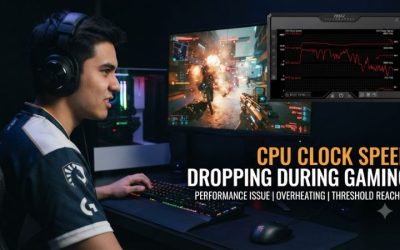
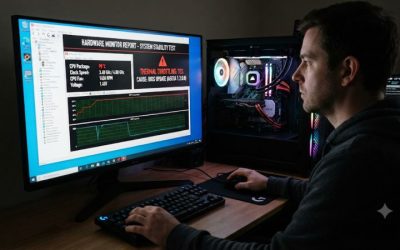
High CPU temperatures can cause thermal throttling, reducing processor clock speeds under sustained workloads. Monitor CPU temperature and effective clock speeds during the actual game rather than relying on idle readings. Compare the results with the processor manufacturer’s specifications for your particular model.
If temperatures are unusually high and clock speeds fall under sustained load, inspect the cooling system. Check whether fans operate correctly, heatsinks are unobstructed, and desktop CPU coolers are mounted securely. For laptops, keep ventilation openings clear and use the manufacturer’s recommended performance profile. Avoid changing voltage or overclocking settings before identifying the thermal issue.
Check Drivers and Game-Specific Problems
An outdated, corrupted, or incompatible graphics driver can contribute to unusual performance behavior. Check Windows Update and the official NVIDIA, AMD, or Intel driver support resources for your graphics hardware. Also check whether the game has a known performance issue associated with a recent update.
If the problem began immediately after a driver update, consider whether the previous driver version was more stable for your particular system. Driver rollback should be based on a reproducible change, not performed automatically. Avoid third-party driver updater utilities and unnecessary driver-cleaning procedures when the existing installation is working correctly.
Compare Performance Across Different Games
Run another game that places a different workload on your hardware. If the processor is heavily loaded and GPU usage remains low in several demanding games, investigate the CPU, memory, cooling, and background software more closely.
If the issue appears in only one title, its engine, graphics configuration, or game-specific optimization may be responsible. Compare the same resolution and settings, check for updates, and consult the game’s official support information. A hardware upgrade should be the last decision, after you establish which component actually limits performance.
FAQ
1. Why Is My CPU at 100% While My GPU Is at 30%?
Your CPU may be limiting how quickly the game prepares frames for the graphics card. This often happens in CPU-intensive games, particularly when one or more processing threads become heavily loaded.
Check individual CPU core usage, FPS, and frame times before deciding that your processor is underpowered. Background applications and thermal throttling are also possible explanations.
2. Does High CPU Usage and Low GPU Usage Mean I Need a Better CPU?
No, you do not necessarily need a CPU upgrade. First determine whether the processor is actually limiting performance or whether software settings, memory pressure, or cooling problems are responsible.
If the same CPU limitation appears consistently across demanding games, an upgrade may eventually make sense. Compare the performance requirements of your games against your current processor before spending money.
3. Can Increasing Graphics Settings Fix Low GPU Usage?
Yes, increasing GPU-intensive graphics settings can increase GPU utilization when the processor has sufficient capacity to supply frames. Higher resolution, rendering quality, and demanding visual effects can shift more work toward the graphics card.
However, this approach may reduce FPS and does not fix an underlying CPU limitation. Choose settings according to your desired frame rate and image quality rather than trying to achieve a particular utilization percentage.
4. Is High CPU Usage While Gaming Bad for My PC?
No, high CPU usage alone does not mean your processor is being damaged. Modern processors are designed to handle demanding workloads, provided their temperatures and operating conditions remain within manufacturer specifications.
Investigate persistent performance drops, abnormal temperatures, unexpected shutdowns, and clock speed reductions. If these symptoms continue after basic troubleshooting, consult a qualified technician or the hardware manufacturer’s support service.
Final Thoughts
High CPU usage low GPU usage in games is a performance symptom, not an automatic reason to replace your hardware. Start by checking individual CPU cores, FPS limits, temperatures, memory, and GPU selection. Change one setting at a time, compare results, and consider upgrades only after identifying the actual bottleneck.