🛒 Best Price Today on Amazon
Prime members get fast, free shipping on everything above, plus member-only deals. New members get a 30-day free trial — cancel anytime.
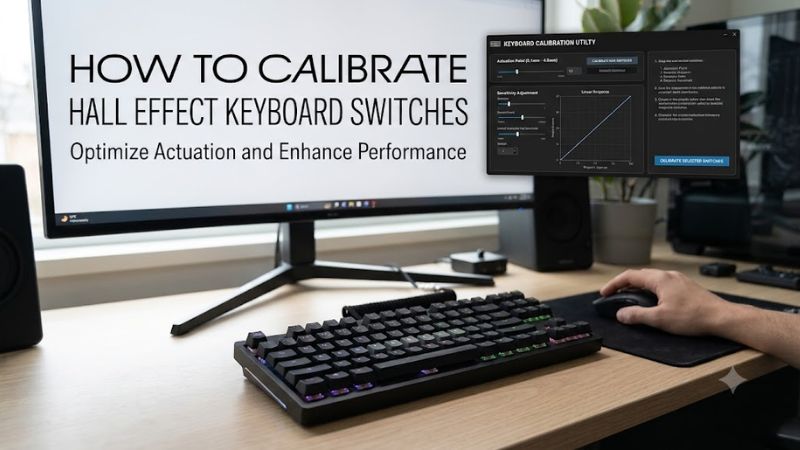
Hall Effect keyboards use magnetic sensors to detect key movement, allowing adjustable actuation and Rapid Trigger settings. How to calibrate Hall Effect keyboard switches depends on the keyboard’s firmware, sensor design, and configuration software. This guide explains calibration, key settings, and ways to resolve inconsistent input.
What Hall Effect Switch Calibration Really Comes Down To
Calibrating Hall Effect switches means configuring how the keyboard interprets each key’s physical movement. Unlike conventional mechanical switches, magnetic switches can support adjustable actuation points and release behavior. The exact controls vary by manufacturer, so start with the keyboard’s official software rather than applying settings intended for another model.
1. Understand How Magnetic Calibration Works
Hall Effect switches use magnets and sensors to detect changes in the distance between the moving switch stem and the sensor on the keyboard’s PCB. Firmware translates those readings into keypress and release events. This design allows more control over when a key registers compared with a conventional fixed-contact switch.
Calibration establishes or updates the sensor’s usable movement range. Depending on the keyboard, the software may perform an automatic calibration routine, establish a reference position, or let you adjust actuation and release behavior directly. These processes are related, but they are not necessarily the same operation.
2. Check Your Keyboard’s Calibration Software
Before changing settings, identify the exact keyboard model and download its official configuration software or open its supported web-based configurator. Wooting keyboards, for example, use Wootility, while other manufacturers provide their own applications. Available controls and calibration procedures differ between models.
Check the manufacturer’s documentation for firmware requirements and supported calibration functions. Some keyboards provide automatic sensor calibration, while others expose adjustable actuation, Rapid Trigger, and deadzone settings without a separate manual calibration procedure. Do not assume every Hall Effect keyboard has identical controls.
3. Understand Actuation, Rapid Trigger, and Deadzones
Actuation point determines how far a key must travel before the keyboard registers a press. A shorter actuation distance can make input register earlier, while a longer distance requires more physical movement. The appropriate setting depends on the game, typing habits, and how easily you accidentally press keys.
Rapid Trigger changes the point at which a key releases and can register again based on its movement rather than waiting for a conventional fixed reset point. Deadzones define movement regions where small sensor fluctuations are ignored. These settings influence input behavior, but neither replaces the manufacturer’s calibration procedure.
What Doesn’t Help
Installing generic keyboard drivers, repeatedly changing USB ports, or randomly adjusting actuation values does not calibrate a magnetic sensor. These actions may help diagnose a connection or configuration problem, but they cannot replace a supported sensor calibration routine.
Avoid copying another keyboard’s settings without checking its sensor design and firmware. Two Hall Effect keyboards can have different movement ranges, software controls, and default values. Aggressive settings may also make accidental inputs more likely, particularly during normal typing.
How to Calibrate Hall Effect Keyboard Switches: Step by Step
The correct calibration procedure depends on the keyboard manufacturer. Some models automatically establish sensor reference positions when powered on, while others provide a dedicated recalibration option or hardware shortcut. Follow the applicable procedure below, then configure actuation and Rapid Trigger only after the keyboard detects every key correctly.
1. Prepare the Keyboard Before Calibration
Start by disconnecting the keyboard if the manufacturer’s procedure requires a power cycle. Place it on a stable, level surface and remove anything that could interfere with the switches. If you have recently installed replacement switches, check that each one is compatible with the keyboard’s magnetic sensor system.
Keep your fingers away from the keys during startup calibration when the manufacturer recommends it. This is particularly important for Wooting keyboards, which establish resting-position readings during power-up. Wooting also advises avoiding nearby magnetic interference during this process.
Wooting Store Knowledge Base+1
2. Run the Manufacturer’s Calibration Procedure
Open the official configuration utility and look for a calibration or recalibration option. Follow the on-screen instructions rather than assuming that changing the actuation distance performs sensor calibration. If the keyboard requires a physical shortcut, check the official instructions for the exact model first.
For example, SteelSeries documents a dedicated procedure for supported keyboards after switch installation. It requires SteelSeries GG 30.0 or later and current keyboard firmware. The documented procedure uses the SteelSeries key and I/O shortcut during connection, followed by pressing each key until its lighting changes to indicate calibration.
Support
3. Adjust the Actuation Point
After calibration, open the actuation settings in your keyboard’s configuration software. Select an individual key or a group of keys, then adjust the activation depth. A shallower setting registers a press earlier, while a deeper setting requires more movement before the input activates.
For gaming, you can use more responsive settings on frequently repeated movement keys while keeping ordinary typing keys less sensitive. Start with moderate values and change one setting at a time. If accidental presses occur, increase the actuation distance rather than immediately repeating the calibration process.
4. Configure Rapid Trigger and Verify Input
Enable Rapid Trigger only if your keyboard supports it. This feature changes how a key resets as it moves upward, allowing another press to register without waiting for a conventional fixed reset point. It is particularly useful for repeated movement inputs in competitive games.
Use the software’s key visualization or input-testing feature to check whether each key registers consistently. Press slowly, release completely, and repeat at different depths. If the keyboard displays unexpected activation or release behavior, return to moderate settings and check whether another calibration procedure is available for your model.
| Setting or Step | Where | Effect | Risk |
| Sensor calibration | Manufacturer’s software or startup procedure | Establishes switch-position reference readings | Incorrect startup conditions can affect detection |
| Actuation distance | HE or switch configuration menu | Controls how far a key travels before activation | Very shallow settings can cause accidental inputs |
| Rapid Trigger | Switch configuration menu | Changes the reset behavior during key movement | Excessive sensitivity can cause inconsistent-feeling inputs |
| Input verification | Key tester or analog monitor | Identifies missed, stuck, or unexpected inputs | Incorrect interpretation of software readings |
5. Calibrate Specific Keyboard Brands Correctly
Different manufacturers implement calibration differently, so use the appropriate procedure for your device.
- Wooting: Its keyboards perform a calibration phase during power-up. Disconnect the keyboard, keep it away from potential magnetic interference, reconnect it without pressing keys, and allow the startup process to finish. Wooting recommends waiting before checking whether an unresponsive switch has recovered.
Wooting Store Knowledge Base+1 - Keychron: Open Keychron Launcher, connect a supported keyboard, and use the HE Mode controls. Keychron documents adjustable actuation and Rapid Trigger settings. Its support guidance also recommends calibrating affected keys through Launcher when troubleshooting stuck inputs.
Keychron+1 - SteelSeries: For supported models, use the official calibration-mode shortcut after installing replacement switches. Update GG and keyboard firmware as instructed, then press every key during calibration.
Support
Do not combine these procedures. A shortcut intended for one SteelSeries keyboard should not be assumed to work on a Wooting or Keychron model.
FAQ
1. How often should you calibrate Hall Effect keyboard switches?
You should calibrate Hall Effect switches when the manufacturer recommends it, after certain firmware updates or switch replacements, or when input behavior becomes inconsistent. Routine recalibration is generally unnecessary if the keyboard works normally. Check the manufacturer’s documentation before repeating the procedure.
2. Why are some Hall Effect keyboard keys not registering?
Unresponsive keys can result from incorrect startup calibration, magnetic interference, incompatible replacement switches, or software configuration problems. Disconnecting and reconnecting the keyboard under the manufacturer’s recommended conditions is a useful first diagnostic step. If one key remains unresponsive, check its switch and input mapping.
3. Does Rapid Trigger require calibration?
Rapid Trigger does not necessarily require a separate sensor calibration procedure. It is a configurable input feature that depends on the keyboard’s existing magnetic sensing system. Calibrate the keyboard when required, then enable Rapid Trigger through its supported configuration software.
4. What is the best actuation distance for gaming?
There is no universally best actuation distance because the appropriate setting depends on your keyboard, game, and typing habits. Shallower settings can help with repeated movement inputs, while deeper settings can reduce accidental presses. Adjust individual keys gradually and verify their behavior before using the configuration in competitive matches.
Final Thoughts
Learning how to calibrate Hall Effect keyboard switches starts with understanding your keyboard’s manufacturer-specific procedure. Complete sensor calibration before adjusting actuation and Rapid Trigger, then verify every key. If problems persist, investigate switch compatibility and sensor interference before considering hardware replacement.