🛒 Best Price Today on Amazon
Prime members get fast, free shipping on everything above, plus member-only deals. New members get a 30-day free trial — cancel anytime.
If you need to know how to check what graphics card you have, Windows already provides several built-in ways to identify the GPU without opening your PC. Device Manager gives the adapter name, Task Manager adds live usage and memory information, while DxDiag provides driver and diagnostic details.
Quick answer: Our top pick in 2026 is the Setting — our #1 rated choice. See the full ranked comparison, alternatives and buying advice below.
What Your Graphics Card Check Really Comes Down To
The simplest answer is to open Device Manager and expand Display adapters, but the best method depends on what information you need. Windows can show integrated and discrete GPUs separately, so checking only one screen may not tell the whole story on a laptop or desktop with multiple graphics adapters.
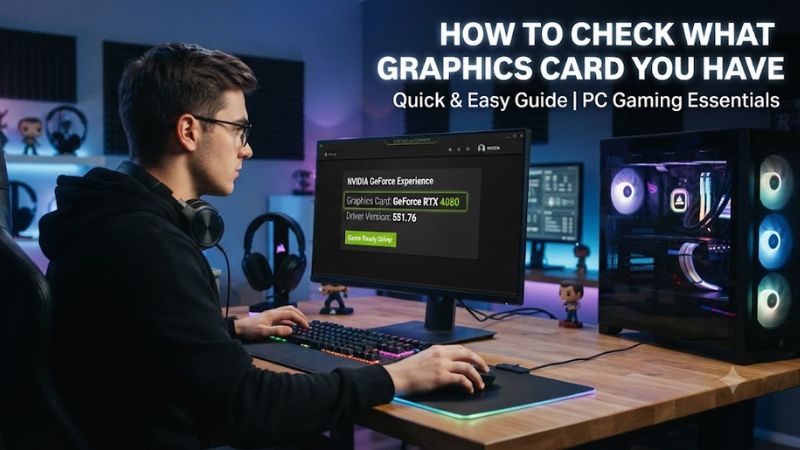
Device Manager identifies the installed adapters
Device Manager is the clearest starting point when you want the model name Windows currently recognizes. Open Start, search for Device Manager, open it, then expand Display adapters. Each listed entry represents a graphics adapter detected by Windows, including integrated graphics when present.
If you are asking what graphics card does my PC have, read the complete name rather than only the manufacturer. A name containing NVIDIA GeForce, AMD Radeon, or Intel graphics gives you the vendor and product family, while multiple entries can indicate more than one GPU is available.
Task Manager adds useful live information
Task Manager is useful when you want more than the GPU model. Press Ctrl + Shift + Esc, select Performance, then select the relevant GPU entry. Windows can display GPU utilization and memory information alongside the adapter name, making this a useful second check after Device Manager.
This method is especially useful on gaming laptops because Windows may expose more than one GPU. If GPU 0 and GPU 1 both appear, check both names before deciding which graphics processor your system has. The numbering itself should not be treated as a universal rule for identifying the dedicated GPU.
Windows Settings shows the display adapter
Settings provides another straightforward route. Open Settings, choose System, select Display, then open Advanced display. The Display information area can show graphics information associated with the selected display, which makes this useful when you want to see which adapter is associated with a particular screen.
The important limitation is that display information and the complete list of installed GPUs are not necessarily the same thing. If you have multiple adapters, use Device Manager as the broader inventory and Settings as supporting information about the selected display connection.
DxDiag helps when you need driver details
DirectX Diagnostic Tool, commonly called DxDiag, is useful when the purpose of checking your GPU is troubleshooting or sharing system information. Search for dxdiag from Start and open it, then inspect the Display tab for graphics-device and driver information. Microsoft also supports saving the report for sharing.
If DxDiag contains more than one Display tab, Windows has detected multiple display adapters. Check each tab rather than assuming the first entry represents every graphics device. This distinction matters on systems that combine integrated graphics with a separate NVIDIA or AMD GPU.
How to Check What Graphics Card You Have: Step by Step
For most Windows users, start with Device Manager for the model, then use Task Manager when you need memory or current usage, and DxDiag when you need diagnostic information. These built-in tools require no additional hardware and cover the main questions behind identifying a PC’s graphics processor.
| Setting | Where | Effect | Risk |
| Display adapters | Device Manager | Shows detected GPU names | None |
| GPU performance | Task Manager | Shows model, usage and memory information | None |
| Advanced display | Windows Settings | Associates graphics information with a display | None |
| Display tab | DxDiag | Shows graphics and driver details | None |
Start with Device Manager for the model
Press the Windows key, type Device Manager, and open the result. Expand Display adapters and record every GPU name shown. This is the most direct answer to how to see what graphics card I have because the list comes from Windows’ detected display hardware rather than from a game or benchmark application.
If an adapter appears as Microsoft Basic Display Adapter instead of its expected manufacturer model, the issue may be the installed display driver rather than the physical hardware. Microsoft says this generic driver is used when a manufacturer-specific driver is unavailable or not installed, so the displayed name may not identify the GPU precisely.
Use Task Manager to confirm the GPU
Open Task Manager with Ctrl + Shift + Esc, select Performance, and inspect the GPU entries. This provides a practical way to answer what graphics card do I have while also checking current GPU activity and memory information. It is particularly useful when two graphics adapters are present.
If the computer has integrated and dedicated graphics, record both names before checking game requirements. A game may use a different adapter from the one you first notice in another Windows screen, so the complete GPU list gives a more useful picture of the system’s graphics hardware.
Check Advanced display when the monitor matters
Open Settings, go to System, Display, and Advanced display, then select the relevant display if more than one is connected. This can show the graphics information associated with that display and is useful when you are trying to determine which adapter is driving a particular monitor.
This screen should complement rather than replace Device Manager. If you are trying to answer how to check graphics card details for an upgrade or game requirement, the complete adapter list is more useful than information associated with only one display connection.
Run DxDiag for a shareable diagnosis
Search for dxdiag and open DirectX Diagnostic Tool, then review the Display section. Microsoft describes DxDiag as a way to report detailed DirectX components and drivers, and its Save All Information option can create a report that is easier to share when troubleshooting a game or graphics problem.
If you are looking for a graphics card test, remember that identifying the GPU is not the same as measuring gaming performance. DxDiag can provide diagnostic information, but an actual performance test requires a benchmark or game workload at a defined resolution and settings. No benchmark result should be inferred simply from the model name.
What to Do With the GPU Information
Once you know the exact adapter name, use it as the starting point for checking game requirements, driver support, troubleshooting instructions, or upgrade compatibility. The model name is more useful than a generic label such as “gaming GPU,” because different products within the same family can have substantially different capabilities.
Check the exact model before comparing requirements
When you find your graphics card, copy its complete model name into the game’s system requirements rather than searching only for the manufacturer. For example, NVIDIA GeForce and AMD Radeon identify broad product families, while the model designation determines which specific GPU the requirement refers to. This prevents comparisons based on an incomplete name.
If you are trying to find what graphics card I have before buying a game, also check whether the requirement refers to a minimum or recommended GPU. Your GPU model alone does not establish expected frame rates because resolution, graphics settings, CPU performance, memory, drivers, and the game’s workload can all affect performance.
Separate integrated and dedicated graphics
Integrated graphics share the processor platform rather than being a separate expansion card, while a dedicated GPU is a separate graphics processor used for higher graphics workloads. Windows can list both, so seeing two entries is not automatically a sign of a problem or duplicate hardware.
On a laptop, this distinction matters because applications can use different adapters depending on the system’s graphics configuration. If you are asking how to see graphics card information for gaming, identify every adapter first and then determine which one the game is configured to use rather than assuming the first listed device is the gaming GPU.
Investigate missing or generic GPU names
A missing expected GPU deserves more attention than an unfamiliar model name. Microsoft notes that Windows can use Microsoft Basic Display Adapter when the manufacturer’s graphics driver is unavailable or not installed, and recommends using the manufacturer’s driver when appropriate.
If Device Manager shows a generic adapter, compare the result with DxDiag and then check the computer or GPU manufacturer’s driver support. Do not treat a generic driver label as definitive evidence that the physical graphics hardware has changed, because the software driver can affect what Windows reports.
Use the result before considering an upgrade
Knowing the GPU model is useful for an upgrade decision, but compatibility requires more than identifying the existing card. A desktop graphics-card upgrade can also involve the motherboard slot, power supply capacity and connectors, case space, cooling, and the display outputs required by your monitor setup. Those details must be checked separately for the specific replacement.
For troubleshooting, the GPU name can also guide driver research. Microsoft recommends checking the manufacturer’s driver when Windows is using its generic display adapter, while Device Manager provides the starting point for identifying the adapter and its available driver information.
FAQ
How can I quickly check what graphics card I have?
The quickest built-in method is to open Device Manager and expand Display adapters. The entries show the graphics adapters Windows recognizes, so you can read the exact model name without opening the PC or installing another utility.
If you need usage and memory information at the same time, Task Manager is a better second step. Press Ctrl + Shift + Esc, select Performance, and choose the GPU entry to see additional graphics information.
What graphics card does my PC have if two GPUs appear?
Your PC has two detected graphics adapters if Device Manager or Task Manager lists two separate GPU entries. One can be integrated graphics while the other is a dedicated GPU, particularly on laptops and some desktop configurations.
Do not identify the gaming GPU solely from the GPU number or its position in the list. Read both model names and use Task Manager or the relevant application settings to determine which adapter is being used for a particular workload.
How do I see my GPU memory and driver information?
Task Manager can show GPU memory information, while DxDiag provides graphics and driver details in its Display section. These tools are useful when the reason for checking the GPU goes beyond simply finding its model name.
The available fields can vary with the hardware, driver, and Windows configuration, so do not assume every computer will display identical information. If a support technician asks for system details, DxDiag can save a report that is easier to share.
What should I do if Windows shows Microsoft Basic Display Adapter?
If Windows shows Microsoft Basic Display Adapter, check the display driver before assuming that the computer has an unknown graphics card. Microsoft explains that this generic driver can appear when a manufacturer-specific display driver is unavailable or not installed.
Check Device Manager, then use the computer or GPU manufacturer’s driver source when appropriate. If the expected adapter still does not appear, the next step is hardware-specific troubleshooting rather than treating the generic name as the final GPU identification.
Final Thoughts
Knowing how to check what graphics card you have starts with Device Manager, while Task Manager and DxDiag add useful confirmation and diagnostic information. Check every listed adapter, distinguish integrated from dedicated graphics, and use the exact model name when comparing games, drivers, or future hardware upgrades.
Ready to decide? Our #1 pick for 2026 is the Setting.
Live price & availability on Amazon.