🛒 Best Price Today on Amazon
Prime members get fast, free shipping on everything above, plus member-only deals. New members get a 30-day free trial — cancel anytime.
Understanding GPU hotspot temperature vs core temperature helps you determine whether your graphics card is operating normally or experiencing a cooling problem. Although both readings measure GPU heat, they represent different areas of the chip. This guide explains their differences, acceptable temperature behavior, and how to investigate unusually high readings.
What GPU Hotspot Temperature and Core Temperature Really Mean
GPU core temperature and hotspot temperature describe two different thermal measurements from the graphics processor. The core reading generally represents an average or edge temperature, while the hotspot identifies the hottest monitored area of the GPU die. Understanding this distinction helps explain why two readings can differ considerably during gaming.
1. What Is GPU Core Temperature?
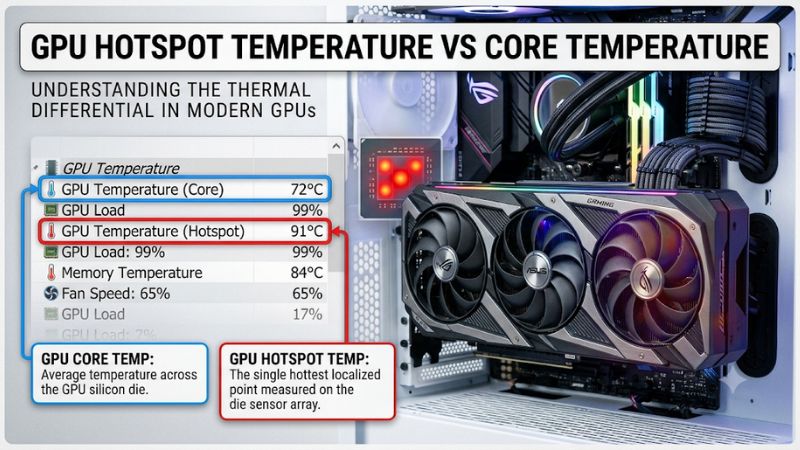
GPU core temperature, sometimes labeled GPU Temperature or GPU Edge Temperature, represents the general thermal condition of the graphics processor. Depending on the GPU architecture and monitoring software, it may reflect an edge sensor or an average derived from multiple measurements.
This is usually the temperature displayed in basic monitoring dashboards and gaming overlays. It provides a convenient overview of GPU operating conditions, but it cannot reveal every localized temperature difference across the silicon. A relatively low core reading does not automatically mean every part of the chip is equally cool.
2. What Is GPU Hotspot Temperature?
GPU hotspot temperature, also called junction temperature or GPU Hot Spot, measures the hottest monitored location on the GPU die. Modern graphics processors contain multiple temperature sensors that help identify localized heat concentrations rather than relying exclusively on one general reading.
When comparing GPU hotspot temperature vs core temperature, remember that the hotspot is expected to be higher because it represents the warmest monitored region. Its value can change rapidly depending on workload, power consumption, cooling efficiency, and how heat transfers from the silicon to the cooler.
3. Why Are the Two Readings Different?
GPU dies do not generate heat uniformly. Different processing units can experience different workloads, and some areas may become warmer because they handle more intensive calculations. Consequently, the hottest monitored location can operate noticeably above the general GPU temperature.
Cooling contact also affects this difference. Thermal paste, mounting pressure, heatsink contact, and cooler design influence how efficiently heat moves away from the GPU die. A consistently widening temperature gap may indicate uneven heat transfer, although sensor behavior and GPU design must also be considered.
4. Is a Higher Hotspot Temperature Normal?
Yes, a higher hotspot reading is normal because the sensor measures a localized maximum rather than the general temperature of the chip. A difference between the readings does not automatically indicate defective thermal paste or an overheating graphics card.
For example, a GPU reporting 65°C core temperature and 80°C hotspot temperature has a 15°C difference. That alone is not sufficient to diagnose a problem. You should also consider the absolute hotspot temperature, GPU model, sustained workload, fan behavior, and whether thermal throttling occurs.
How to Monitor and Interpret GPU Temperatures: Step by Step
Monitoring GPU hotspot temperature vs core temperature requires more than checking a single maximum reading. You should observe both measurements under comparable workloads, calculate their difference, and determine whether the GPU is approaching its model-specific thermal limits. The following steps help distinguish normal temperature variation from possible cooling problems.
Step 1: Check Both Temperatures Using Monitoring Software
Recommended tool: HWiNFO
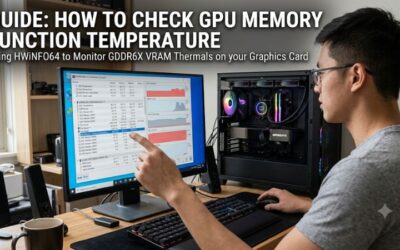
HWiNFO provides detailed hardware monitoring through its Sensor Status window. Open the application, locate the GPU sensor section, and look for GPU Temperature, GPU Core Temperature, or GPU Hot Spot Temperature, depending on the graphics card and available sensor labels.
Not every graphics card exposes the same measurements. Some NVIDIA GPUs may provide a maximum-temperature sensor rather than a separately labeled hotspot reading. If your hardware does not report a particular value, do not assume that another temperature label represents the same measurement.
Step 2: Calculate the Temperature Difference
The temperature difference, often called the hotspot delta, is calculated by subtracting the general GPU temperature from the hotspot temperature.
For example:
- GPU core temperature: 68°C
- GPU hotspot temperature: 88°C
- Temperature difference: 20°C
A consistent difference provides useful information about thermal distribution across the GPU die. However, there is no universal delta that identifies every healthy or defective graphics card. Cooler designs, sensor implementations, workloads, and GPU generations can produce different results.
Step 3: Monitor Temperatures During Gaming
Idle temperatures are useful for checking basic cooling behavior, but gaming provides more meaningful information about thermal performance under load. Start a demanding game, play for a consistent period, and monitor both readings alongside GPU utilization, fan speed, clock speed, and power consumption.
Use the same game and graphics settings when comparing different sessions. A sudden hotspot increase accompanied by reduced clock speeds or unusual fan activity deserves further investigation. A brief temperature spike, however, does not necessarily indicate a persistent cooling issue.
Step 4: Compare Readings With the GPU’s Thermal Limits
Thermal limits vary between graphics cards, so avoid applying one temperature threshold to every NVIDIA GeForce or AMD Radeon model. Check the manufacturer’s specifications for your exact GPU rather than relying on generic temperature charts.
NVIDIA explains that its GPUs can reduce performance when reaching their specified maximum operating temperature. Some AMD Radeon models also have documented junction-temperature limits. For example, AMD’s Radeon RX 6000 series has been associated with a 110°C junction limit, but this should not be treated as a universal specification for every Radeon generation.
The following table summarizes how to interpret common monitoring situations. These are diagnostic examples, not universal temperature classifications.
| Setting or Step | Where | Effect | Risk |
| Check core temperature | HWiNFO Sensors | Shows general GPU thermal behavior | Low; sensor may use different naming |
| Check hotspot temperature | GPU sensor section | Identifies the hottest monitored area | Low; not supported on every GPU |
| Calculate hotspot delta | Compare both readings | Reveals differences in thermal distribution | Low; delta alone cannot diagnose faults |
| Check thermal throttling | Monitoring software and GPU specifications | Identifies temperature-related performance restrictions | Low; avoid changing clock settings during diagnosis |
What Temperature Differences Should Concern You?
A small or moderate difference between the readings is generally expected. However, a consistently widening gap under similar workloads deserves attention, especially when accompanied by unusually high hotspot temperatures.
Consider the following examples:
| Core Temperature | Hotspot Temperature | Difference | Interpretation |
| 55°C | 68°C | 13°C | A relatively modest difference |
| 65°C | 85°C | 20°C | Evaluate alongside model and workload |
| 70°C | 95°C | 25°C | Monitor sustained temperatures and cooling |
| 75°C | 105°C | 30°C | Investigate thermal behavior and throttling |
These examples illustrate possible monitoring scenarios, not guaranteed safe or unsafe ranges. A GPU operating at a 20°C difference may be perfectly functional, while another card with a smaller difference could still have an excessive absolute temperature.
What Doesn’t Help
Changing settings without understanding the thermal readings can make diagnosis more difficult. Several common approaches are unlikely to solve the underlying problem:
- Ignoring hotspot temperature: A comfortable core reading does not rule out localized overheating.
- Increasing fan speed immediately: Higher fan speeds may reduce temperatures but do not identify the cause of poor thermal transfer.
- Applying another GPU’s temperature limits: Different architectures and cooler designs have different operating specifications.
- Increasing GPU voltage or clock speeds: Additional power consumption can increase heat and make an existing cooling problem worse.
- Replacing thermal paste immediately: Disassembly can damage components, affect warranty coverage, or introduce new thermal-contact problems.
Start with monitoring, airflow inspection, and manufacturer specifications before considering physical intervention.
FAQ: GPU Hotspot Temperature vs Core Temperature
1. Is GPU Hotspot Temperature More Important Than Core Temperature?
Neither measurement should be considered independently because they provide different information about GPU thermal behavior. Core temperature helps assess general operating conditions, while hotspot temperature identifies localized heat concentrations.
If you only monitor the general GPU temperature, you may overlook a localized thermal issue. Conversely, focusing exclusively on hotspot temperature without checking clock speeds, power consumption, and thermal limits can lead to unnecessary concern.
For gaming, monitoring both readings provides a more complete picture. Pay particular attention to sustained hotspot temperatures and whether the GPU reduces its operating frequency under heavy workloads.
2. What Is a Normal Difference Between GPU Core and Hotspot Temperature?
There is no officially universal temperature difference that applies to every graphics card. A difference of 10–20°C can occur during demanding workloads, but the appropriate range depends on the specific GPU, cooler, and operating conditions.
A consistently larger difference may indicate uneven thermal contact, degraded thermal interface material, or mounting-pressure problems. However, it should not be treated as proof of a defect without additional evidence.
Compare repeated readings from the same GPU under similar workloads. If the difference increases significantly over time, consult the graphics card manufacturer’s support documentation.
3. Can a GPU Hotspot Reach 100°C Without Being Damaged?
Yes, some graphics cards can operate at hotspot temperatures around 100°C without immediately experiencing hardware damage. However, whether that temperature is acceptable depends on the GPU’s specified junction limit and thermal-management behavior.
PowerColor, for example, explains that hotspot readings measure the hottest sensor location and can reach around 100°C under heavy workloads within the operating range of applicable products. This should not be interpreted as permission to run every GPU at that temperature.
Check your exact model’s specifications and monitor for thermal throttling, instability, or unexpected performance reductions. Persistent readings close to the specified limit deserve investigation.
4. Should I Replace GPU Thermal Paste if Hotspot Temperature Is High?
Not automatically, because high hotspot temperatures can result from several different cooling conditions. Dust accumulation, restricted case airflow, cooler mounting pressure, thermal interface degradation, and unusually demanding workloads can all contribute.
First, inspect the case ventilation, clean accessible dust filters, and compare temperatures under consistent gaming conditions. If the hotspot remains unusually high and the temperature difference continues widening, contact the graphics card manufacturer or an authorized repair service.
GPU disassembly should be a last resort, particularly when the card remains under warranty. Incorrect thermal pad thickness, uneven mounting pressure, or improper paste application can create additional cooling problems.
Final Thoughts
Understanding GPU hotspot temperature vs core temperature helps you identify thermal behavior that ordinary GPU monitoring may overlook. Monitor both readings during gaming, compare sustained results against your graphics card’s specifications, and investigate unusual temperature patterns before attempting repairs. Start with airflow and sensor checks rather than unnecessary hardware disassembly.